
When your Samsung Galaxy S26+ can't get a GPS lock, it's more than just an inconvenience. You might be stuck with a spinning icon in Google Maps or Waze, or your location might be wildly inaccurate. Since this is a brand new device running One UI 8.5, there's a chance a software bug is the culprit, but the usual suspects are still worth checking first.
I'd start with the quick refresh methods. They take about 30 seconds and solve a lot of temporary glitches.
Refresh Your GPS Connection
Swipe down twice from the top of your screen to open the full Quick Settings panel. Find the Location icon and tap it to turn it off. Wait about 10 seconds, then tap it again to turn it back on. This simple reset forces the GPS radio to reacquire signals from scratch.
Next, try a full device restart. Press and hold the Side key and Volume Down button together for about 10 seconds until you see the Samsung logo. This clears out any system processes that might be interfering with location services.
Check Your Location Settings and Permissions
Open your Settings and go to Location. Make sure the main toggle at the top is switched on. While you're there, tap on Location services and ensure the mode is set to High accuracy.
This setting uses GPS, Wi-Fi, and mobile networks together to give you the fastest and most precise lock. If it's set to Battery saving or Device only, your Maps app might struggle.
You also need to verify the app itself has permission. Go to Settings > Apps, find Google Maps (or whatever navigation app you're using), and tap Permissions. Make sure Location is set to "Allow all the time" or at least "Allow only while using the app."
Disable Power Saving Modes
One UI's power saving features are aggressive and can severely limit background GPS activity. Go to Settings > Battery. If any power saving mode is enabled, like Light or Adaptive, turn it off temporarily to test your GPS.
Also, check for any app-specific battery optimizations. In the same Battery menu, tap Background usage limits. If Maps is listed under Sleeping or Deep sleeping apps, remove it from those lists.
Update Everything
Early software versions often have bugs. Head to Settings > Software update and tap Download and install. If there's a One UI 8.5 patch available, get it installed. These updates frequently include stability fixes for system components like GPS.
Don't forget the app itself. Open the Google Play Store, tap your profile icon, and go to Manage apps and device. See if there's an update pending for Google Maps, Waze, or Samsung's own "Maps" app if you use it.
Clear the App's Cache and Data
Corrupted temporary files can cause all sorts of weird behavior. Go to Settings > Apps, select Google Maps, and then tap Storage. Tap Clear cache first. This is safe and won't delete your saved places.
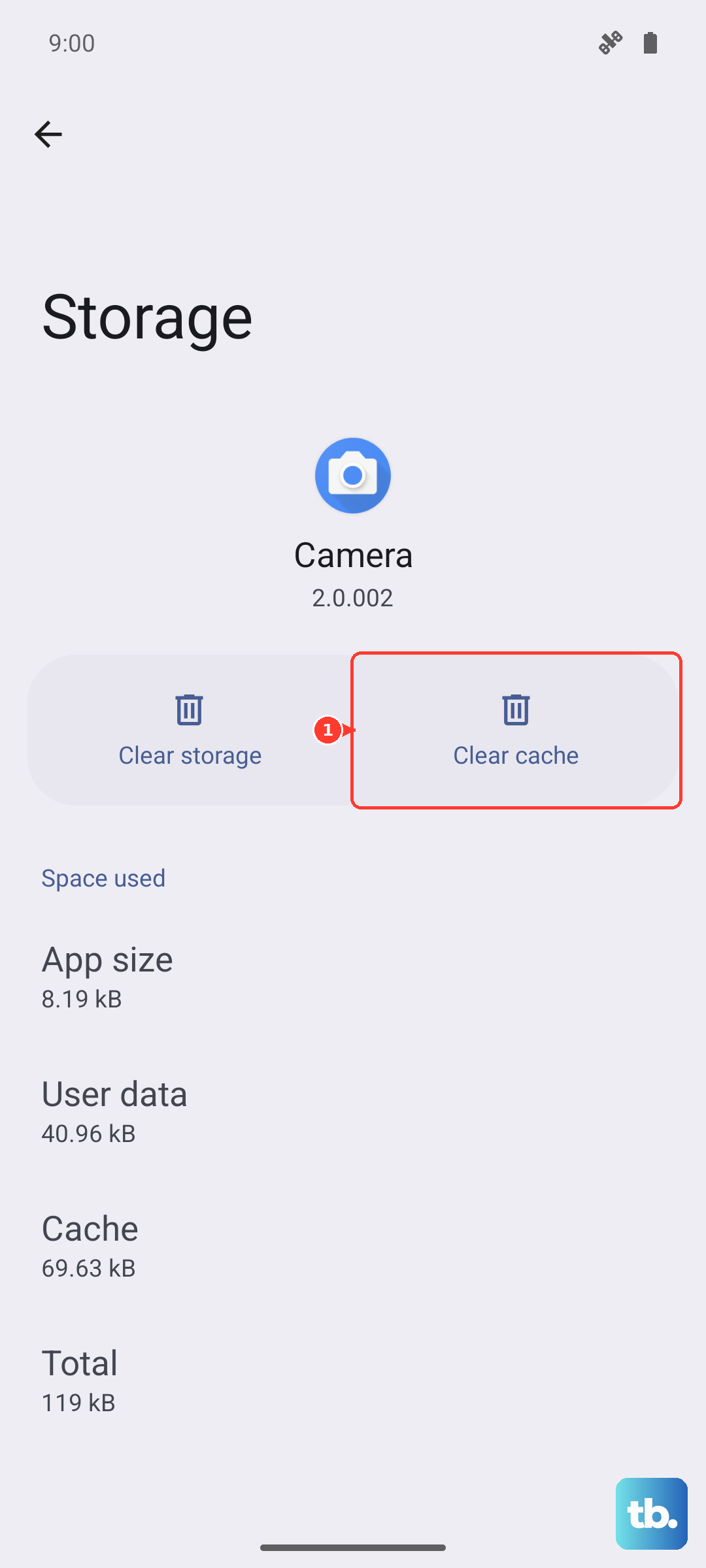
If the problem persists, you can go back and tap Clear data. Be warned, this will reset the app, so you'll need to sign back in and it will erase any offline maps you've downloaded.
Reset Network and Location Settings
This is a stronger step that resets all your wireless radios and location preferences without touching your personal data. Go to Settings > General management > Reset.
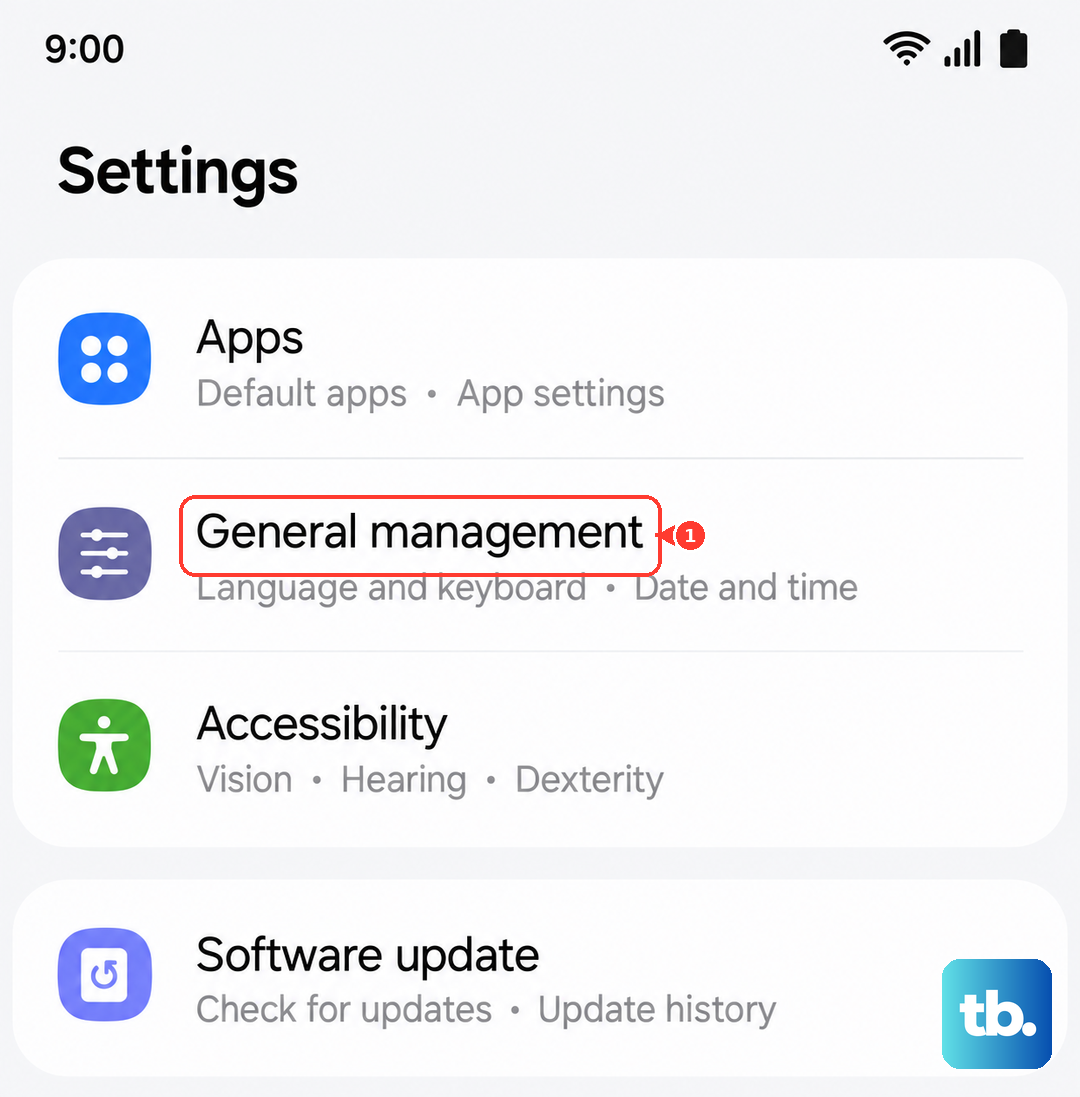
Tap Reset network settings. You'll need to re-enter Wi-Fi passwords and re-pair Bluetooth devices afterward. If that doesn't do it, go back and try Reset location settings. This will revert all your app location permissions to their default state.
Test in Safe Mode
This helps rule out a third-party app conflict. Press and hold the Side key and Volume down key until the power menu appears. Then, tap and hold the "Power off" icon on your screen until you see the Safe Mode prompt. Tap to restart.
Once in Safe Mode, which will be noted in the bottom corner of your screen, try opening Maps. If GPS works perfectly here, an app you installed is likely causing the issue. Restart your phone normally to exit Safe Mode and start uninstalling recent apps one by one.
Check for Physical and Environmental Issues
GPS signals are line-of-sight and can be blocked by all sorts of things. Thick metal phone cases, especially those with magnetic clasps or plates, can interfere. Try removing your case temporarily.
Are you indoors, in a dense urban area, or under heavy tree cover? Move to an open space with a clear view of the sky. GPS simply won't work well in a basement or the middle of a large concrete building.
Use a GPS Diagnostic Tool
To figure out if it's a software configuration or a potential hardware fault, download an app like "GPS Test" or "GPSTest" from the Play Store. Open it and grant location permissions.
The app will show you a sky view of satellites. If you're outdoors and the app doesn't see any satellites at all after a minute, or the signal strength bars are all empty, there could be a deeper issue. If it sees plenty of satellites with strong signals but your maps app still fails, the problem is almost certainly software-based on your S26+.
Consider a Factory Reset
This is the last resort. Before you begin, make absolutely sure your data is backed up to your Samsung account or Google One. Go to Settings > General management > Reset > Factory data reset.
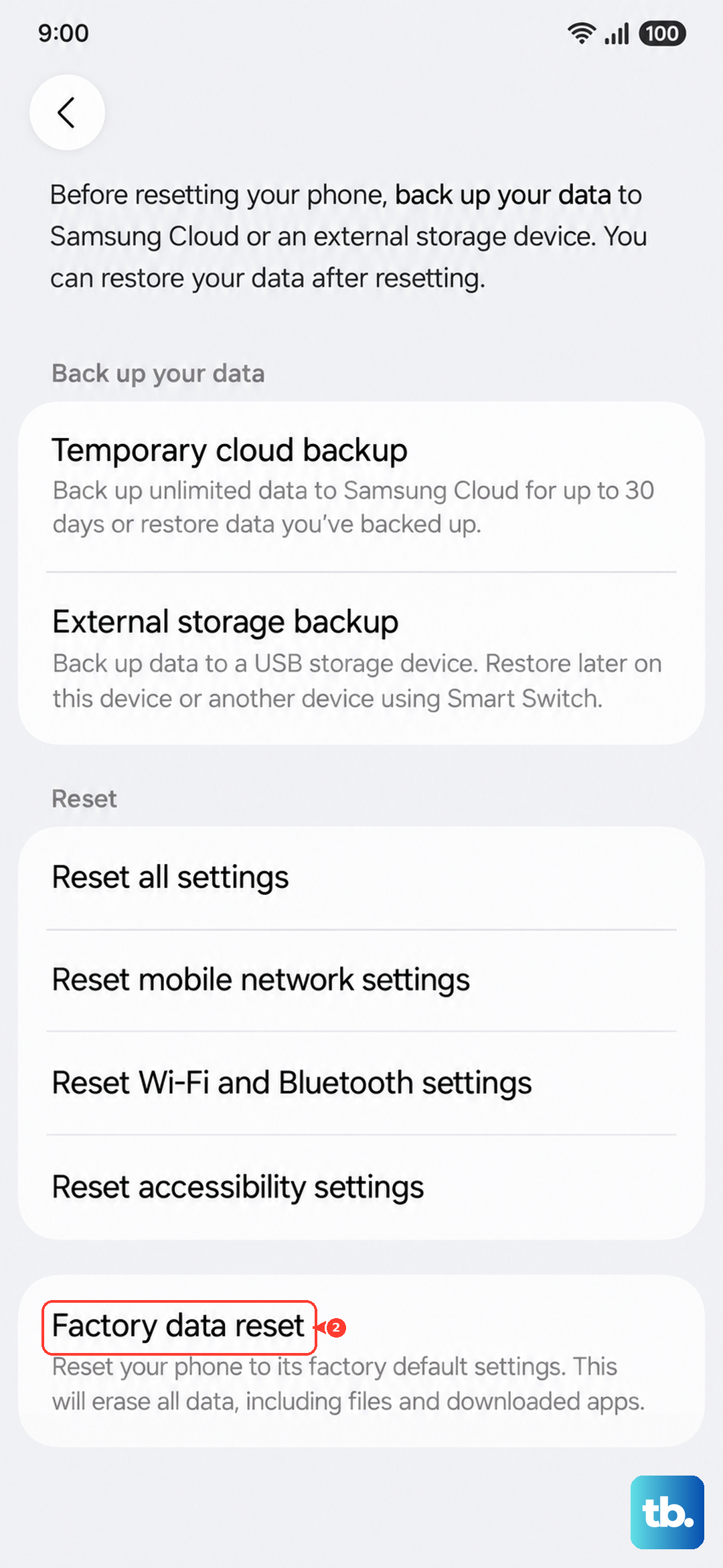
Tap Reset, follow the prompts, and let the phone wipe itself. After it reboots, set it up as a new device initially, don't restore a backup right away. Test the GPS with a fresh install of Maps. If it works now, a corrupted system file was likely to blame.