
When your Samsung Galaxy S26+ won't download apps, it can bring your brand new phone to a standstill. You're trying to set it up or grab an essential tool, and nothing happens. This is a common hiccup, especially with new software like One UI 8.5, but it's almost always fixable with a few checks.
Let's get your app downloads working again, starting with the quickest solutions first.
Check Your Connection and Restart
First, make sure your Galaxy S26+ is actually online. Swipe down from the top of the screen to open the Quick Panel and look at your Wi-Fi or mobile data icons. If you're on Wi-Fi, try turning it off and using your 5G data instead, as some networks can block the ports the Play Store needs.
A simple restart clears out temporary glitches that can stall downloads. Press and hold the Side key and Volume Down button together for about 10 seconds until you see the Samsung logo. I'd start with this one, as it fixes a surprising number of early One UI bugs.
Verify Your Date and Time
Google's servers use your phone's clock to verify downloads. If the time is off, the download process can fail. Open Settings > General Management > Date and Time.
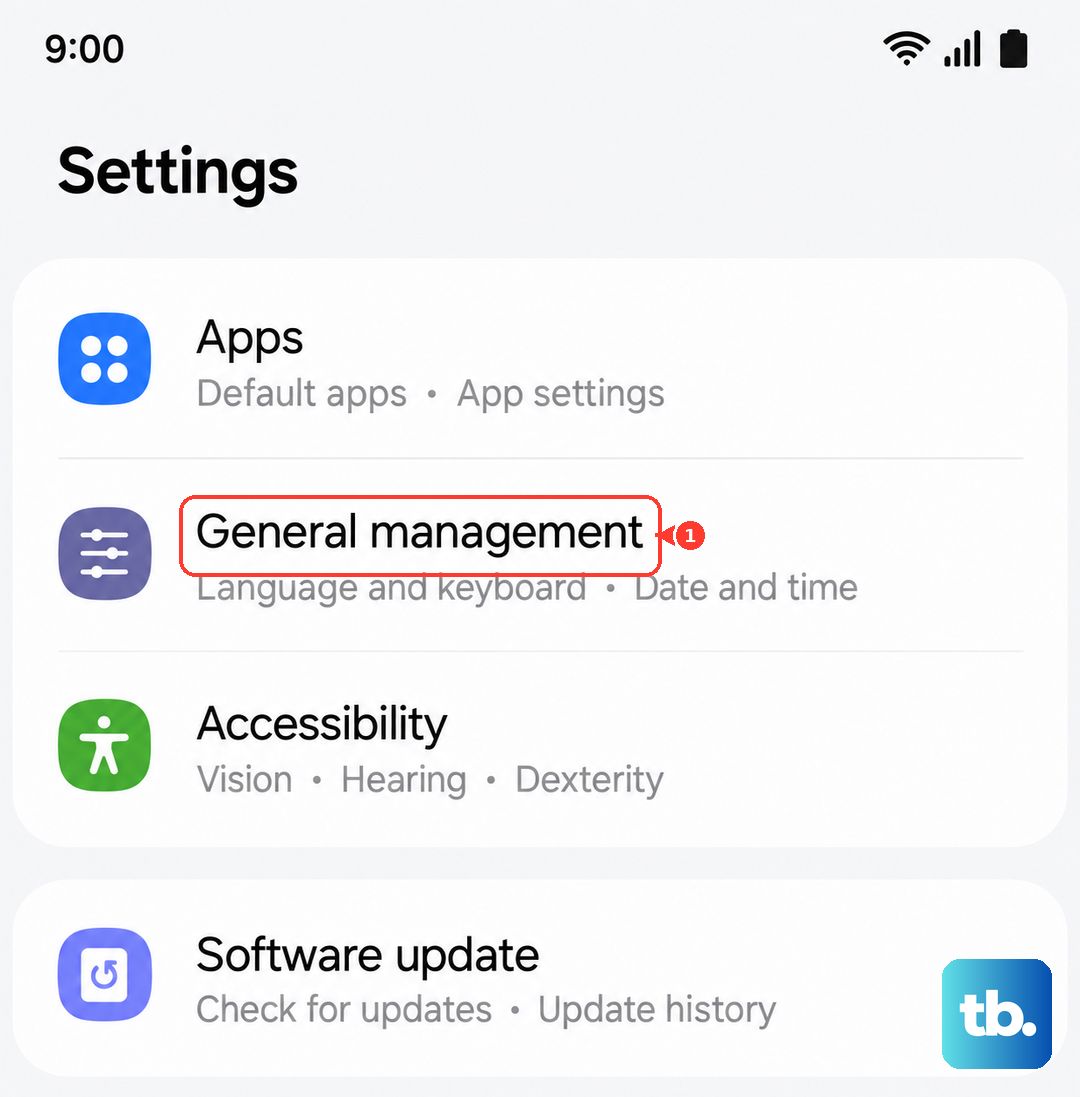
Make sure "Automatic date and time" is switched on. If it's already on and you're still having trouble, try turning it off briefly, manually setting the correct date and time, and then turning automatic back on.
Clear the Google Play Store's Cache
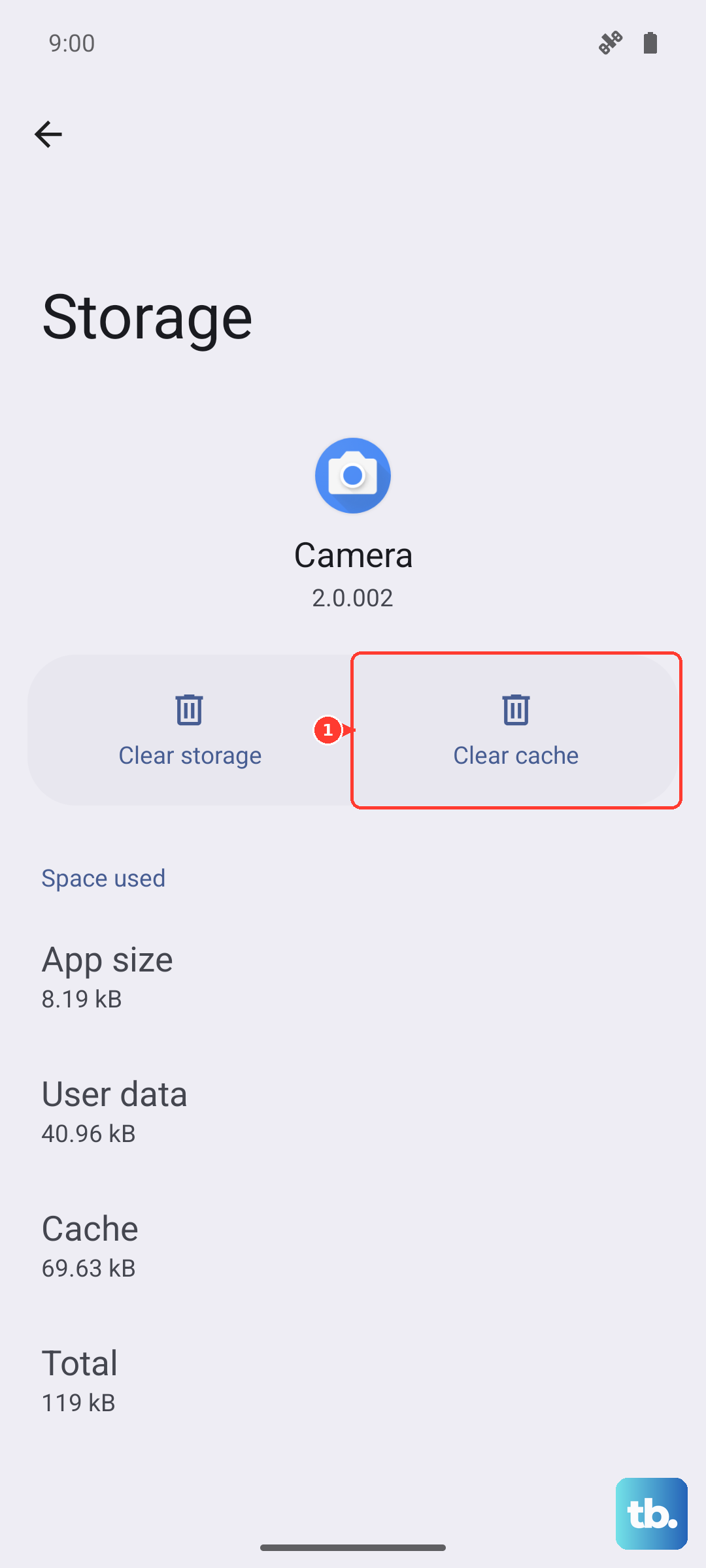
Corrupted temporary files in the Play Store app itself are a frequent culprit. This fix only takes a moment and won't delete your apps or data. Go to Settings > Apps, then find and tap on "Google Play Store."
Tap Storage, then hit Clear Cache. After that, force stop the app by tapping "Force stop" on the same screen. Now reopen the Play Store and try your download again.
Clear Google Play Services Data
If the Play Store cache didn't work, the next step is to clear data for Google Play Services, which handles the communication behind the scenes. Go back to Settings > Apps, and find "Google Play Services" in the list.
Tap Storage, then tap Manage Storage at the bottom. Here, tap Clear All Data. Don't worry, this will reset the service but won't harm your personal information. Restart your phone after doing this.
Check for a Software Update
Since the Galaxy S26+ is new, Samsung is likely pushing out early bug-fix updates for One UI 8.5. An update could directly resolve your download issue. Go to Settings > Software Update and tap "Download and install."
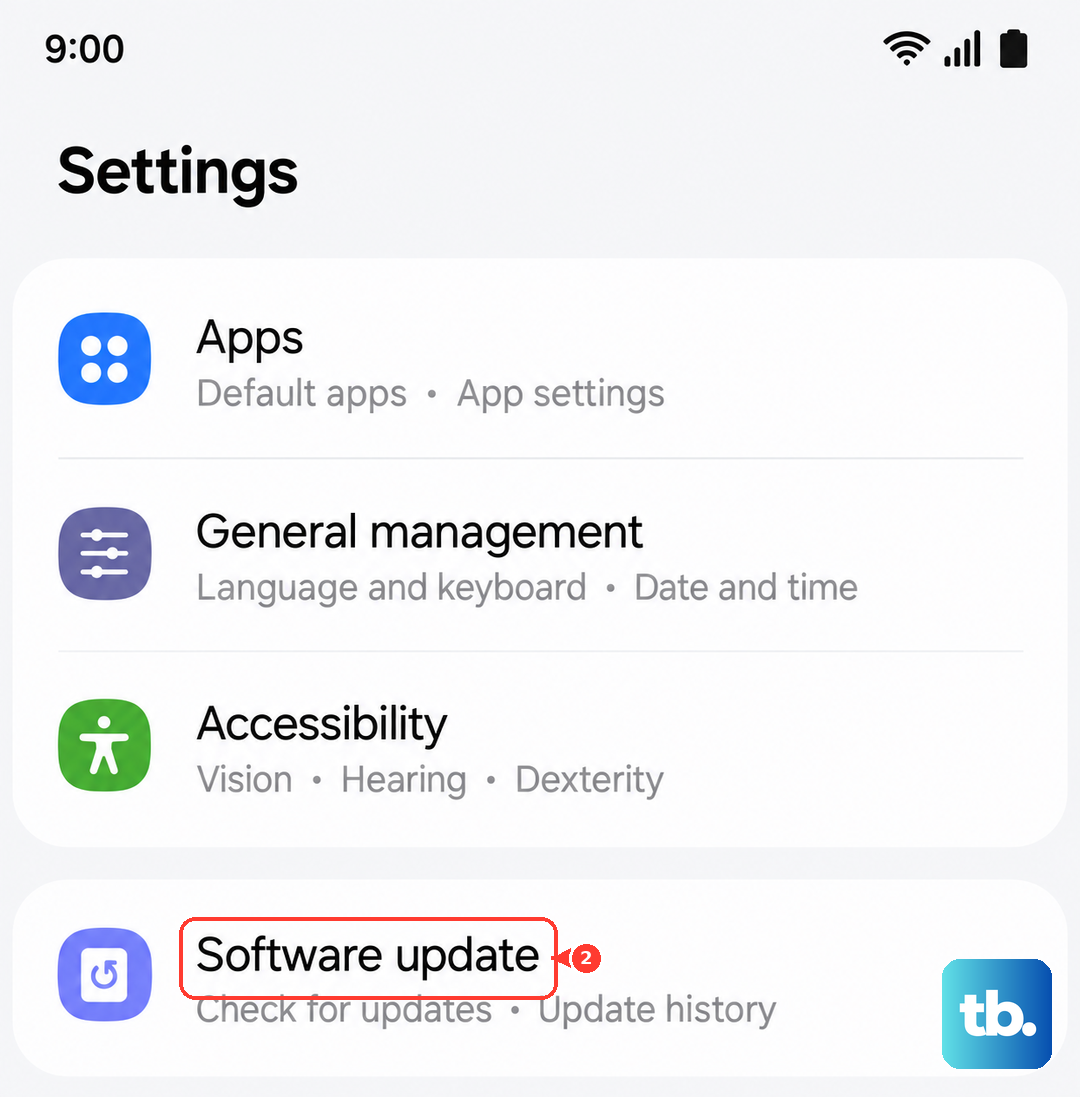
Make sure you're connected to Wi-Fi and have sufficient battery before starting the update. Installing the latest patch is one of the most effective fixes for problems that appear out of the blue on a new device.
Ensure Download Manager is Enabled
Your phone has a system app called Download Manager that handles all downloads. It's rare, but it can sometimes be disabled. In Settings > Apps, tap the three-dot menu and select "Show system apps."
Scroll to find "Download Manager." If the button says "Enable," tap it. If it's already enabled, you can tap Storage and choose "Clear Cache" here as well for good measure.
Remove and Re-add Your Google Account
This refreshes the connection between your phone and Google's servers. Go to Settings > Accounts and Backup > Manage Accounts. Select your Google account.
Tap "Remove account." Confirm, then go back and tap "Add account" to log back in with the same credentials. This process usually takes less than a minute and can clear up sync errors blocking downloads.
Check Your Available Storage Space
Your S26+ might be silently running out of room. The Play Store can sometimes fail with a generic error instead of telling you space is low. Open Settings > Battery and Device Care > Storage.
See how much space is free. If it's getting low, consider moving photos to Samsung Cloud or Google Photos, or uninstalling apps you don't use. Try your download again after freeing up a few gigabytes.
Review App Permissions
Google Play Services needs certain permissions to function. Go to Settings > Apps > Google Play Services > Permissions. Make sure permissions like "Storage" are allowed.
While you're there, also check if it can modify system settings. On the app info page for Google Play Services, look for "Modify system settings" and ensure it is turned on.
Reset All App Preferences
This is a safer alternative to a factory reset. It resets all your permission settings, default apps, and background restrictions without touching your personal data. Go to Settings > Apps.
Tap the three-dot menu, then select "Reset app preferences." Confirm the action. You'll need to re-grant permissions to apps as you use them again, but it can resolve conflicts that are preventing downloads.