
When your Galaxy S25 Ultra's voice assistant stops responding, it can feel like you've lost a key feature. Whether it's Bixby or Google Assistant that's gone silent, the problem usually comes down to a few specific settings or a temporary software hiccup. Let's get it working again.
Start With a Quick Restart
Before diving into settings, give your phone a fresh start. Press and hold the Volume Down button and the Side button together for about ten seconds. Keep holding until you see the Samsung logo appear on the screen.
This force restart clears out any temporary glitches in the system memory that might be preventing the microphone or voice service from working correctly. It's the fastest thing to try and often solves the issue right away.
Verify Your Voice Assistant is Enabled
Open your Settings app and head to Apps. From there, tap on Default apps. You'll see an option for Digital assistant app.
Make sure your preferred assistant, either Bixby or Google, is selected here. If it's set to "None," that's your problem. Tap on the option and choose your assistant from the list.
For Bixby, you also need to check its own settings. Open the Bixby app or say "Hi Bixby" to launch it, then tap the menu icon (three lines) and go to Settings. Ensure Voice wake-up is toggled on.
Check for Microphone Blockages
The S25 Ultra has several microphones. The main one is at the bottom next to the USB-C port, but there are others along the top edge and within the front camera cutout.
Take a close look at these areas. A common issue is a phone case that's slightly misaligned or has a thick lip, physically covering a microphone port. Even a small piece of lint or pocket debris can muffle the sound.
Gently clean the microphone holes with a soft, dry brush. Avoid using compressed air or sharp objects, as you could push debris further in or damage the sensitive components inside.
Review App Permissions and Battery Settings
Your voice assistant needs permission to use the microphone. Go to Settings > Privacy and security > Permission manager. Tap on Microphone and find your assistant app in the list, be it "Bixby Voice" or "Google".
Make sure the permission is set to Allow. While you're here, it's also worth checking if the app is being put to sleep by aggressive battery optimization.
Navigate to Settings > Battery. Tap on Background usage limits and then Never sleeping apps. Add your voice assistant app to this list to ensure it's always ready to listen.
Retrain the Voice Wake-Up Feature
If your phone has trouble recognizing the "Hi Bixby" command specifically, you might need to retrain it. Background noise or changes in your voice can confuse the model.
Open the Bixby app, go to Settings, and look for Voice wake-up. You should see an option to Retrain voice model. Tap it and follow the on-screen prompts, speaking the phrases clearly in your normal voice.
Do this in a relatively quiet room. I've found this retraining fixes recognition issues about eight times out of ten, especially if you've recently had a cold or there's been a major software update.
Disable Conflicting Modes and Features
Certain modes on your S25 Ultra can intentionally disable the microphone. The first to check is Mute. When your phone is muted, Bixby may not respond audibly, though it should still listen.
More importantly, check for Do Not Disturb mode. Swipe down from the top of your screen twice to see the full Quick Settings panel. If the Do Not Disturb icon is highlighted, tap it to turn it off.
Also, look in Settings > Accessibility > Advanced settings for an option called Sound detectors. If this feature is turned on, it can interfere with the always-listening function of your voice assistant. Toggle it off to test.
Update Your Software
Outdated software is a common culprit for assistant malfunctions. Samsung and Google regularly push updates that fix bugs in voice recognition and audio routing.
Go to Settings > Software update and tap Download and install. If an update is available, let it complete. After the phone restarts, check if the assistant works.
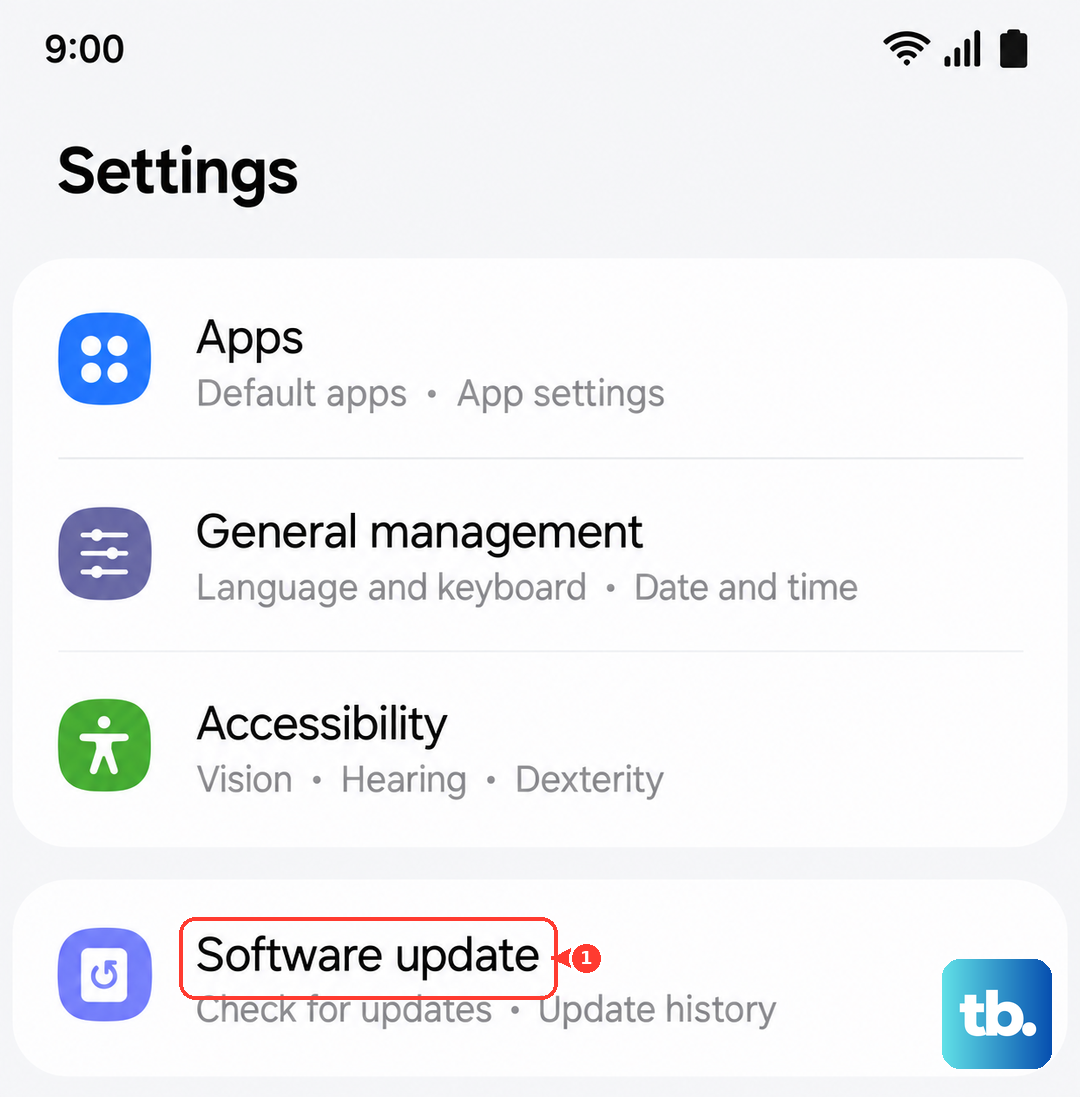
This is particularly important if the problem started after you installed a new app or a recent security patch. A subsequent update often contains the fix.
Clear the Assistant App's Cache and Data
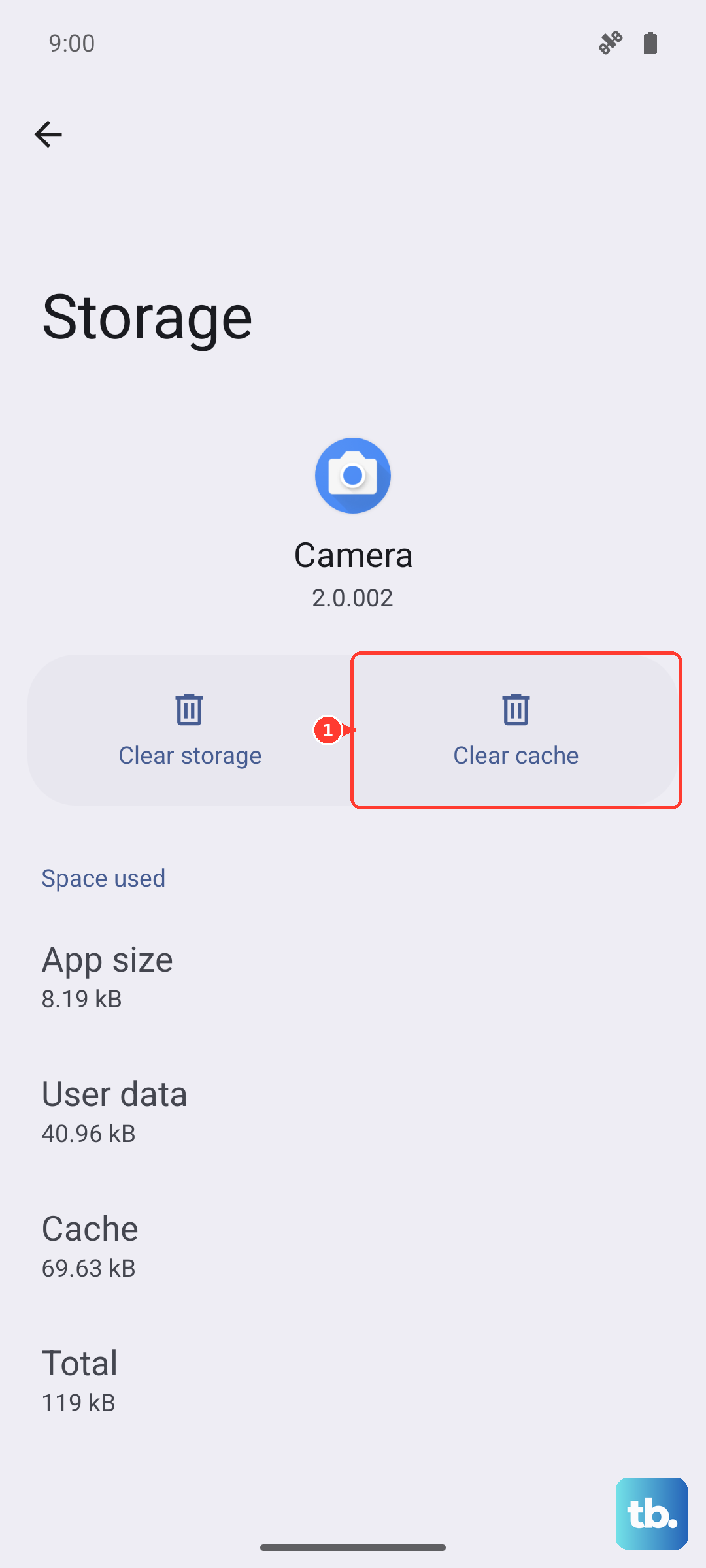
Corrupted temporary files can break functionality. Go to Settings > Apps, find your voice assistant app (Bixby Voice or Google), and tap on it. Select Storage.
Tap Clear cache first. This deletes temporary files without affecting your settings. Test the assistant. If it still doesn't work, go back and tap Clear data. Be aware this will reset the app to its default state, so you'll need to go through its setup again.
Check Your Network Connection
While basic commands are processed on-device, many queries from Google Assistant or advanced Bixby requests need an internet connection to fetch answers from the web.
Ensure you have a stable Wi-Fi or mobile data connection. Try asking a simple question that doesn't require the internet, like "Set a timer for 5 minutes." If that works but "What's the weather?" does not, your issue is likely network-related.
Toggle Airplane mode on and off from the Quick Settings panel to reset your network connections quickly.
Reset All Settings
If you've tried everything else, this step resets all your system settings, like network, Bluetooth, and sound configurations, back to factory defaults without touching your personal data or apps.
Go to Settings > General management > Reset. Tap on Reset all settings and enter your PIN if prompted. Confirm the action. Your phone will restart.
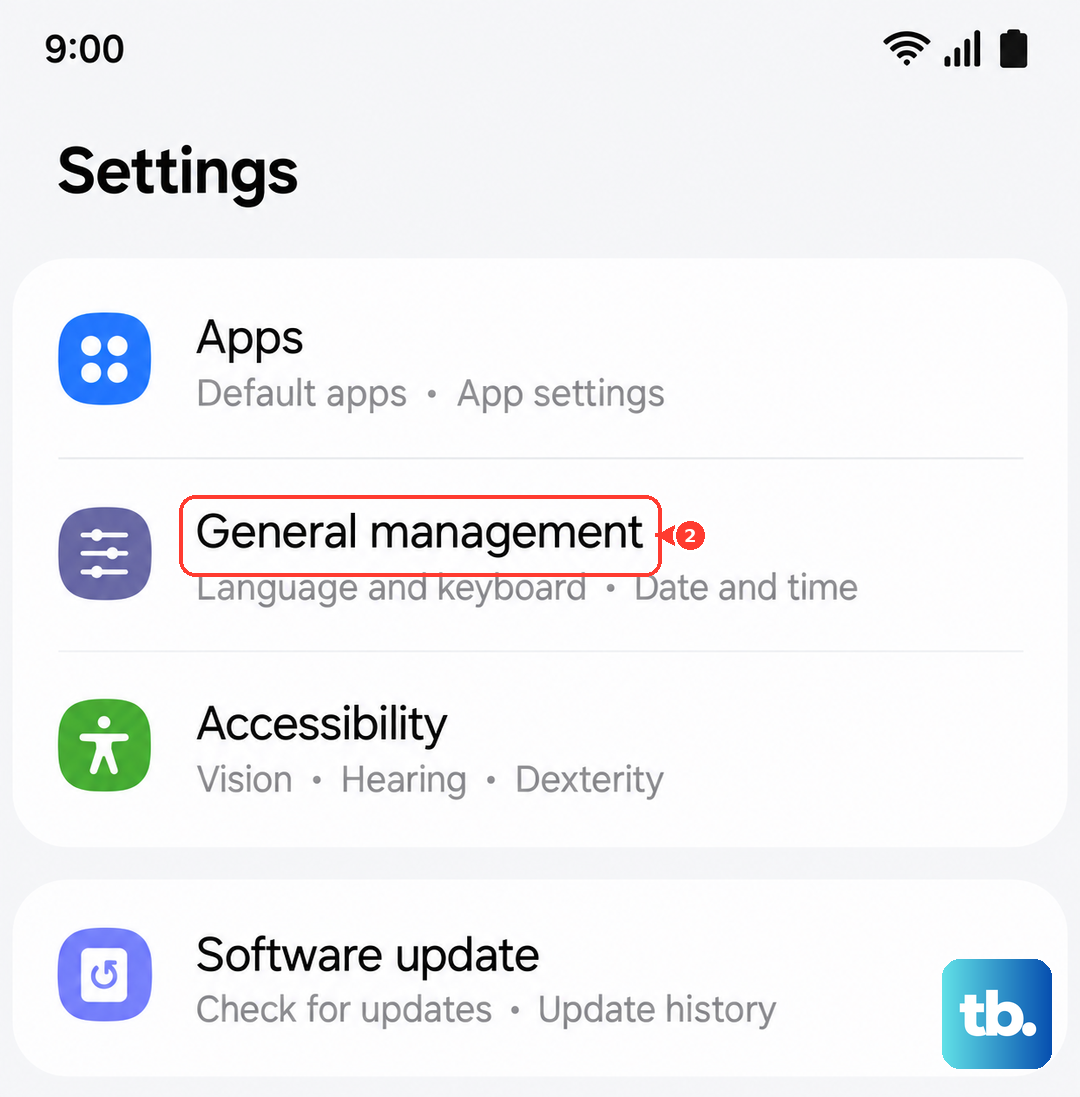
After the reset, you'll need to re-enable things like Wi-Fi and readjust your sound settings, but it often resolves deep-seated configuration conflicts that stop the microphone services from working properly.