
When your Samsung Galaxy S26+ keeps crashing back to the home screen every time you try to open Settings, it completely locks you out of managing your phone. This is a known hiccup with early versions of One UI 8.5, but it's usually something you can fix yourself without losing any data.
Force Restart Your Galaxy S26+
I'd start with this one. A force restart is different from a normal restart because it clears the phone's working memory and can knock loose any temporary software glitch that's freezing the Settings app.
Press and hold the Volume Down button and the Side/Power button together for about 10 seconds. Let go when you see the Samsung logo appear on the screen. Wait for the phone to boot up completely, then try opening Settings again.
Clear the Settings App Cache and Data
If a force restart didn't work, the next step is to clear the cached files for the Settings app itself. These files can sometimes get corrupted, especially after a recent software update.
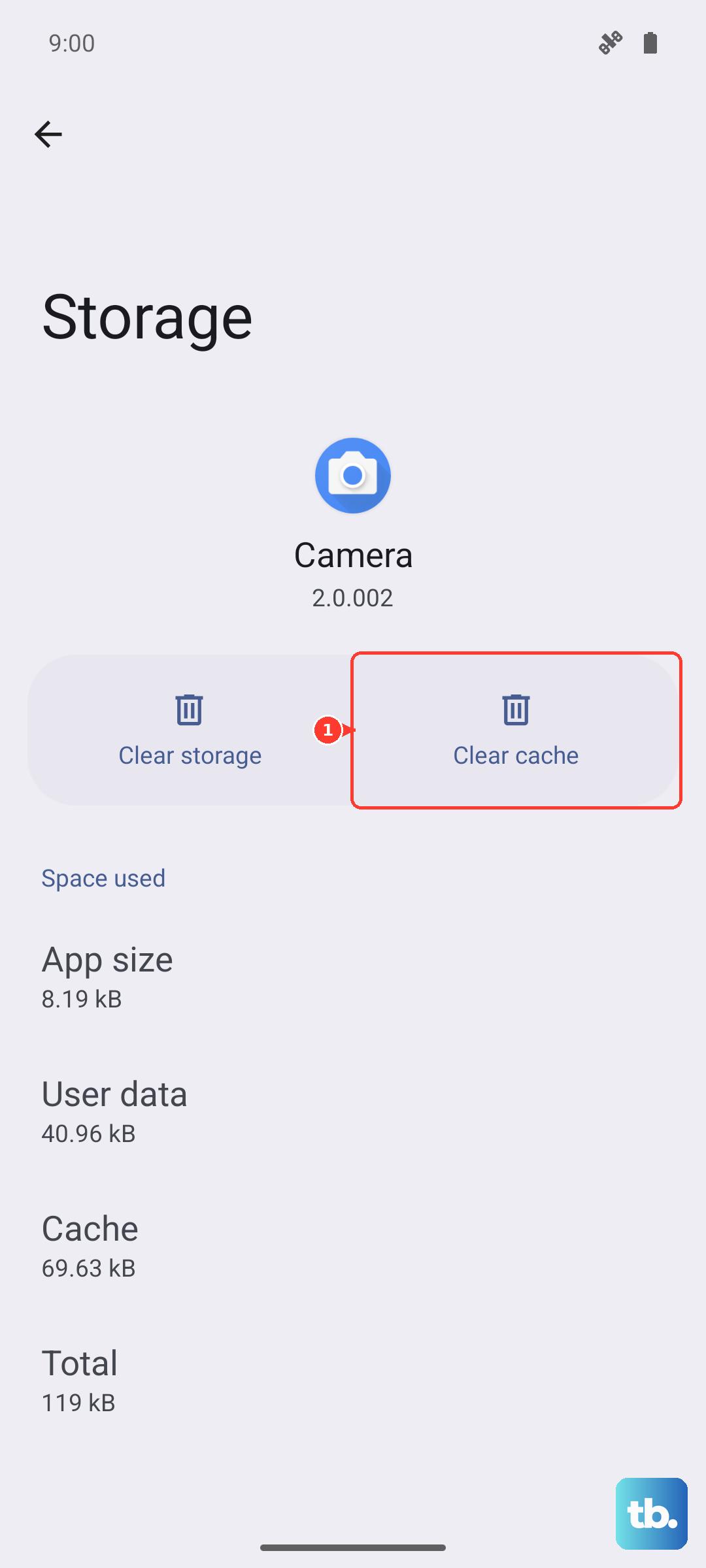
Since you can't get into the main Settings menu, you'll need to use the Apps menu from a long-press on the home screen. Press and hold on any empty area of your home screen, then tap Settings at the bottom. From there, tap Apps, find and select Settings from the list, then choose Storage.
Tap Clear Cache first. If the app still crashes, go back into its Storage menu and tap Clear Data. Don't worry, this won't erase your personal files or reset your whole phone, it just resets the Settings app to its default state. You might have to re-configure some quick toggles afterward.
Check for a Software Update
Samsung is pretty quick to push out patches for bugs like this in new phones. Even if your S26+ says it's up to date, it's worth manually checking, as the crashing app itself might be preventing update notifications.
You can try checking for updates through the Samsung Members app. Open the app, go to the Get Help section, and look for a Software update option. Alternatively, you can use your computer. Install Samsung's Smart Switch software on your PC or Mac, connect your phone with a USB-C cable, and the program will often find and install available updates directly.
Boot Into Safe Mode
This is a great way to figure out if the problem is with Samsung's software or something you installed. Safe mode temporarily disables all third-party apps.
To start, press and hold the Side/Power button until the power off menu appears. Then, press and hold the Power off icon on the screen until it changes to a Safe mode prompt. Tap it to reboot into Safe mode. You'll see "Safe mode" in the bottom corner of the screen.
If the Settings app works perfectly in Safe mode, then a recently downloaded app is likely the culprit. You'll need to start uninstalling apps one by one (starting with the most recent) to find the one causing the conflict.
Reset All App Preferences
This is a less nuclear option than a factory reset. It resets all your app permissions, default apps, and background restrictions back to their original settings without deleting any apps or personal data.
You can access this through the same hidden menu. Long-press the home screen, tap Settings, then go to Apps. Tap the three-dot menu in the top right, select Reset app preferences, and confirm. After your phone restarts, you'll need to re-grant permissions to apps when you use them again.
Consider a Factory Reset
If you've tried everything else and the Settings app is still unusable, a factory reset is the final step. This will erase everything on your phone, so you must back up your data first using Samsung Cloud or Smart Switch on a computer.
Since the Settings app is inaccessible, you'll need to use the hardware button method to get into recovery mode. First, power your phone off completely. Then, connect it to your computer with a USB-C cable. While it's connected, press and hold the Volume Up button and the Side/Power button. When the Samsung logo appears, release only the Power button but keep holding Volume Up until you see the Android recovery menu.
Use the volume buttons to navigate to Wipe data/factory reset and select it with the Power button. Confirm your choice on the next screen. Once it's complete, select Reboot system now. This process will give you a fresh install of One UI 8.5, which should resolve any deep-seated software corruption.