
When your Samsung Galaxy S25 Ultra won't send texts, it's incredibly frustrating. You might see a "Message not sent" error, a spinning circle that never goes away, or the message just sits in your outbox. Let's get it working again.
The first thing I'd check is your connection. SMS messages need a cellular signal, while RCS chats (the blue "Chat" messages) and MMS pictures need mobile data or Wi-Fi. Look at your status bar. If you have no signal bars or see an "X," you're in a dead zone. Toggle Airplane Mode on from the Quick Settings panel, wait 10 seconds, and turn it off to force the modem to reconnect.
Force Restart Your Phone
A simple restart clears out temporary software glitches that can hang up the messaging app. Press and hold the Volume Down button and the Side button (power key) together for about 10 seconds. Release when you see the Samsung logo. This is often the fastest fix for a message that's stuck sending.
Check for a Samsung or Carrier Service Outage
Sometimes the problem isn't your phone. If you're trying to use Samsung's Chat features (RCS) or your carrier's messaging system is down, nothing will send. A quick search on Downdetector for your carrier's name or "Samsung Messages" can tell you if others are having the same issue right now. While you wait, you can try sending as a traditional SMS.
Toggle RCS Chat Features Off and On
If you use Google Messages, RCS (Rich Communication Services) is what makes messages blue and enables typing indicators. If it gets stuck, it can block all sends. Open the Google Messages app, tap your profile picture, go to Messages settings > RCS chats, and turn off Enable chat features. Wait a full minute, then turn it back on to re-register with the service.
Clear the Messaging App's Cache
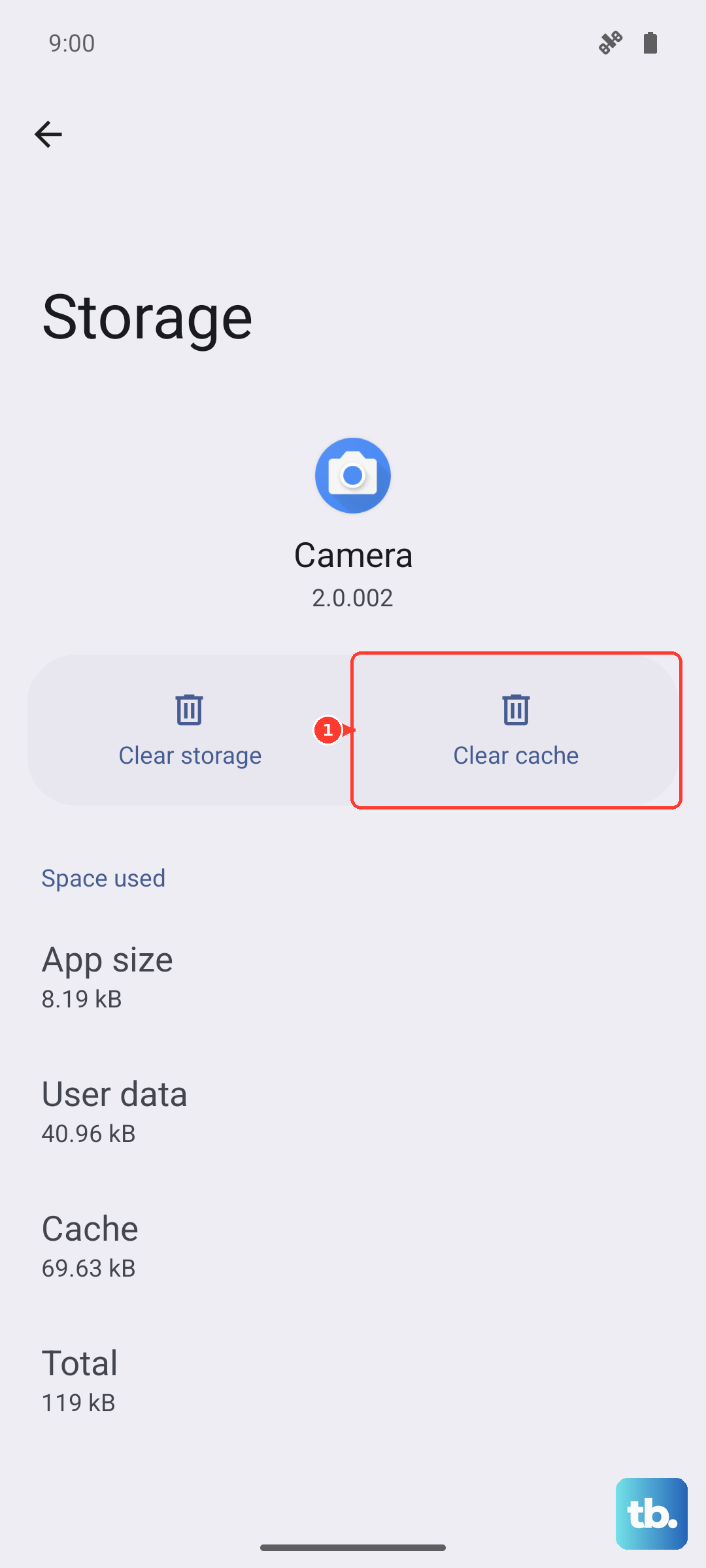
Corrupted temporary data in your messaging app can cause sending failures. Go to Settings > Apps, find and tap on your messaging app (like Samsung Messages or Google Messages). Select Storage, then tap Clear Cache. This won't delete your messages, but it cleans out the app's temporary files. After doing this, try sending a text again.
Check Your Blocked Numbers List
If messages fail to send to one specific contact, you might have blocked them without realizing it. Open your Phone app, tap the three-dot menu, and go to Settings > Block numbers. Review the list and remove any numbers that shouldn't be there. You can also check this in the Messages app settings under Block numbers and spam.
Reset Your Network Settings
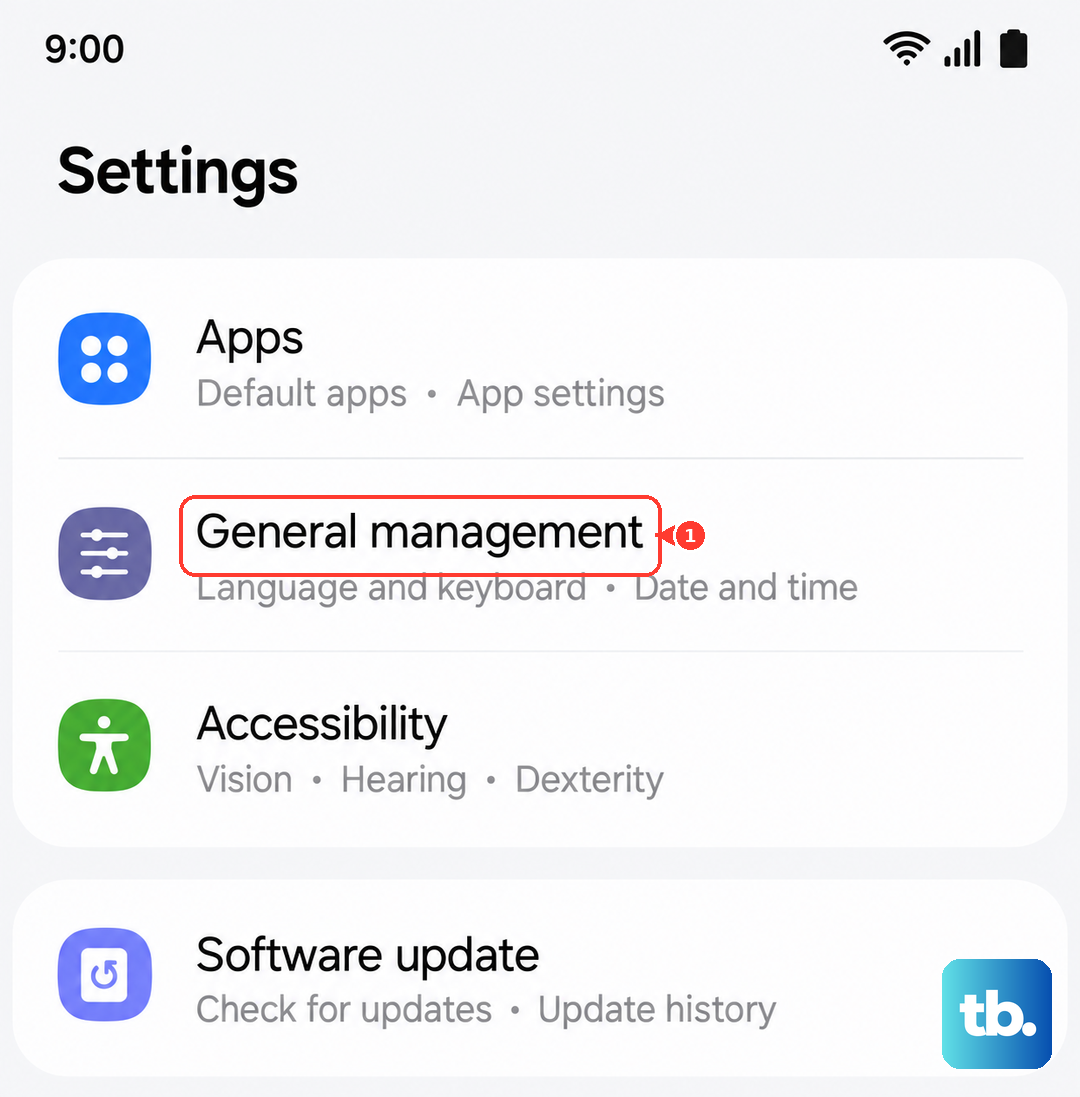
This is a more thorough step for persistent issues. It will erase all Wi-Fi networks, Bluetooth pairings, and mobile data settings. Go to Settings > General management > Reset > Reset network settings. Tap to confirm. Your phone will reboot. Afterward, you'll need to reconnect to Wi-Fi and re-pair Bluetooth devices, but it often resolves deep-seated network and messaging problems.
Verify Your APN and MMS Settings
Incorrect Access Point Name (APN) settings from your carrier will break MMS (picture messages) and sometimes data. Go to Settings > Connections > Mobile networks > Access Point Names. Tap the APN for your carrier. The settings must be exact. If you're unsure, contact your carrier's support or visit their website for the correct APN settings to enter for the Galaxy S25 Ultra on Android 15.
Update Your SIM Card or eSIM Profile
An old or faulty SIM card can lose its connection to your carrier's messaging center. Power the phone off completely. Use the SIM eject tool to remove the physical SIM tray, take out the SIM, and reinsert it firmly. Power back on. If you use an eSIM, you may need to remove and re-download the profile via Settings > Connections > SIM card manager.
Check for Software Updates
Samsung and your carrier push updates that fix bugs, including messaging issues. Go to Settings > Software update > Download and install. If an update is available, install it. Also, open the Galaxy Store and check for updates to carrier-specific apps or the Samsung Messages app itself, as these can also receive critical patches.
If you've tried all these steps and texts still won't send, the final step is to contact your wireless carrier directly. There could be a provisioning error on your account, your SMS service could be temporarily suspended, or there might be an outage specific to your area that isn't widely reported. They can check your line status and refresh it from their end.