
When your Samsung Galaxy S25's GPS starts acting up, it can leave you stranded in more ways than one. Whether Google Maps is showing you in the wrong place or your fitness app can't track a run, location problems are a real headache. The good news is that most of the time, this is a software glitch you can fix yourself.
I'd start with the quick fixes below. They solve the majority of GPS and location issues on the Galaxy S25 running One UI 7.
Refresh Your Location Connection
Pull down the Quick Settings panel from the top of your screen twice to see all the toggles. Tap the Location icon to turn it off, wait about ten seconds, and then tap it again to turn it back on. This simple reset clears the temporary connection to the GPS satellites and often gets things working again immediately.
If that doesn't do it, try a full restart. Press and hold the Volume Down button and the Side button together for about ten seconds until you see the Samsung logo. This force restart is more thorough than a standard reboot and can clear deeper system hiccups affecting the GPS radio.
Check Your Location Settings and Permissions
One UI 7 has detailed controls over how your phone determines location. Go to Settings > Location. First, make sure the main switch at the top is on. Then, tap on Location services.
For the best possible GPS accuracy, especially for navigation, make sure Google Location Accuracy is enabled. This uses Wi-Fi and mobile networks to help your GPS lock on faster. Also, review the app-specific permissions. Go to Settings > Apps, select an app like Google Maps, tap Permissions, and ensure Location is set to "Allow all the time" or "Allow only while using the app."
Disable Power Saving Modes
To save battery, Samsung's power saving modes can limit background processes, including how often apps can access your GPS. If you're running in Power Saving or especially Extra Brightness mode (which engages maximum power saving), your location might be slow or inaccurate.
Go to Settings > Battery and turn off any active power saving mode. For a quick test, you can also pull down the Quick Settings panel and make sure the power saving icon isn't highlighted.
Reset Network Connections with Airplane Mode
This trick resets all the radios in your phone at once. Swipe down for Quick Settings and tap the Airplane mode icon to turn it on. Wait for about 15 seconds to let all wireless connections fully disconnect, then tap the icon again to turn Airplane mode off.
Your phone will reconnect to cellular, Wi-Fi, and Bluetooth. More importantly, it reinitializes the GPS hardware. Try your maps app again after your mobile signal bars reappear.
Update Your Apps and Software
An outdated version of Google Maps, Waze, or another navigation app might have a bug causing location problems. Open the Google Play Store, tap your profile icon, and go to Manage apps & device > Updates available to update all your apps.
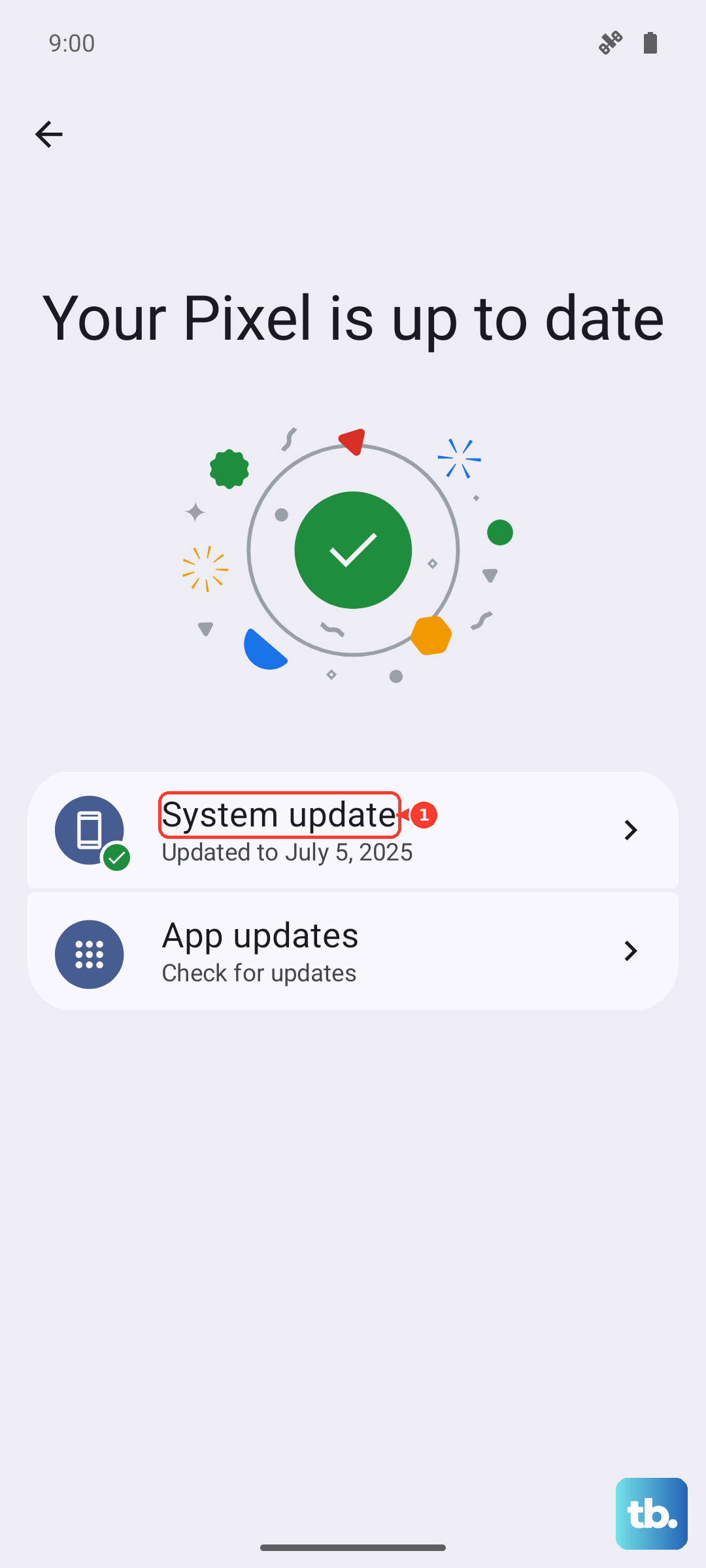
Next, check for a system update. Samsung frequently releases updates that fix various bugs. Go to Settings > Software update > Download and install. If an update is available, install it and restart your phone.
Clear the App Cache for Maps
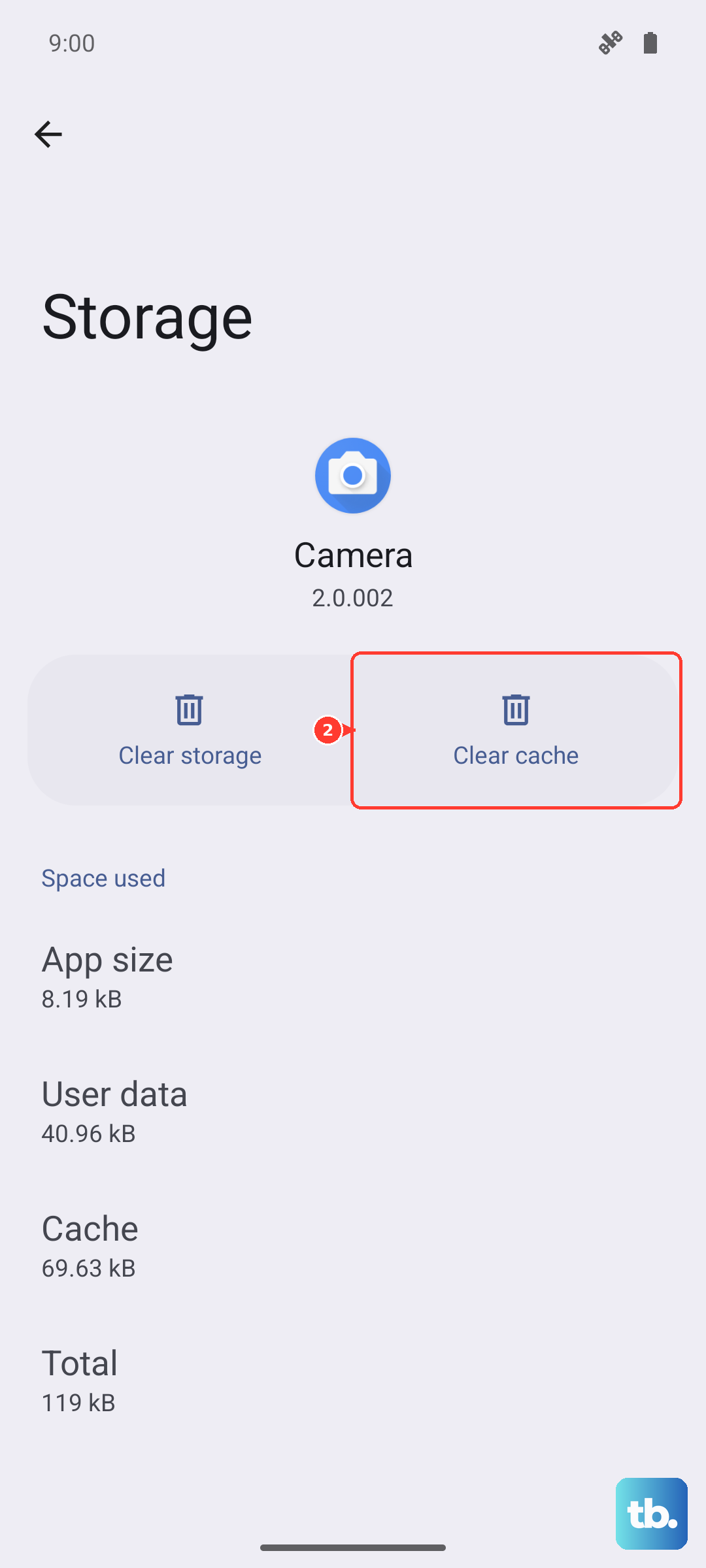
Corrupted temporary data in your navigation app can cause all sorts of strange behavior. You don't have to clear your saved places, just the cache. Go to Settings > Apps, find and select Google Maps (or your preferred maps app).
Tap Storage, then tap Clear cache. This is safe and won't delete your account or offline maps. If the problem is severe, you can tap Clear data, but be aware this will reset the app to its default state, so you'll need to sign back in.
Check for Physical and Environmental Issues
GPS signals are line-of-sight from satellites. A thick metal phone case, especially one not designed for the S25, can sometimes interfere with the antenna. Try removing the case temporarily to see if accuracy improves.
Your environment matters too. Being inside a building, in a dense urban area with tall buildings, or under heavy tree cover can weaken or block the signal. For the best lock, step outside to an open area with a clear view of the sky.
Test in Safe Mode
This helps you figure out if a third-party app you installed is causing the conflict. To boot into Safe Mode, press and hold the Side button and Volume down button until the power menu appears. Then, tap and hold the Power off option on your screen.
You'll see a prompt to reboot to Safe Mode. Tap it. Once your phone restarts, you'll see "Safe Mode" in the bottom corner. Try using Google Maps now. If GPS works perfectly in Safe Mode, a recently downloaded app is likely the culprit. Restart your phone normally to exit Safe Mode and try uninstalling apps one by one.
Improve GPS Accuracy with Calibration
If your location seems "jumpy" or is consistently a block off, your phone's compass might need calibration. Open Google Maps and tap the blue dot that represents your location. Tap Calibrate compass from the menu that pops up.
You'll be asked to move your phone in a figure-eight motion a few times. Do this slowly and deliberately until the calibration is complete. This helps your phone understand its orientation, which improves location precision.
Use a GPS Diagnostic Tool
If you've tried everything and GPS is still broken, an app like "GPS Test" or "GPS Status & Toolbox" can tell you if it's a hardware failure. Download one from the Play Store and open it, granting location permissions.
The app will show you a sky view of satellites. If you're outdoors with a clear view and the app shows zero satellites in view after a minute or two, there may be a physical problem with the antenna. If it sees plenty of satellites but your other apps still can't get a fix, the issue is almost certainly software-based on your S25.











