
Press and hold the Volume Down button and the Side button together for about 10 seconds. Keep holding them until you feel the phone vibrate and see the Samsung logo appear. This force restart is the quickest way to clear a temporary software glitch that's freezing the touchscreen.
I'd start with this one every time. It's the digital equivalent of taking a deep breath and starting over, and it works for most unresponsive screen issues without affecting your data.
Clean the Screen and Check for Damage
Power off the phone completely and give the screen a thorough wipe with a soft, microfiber cloth. Oils from your fingers, lotion, or even a thin film of dirt can sometimes confuse the capacitive touch sensors. Make sure your hands are completely dry as well.
While you're cleaning, inspect the screen closely for any new cracks or damage, especially around the edges. Even a small crack you haven't noticed can sever the delicate grid of touch sensors underneath the glass.
If you're using a screen protector, try carefully peeling it off. A poorly applied or low-quality protector is a surprisingly common culprit for touch issues on the Galaxy S25.
Boot into Safe Mode
Safe mode temporarily disables all third-party apps you've downloaded. If the touchscreen works perfectly in safe mode, you know a recently installed app is causing the conflict. To enter safe mode, first turn the phone off completely.
Press and hold the Side button to turn it back on. The moment you see the Samsung logo appear on the screen, immediately press and hold the Volume Down button. Keep holding it until you see "Safe mode" in the bottom left corner of the screen.
Navigate around using the touchscreen. If it works, restart the phone normally to exit safe mode, then try uninstalling your most recently downloaded apps one by one until the problem stops.
Check for Software Updates
An outdated version of One UI or Android can have bugs that affect touchscreen responsiveness. Connect to Wi-Fi and go to Settings > Software update > Download and install.
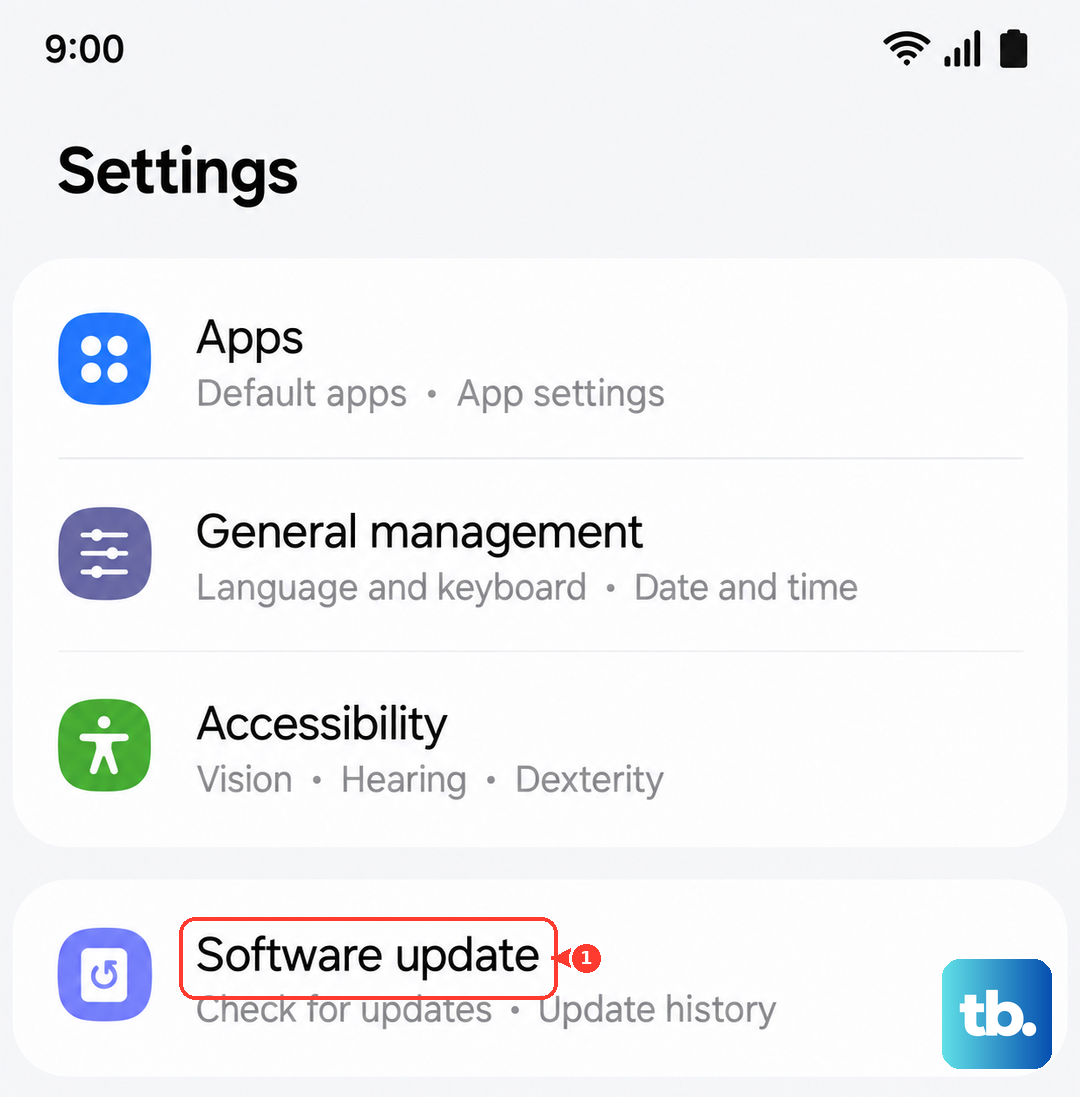
Let the phone check for updates. If one is available, install it. These updates often include patches for specific performance and touch issues reported by users.
Make sure your phone is charged above 50% or plugged in before starting an update. A failed update due to low power can cause more problems than it solves.
Calibrate the Touchscreen
Samsung includes a hidden diagnostic menu that can help recalibrate the touch sensors. Open your Phone app and dial *#0*#. This will launch the secret service menu.
Tap on "Touch" from the grid of options. This will bring up a full-screen test where you can draw on the screen to see if it's registering touches correctly across the entire surface.
Follow the on-screen instructions. If the test shows dead zones or erratic lines, it points to a deeper calibration or hardware issue. You can also try the "Sensor" test in the same menu to check other components.
Reset All Settings
This will revert all your system settings back to their factory defaults without deleting your personal data like photos or messages. It can fix conflicts caused by a changed setting you may have forgotten about.
Go to Settings > General management > Reset > Reset all settings. You'll need to enter your PIN, pattern, or password to confirm.
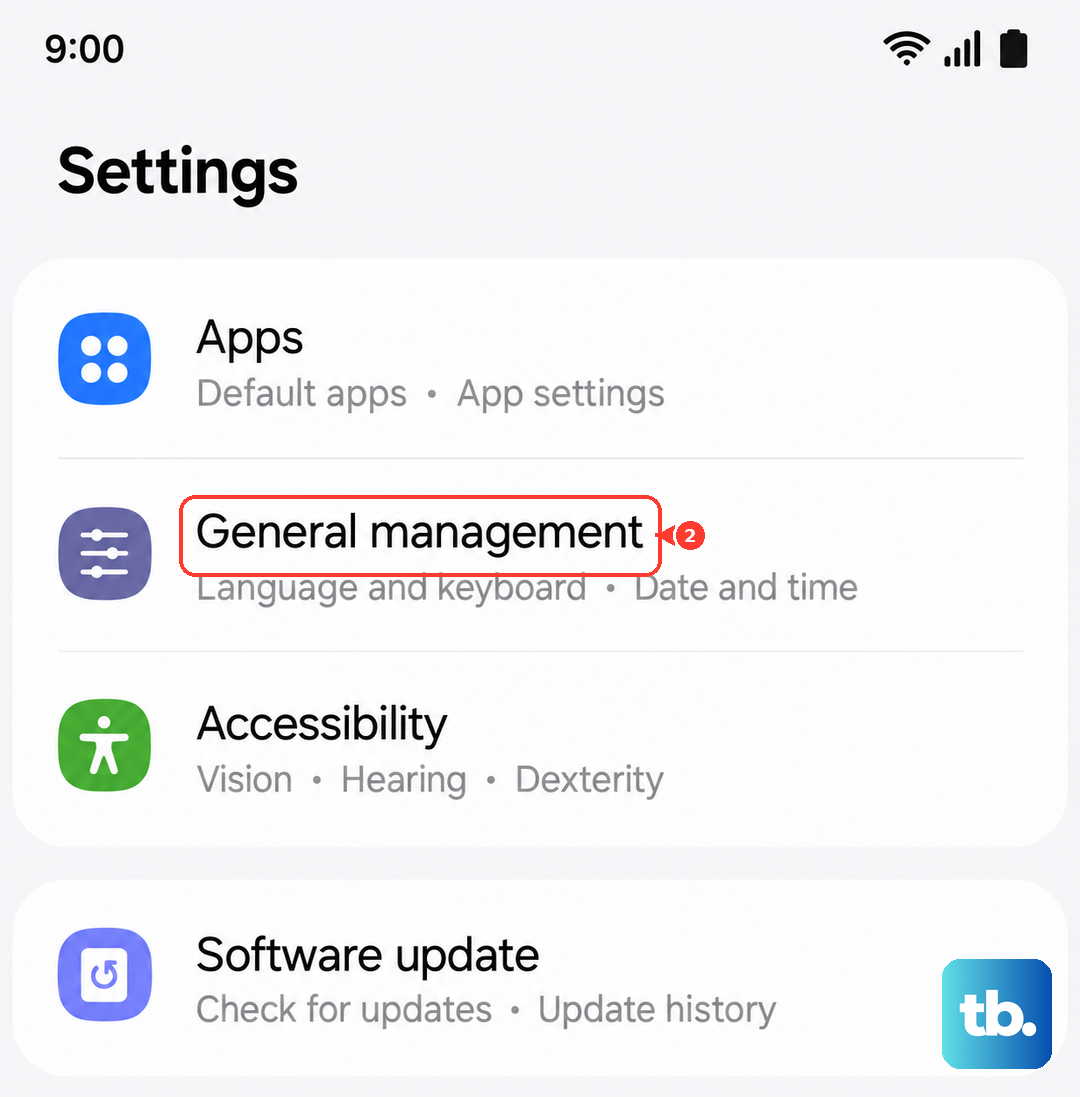
After the reset, you'll have to reconfigure things like your Wi-Fi passwords, wallpaper, and ringtones, but it's a strong step before considering a full factory reset.
Check for Moisture or Charging Issues
The Galaxy S25 is known to sometimes show a false "Moisture detected" warning. This safety feature can disable certain functions. If you see this alert, even if the port is dry, turn the phone off.
Use a can of compressed air to gently blow into the USB-C port to dislodge any lint. Then, leave the phone powered off in a dry place for at least 30 minutes before trying to turn it on again.
Also, try using the phone while it's unplugged from any charger or accessory. A faulty cable, charger, or even a dusty port can send incorrect signals that might interfere with the touchscreen.
Perform a Factory Reset
This is your last resort software fix, as it will erase everything on your phone. Before you start, ensure you have a recent backup to your Samsung account or Google Drive. With the phone on, go to Settings > General management > Reset > Factory data reset.
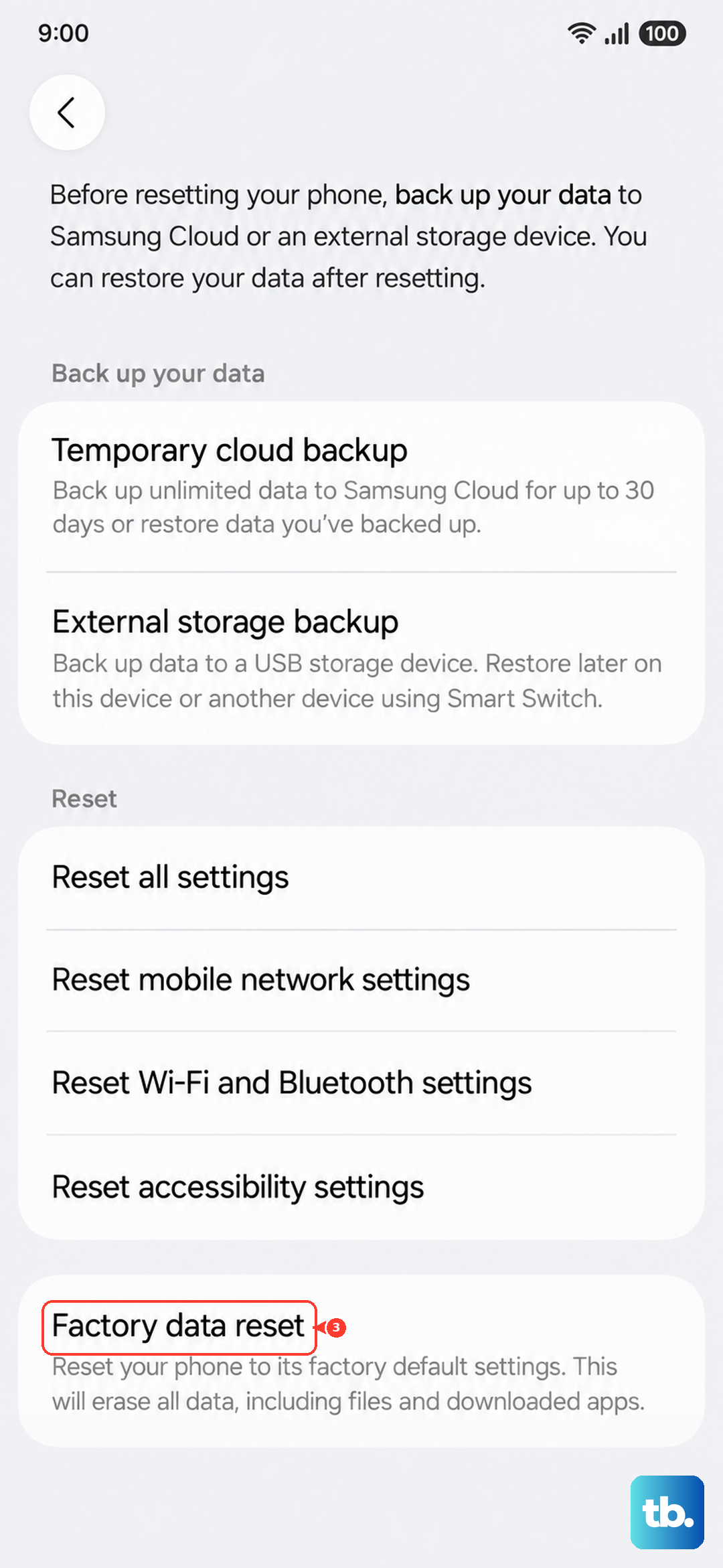
Tap "Reset" and then "Delete all" to confirm. The phone will restart and begin the wiping process, which can take several minutes. Once it boots up, you'll be greeted with the initial setup screen.
If the touchscreen is still unresponsive after a factory reset, the issue is almost certainly hardware-related. The touch digitizer or the display itself may need to be repaired or replaced.