
When your Samsung Galaxy S25+ keyboard suddenly stops working, it can bring your whole phone to a halt. That "Unfortunately, Samsung Keyboard has stopped" error is a common hiccup, but it's usually something you can fix yourself in a few minutes.
I'd start with the simplest fix first. A quick force restart can clear out temporary software glitches that might be freezing the keyboard. On your S25+, press and hold the Volume Down button and the Side button together for about 10 seconds. Keep holding them until you see the Samsung logo appear, then let go. This is different from a normal restart and often solves weird app behavior.
Restart the Keyboard App Itself
If a full restart doesn't do it, try force stopping just the keyboard app. This closes it completely and lets it start fresh the next time you need to type. Head to Settings > Apps.
You'll need to show all system apps to find it. Tap the three-dot menu in the top right and select Show system apps. Now, find and tap on Samsung Keyboard in the list.
On the app info screen, tap the Force Stop button. Confirm if prompted. Once it's stopped, back out of Settings and try opening any app where you can type, like Messages or Chrome, to see if the keyboard pops up normally.
Clear the Keyboard's Cache and Data
Corrupted temporary files can cause the keyboard app to crash. Clearing the cache gets rid of these files without touching your personal data. If that doesn't work, clearing the data is the next step, but be aware it will reset all your keyboard settings and learned words.
Go back to Settings > Apps > Samsung Keyboard. This time, tap on Storage. You'll see two options: Clear Cache and Clear Data. Tap Clear Cache first, then test the keyboard.
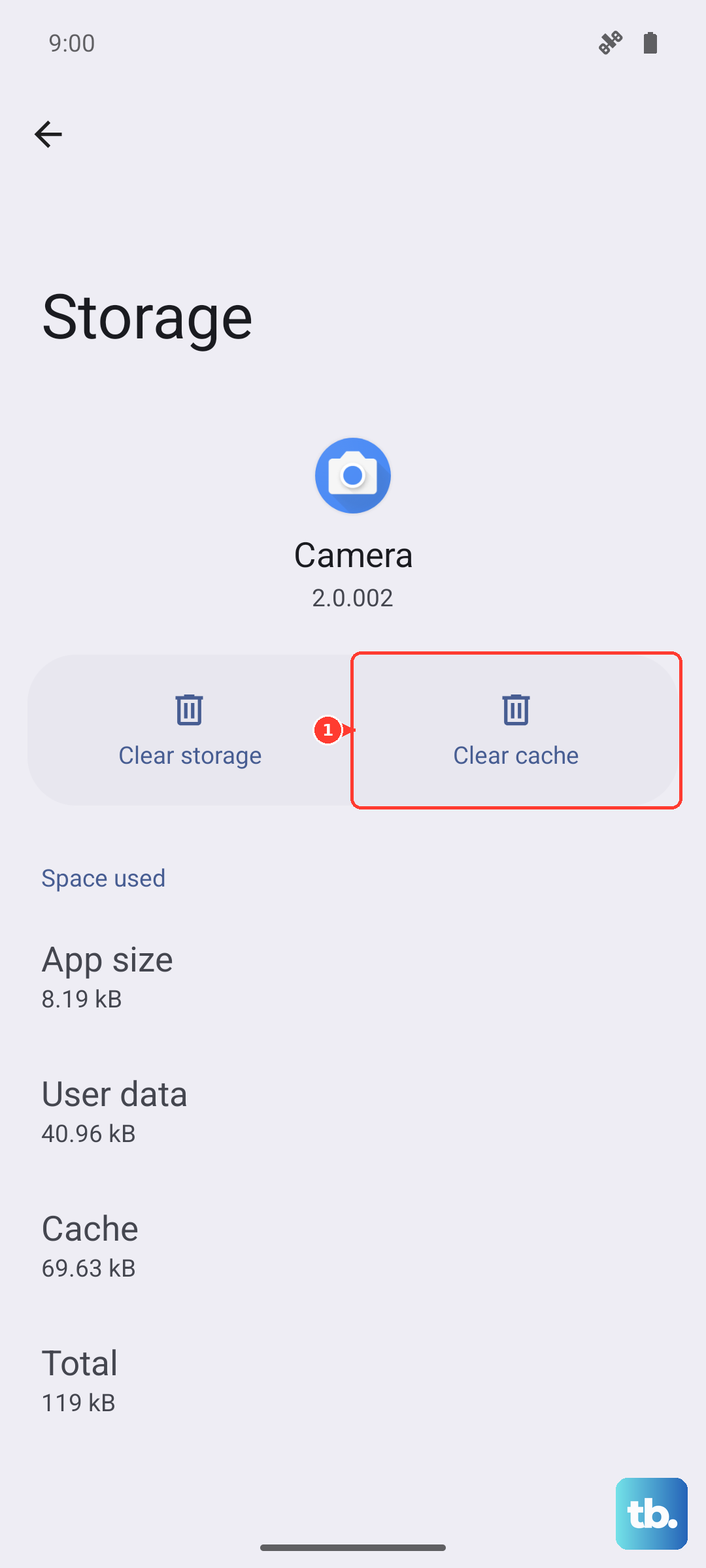
If it's still failing, come back here and tap Clear Data. Confirm the action. After doing this, you'll need to go through the keyboard's initial setup screen the next time you use it.
Check for App and System Updates
An outdated keyboard app or system software can lead to conflicts, especially after a major Android or One UI update. It's a good idea to check for updates on both fronts.
First, open the Google Play Store, tap your profile icon, and go to Manage apps & device. Under "Updates available," see if Samsung Keyboard is listed. If it is, update it.
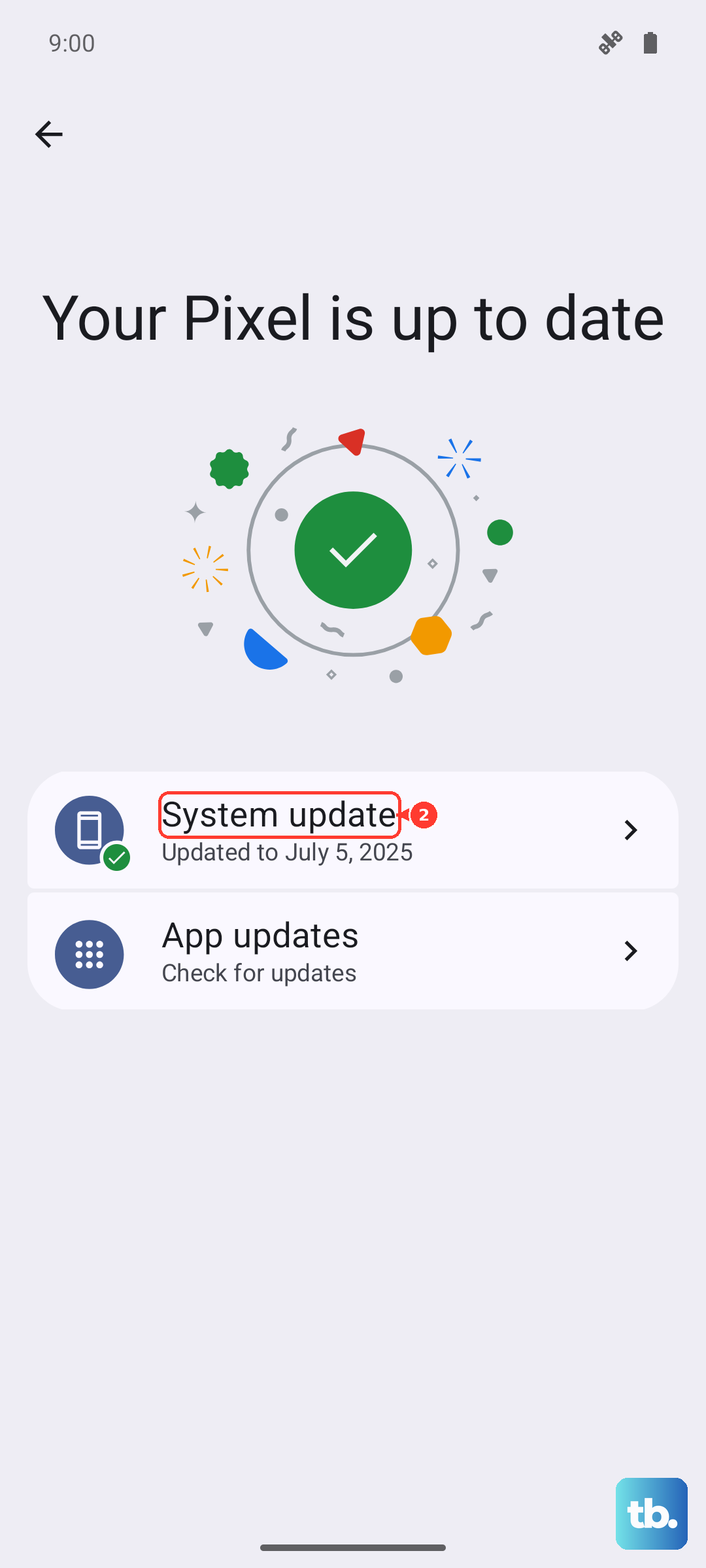
Next, check for a full system update. Go to Settings > Software update and tap Download and install. If your S25+ is still indexing or settling after its initial setup, an update might include important stability fixes.
Reset Your Keyboard Settings
Sometimes a specific setting you've changed can cause instability. Samsung lets you reset just the keyboard's preferences back to factory default without affecting anything else on your phone.
Navigate to Settings > General management > Language and input. Tap on On-screen keyboard and then select Samsung Keyboard from the list.
Scroll down and tap Reset to default settings. Confirm your choice. This will wipe your personal dictionary, keyboard layout choices, and any customizations, but it often resolves persistent crashing.
Boot Into Safe Mode
If the keyboard works fine sometimes but not others, a third-party app you installed could be interfering. Booting into Safe Mode temporarily disables all downloaded apps, helping you pinpoint the cause.
Press and hold the Side button until the power menu appears. Tap and hold the Power off icon on your screen until you see a "Safe Mode" prompt. Tap it to restart your phone into Safe Mode. You'll see "Safe mode" in the bottom corner of the screen.
Try using the keyboard now. If it works perfectly in Safe Mode, you know a downloaded app is the culprit. Start by removing any recently installed apps, or apps related to keyboards, themes, or accessibility.
Try a Different Keyboard App
While you're troubleshooting the built-in keyboard, installing a third-party one gives you a working keyboard right away. It's a great temporary workaround. Apps like Gboard (Google's keyboard) or SwiftKey are popular and free in the Play Store.
Once installed, go to Settings > General management > Language and input > On-screen keyboard and toggle on your new keyboard. You can then follow the prompts to set it as your default input method.
Reset All System Settings
This is a more thorough step if the problem seems widespread. Resetting all settings will revert your network, Bluetooth, sound, and display settings back to default, but it won't delete any of your photos, messages, or apps.
Go to Settings > General management > Reset. This time, select Reset settings. You may need to enter your PIN or password. This can resolve conflicts caused by a deep system setting that's affecting input across the device.
Check for Conflicts with Dictionary or Voice Input
The keyboard relies on other system services. If you use voice typing or predictive text, issues with those services can crash the keyboard. Try disabling them temporarily.
Go back to Samsung Keyboard in your app settings. Inside its settings, look for options like Predictive text or Voice input and turn them off. Test the basic keyboard. If it works, you can try re-enabling them one by one to find the problematic feature.
For most people, one of the earlier steps like force stopping the app or clearing its cache does the trick. These issues often pop up after a software update as the phone's system stabilizes, so giving it a little time after a reset can sometimes help too.