
When your Samsung Galaxy S25 starts restarting on its own, it's more than just annoying. It can interrupt calls, disrupt your work, and make you worry about the phone itself. This kind of problem is often tied to software quirks in One UI 7, but it can also point to a troublesome app or a deeper system issue.
Before you try anything, it's a good idea to make sure your data is backed up. You can use Samsung Cloud or Google One. This protects your photos, messages, and settings just in case a more involved fix is needed later on.
Perform a Force Restart
This is almost always the first thing I'd try. A force restart clears the phone's temporary memory and can stop a minor software glitch that's causing the loop. For the Galaxy S25, the method is nice and simple.
Just press and hold the Volume Down button and the Side button (power key) together for about 10 seconds. You'll see the Samsung logo appear, and the phone will boot up normally. This doesn't delete any of your personal data.
Check for App Updates and Conflicts
Outdated or buggy apps are a very common cause of random restarts on Android. Start by heading to the Galaxy Store and Google Play Store to update everything. Sometimes, a single app's recent update is the culprit.
If the restarts started after installing a specific app, try uninstalling it to see if the problem stops. You can also boot into Safe Mode to check. Press and hold the power button, then tap and hold the "Power off" option on your screen until you see the Safe Mode prompt.
In Safe Mode, all third-party apps are disabled. If your phone runs smoothly here, you know an app you installed is causing the trouble.
Update Your Phone's Software
Samsung regularly releases updates that fix known bugs and improve stability. An outdated system can definitely lead to random reboots. Go to Settings > Software update and tap "Download and install."
Make sure you're connected to Wi-Fi and have at least a 50% battery charge before starting the update. Installing the latest One UI and Android security patches resolves a lot of these erratic behaviors.
Clear the System Cache
Over time, cached data from apps and the system can become corrupted. Clearing this cache can fix instability without touching your personal files. You'll need to use the phone's recovery menu.
First, power off your Galaxy S25 completely. Then, connect it to your computer with a USB cable. While connected, press and hold the Volume Up and Side buttons until the Samsung logo appears, then release.
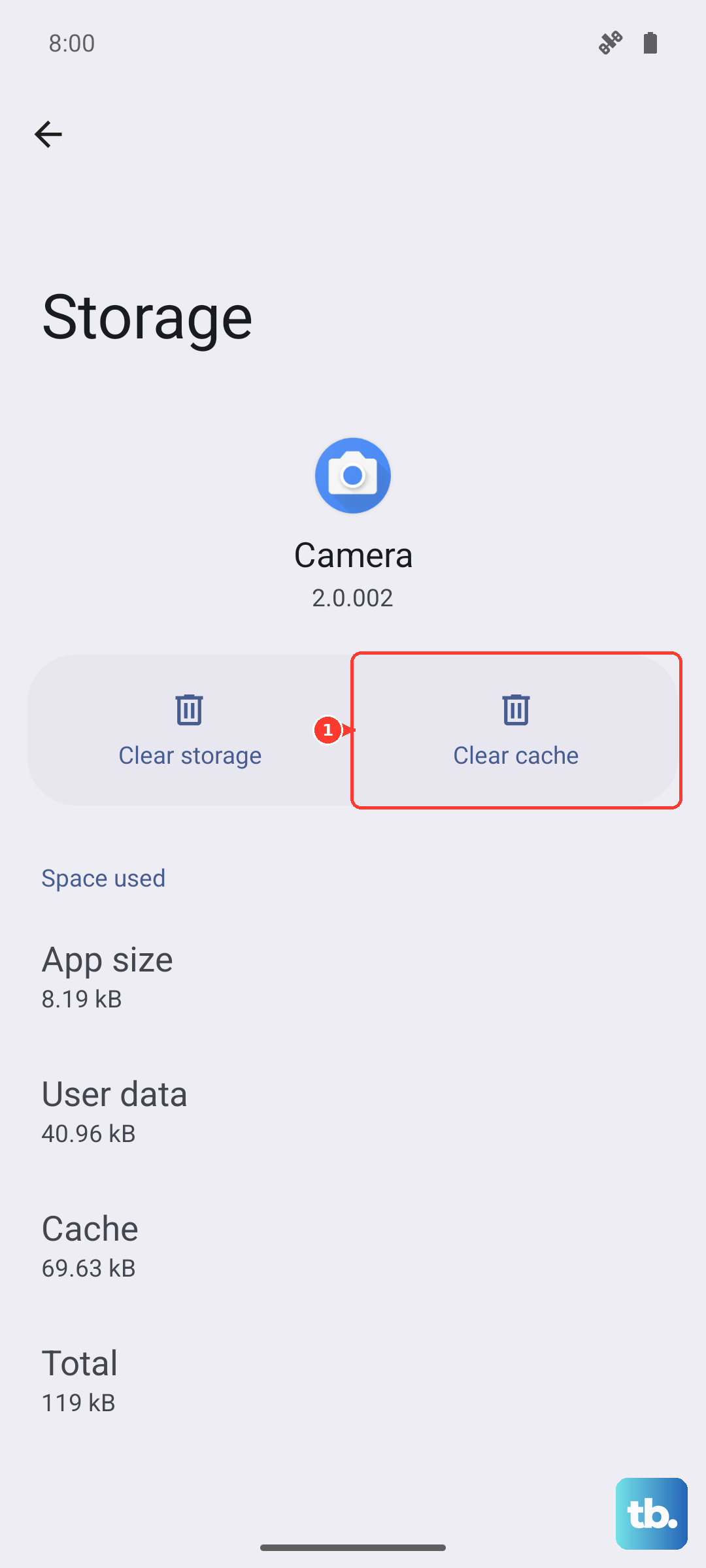
On the Galaxy S25, though, the recovery menu no longer has a "Wipe cache partition" entry, so there is nothing to select here. Samsung removed it from recent Galaxy phones and the system now clears this cache automatically. Instead, clear individual app caches under Settings > Apps, tap an app, then Storage > Clear cache, or run Settings > Device care > Optimize now.
Review Battery and Charging Settings
Sometimes, the issue isn't a full restart but the phone shutting down due to a power fault. Check your charging cable and adapter. I've seen phones act up with cheap, uncertified chargers. For the fastest, safest charge on the S25, use an official Samsung 25W adapter.
Also, take a look in your battery settings. Go to Settings > Battery > More battery settings. Here, you can see if features like "Adaptive battery" or "Battery protection" (whose Maximum mode limits charge to 80%) are affecting performance.
If you ever get a false "Moisture detected" warning in your USB-C port, it can prevent charging and cause odd behavior. Turn the phone off, use a can of compressed air to gently dry the port, and wait about 30 minutes before trying again.
Free Up Storage Space
When your phone's internal storage is critically full, the operating system doesn't have room to work properly. This can lead to crashes and reboots. Head to Settings > Device care > Storage.
The phone will show you what's taking up space. You can use the "Clean now" button for temporary files, or manually review and delete large unused apps, old downloads, and backed-up photos and videos.
Reset All Settings
If the problem persists, this step resets all your system settings to default without deleting your apps, photos, or messages. It's a good middle-ground fix. You'll have to reconfigure things like Wi-Fi passwords, Bluetooth pairings, and display settings afterward.
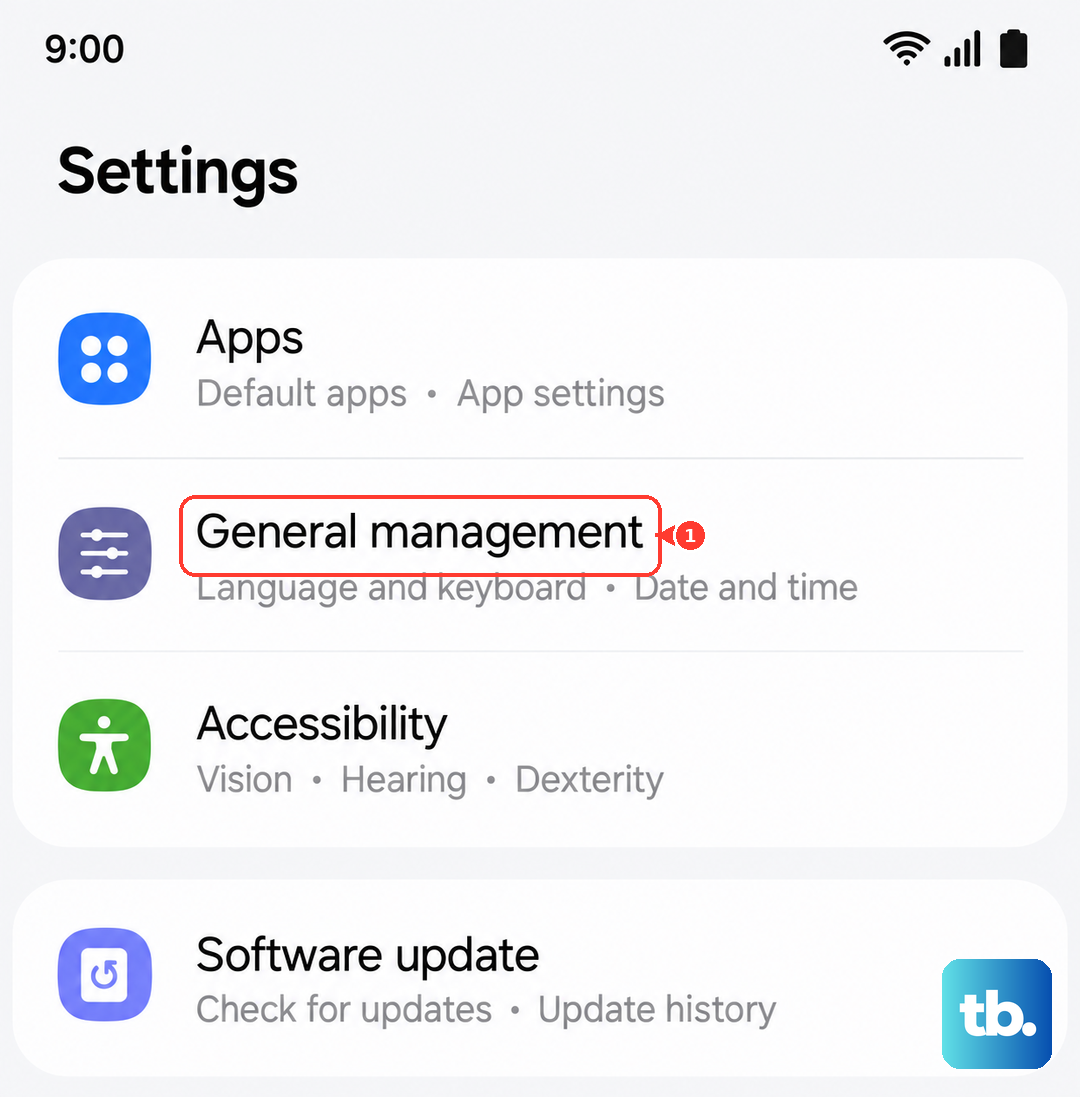
Go to Settings > General management > Reset > Reset all settings. Enter your PIN or password if prompted, and confirm. Your phone will reboot, and the random restarting often stops here.
Check for Hardware Issues
While less common, a hardware problem can cause this. A loose or damaged SIM card is an easy thing to check. Use the SIM eject tool to pop out the tray, remove the card, and inspect it for any obvious damage or corrosion.
Gently clean the metal contacts on the SIM card with a soft, dry cloth and reinsert it. Also, inspect the USB-C charging port for any packed-in lint or physical damage. A damaged port can cause short circuits that make the phone reboot.
Perform a Factory Reset
This is the most comprehensive software fix. A factory reset will erase everything on your phone and return it to its original out-of-the-box state. This is why that backup at the beginning was so important.
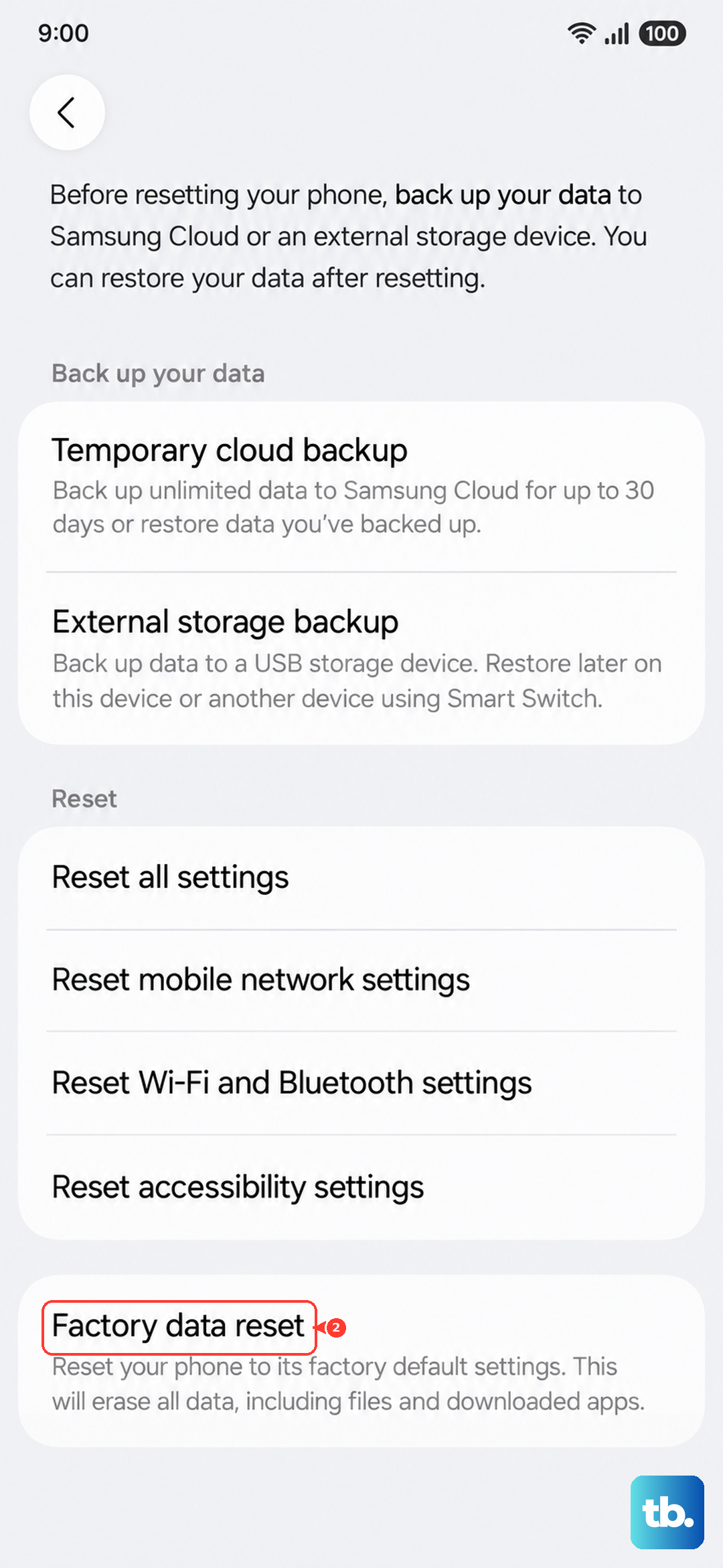
You can do this from the settings menu if the phone is working. Go to Settings > General management > Reset > Factory data reset. Read the warning carefully, tap "Reset," and follow the prompts.
If your phone is stuck in a restart loop and you can't access settings, you can use the hardware buttons. Power off the phone, then press and hold Volume Up and the Side button to enter the recovery menu. Use the volume keys to select "Wipe data/factory reset" and confirm.