
If your Samsung Galaxy S25's fingerprint scanner has suddenly stopped recognizing you, it's a pretty immediate roadblock. You can't unlock your phone, log into apps, or approve payments. The good news is this is usually a software hiccup or a simple fix you can handle yourself in a few minutes.
I'd start with the quickest solution first. Give your phone a restart by pressing and holding the Volume Down and Side button together for about ten seconds. Wait for the Samsung logo to appear, then let go. This clears out any temporary glitches in One UI 7 that might be confusing the under-display sensor.
Clean Your Screen and Fingertip
The ultrasonic sensor under your S25's screen needs a clean surface to read your fingerprint accurately. Even a little bit of oil, lotion, or dirt on your thumb or the screen can block the signal. Wipe your fingertip on your pants and give the lower part of your screen a good polish with a soft, dry microfiber cloth.
Avoid using screen cleaners with alcohol or ammonia, as they can damage the oleophobic coating. If you've just applied hand sanitizer, wait a moment for it to fully dry and evaporate before trying again.
Check Your Screen Protector
This is one of the most common culprits, especially with thicker tempered glass protectors. The ultrasonic waves have a harder time penetrating certain materials. If you recently installed a new protector, that's likely the issue.
Try removing the screen protector temporarily to see if the fingerprint sensor starts working again. If it does, you'll need a protector specifically marketed as compatible with ultrasonic fingerprint sensors. Some brands even include a special mode in Settings > Display > Touch sensitivity you can enable to help.
Re-register Your Fingerprint
Sometimes the stored fingerprint data gets corrupted. The fix is to delete the old print and teach your phone your fingerprint again. Head to Settings > Security and privacy > Fingerprints. You'll need to enter your PIN, password, or pattern to proceed.
Tap on the fingerprint that's giving you trouble and select Remove. Now, tap Add fingerprint and follow the prompts. Make sure you rotate your finger and cover the edges during enrollment, just like the animation shows. Don't press too hard; use a normal, flat touch.
Update Your Software
Samsung regularly releases updates that fix bugs, including ones related to biometric sensors. An outdated version of One UI could be the root of your problem. Go to Settings > Software update > Download and install.
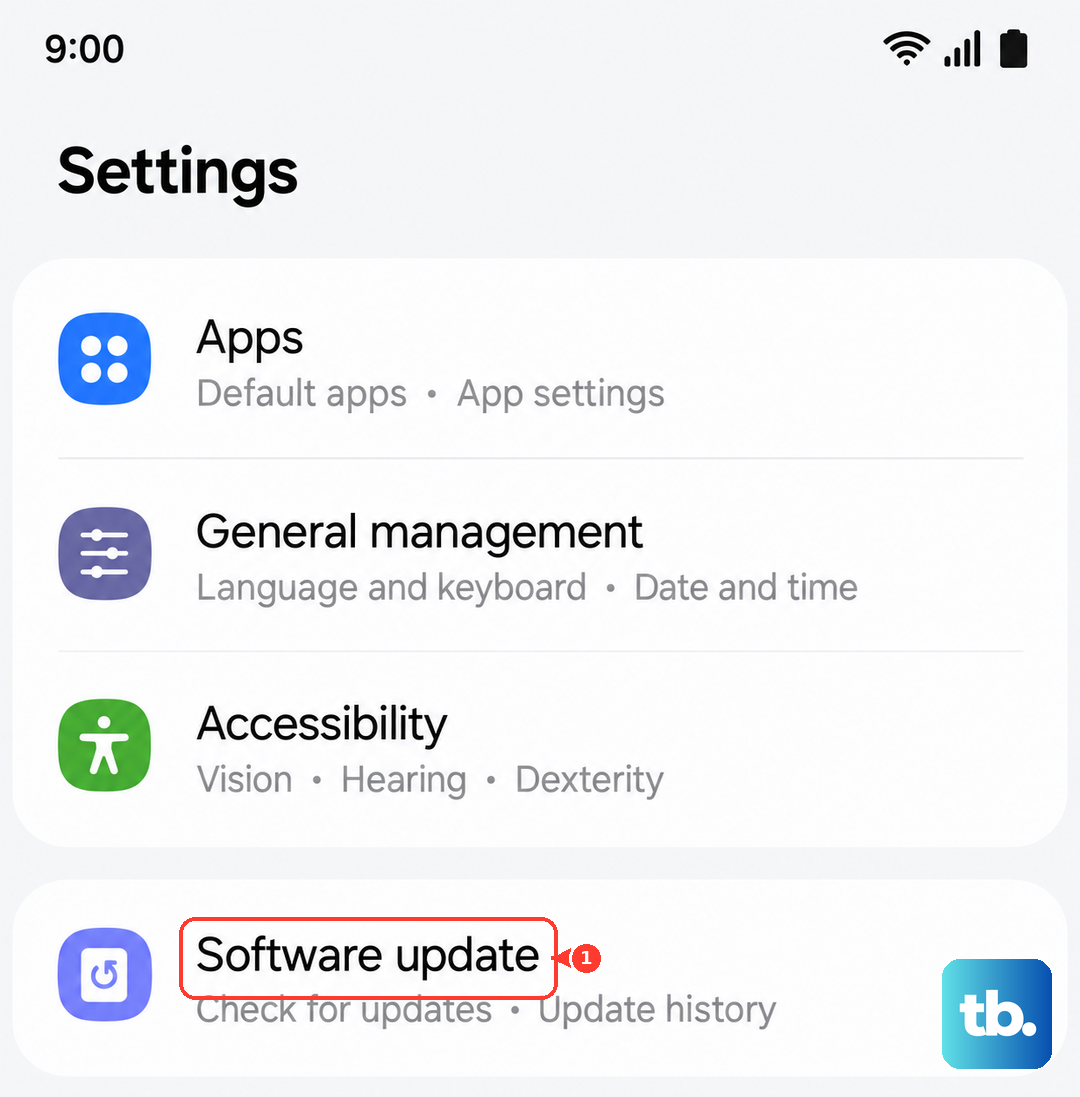
Let the phone check for updates. If one is available, connect to Wi-Fi and let it install. After the phone restarts, test your fingerprint. I've seen minor point updates specifically address authentication issues on past Galaxy models.
Clear the System Cache
If the problem started after a recent software update, cached data from the old system might be conflicting. Clearing the cache partition is a safe way to clean this out without touching your personal data.
First, turn off your Galaxy S25 completely. Now, press and hold the Volume Up and Side buttons together. When you feel a vibration or see the Samsung logo, let go of the Side button but keep holding Volume Up until the Android Recovery menu appears.
Use the Volume Down button to highlight Wipe cache partition, then press the Side button to select it. Confirm by selecting Yes. Once it's done, select Reboot system now.
Review Your Security Settings
There are a couple of settings in One UI that can interfere. First, check if you have any battery optimization turned on for system security processes. Go to Settings > Battery > Background usage limits. Make sure nothing related to security or biometrics is being put to sleep.
Also, navigate to Settings > Security and privacy > More security settings. Look for an option called "Fingerprint always on" or similar and ensure it's enabled. This keeps the sensor active and ready to scan.
Consider Your Environment
Extremely dry or cold fingers can sometimes be harder for the sensor to read. If your hands are very dry, try moisturizing them. Also, if your phone has been in a very cold environment, let it warm up to room temperature.
While wireless charging interference is less common on newer models, it's still worth noting. If you're having consistent failures only when the phone is on a Qi2 charger, try unlocking it off the pad to see if that's the factor.
For a reliable backup, always register at least two fingerprints, like your right and left thumb. And ensure your PIN, pattern, or password is set up and memorized. That way, you're never locked out while you sort out the biometric issue.