
Seeing that "MMS sending failed" error on your Samsung Galaxy S25 can be incredibly annoying, especially when you just need to send a quick photo. This is a common hiccup on Android phones, and it's usually something simple like a setting or a temporary network glitch. Let's walk through the fixes that usually get things moving again.
Check Your Mobile Data Connection First
MMS messages, which include photos, videos, and group chats, don't send over WiFi like regular texts. They require an active mobile data connection. Pull down your notification shade and make sure the mobile data icon is on. If you have a strong WiFi signal but a weak cellular one, your phone might be struggling to send the MMS.
I'd start by toggling Airplane mode on and off. Swipe down twice from the top of your screen and tap the Airplane icon, wait about ten seconds, then tap it again to turn it off. This forces your phone to reconnect to the network and can clear up a temporary data stall.
Verify Your MMS Settings in Samsung Messages
The settings within your messaging app are crucial. Open the Samsung Messages app, tap the three-dot menu in the top right, and go to Settings. From there, select Multimedia messages.
Make sure Auto download is turned on. You should also see an option for Group conversation; ensure that's enabled if you're trying to send to multiple people. If you're traveling, you might need to enable Roaming auto download as well, but be mindful of potential data charges.
Clear the Cache for Your Messages App
Temporary files can get corrupted and block the messaging service. Go to your phone's Settings > Apps. Find and tap on Messages (the Samsung app). Select Storage and then tap Clear cache.
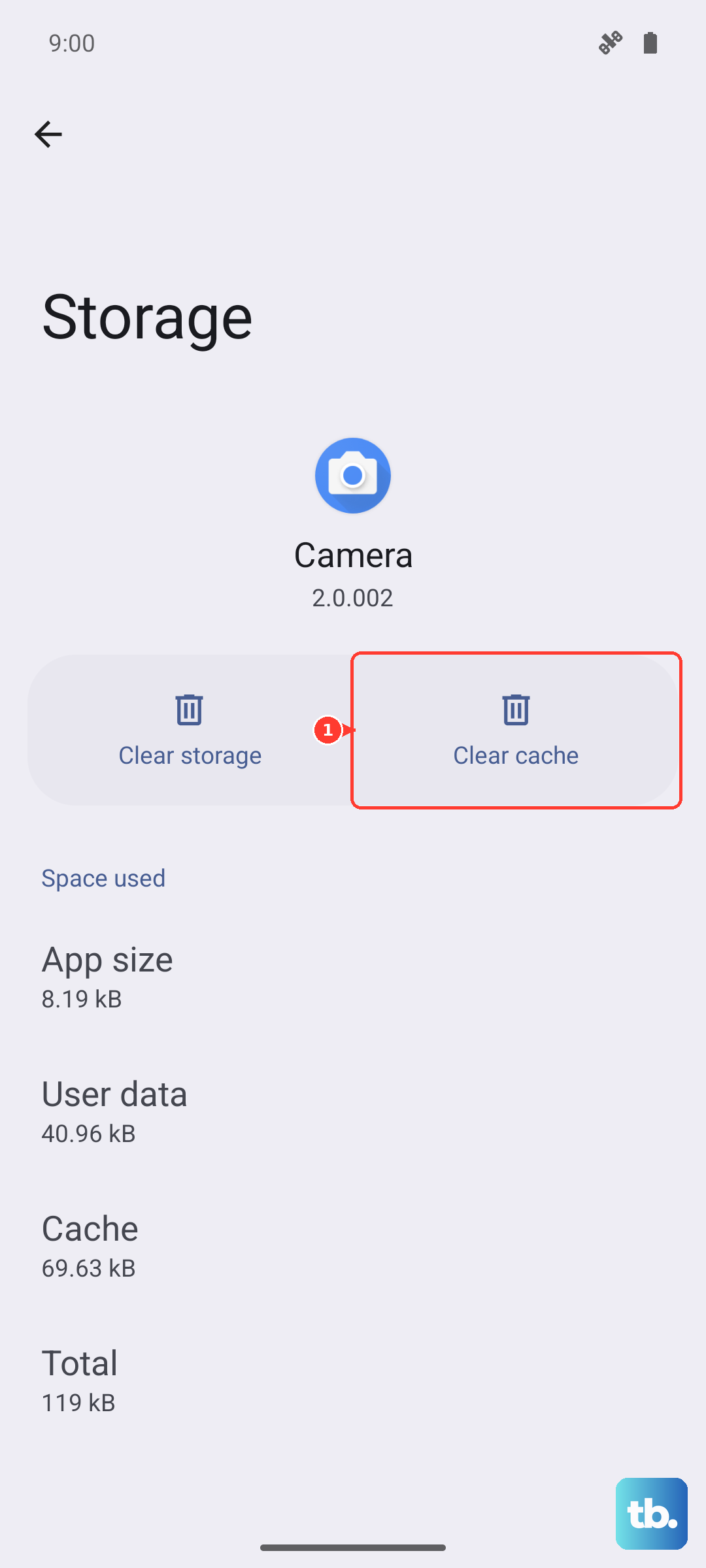
This won't delete any of your actual messages or conversations. It just wipes the temporary data the app has stored. After doing this, force close the app by tapping Force stop on that same storage page, then reopen it and try sending the MMS again.
Check and Update Your APN Settings
This is a very common fix. APN (Access Point Name) settings are like an address your phone uses to find your carrier's data and MMS services. If they're wrong, MMS will fail. Go to Settings > Connections > Mobile networks > Access Point Names.
You should see a list of APNs, with one selected (usually your carrier's name). Tap on it to view the details. The most critical fields for MMS are MMSC, MMS proxy, and MMS port. If these are blank or look incorrect, you'll need the right info from your carrier.
A quick search for "[Your Carrier] APN settings 2025" usually brings up the correct details. You can also contact your carrier's support directly; they can often send a configuration message that sets this up for you automatically.
Perform a Network Settings Reset
If you've been fiddling with settings or recently switched carriers, a deeper reset can help. This will erase all your saved WiFi networks, Bluetooth pairings, and cellular settings, returning them to factory defaults.
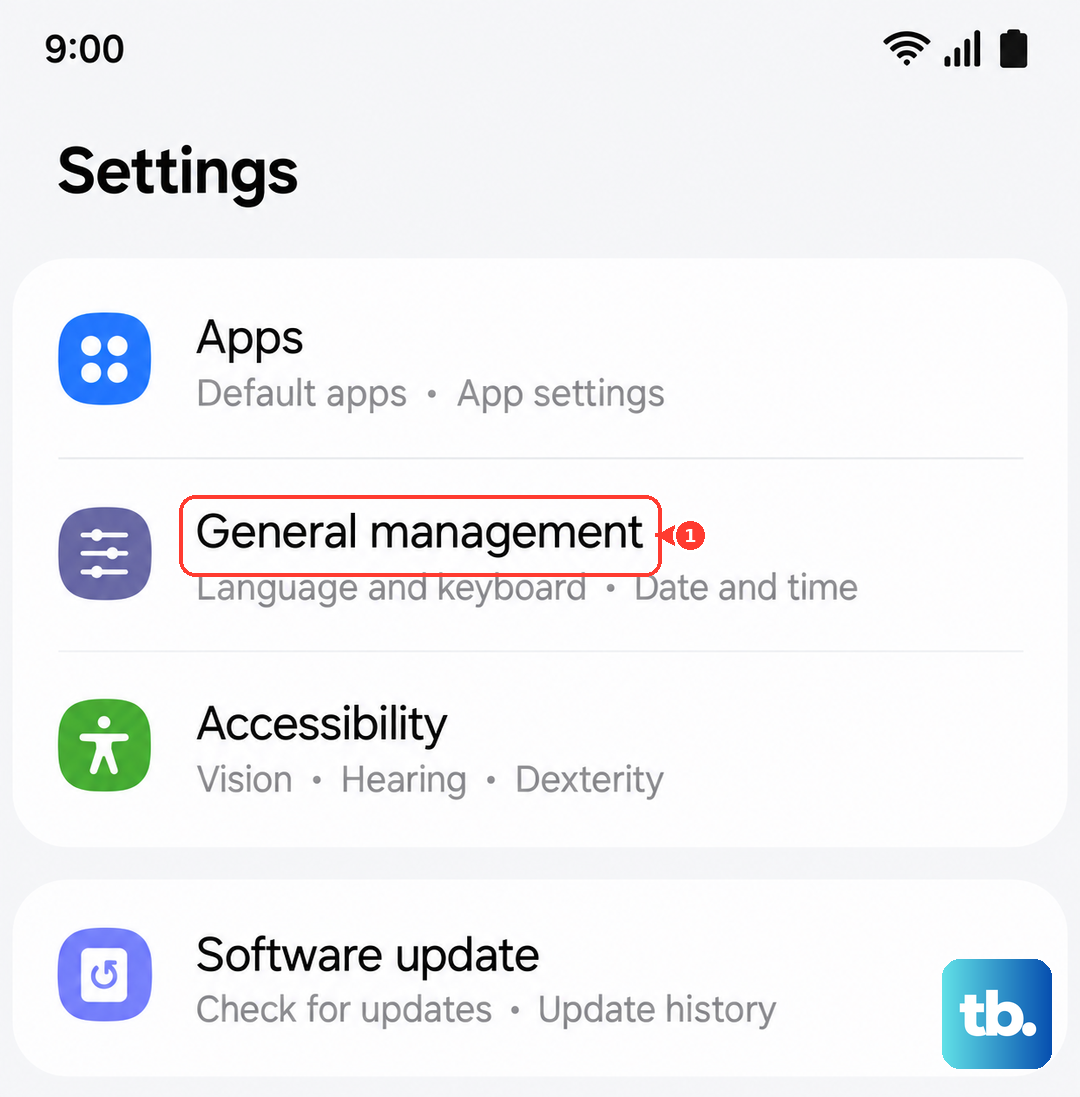
Go to Settings > General management > Reset > Reset network settings. Confirm the action and your S25 will restart. After it boots up, you'll need to reconnect to your WiFi and re-pair Bluetooth devices, but it often clears up stubborn MMS and data issues.
Update Your Phone's Software
An outdated version of One UI or Android can have bugs that affect messaging. Samsung regularly releases updates that fix these kinds of problems. Head to Settings > Software update > Download and install.
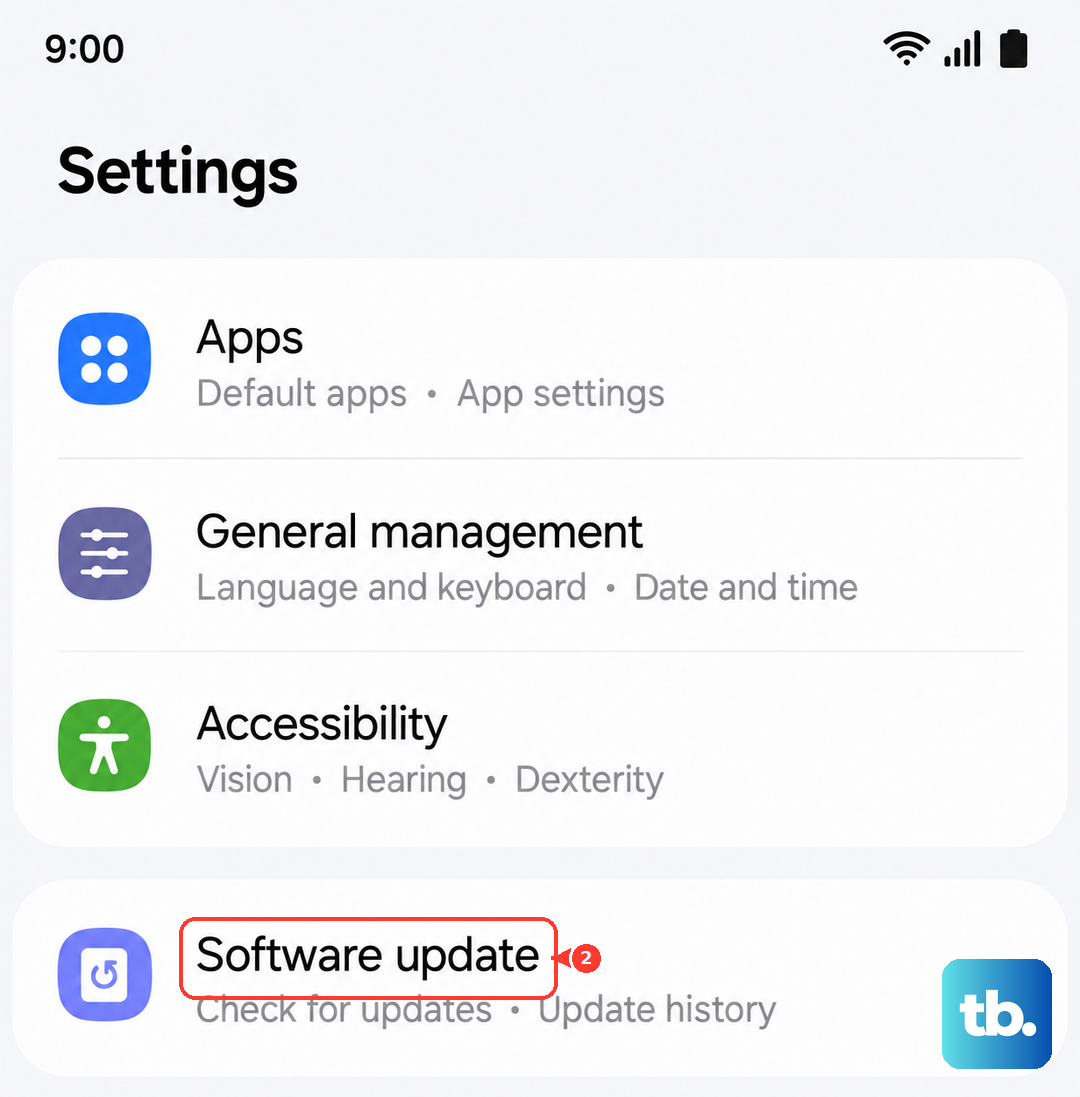
Let it check for and install any available updates. After the update is complete and your phone restarts, give it a minute to settle, then try sending your MMS again. This has resolved messaging issues for many users after a major OS update.
Try Using Google Messages as an Alternative
Sometimes the issue is specific to the Samsung Messages app. A great way to test this is to install Google Messages from the Play Store. Once installed, open it and it will prompt you to set it as your default messaging app.
Go ahead and allow that. Google Messages often has more consistent RCS and MMS performance across different carriers. Try sending your problematic MMS through this app. If it works, you've found a solid workaround and can keep using it.
Ensure You Have Enough Storage Space
Your Galaxy S25 needs a bit of free space to process and store incoming MMS messages before you see them. If your storage is critically low, it can fail. Go to Settings > Device care > Storage.
See how much space is available. If it's in the red or very low, try cleaning out some old downloads, app caches, or unused apps. Freeing up even a few hundred megabytes can sometimes be enough to get the messaging system working properly again.
Contact Your Mobile Carrier
If you've tried everything here, the problem might be on your carrier's end. There could be a service outage in your area, a provisioning issue with your specific line, or a problem with their MMS gateway.
Give their customer support a call or use their online chat. Tell them you're getting an "MMS sending failed" error on your Samsung Galaxy S25. They can check your account status, reprovision your data services, and confirm if there are any known issues affecting multimedia messages.











