
Picture messages getting stuck on "Downloading" on your Samsung Galaxy S25 FE is a common hiccup. It usually boils down to a network setting, a temporary app glitch, or a system process that needs a nudge.
Let's get those photos and videos loading again. I'd start with the quick network and restart checks, as they fix the issue most of the time.
Restart Your Galaxy S25 FE
A simple restart clears out temporary software bugs that can block downloads. Just press and hold the Volume Down and Side button together for about ten seconds until you see the Samsung logo. This force restart is often more effective than a standard shutdown.
Check Your Mobile Data Connection
MMS and RCS messages need mobile data to download, even if you're on Wi-Fi. Swipe down twice from the top of your screen to open the Quick Settings panel and make sure mobile data is turned on. If you have a weak signal, try moving to a different spot.
It's also worth toggling Airplane mode on for 30 seconds and then off again. This forces your phone to reconnect to the cellular network from scratch, which can clear up data path issues.
Enable Auto-Download in Messages
Your phone might be set to wait for your permission. Open the Samsung Messages app, tap the three dots in the top right, and go to Settings > Multimedia messages. Here, make sure Auto download is turned on.
If you're using a different messaging app like Google Messages, the path is similar: open the app, tap your profile picture, go to Messages settings > Multimedia messages, and enable Auto-download MMS and Auto-download roaming.
Clear the Messaging App's Cache
Corrupted temporary files can cause all sorts of strange behavior. Go to your phone's Settings > Apps. Find and tap on your messaging app (Samsung Messages or Google Messages).
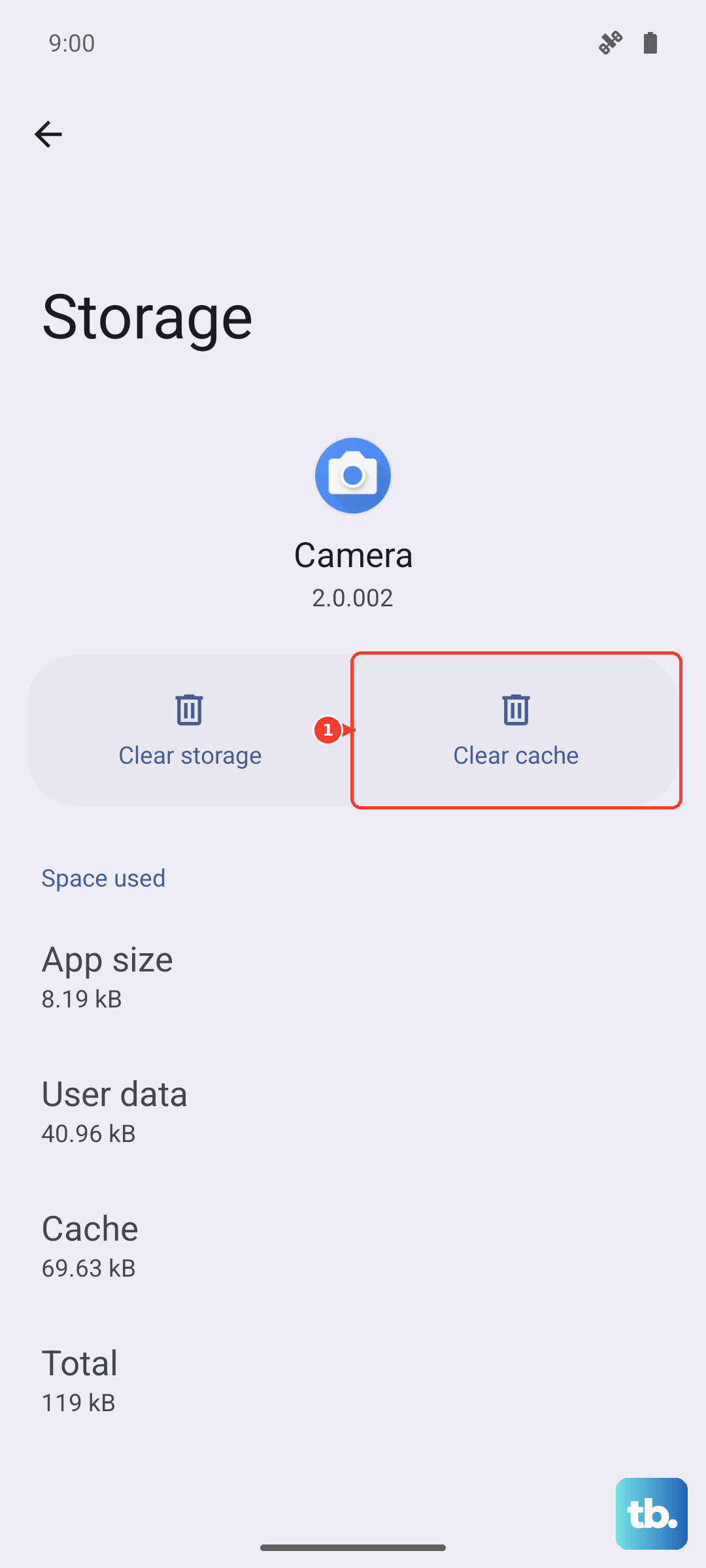
Select Storage and then tap Clear cache. This won't delete any of your actual messages or data, it just cleans out the temporary junk. After doing this, force close the app and reopen it to see if pictures start coming through.
Verify Your APN Settings
Incorrect Access Point Name (APN) settings are a classic culprit for MMS problems. These settings tell your phone how to connect to your carrier's multimedia service. The settings are unique to your carrier.
You can find them by going to Settings > Connections > Mobile networks > Access Point Names. Your carrier's APN should already be listed and selected. If things aren't working, a good step is to tap the three dots menu, select Reset to default, and then restart your phone.
For the most accurate settings, I'd recommend checking your carrier's official support website or contacting them directly. They can provide the exact configuration for the Galaxy S25 FE on their network.
Reset Your Network Settings
This is a more thorough step that resets all Wi-Fi, Bluetooth, and cellular connections back to factory defaults. It's very effective for persistent network-related issues. You'll need to reconnect to Wi-Fi networks and re-pair Bluetooth devices afterward.
To do it, navigate to Settings > General management > Reset > Reset network settings. Tap reset, confirm, and let your phone reboot. This process takes about 30 seconds and doesn't touch your personal files or apps.
Check for a Software Update
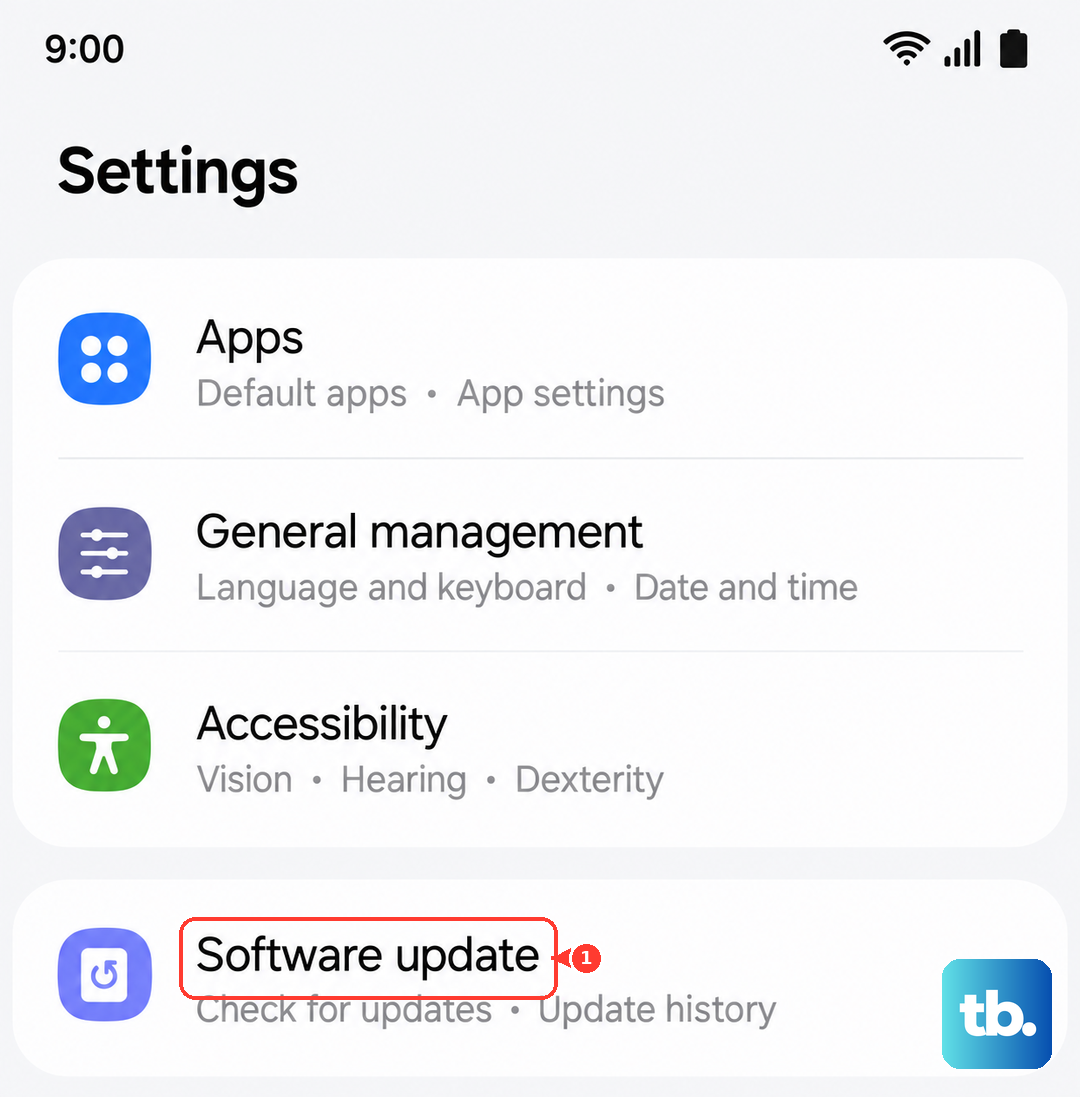
Samsung regularly releases updates that fix bugs, including ones related to messaging. With the S25 FE running Android 15 and One UI 7, it's good to stay current. Go to Settings > Software update > Download and install.
If an update is available, install it. I've seen updates specifically address connectivity and messaging glitches that were affecting picture downloads.
Ensure You Have Enough Storage
Your phone might refuse to download large picture messages if it's critically low on space. Go to Settings > Battery and device care > Storage to see how much free space you have.
If you're below 1GB, try cleaning out some old downloads, cached data from other apps, or unused files. The Galaxy S25 FE can also automatically manage storage with features like removing duplicate files, which you can find in the Device Care menu.