
When your Samsung Galaxy S25+ gets stuck and won't download apps from the Play Store, it can bring your whole phone to a halt. You're trying to get a new app for work or a game for the weekend, and it just sits there. I've found that on the S25+, this is usually a quick software hiccup or a setting that needs a nudge.
Let's go through the fixes that work for this specific phone, starting with the simplest ones you can try right now.
Check Your Connection and Restart
First, make sure your internet is actually working. Swipe down from the top of your screen to open the Quick Panel and look at the Wi-Fi or mobile data icon. If you're on Wi-Fi, try turning it off and using your 5G data instead, as some networks can block the ports the Play Store needs.
If switching networks doesn't help, give your phone a quick restart. Press and hold the Volume Down button and the Side button together for about ten seconds until you see the Samsung logo. This clears out any temporary glitches that might be stopping downloads.
Verify the Date and Time
This one catches a lot of people off guard. If your phone's clock is wrong, it can confuse the Google servers and prevent downloads. Go into Settings > General Management > Date and time.
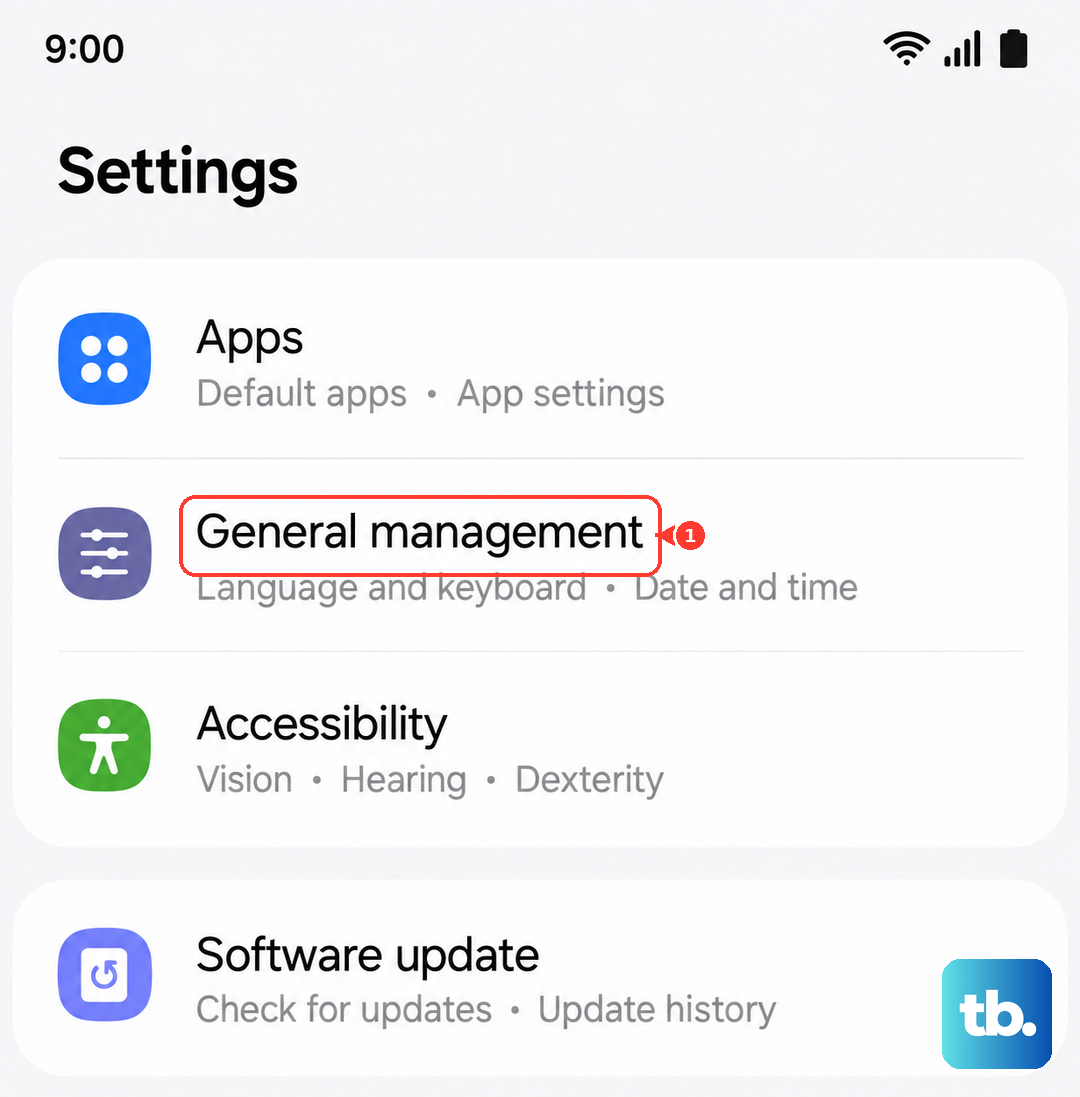
Make sure the "Automatic date and time" option is turned on. If it's already on and you're still having trouble, try turning it off for a moment, manually setting the correct time, and then turning automatic mode back on.
Clear the Google Play Store Cache
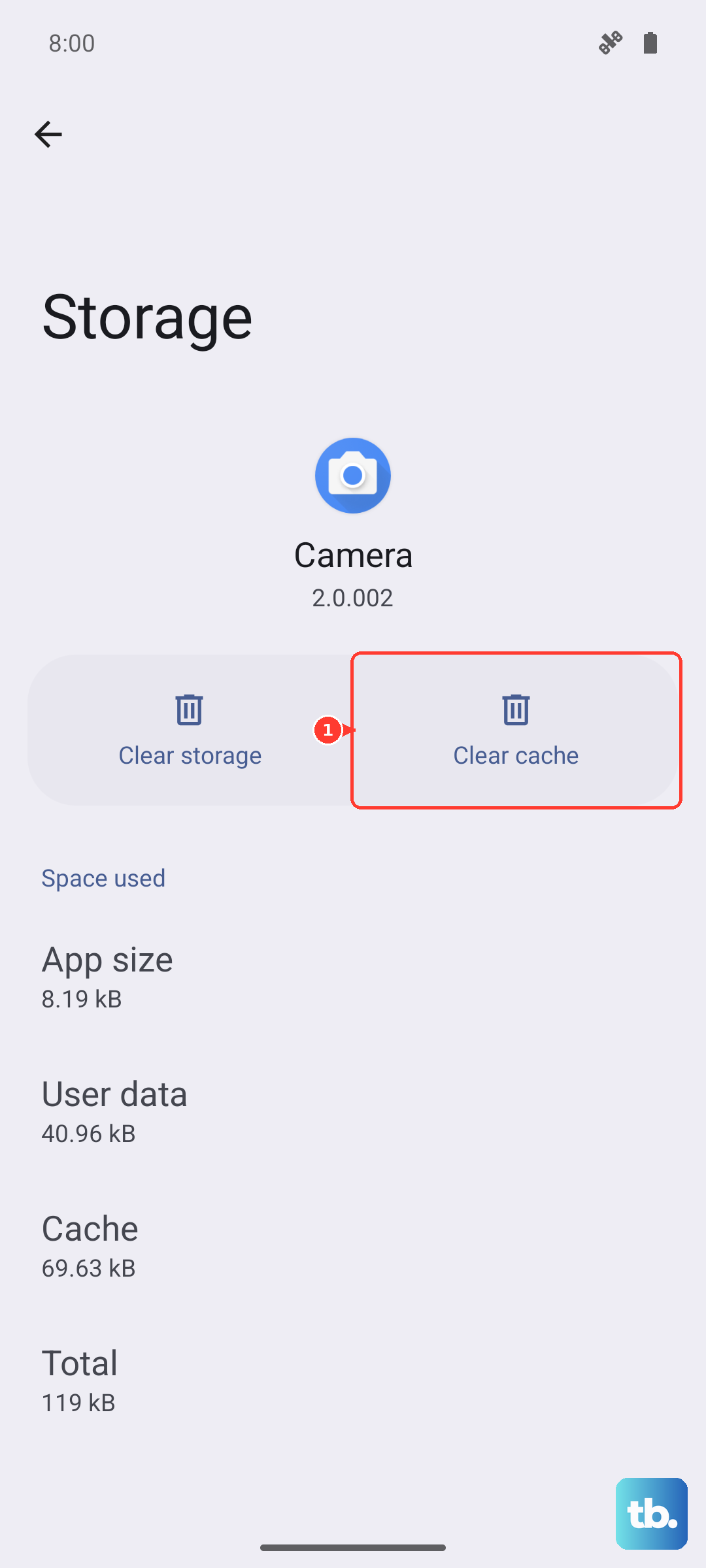
The Play Store stores temporary data that can sometimes get corrupted. Clearing this cache is a safe first step that won't delete your apps or account info. Open Settings > Apps, then find and tap on "Google Play Store".
Tap on Storage, and then tap "Clear Cache". Go back to the Play Store and try your download again. If it still fails, you can come back here and tap "Clear Data", but note this will reset the Play Store app to its default state.
Manage Google Play Services
Google Play Services is the background engine that handles downloads and updates. If it's acting up, your downloads will stall. Head back to Settings > Apps, find "Google Play Services" in the list, and tap on it.
Tap Force Stop to shut it down completely, then open the Play Store again, it will restart automatically. Next, go into the Storage menu for Google Play Services and tap "Clear Cache". For more stubborn issues, you can tap "Manage storage" and then "Clear all data".
Check for App Permission Issues
Google Play Services needs the right permissions to save apps to your phone. In the Google Play Services app info screen (Settings > Apps > Google Play Services), tap on Permissions.
Make sure "Files and media" permission is set to "Allow". While you're here, also scroll down and tap on "Additional permissions" to ensure everything relevant is enabled.
Update Your Phone's Software
An outdated system can cause conflicts with the Play Store. Samsung frequently releases updates for the Galaxy S25+ that fix bugs. Go to Settings > Software update and tap "Download and install".
If an update is available, let it install. Your phone will restart. This is a common fix, especially if the download problem started after you got a new phone or if it's been a while since your last update.
Review Your Download Manager
The Download Manager is a system app that handles all downloads. To see it, go to Settings > Apps, tap the three-dot menu in the top right, and select "Show system apps". Search for "Download Manager".
If for some reason it's disabled, tap "Enable". You can also tap on it, go to Storage, and tap "Clear Cache" to refresh it. Don't clear the data for Download Manager unless you're prepared to lose your download history.
Remove and Re-add Your Google Account
This refreshes the connection between your phone and Google's servers. Go to Settings > Accounts and backup > Manage accounts. Select your main Google account.
Tap "Remove account". Confirm, then go back and tap "Add account" to sign back in with the same credentials. You'll need to enter your password again. This often resolves persistent sync and download errors.
Free Up Storage Space on Your S25+
If you're seeing an "Insufficient storage" error, you need to make room. The S25+ has plenty of space, but it can fill up fast with 4K videos. Go to Settings > Device care > Storage to see what's using the most space.
You can use the "Clean now" button for temporary files, or manually review and delete large old videos and files you don't need. Moving photos to Samsung Cloud or Google Photos can free up gigabytes instantly.
Reset All App Preferences
This is a less nuclear option than a full reset. It returns all your app permissions, notifications, and default apps to their original settings without deleting any personal data. Go to Settings > Apps.
Tap the three-dot menu, then tap "Reset app preferences". Confirm. After your phone resets, you'll need to re-grant permissions when you open apps for the first time, but it can clear up conflicts causing download failures.