
If your Samsung Galaxy S25 Edge keeps warning you about low storage, you're not alone. Photos, videos, and app data pile up fast, especially with that high-res camera. Here are nine ways to free up space without losing what matters.
Check What's Eating Your Storage
Open Settings and tap Device care then Storage. You'll see a breakdown by category like Apps, Images, Videos, Audio, and Others. This gives you a clear picture of where the space went. Tap any category to drill down and delete items directly.
Put Unused Apps to Sleep
Samsung's One UI can automatically put apps you haven't used in a while into deep sleep. Go to Settings > Device care > Battery and tap Background usage limits. Enable Put unused apps to sleep. This stops them from running in the background and eating up cache. You can also manually uninstall apps you no longer need from the Apps section in Storage.
Clear Old Messages and Their Attachments
Messages can quietly store gigabytes of photos and videos. Open the Messages app, tap the three dots in the corner, and go to Settings > More settings > Delete old messages. Set it to auto-delete after 30 days. You can also go through individual conversations and delete those group chat files that nobody looks at anymore.
Delete and Reinstall Heavy Apps
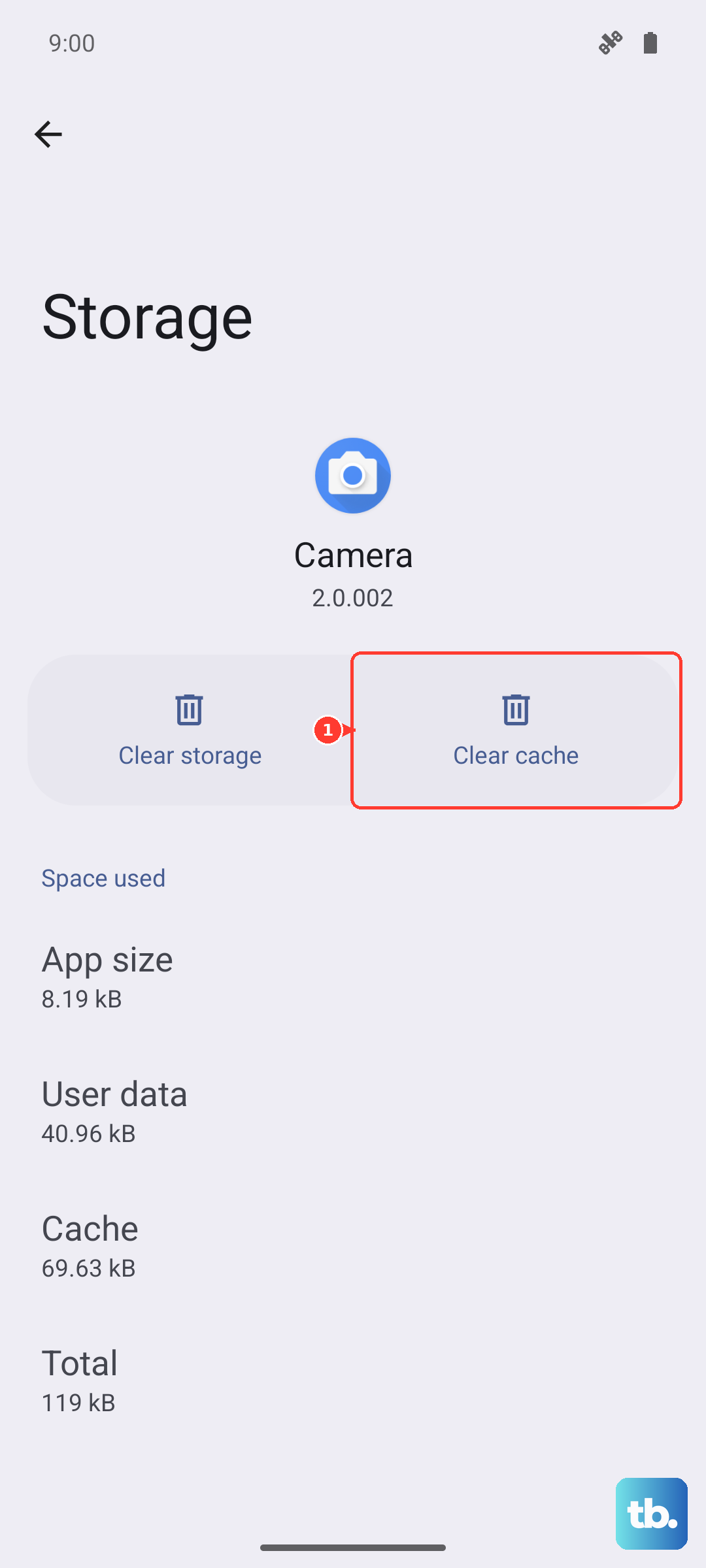
Apps like Instagram, TikTok, and Facebook build up huge caches over time. In Settings > Device care > Storage > Apps, sort by size to see the biggest ones. Tap an app and choose Clear cache first. If it's still using a ton of data, tap Clear data or uninstall and reinstall. You'll keep your account after logging back in.
Move Photos and Videos to the Cloud
Your camera roll is probably the biggest space hog. Open Google Photos and enable Back up & sync. Once your photos are safe in the cloud, use the Free up space option to delete the local copies. You can still see them all in Google Photos. Alternatively, Samsung Gallery offers Samsung Cloud backup with a similar cleanup tool.
Clear Browser Cache and Data
If you use Samsung Internet, go to the three dots menu, tap Settings > Privacy and security > Delete browsing data. Select All time and check everything except passwords you want to keep. For Chrome, go to Settings > Apps > Chrome > Storage > Clear cache. This can free up a few hundred megabytes in seconds.
Review Downloads from Streaming Apps
Netflix, Spotify, and YouTube Music store offline content that you may have forgotten about. In Spotify, go to Settings > Storage > Remove all downloads. In Netflix, tap My Downloads and delete finished shows. For YouTube Music, tap your profile picture and go to Settings > Downloads > Delete all downloads.
Wipe the System Cache Partition
Sometimes the system cache itself gets bloated. This doesn't delete your personal data. Turn off the S25 Edge, then press and hold Volume Up and Side buttons until the Samsung logo appears. Use the volume keys to highlight Wipe cache partition and press the Side button to select. Confirm with Yes, then reboot. This clears temporary system files that can take up several gigabytes.
Use a MicroSD Card (If You Have One)
Check if your S25 Edge has a SIM tray with a microSD slot. If it does, pop in a card and set the camera to save photos directly to it. You can also move large apps to the card by going to Settings > Device care > Storage, tapping the app, then Change under Storage used. This offloads the heavy lifting from your internal storage.