
Running out of storage on your Samsung Galaxy Z Flip 7 is a real pain, especially when you're trying to snap a quick photo or download an app and get hit with that dreaded "Storage space running low" notification. The good news is you can usually free up a decent chunk of space without deleting anything truly important. Here's how to get your storage back under control.
See What's Actually Eating Your Space
Open Settings > Device care > Storage. This gives you a clear breakdown of everything on your phone, sorted by category. Wait a few seconds for the full list to populate. You'll almost always find Photos and Videos at the top, followed by Apps, then Audio files. Knowing exactly what's taking up space is half the battle.
Use Device Care's Auto-Clean
Still in the Storage screen, tap Clean now. This clears temporary files, cached data from apps, and residual files from uninstalled apps. On the Z Flip 7 running Android 16, this one tap can free up a few hundred megabytes instantly. Make it a habit to run this once a week.
Delete and Reinstall Bloated Apps
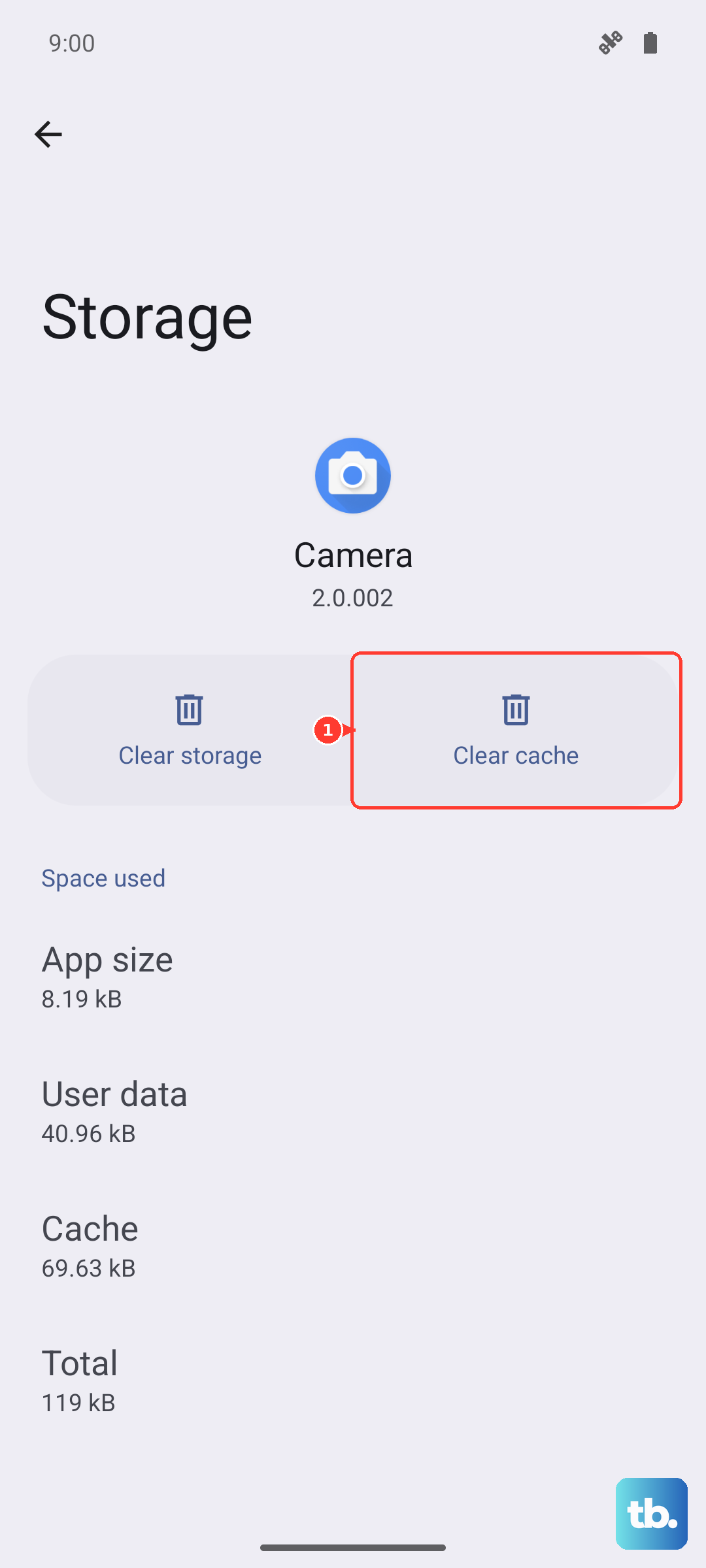
Some apps accumulate massive caches over time. In the Storage screen, tap Apps to see each app's size. Look at apps like Instagram, TikTok, Snapchat, Spotify, and Facebook. If an app is using over 1GB, tap it, then tap Clear cache first. If it's still huge, tap Uninstall and reinstall it from the Galaxy Store or Google Play. This wipes all the junk while your account stays intact when you log back in.
Clear Old Messages and Attachments
Google Messages and Samsung Messages can quietly eat up gigabytes with photos, videos, and GIFs you forgot about. Open the Messages app, tap the three-dot menu in the corner, and select Settings > Chat features. While you're there, go back and tap Manage storage. You'll see categories like Images, Videos, and Audio. Tap into each one and delete what you don't need. You can also set messages to auto-delete after a year in Settings > More settings > Auto-delete old messages.
Optimize Your Photo and Video Storage
Open the Gallery app and tap the three-dot menu in the top right. Select Settings and enable Recycle bin if it isn't already on. Then go through your albums and delete old screenshots, duplicate photos, and videos you don't need anymore. Don't forget to empty the Recycle bin afterward, deleted items sit there for 30 days, still taking up space. If you're using Google Photos, consider enabling storage saver quality for new backups.
Review Download Folders and Offline Content
Open the My Files app and check the Downloads folder. PDFs, APK files, and random downloads from your browser tend to pile up. Delete anything you no longer need. Streaming apps like Spotify, Netflix, and YouTube Music also store offline content. Open each app and remove shows, songs, or videos you've already watched or listened to. In Spotify, go to Settings > Storage > Remove all downloads to clear everything at once.
Clear Browser Cache
If you use Samsung Internet, open it, tap the three-line menu, then go to Settings > Privacy and security > Delete browsing data. Select Cached images and files and Cookies and site data, then tap Delete. This frees up space from stored web pages and can fix slow browsing too. Do the same in Chrome: Chrome > three-dot menu > Settings > Privacy and security > Clear browsing data.
Remove Old Call Recordings and Voice Files
Open the Phone app, tap the three-dot menu, and go to Settings > Record calls. If call recording is enabled, tap Recorded calls to see the list. Delete any old recordings you don't need. Voice memos and audio notes from the Voice Recorder app also accumulate over time, check that app too.
Send Files to an SD Card
The Galaxy Z Flip 7 doesn't have expandable storage, so that option isn't available. But you can still move files off the phone. Connect the phone to a computer via USB-C and transfer photos, videos, and large documents to your PC or Mac. Alternatively, use a USB-C flash drive or Samsung's Smart Switch app to back up files to an external drive.