
Running low on storage space on your Samsung Galaxy A26 5G can sneak up on you. One day you're shooting photos, the next the phone is refusing to update apps or save new files. The good news is you can usually claw back a lot of space without needing to factory reset or delete important data. Here's how to handle it directly on your A26 with One UI 7.
Check What's Using Your Space
Go to Settings > Battery and device care > Storage. This gives you a clear visual breakdown of exactly what's filling up your internal memory. You'll see categories like Images, Apps, Audio, and System files with their sizes right there. Wait a second for it to calculate, and you'll know right away where the worst offender is hiding.
Uninstall Unused Apps Automatically
Back in the Storage screen, tap Advanced and you'll find the Unused apps option. Turn this on and your A26 will automatically remove apps you haven't touched in a while, while keeping your data safe in case you reinstall them later. You can also go to your App Drawer, tap and hold any app icon, and select Uninstall to manually clear out the ones you know you don't need.
Clear Cached Data
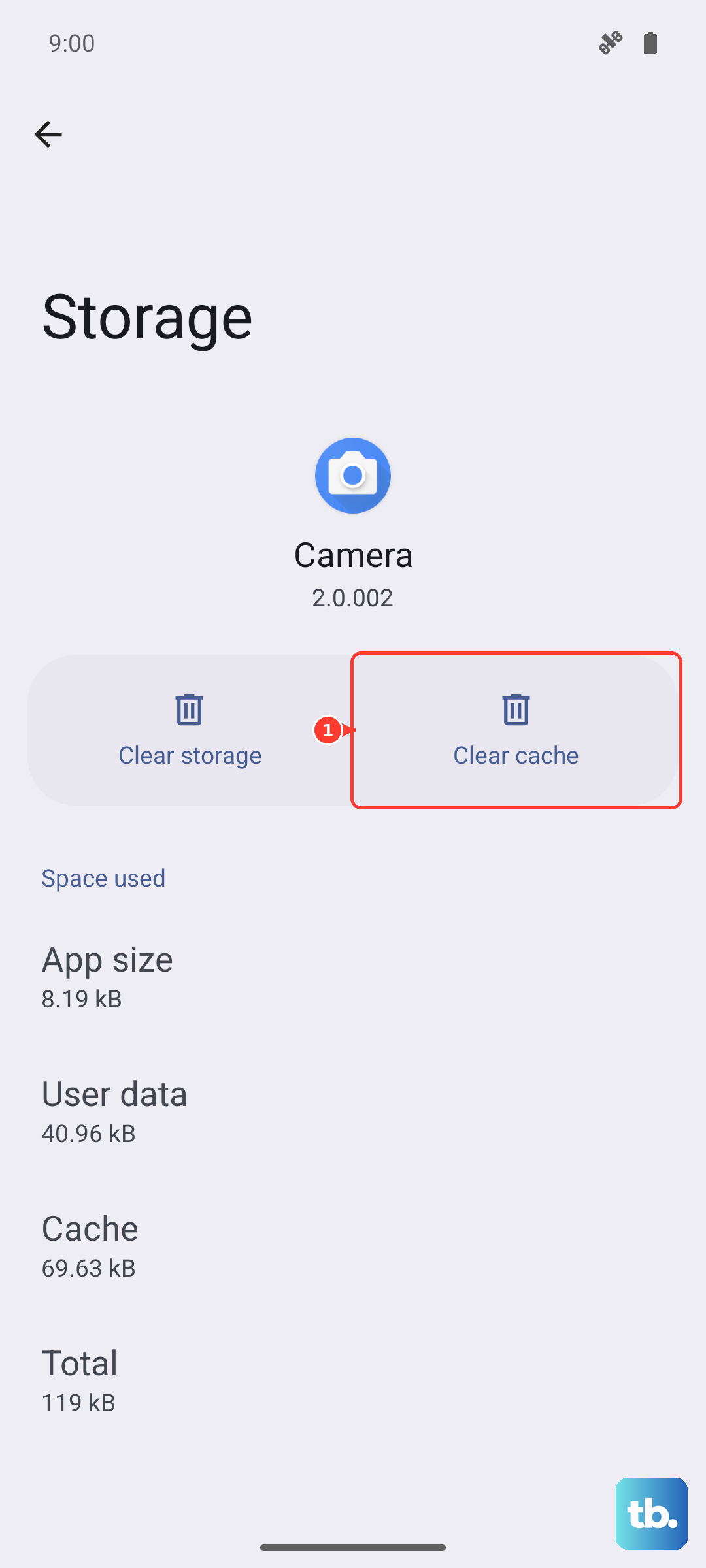
Apps like Instagram, TikTok, and Chrome build up cache files over time that can easily eat up a couple of gigabytes. Open Settings > Apps, pick a large app, and tap Storage > Clear cache. Doing this for your top 5 apps usually frees up a noticeable amount of space. For a deeper system-level clean, you can clear the whole cache partition from recovery mode.
To do that, turn your phone off completely. Then press and hold the Volume Up and Power buttons together until the recovery menu appears. Use the volume keys to navigate to Wipe cache partition and press the power button to confirm. This removes temporary system files that might be bloating your storage without touching any of your personal data.
Optimize Photos and Videos
This is usually the biggest storage hog on any phone. Open the Gallery app and scroll through your recent albums. Delete blurry shots, accidental screenshots, and duplicate videos you no longer need. Then open Google Photos, tap your profile picture, and select Free up device space. This removes local copies of photos and videos that are already backed up to the cloud.
Don't forget to check the Trash folder in both Gallery and Google Photos. Deleted items sit there for 30 or 60 days depending on the app, still taking up space. Empty those folders and you'll see the free space jump up.
Delete Old Messages and Attachments
Text threads with lots of pictures and videos can silently fill up storage. Open the Messages app, tap the three dots in the corner, and go to Settings. Depending on whether you're using Samsung Messages or Google Messages, look for Chat settings or Storage management to auto-delete old media or clear entire conversations. Removing a few heavy group chats can free up several gigabytes in seconds.
Remove Temporary System Files
Your phone accumulates leftover system files from updates and app installations. Go to Settings > Battery and device care > Storage > Temporary files. Tap Delete to clear these out safely. It's usually a few hundred megabytes to a couple of gigabytes that you can wipe right now without any consequences.
Clear Out Downloaded Media from Streaming Apps
If you use Spotify, Netflix, or YouTube Music, check your download settings. In Spotify, go to Settings > Storage > Remove all downloads. In Netflix, open My Downloads and swipe away shows you've already watched. You can always re-download them later, but keeping them around when you're low on space isn't worth it.
Move Files to a MicroSD Card
The Galaxy A26 5G supports expandable storage up to 1TB via a MicroSD card. If you haven't put one in yet, it's the single best investment for long-term space issues. Pop in a card and go to Settings > Battery and device care > Storage > Advanced > Transfer files to SD card. This moves your photos, documents, and some app data off the internal storage, giving your system more room to breathe.
Use Device Care for a Quick Cleanup
One UI 7 has an automatic maintenance tool built right in. Go to Settings > Battery and device care and tap Optimise now. This runs a quick check that clears some system cache, closes unused background apps, and looks for storage issues. It's not a deep clean, but it's a great monthly habit that keeps your A26 running smooth.
Along with storage, this screen also monitors your battery performance, which on the A26 supports 25W wired charging with a USB PD 3.0 PPS charger. Keeping your storage under control helps the whole phone feel faster, so it's worth running this optimization regularly.