App crashes on the Samsung Galaxy S25 Edge usually come down to a handful of repeatable issues. It could be a software conflict, an app that doesn't play well with Android 15 yet, or temporary files getting in the way. These are the troubleshooting steps that actually fix things on this device.
Start with a forced restart
Before you dig into settings or uninstall anything, do a hard restart. This clears out any temporary software glitches that might be locking up your apps.
Press and hold the Volume Down and Side (power) buttons together for about 10 seconds. Keep holding until the Samsung logo pops up on the screen. Once it boots back up, check if the crashing app opens normally.
Are your apps and system up to date?
App developers push updates to patch bugs, and if you are running an older version, it can clash with Android 15. Open the Google Play Store, tap your profile icon, and select Manage apps & devices to update everything at once.
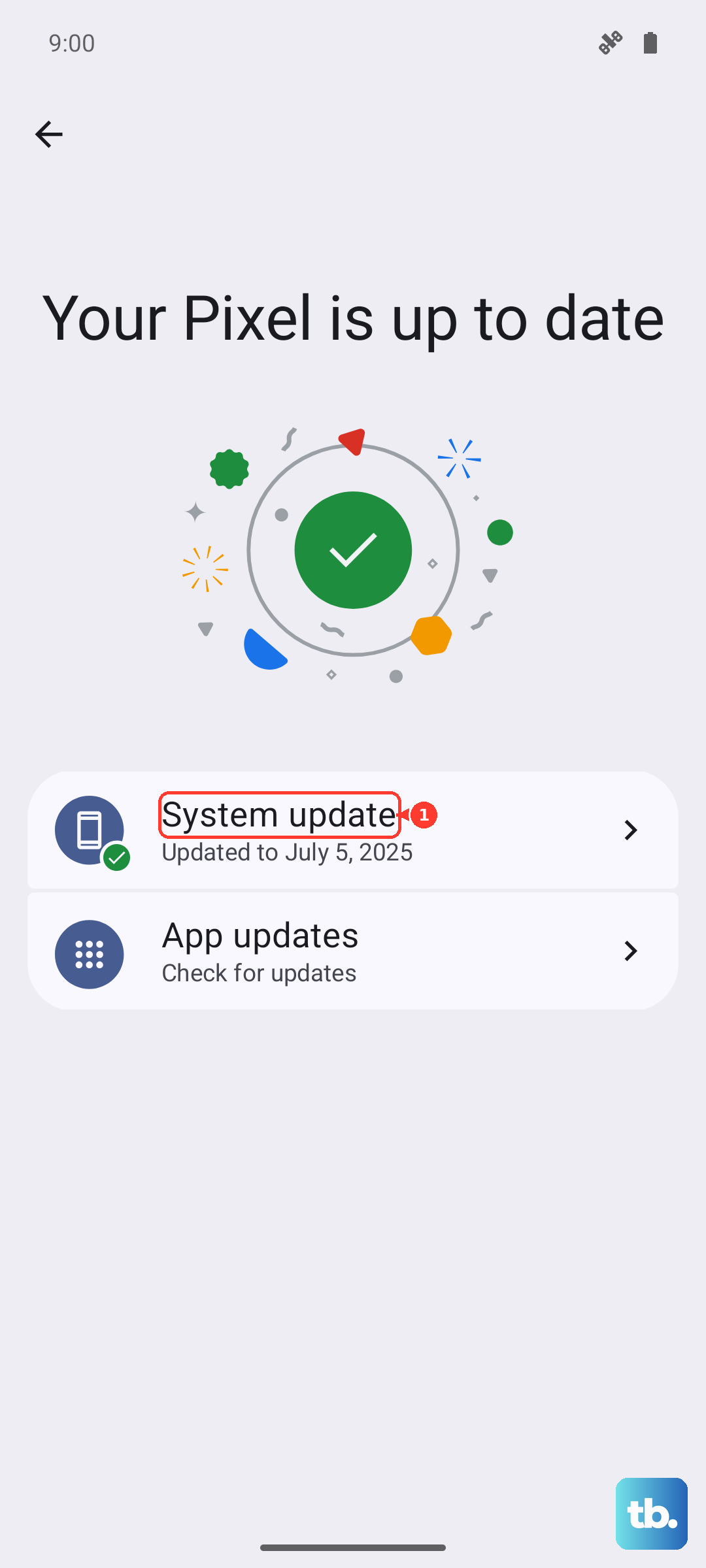
Samsung also pushes its own app patches through the Galaxy Store. Open it, tap Menu, and select Updates to catch anything you missed. While you are at it, check for a system update in Settings > Software update > Download and install.
Corrupted cache? Force stop or clear the data
If an app is frozen right now, force stopping it kills the process completely. Go to Settings > Apps, find the problem app, and tap Force stop. You can relaunch it fresh from the home screen.
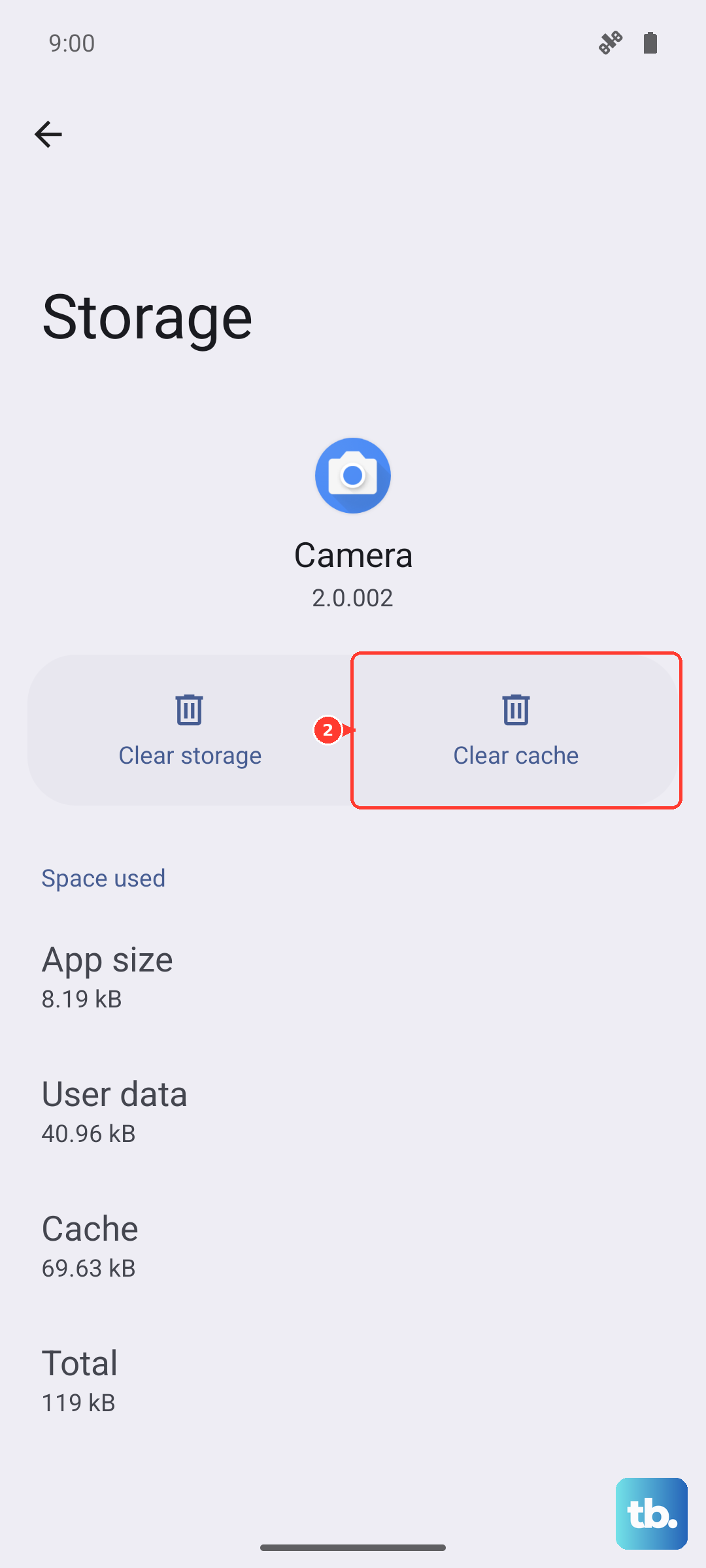
For apps that crash over and over, corrupted cache files are usually the reason. In the same App Info screen, tap Storage and then Clear cache. Your login details and settings will stay intact, so you do not have to sign in again.
Run Device Care for a quick system boost
Samsung includes a Device Care tool that handles multiple fixes in one tap. Open Settings > Device care and hit Optimize now.
It frees up storage space, closes background apps that are eating RAM, and checks for general system issues. This is a solid first step if your whole phone has been feeling sluggish, not just one app.
Performance feels sluggish? Free up RAM and let it cool down
Your Galaxy S25 Edge handles multitasking well, but too many apps running at once can starve a game or video app of memory. Swipe up and hold to open the recent apps screen, then tap Close all to wipe the slate clean.
If you have been gaming or streaming for a while, the phone might be warm to the touch. Overheating triggers system throttling to protect the hardware, which makes apps stutter or crash. Let it sit for a few minutes and try again.
Check your available storage space
Apps need room to write temporary files, and when storage gets tight, they start failing. Go to Settings > Device care > Storage to see how much space you have left.
Aim to keep at least 10GB free for smooth operation. Delete old downloads, clear out the trash folder in My Files, or offload photos and videos to Google Photos to free up space.
Wipe the slate clean by reinstalling
If a single app keeps crashing after all the other fixes, a clean install removes any deeply corrupted files. Long-press the app icon on your home screen or app drawer and tap Uninstall.
Then grab a fresh copy from either the Google Play Store or the Galaxy Store. Starting over gives the app a completely clean installation to work with.
Reset app preferences to fix hidden conflicts
This is an underrated fix that resolves weird crashes caused by disabled apps or revoked permissions. It resets your default apps, disabled apps, and background data restrictions without deleting any personal data.
Go to Settings > Apps, tap the three-dot menu in the top right, and select Reset app preferences. You will have to re-grant a few permissions as you open apps, but it stops a lot of odd behavior.
Factory reset the Galaxy S25 Edge as a last resort
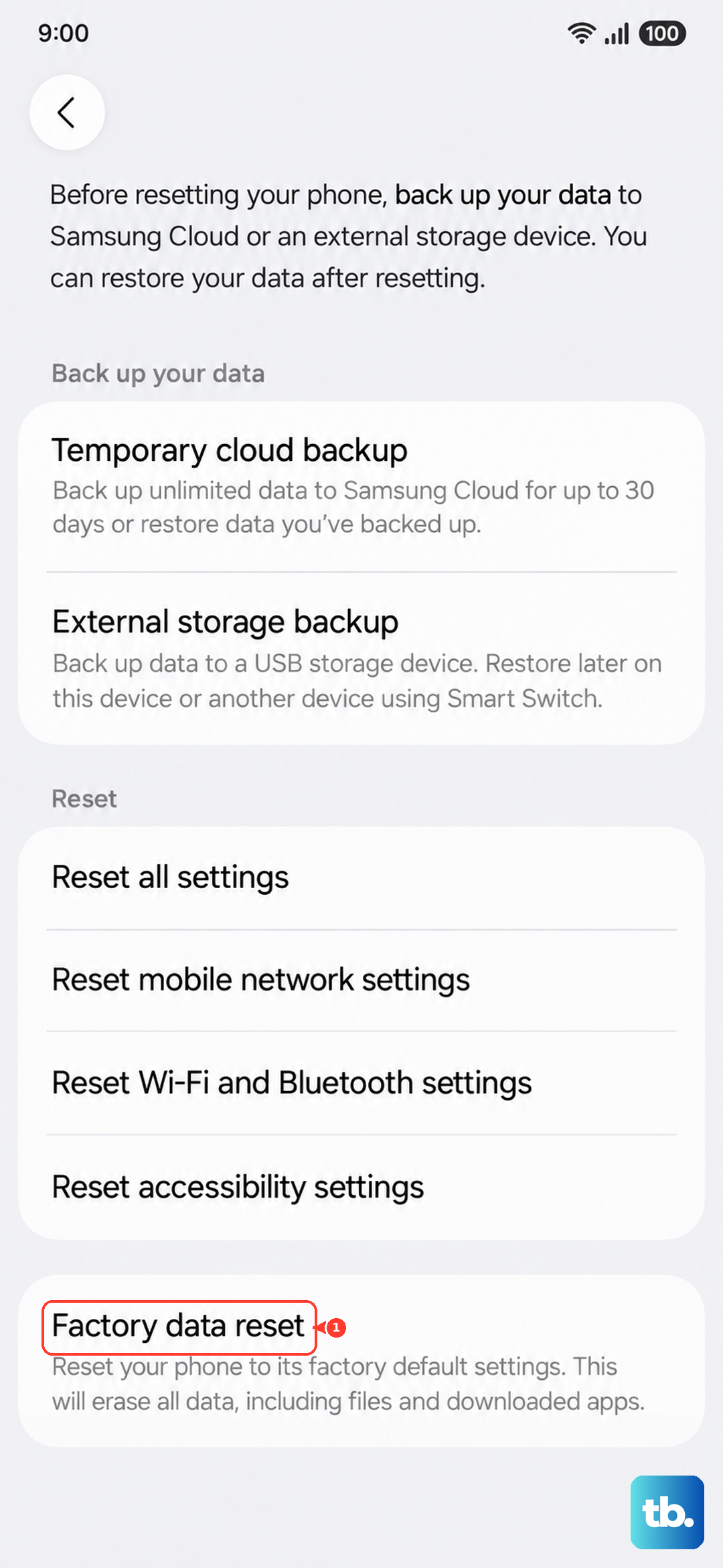
If you have tried every step and apps are still crashing, a factory reset removes any deep system corruption. Back up your important data using Smart Switch first, because this wipes everything on the phone.
Go to Settings > General management > Reset > Factory data reset. Your phone will reboot with a fresh Android 15 setup, and you can restore your backed-up data from there.