Few things are more annoying than a phone that keeps restarting on its own. You could be in the middle of a call, scrolling through messages, or just looking at the time, and suddenly the screen goes black and the Samsung logo flashes back up. The Galaxy S25 Edge is a solid device, but like any phone, it can run into software hiccups or hardware quirks that cause this behavior.
Most of the time, you can fix this without needing a repair shop. The key is figuring out whether the culprit is a misbehaving app, a recent system update, or something physical like a damaged battery or a dirty charging port. Let me walk you through the most effective fixes, starting with the fastest option.
Force restart the Galaxy S25 Edge
A force restart clears out temporary glitches that might be causing random reboots. It doesn't erase any of your data, so it's a safe first step. On the Galaxy S25 Edge, press and hold both the Volume Down and Side (power) buttons at the same time for about 10 seconds. Keep holding until the Samsung logo appears, then let go.
If the phone was stuck in a restart loop, this should break the cycle and let it boot up normally. I'd try this before anything else, since it resolves a surprising number of cases on its own.
Boot into Safe Mode to pin down a bad app
Third-party apps are one of the most common reasons for unexpected restarts. A poorly coded app can conflict with the system and trigger crashes. Safe Mode starts the phone with only the preinstalled software, so if the reboots stop, you know an app you downloaded is the problem.
To get into Safe Mode, press and hold the Side button until the power menu shows up. Tap and hold Power off until you see the Safe Mode prompt, then tap it again. The phone will restart with "Safe Mode" in the bottom-left corner. Use it for a while and see if it stays stable.
If it does, start uninstalling apps you added recently. Go to Settings > Apps, pick a suspect, and tap Uninstall. Restart the phone normally between each removal to test. Focus on apps that have background services, like launchers, battery managers, or anything that requests system permissions.
Clear the cache partition
The system cache holds temporary files that help apps load faster, but those files can get corrupted over time. A corrupt cache can cause instability that leads to random restarts. Clearing it is safe and doesn't delete any personal data.
Turn off the phone completely. When it's off, press and hold Volume Up and Side together until the Samsung logo appears, then release both. This boots you into the recovery menu (the default Android recovery). Use the volume buttons to navigate to Wipe cache partition and press the Side button to select it. Confirm if prompted, then wait for it to finish. Select Reboot system now and let the phone restart.
This is one of those fixes that often gets overlooked, but I've seen it stop repeated restarts on many Samsung models. It takes less than two minutes.
Free up storage space
When your phone's storage gets too full, the system can start acting erratically. Android needs some breathing room to manage background processes, and if it can't write temporary files, things can go wrong. Check your storage under Settings > Device care > Storage.
If you're below a few gigabytes of free space, clear out the junk. Tap Clean now to remove cached data, temp files, and old APKs. You can also delete unused apps, move photos and videos to the cloud or a computer, and clear out downloads you no longer need. Aim for at least 5 GB free if possible.
Update apps and Android 15
Outdated software can have bugs that cause random reboots, and updates often include stability fixes. Open the Google Play Store, tap your profile icon in the top right, and tap Manage apps & device. Hit Update all to bring everything current.
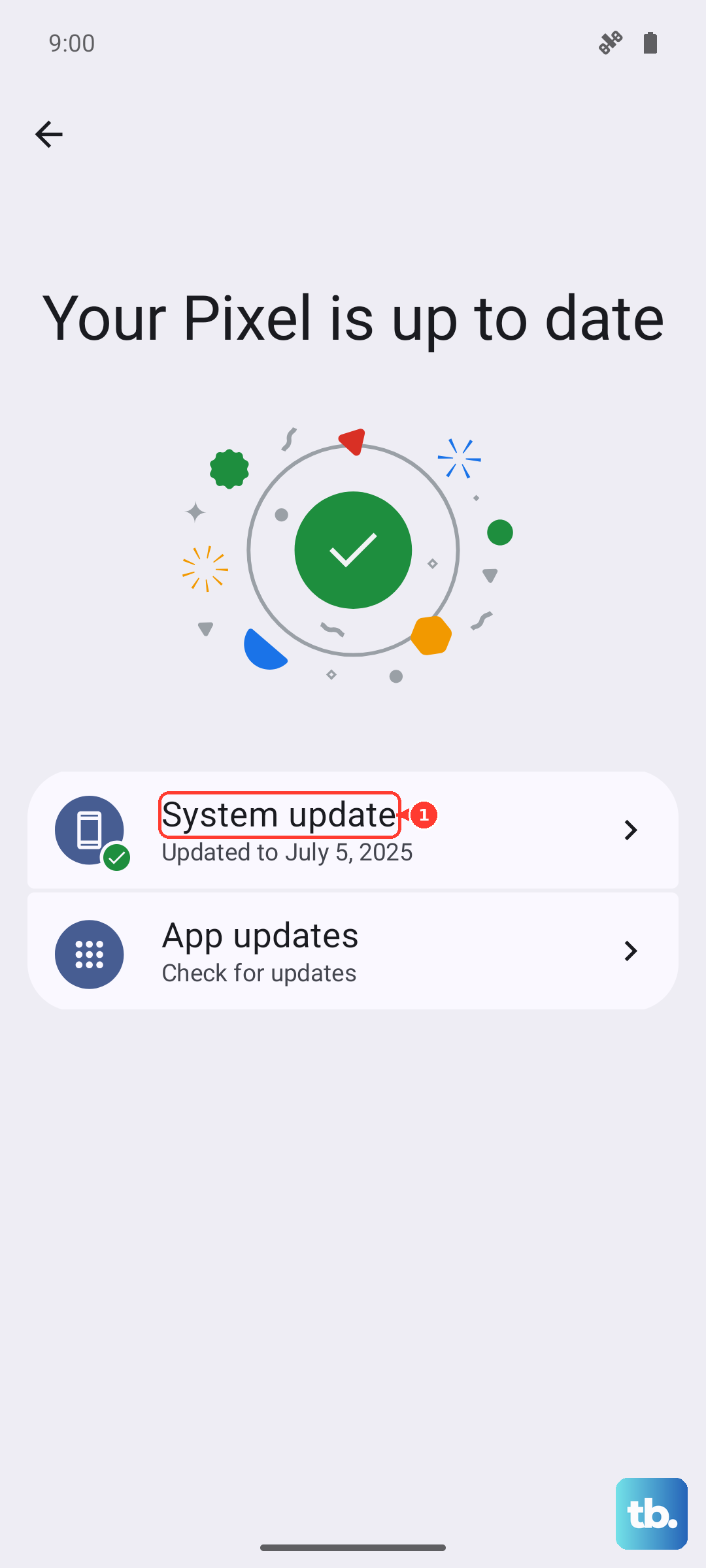
Also check for system updates. Go to Settings > Software update > Download and install. If there's a pending update for Android 15 or a security patch, install it and give the phone a full restart. A fresh system image can resolve underlying kernel-level issues.
Check for crash reports
Android keeps logs of system crashes that can help you narrow down the cause. Open Settings > Device care > Diagnostics. Samsung's built-in diagnostics may show if there are recurring errors. You can also install Samsung Members from the Galaxy Store and run its interactive checks for battery, sensor, and system stability.
Tap Phone diagnostics and let it run. If it flags the battery as failing or the motherboard as having errors, that gives you a pretty clear direction.
Examine the SIM card and hardware
Hardware problems can also trigger restarts. A loose or damaged SIM card can cause the baseband to crash, which sometimes takes the whole phone with it. Use the SIM eject tool (or a paperclip) to pop out the tray, inspect the SIM for scratches or bent contacts, and reseat it firmly.
The Galaxy S25 Edge's USB-C port can collect lint and debris, especially if you carry it in a pocket. While this is more commonly a charging issue, a physically blocked port can cause power fluctuations that manifest as restarts. Gently clean it with compressed air or a soft brush, and check that the cable plugs in all the way without wobbling.
Reset all settings
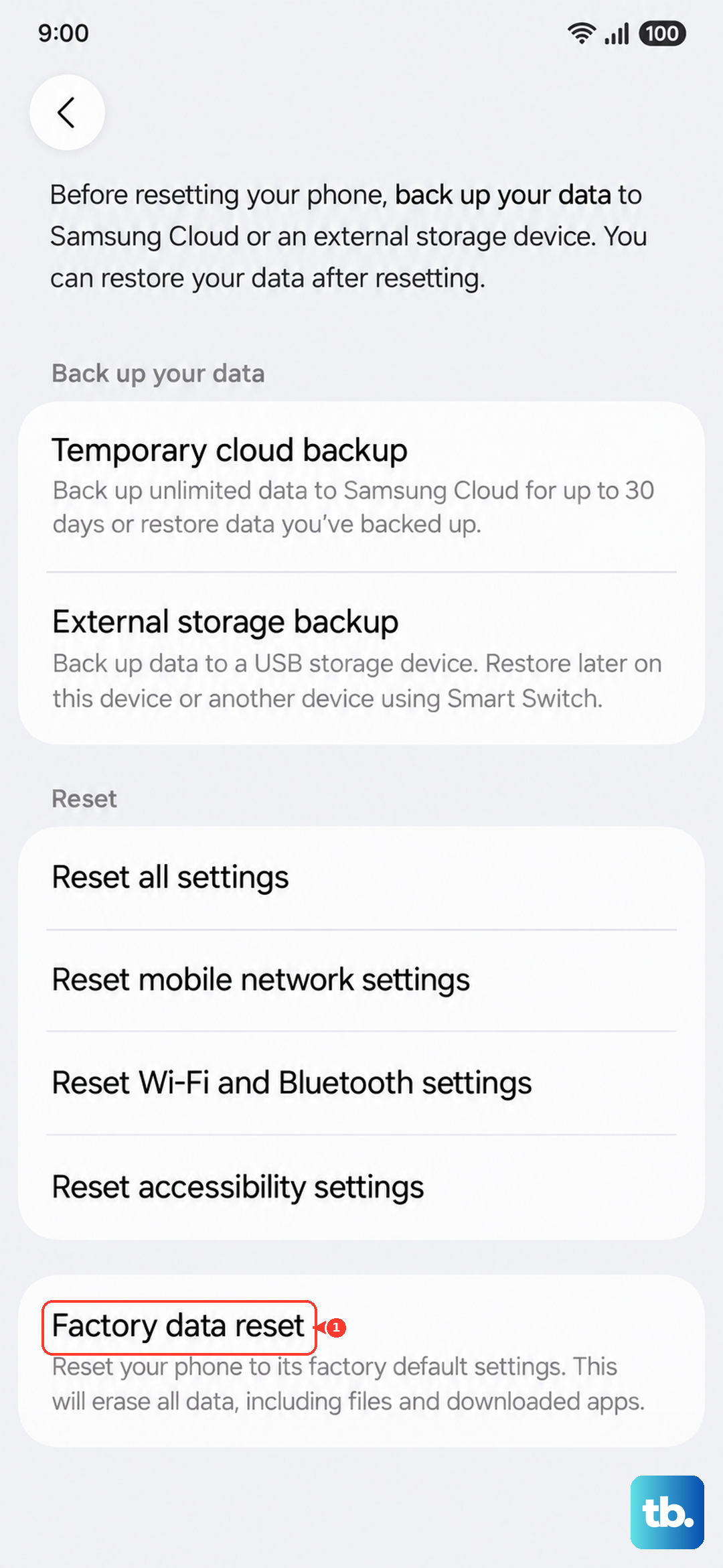
If none of the above has worked, a settings reset often clears up lingering configuration problems without wiping your data. Go to Settings > General management > Reset > Reset all settings. This reverts your network, display, and system settings to default, but leaves your photos, messages, and app data untouched.
You'll need to re-enter Wi-Fi passwords and reconnect Bluetooth devices afterward, but that's a small price to pay if it stops the reboots. Enter your PIN or password when prompted, and let the phone apply the changes and restart.
Factory reset as a last resort
If the phone is still restarting after everything else, a factory reset is your final software option. This erases everything on the device and reinstalls Android 15 fresh. Back up your important data first, use Samsung Cloud, Google Drive, or a computer with Smart Switch.
Go to Settings > General management > Reset > Factory data reset. Scroll down, tap Reset, confirm your credentials, and let the phone do its thing. Once it boots back up, set it up as a new device and check if the random restarts are gone. If they still happen after a clean install, it's almost certainly a hardware problem that requires a service visit.