
Predictive text going rogue or autocorrect refusing to work can turn a quick text into a chore. The Galaxy S25 Edge runs Android 15 with Samsung's latest One UI, and while the keyboard is generally solid, software hiccups happen. Let's walk through the fixes that usually get things back on track.
Start With a Simple Restart
Before digging into settings, try restarting your S25 Edge. A quick reboot clears out temporary glitches that might be affecting the keyboard.
To force restart if the screen is frozen, press and hold the Volume Down and Side buttons together for about 10 seconds. Keep holding until you see the Samsung logo appear. This is a safe step and doesn't affect your data.
Clear the Keyboard's Cache and Data
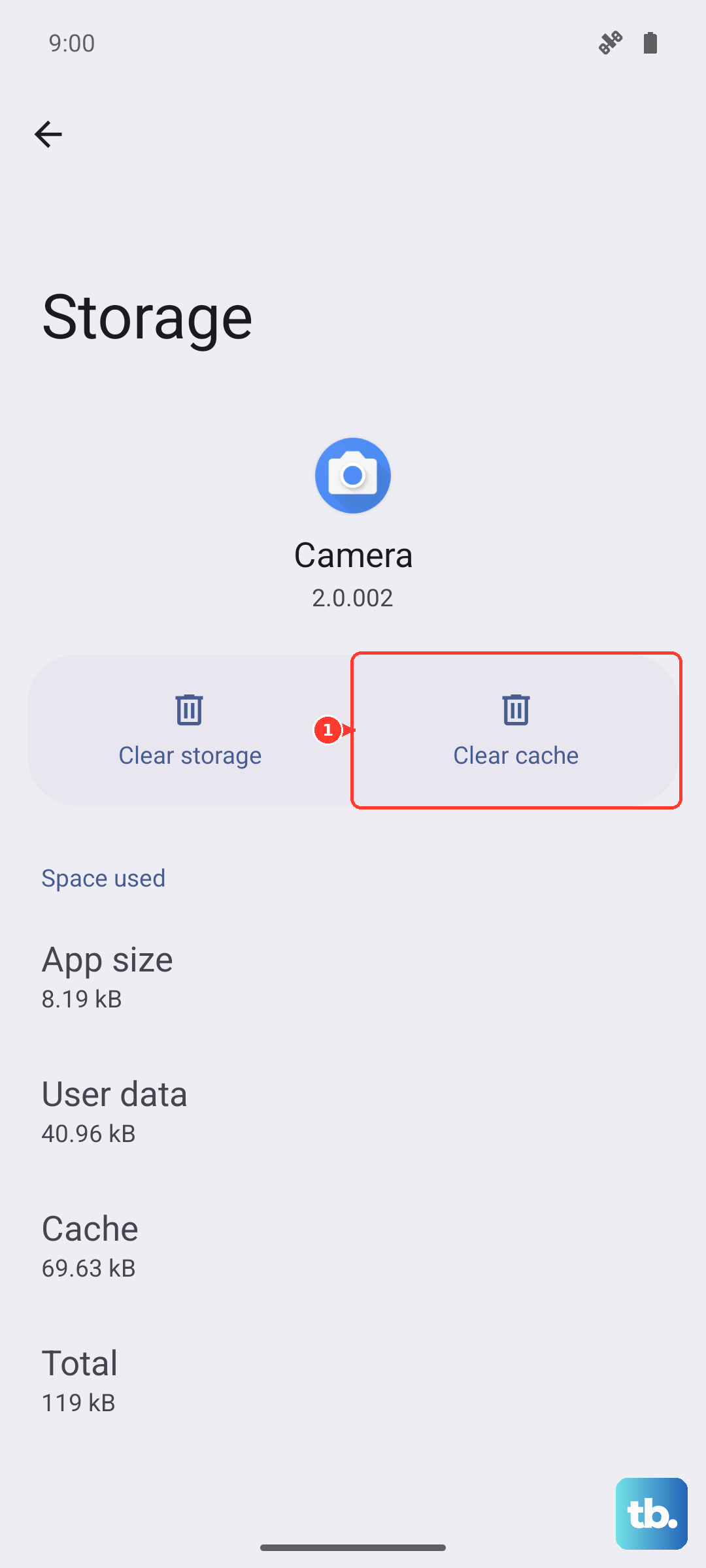
Corrupted temporary files are a common culprit. Clearing the cache and data of the Samsung Keyboard app will reset it without affecting the rest of your phone.
Go to Settings > Apps > Show system apps (tap the three dots in the top right corner). Look for Samsung Keyboard and Samsung Keyboard Neural Beta (if present). Tap on each one, then tap Storage. First, try Clear Cache. If that doesn't work, tap Clear Data. Just know that clearing data will erase your personalized dictionary and keyboard settings.
Check Your Smart Typing Settings
Sometimes the issue is that a specific feature got toggled off accidentally.
Open Settings and go to General Management > Language and Input > On-screen keyboard > Samsung Keyboard. Tap Smart typing. Make sure these are set the way you want:
- Predictive text: On
- Auto replace: Off (unless you like it)
- Auto capitalize: On
- Auto spacing: On
- Auto punctuate: On
If they were already on, toggle Predictive text off and back on to refresh it.
Reset the Keyboard to Default Settings
If you've made a lot of customizations or installed language packs that are acting up, resetting the keyboard to its default state can help.
Head back to Settings > General Management > Language and Input > On-screen keyboard > Samsung Keyboard. Tap Reset to default settings. This keeps your personal data but reverts the layout and key press options to their original state.
Update Your Language and the Keyboard App
Outdated language packs or an old version of the Samsung Keyboard app can cause compatibility problems on a new device like the S25 Edge.
For language packs, go to Languages and Types in the keyboard settings, tap the three dots, and select Check for an update.
For the app itself, open the Galaxy Store or Play Store, search for "Samsung Keyboard", and tap Update if it's available. Installing the latest version often resolves known bugs.