If your Samsung Galaxy S24 videos are constantly buffering, stuttering, or freezing, it can ruin the experience. This is a common headache, but the good news is you can usually fix it yourself without too much trouble.
Clear the App Cache and Data
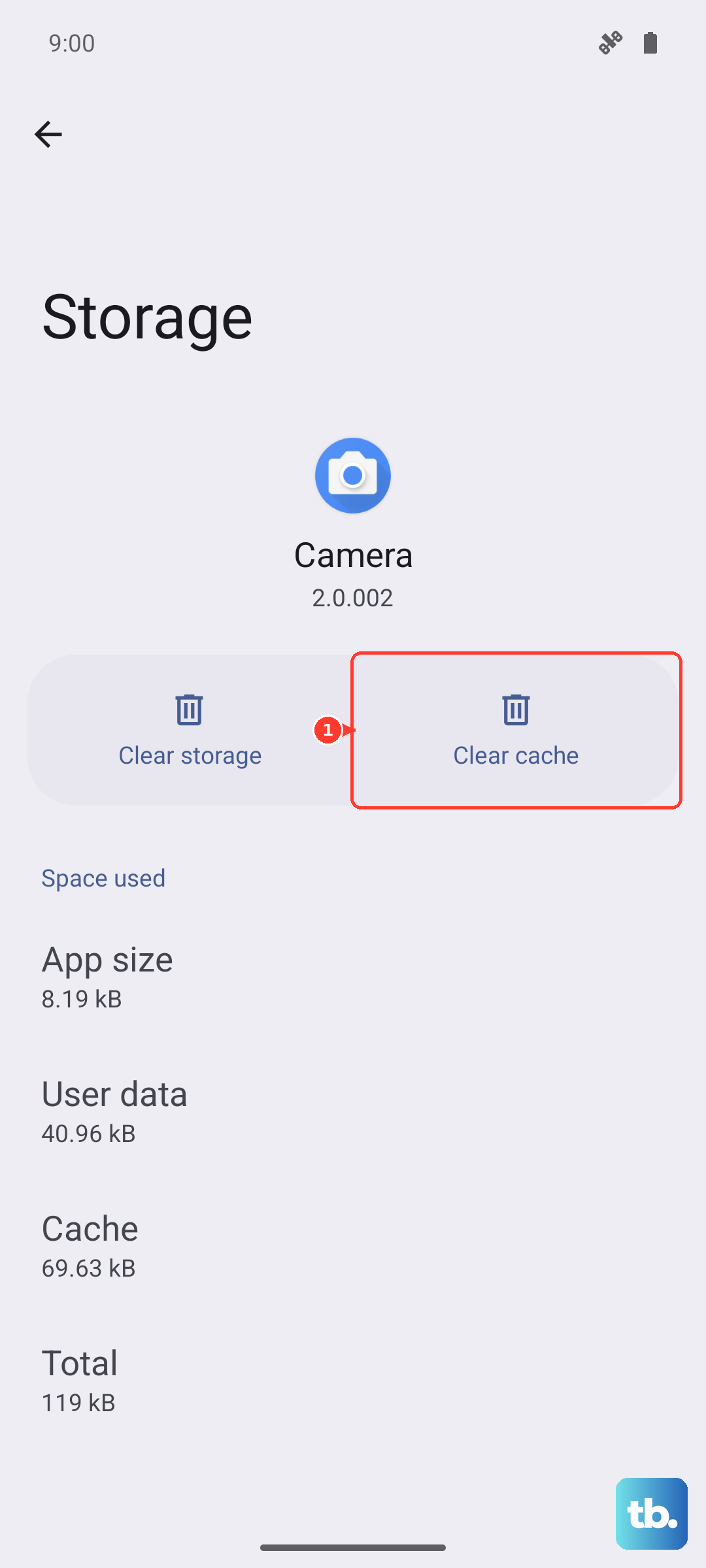
This is often the quickest fix. Over time, the video app you're using, like YouTube or Netflix, accumulates corrupted temporary files. Clearing this cache gives the app a fresh start. Go to Settings > Apps, select your video app, then tap Storage. Hit Clear cache first. If that doesn't work, you can try Clear data, but be aware this will sign you out and reset the app's preferences.
Check Your Network Connection
Buffering is almost always a network issue when you're streaming. Your S24 might be connected to Wi-Fi, but the signal could be weak. Try running a speed test right from where you're watching. You can also toggle Airplane mode on and off from the quick settings panel to reset your cellular and Wi-Fi radios. If you're on Wi-Fi, try moving closer to the router.
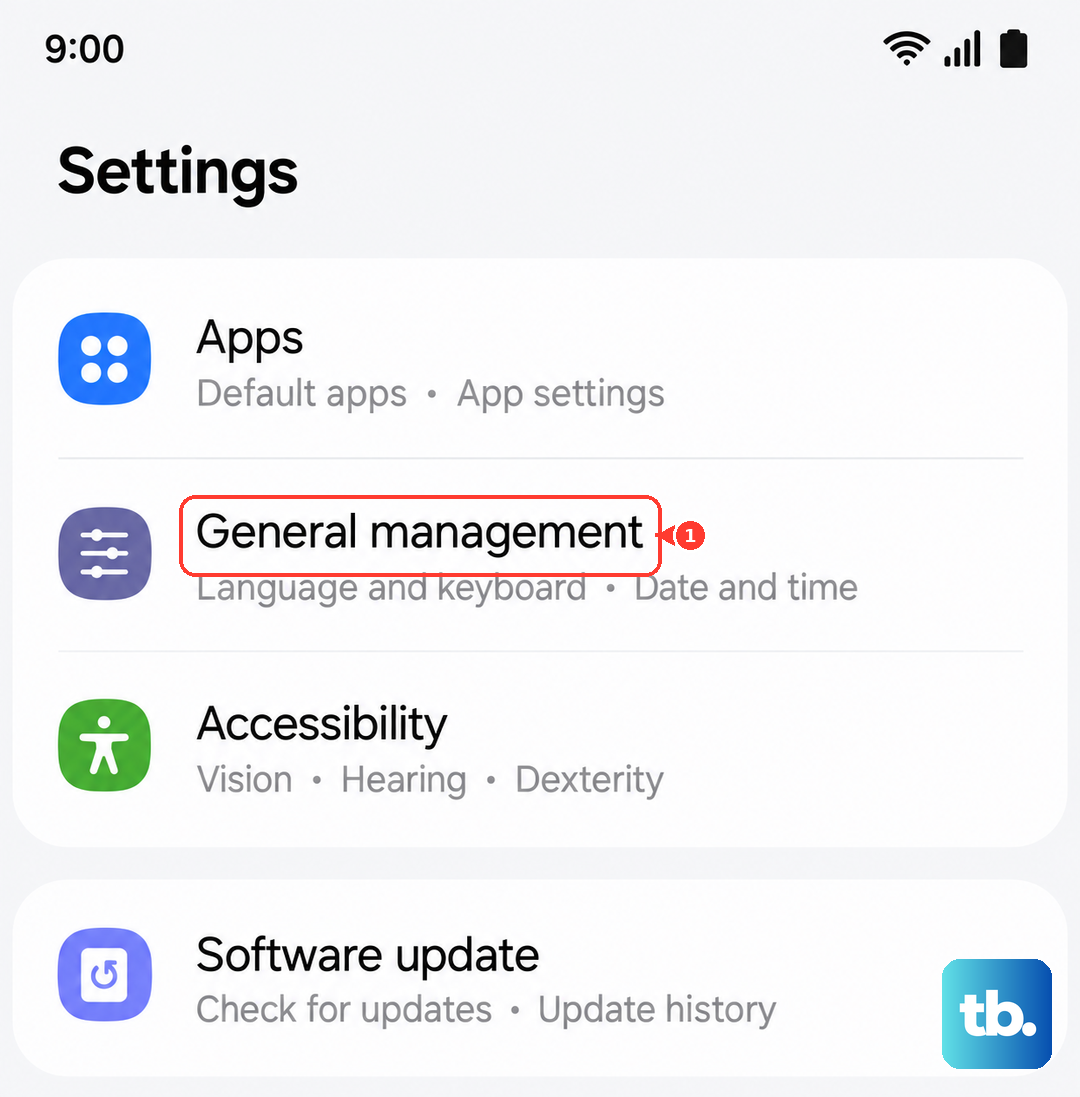
For a more thorough network reset, go to Settings > General management > Reset > Reset network settings. This will forget all your Wi-Fi networks and Bluetooth pairings, so you'll need to reconnect to them afterward.
Free Up Phone Storage
When your phone's storage is nearly full, it can struggle with basic tasks, including smoothly playing video files, even ones stored locally. The system needs free space to operate. Head to Settings > Device care > Storage to see how much space you have left.
If it's getting low, look for large files you can delete or move to cloud storage. I'd start by clearing out old downloads and cached files from apps. Keeping at least 5-10GB free is a good rule of thumb for smooth performance.
Update Your Software and Apps
An outdated version of One UI or the video app itself can have bugs that cause playback issues. Samsung and app developers regularly release updates with performance fixes. Check for a system update by going to Settings > Software update > Download and install.
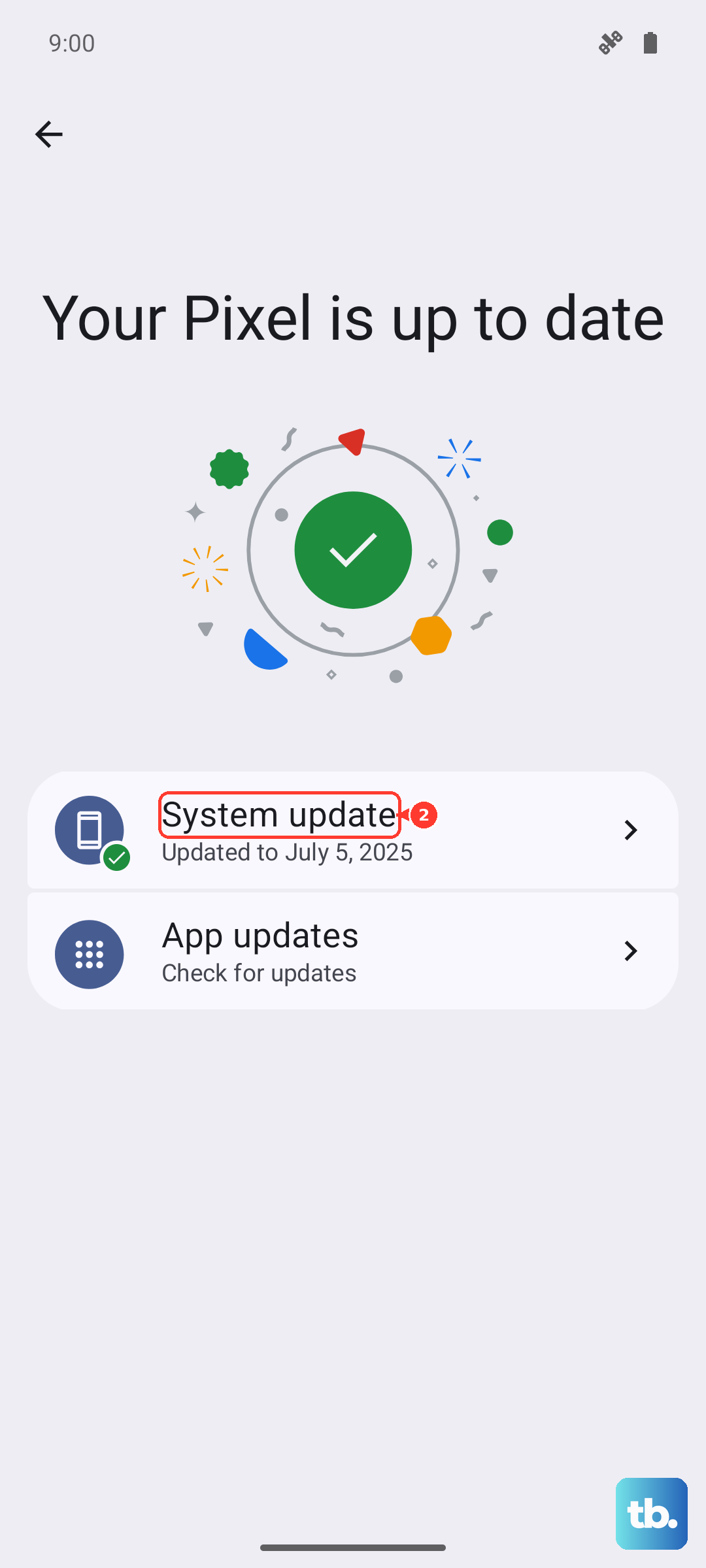
Then, open the Galaxy Store or Google Play Store, go to your profile menu, and check for updates to all your apps, especially the streaming apps you use most.
Disable Video Enhancements
The Galaxy S24 has some powerful display features that can sometimes interfere. The "Video brightness" feature, for example, can cause erratic brightness shifts that feel like stuttering. Try turning it off by going to Settings > Advanced features > Video brightness and toggling it off.
Also, check if you have any power-saving modes enabled. Go to Settings > Battery and make sure both "Power saving" and "Adaptive power saving" are turned off. These modes limit background processes that some video apps need to run smoothly.
Try a Different Streaming Quality
If you're trying to stream in 4K or the highest quality on a spotty connection, buffering is inevitable. Most streaming apps let you manually set the playback quality. In the app's settings, look for "Video quality" or "Playback quality" and set it to a lower resolution, like 720p. This drastically reduces the amount of data needed and can eliminate buffering entirely on slower networks.
Force Restart Your Phone
A simple reboot can clear out temporary software glitches that might be causing the problem. For the Galaxy S24, press and hold the Volume Down button and the Side key (power button) together for about 10 seconds. The screen will go black and the Samsung logo will appear as it restarts. This is different from just turning the screen off and on.
Check for Problematic Apps
Other apps running in the background can consume network bandwidth or system resources. Try booting your phone into Safe Mode. This temporarily disables all third-party apps. Press and hold the Side key, then tap and hold the "Power off" icon on the screen until you see the Safe Mode prompt.
If video plays perfectly in Safe Mode, you know a downloaded app is the culprit. Start by removing any recent app downloads, VPNs, or ad blockers, as these commonly affect network traffic.
Reset App Preferences
This is a less drastic step than a full reset. It resets all your app permissions, default apps, and background restrictions back to their factory settings without deleting any of your personal data. You can find this option at Settings > Apps > Menu (three dots) > Reset app preferences. After doing this, you'll need to re-grant permissions when you open apps for the first time.
Perform a Factory Reset
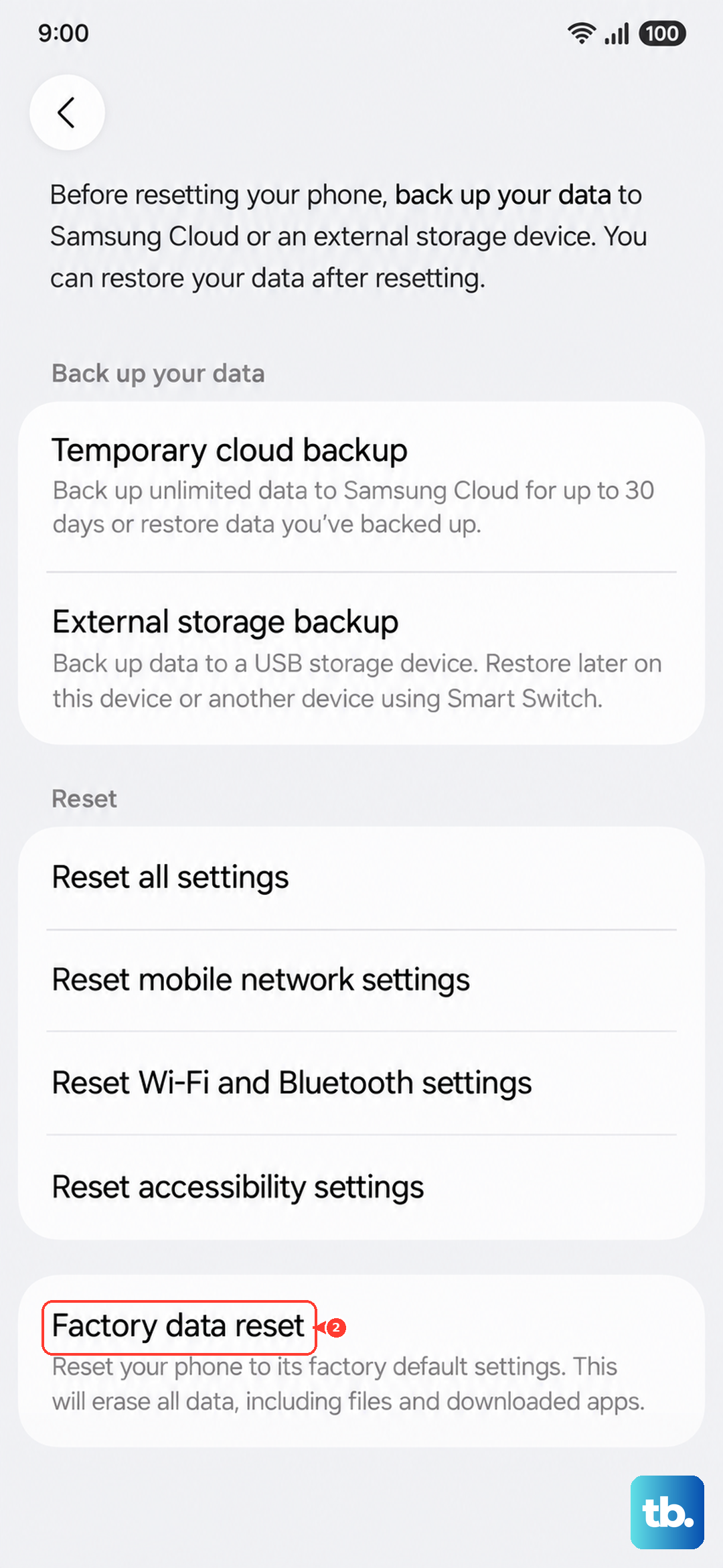
If you've tried everything else and the problem persists across multiple apps and video files, a software issue might be deeply rooted. A factory reset will wipe your phone back to its original state. This is a last resort. Before you begin, ensure you have a complete backup of your data.
To proceed, go to Settings > General management > Reset > Factory data reset. Tap "Reset" and confirm. Your phone will erase everything and restart, giving you a completely clean installation of One UI to start over with.