If your Samsung Galaxy S24 is suddenly quiet and you're missing alerts, a quick restart can help. Press and hold the Volume down button and the Side button together for more than 7 seconds until the device restarts. This force restart can clear temporary software glitches that might be blocking notifications from coming through.
It's a good first step that can help with temporary notification problems.
Check Your Focus Modes and Do Not Disturb
One UI has several features designed to minimize interruptions, and sometimes they get turned on accidentally. Swipe down from the top right of your screen to open the Quick settings panel. Look for icons like Do Not Disturb or Focus mode and make sure they are turned off.
You can also go into Settings > Notifications > Do Not Disturb to check the schedule and see which apps are allowed to bypass it. A scheduled DND mode you forgot about could be the culprit.
Review App-Specific Notification Settings
Android and One UI give you very granular control over notifications. The issue might not be with your phone overall, but with a specific app like Messages or Gmail. Open Settings > Notifications and tap on App notifications.
Find the app that's not alerting you and tap on it. Make sure Allow notifications is on. To show categories, first go to Settings > Notifications > Advanced settings and turn on Manage notification categories for each app. Return to App notifications, select the app, and tap Notification categories if available. For each category you want to hear, turn on Allow notifications and select Alert.
Ensure Background Data and Battery Optimization Aren't Restricting the App
To save battery, Android can limit what apps do in the background. This can sometimes prevent them from checking for new messages and sending alerts. Go to Settings > Apps, select the problematic app, and then tap Battery.
Here, set the background usage to Unrestricted. While you're in the app's settings, also go to Mobile data and ensure "Allow background data usage" is enabled. This gives the app the permission it needs to fetch new data and notify you.
Clear the Cache for the Problem App
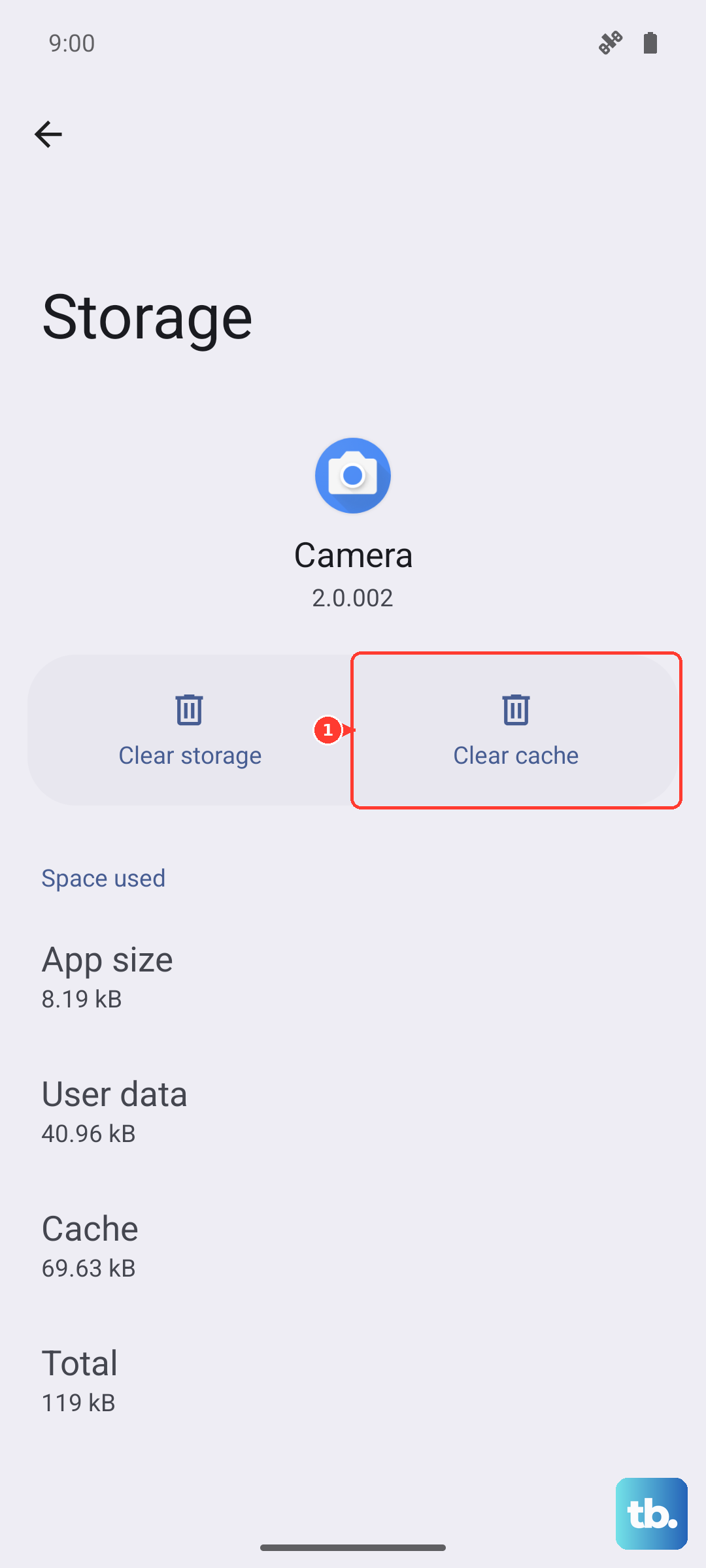
Corrupted temporary data in an app's cache can break its notification function. Clearing it is safe and won't delete your login info or personal data. Go to Settings > Apps, find the app, and tap on it.
Tap Storage, then tap Clear cache. After doing this, force close the app by tapping Force stop on the same info page, then open it again. This gives the app a fresh start.
Check for Software Updates
Software bugs can cause notification problems, and Samsung frequently releases updates with fixes. Go to Settings > Software update and tap Download and install.
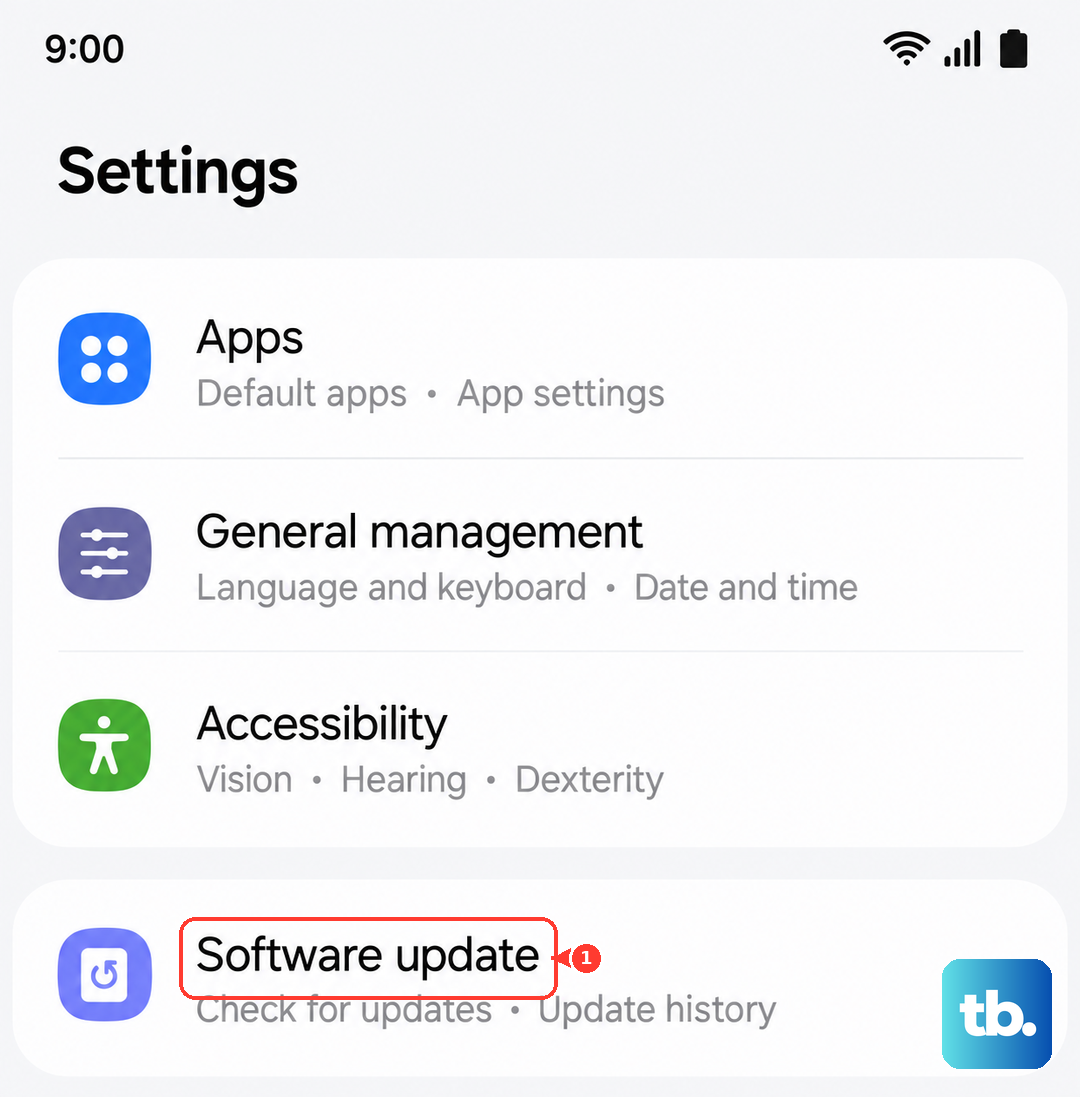
If an update is available, install it. I've seen updates specifically address notification delivery issues on recent Galaxy models, so this is a step worth taking.
Reset App Preferences
This is a broader fix that resets all your app-related settings, like notifications, default apps, and background data restrictions, back to their factory defaults. It won't delete any of your personal app data.
Go to Settings > Apps, tap the three-dot menu in the top right, and select Reset app preferences. Confirm the action. Afterward, check the notification settings for the affected apps and test whether alerts arrive.
Check Notification Filters and Sorting
One UI includes features that try to intelligently prioritize or hide notifications based on your usage. If this system gets it wrong, you might miss things. Go to Settings > Notifications > Advanced settings.
Tap Filter notifications and review the filters for old, background and minimized notifications. You can also tap Sort notifications and choose By time. Separately, Notification history lets you view recently dismissed alerts; turn it on if you want to review them later.
Examine Edge Lighting and Pop-Up Settings
On the S24, you might have your notifications set to show in a specific style that isn't working for you. Go to Settings > Notifications > Notification pop-up style.
You can choose between "Brief" and "Detailed" pop-ups, which control how much of a notification is shown on screen when it arrives; try "Detailed" if your alerts aren't showing enough. Separately, under Settings > Notifications > Advanced settings > Floating notifications, you can enable "Bubbles" or "Smart pop-up view" so messages appear in a floating window, or leave it set to "Off."
Check Sleeping Apps
Sleeping apps can have limited functions while they're closed, including missing notifications. Go to Settings > Battery > Background usage limits and tap Sleeping apps.
Touch and hold the app that's missing alerts, then tap Remove. If it isn't listed there, go back and check Deep sleeping apps, removing it the same way if present. Test the app again to see whether notifications arrive while it's closed.
Perform a Network Settings Reset
If your notifications are only failing when you're on mobile data (like from your carrier), a mobile network reset can help. Use Reset mobile network settings for this; Reset Wi-Fi and Bluetooth settings is a separate option that requires reconnecting to Wi-Fi and re-pairing Bluetooth accessories.
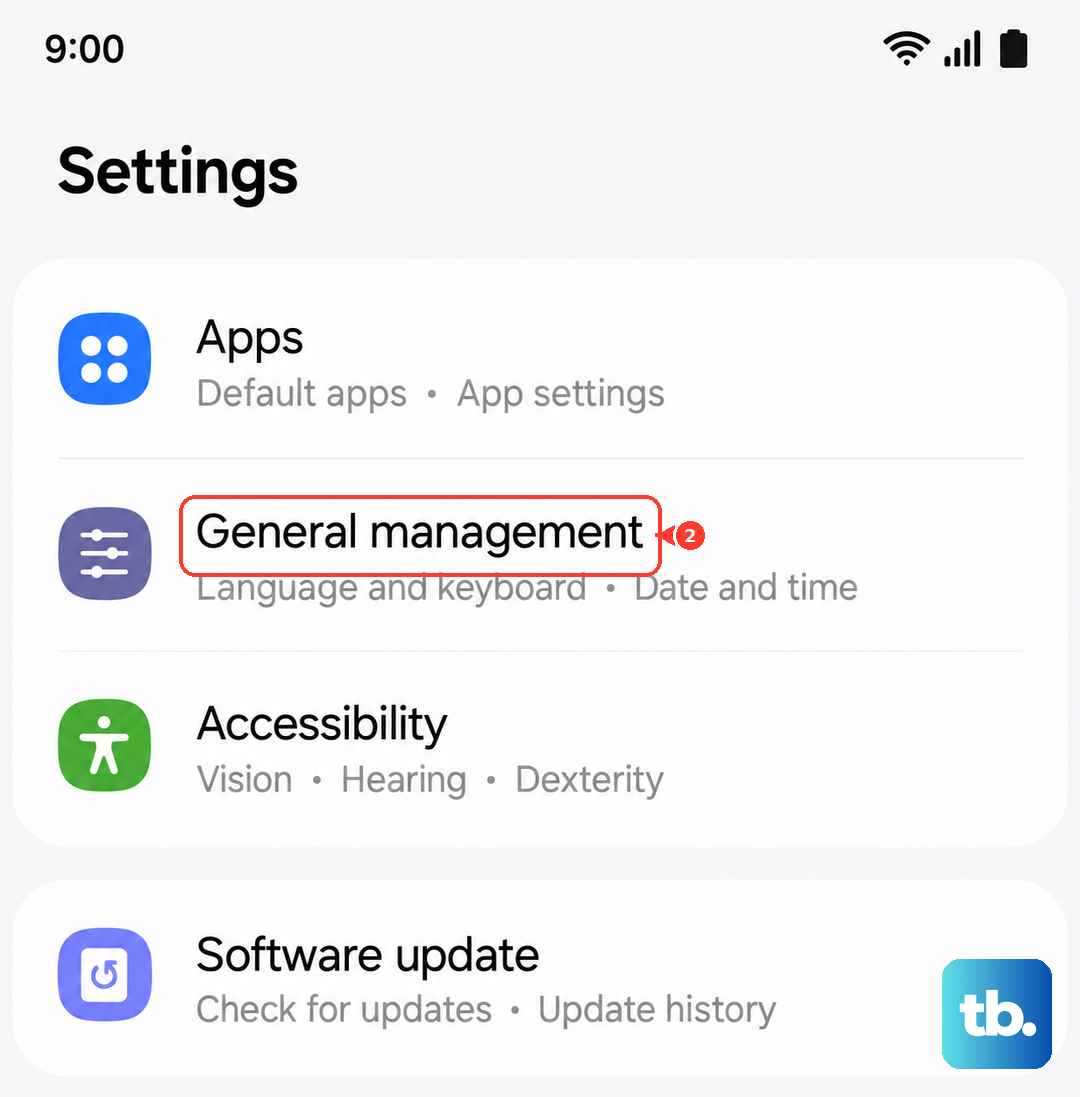
Go to Settings > General management > Reset and select Reset mobile network settings. Tap Reset settings, then Reset to confirm. This can help with connectivity issues that delay or block notifications from syncing, without erasing apps or data.