
If your Samsung Galaxy S24's fingerprint scanner suddenly stops recognizing you, it can lock you out of your phone and apps pretty quickly. The good news is this is usually a software hiccup or a simple fix you can handle yourself. Let's get it working again.
Clean the Screen and Your Finger
This sounds obvious, but it's the most common fix. The S24 uses an ultrasonic in-display sensor, so any grime on the screen or your finger can block the signal. Give the lower part of your screen a good wipe with a soft, dry microfiber cloth.
Make sure your finger is clean and completely dry, too. Lotions, sweat, or even a tiny bit of moisture can mess with the scan. I'd start with this one, as it solves the issue more often than you'd think.
Restart Your Galaxy S24
A quick restart clears out temporary glitches that can confuse the sensor. Just press and hold the Volume Down button and the Side button together for about 10 seconds until you see the Samsung logo. This force restarts the phone without needing to navigate any menus.
Once it boots back up, try unlocking with your fingerprint again. It's a simple step, but it frequently does the trick.
Re-register Your Fingerprint
If a restart doesn't help, the next thing to try is deleting your old fingerprint and setting it up fresh. Go to Settings > Biometrics and security > Fingerprints. You'll need to enter your PIN, password, or pattern to proceed.
Tap on the fingerprint you're having trouble with and select Remove. Now, add it again. When you re-register, press your finger down firmly and roll it slightly to capture the edges, just like the animation shows. Do this in good lighting for the best results.
Check Your Screen Protector
Not all screen protectors play nice with ultrasonic fingerprint sensors. If you recently installed a new one, especially a thick tempered glass model, it might be the culprit.
Try removing the protector temporarily to see if the scanner starts working. If it does, you'll need to look for a screen protector that's specifically marketed as compatible with ultrasonic fingerprint sensors. Some brands even include a special mode in their settings to improve recognition with a protector on.
Update Your Software
Outdated software can have bugs that affect hardware like the fingerprint sensor. Samsung regularly releases updates that include fixes for these kinds of issues.
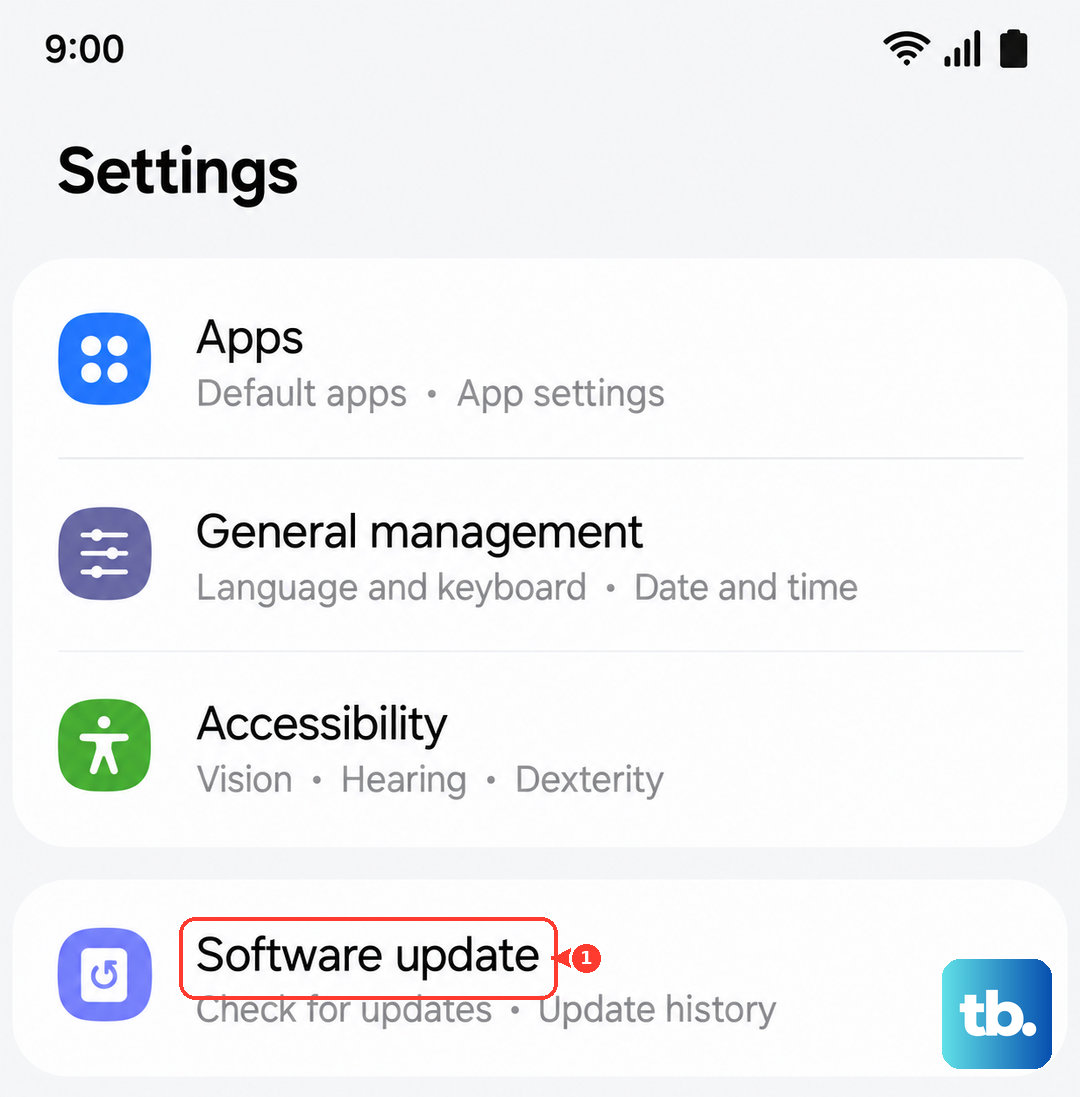
Head to Settings > Software update > Download and install. If there's an update available, install it and restart your phone. This keeps your S24 running smoothly and can resolve sensor problems that popped up after a previous update.
Boot Into Recovery Mode to Wipe Cache
Sometimes corrupted system cache files can interfere with the fingerprint scanner. Clearing this cache is safe and won't delete any of your personal data.
First, turn off your phone completely. Connect it to your computer with a USB-C cable. Now, press and hold the Volume Up button and the Side button at the same time. When you see the Android recovery screen, let go.
Use the Volume Down button to highlight Wipe cache partition, then press the Side button to select it. Confirm the action, and once it's done, select Reboot system now. This process can clear up underlying software gremlins.
Review Your Advanced Feature Settings
Certain features on the S24 can sometimes conflict with the fingerprint sensor. It's worth checking a couple of settings. Go to Settings > Advanced features.
Look for an option called Finger sensor gestures and turn it off. This feature lets you swipe on the sensor to pull down the notification panel, and disabling it can eliminate a potential source of interference. Also, ensure any battery-saving or performance modes are turned off while testing the scanner.
Register the Same Finger Twice
For a fingerprint that's being particularly stubborn, try registering it as two separate entries. When you go to add a new fingerprint, use the same finger but focus on capturing slightly different angles and pressure points the second time.
This gives the system more data to work with and can significantly improve your success rate. It's a handy trick if you find the sensor only works when your finger is placed in one exact position.
If you've worked through all these steps and the fingerprint scanner is still completely unresponsive, the issue could be hardware-related. The sensor is built into the display, so physical damage to the screen could be a factor. In that case, reaching out to Samsung Support or visiting an authorized service center would be the next logical step.