If your Samsung Galaxy S23's battery life has suddenly taken a nosedive, you're not alone. This can happen after a major software update. The good news is that a few targeted tweaks can often get you back to a full day of use.
Check What's Draining Your Battery
Before you start changing settings, it's smart to see where your power is actually going. Samsung's battery menu is very detailed. Go to Settings > Battery.
Here, tap "View details" beneath the battery usage graph. You'll see information about app usage, along with Screen on time and Screen off time. Look for any app with a surprisingly high percentage that you don't use often. This is your first clue.
Update Your Software
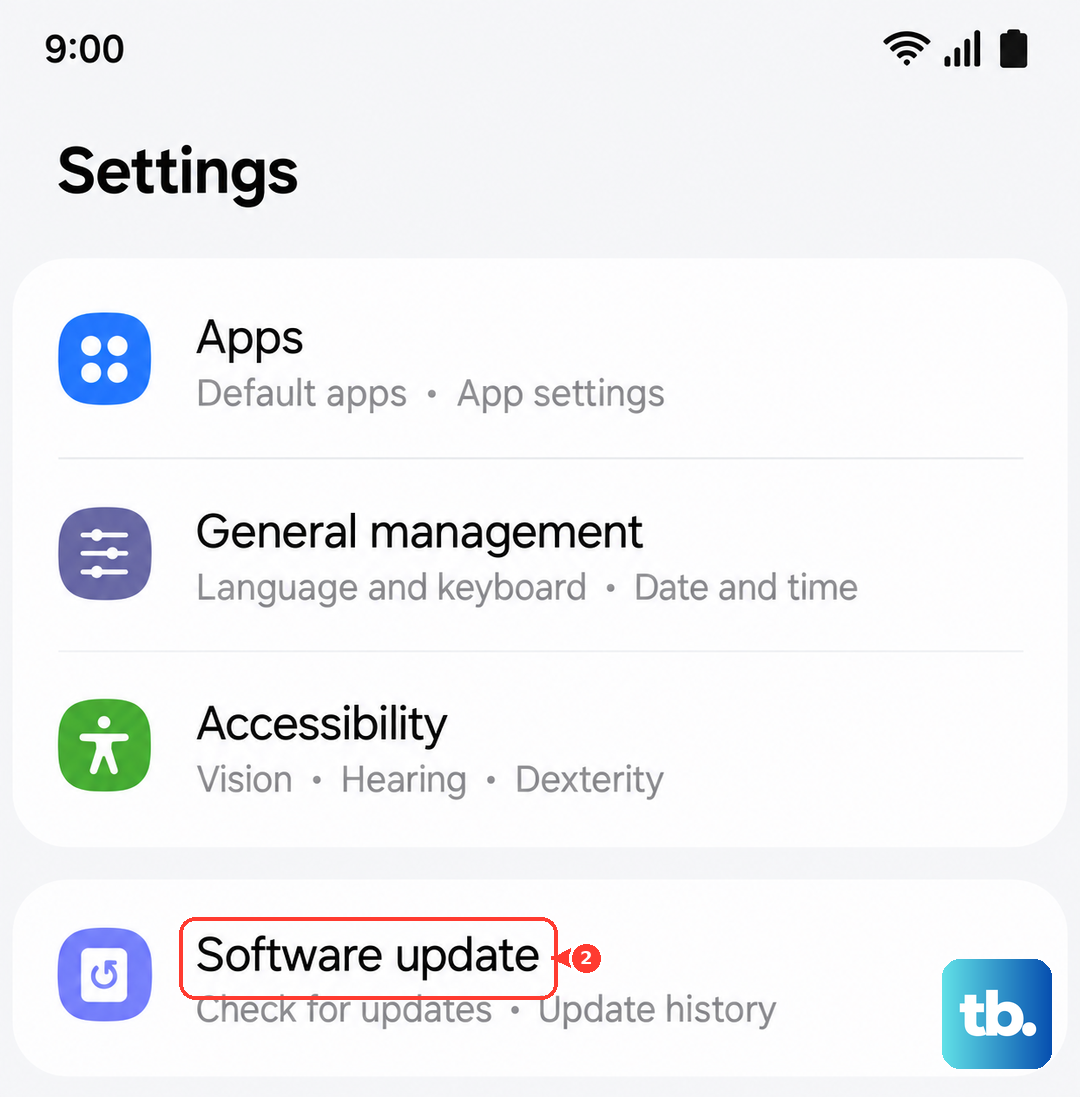
I'd start with this one. Software updates can improve system efficiency and reduce unnecessary power consumption. Keeping your system and apps up to date can help improve battery life.
Go to Settings > Software update > Download and install. If an update is available, follow the on-screen instructions to install it. Also open the Play Store, tap your profile picture, then Manage apps & device > Updates available > Update all.
Boot Into Safe Mode
If the battery is still draining fast after an update, a third-party app might be the culprit. Booting into Safe Mode temporarily disables all apps you've downloaded. Press and hold the Side button and Volume down button together until the power menu appears, then press and hold the "Power off" option on your screen.
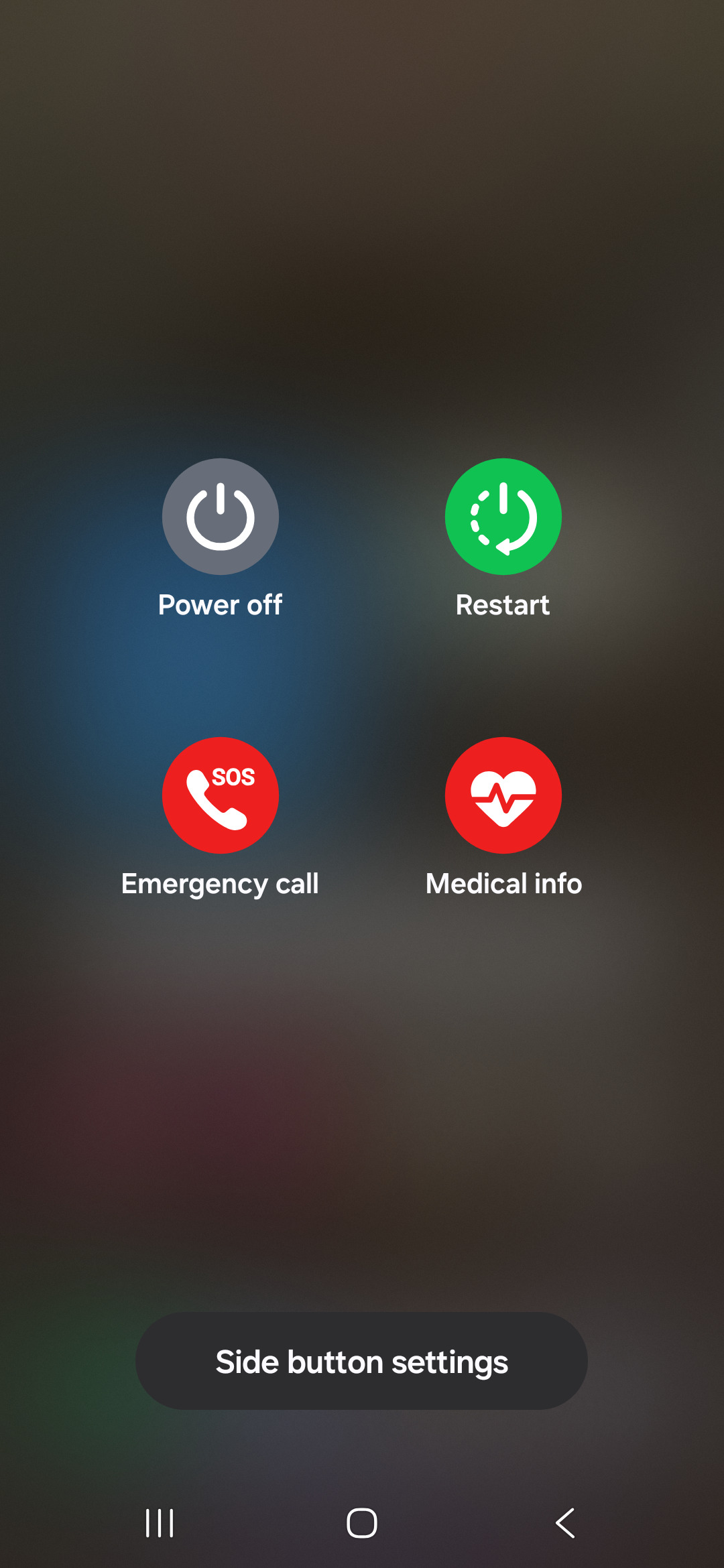
Tap "Safe mode" to restart. If your battery life improves dramatically in Safe Mode, a downloaded app may be causing the problem. You can then restart normally and begin uninstalling recent apps one by one to find the offender.
Manage Background Activity and Location
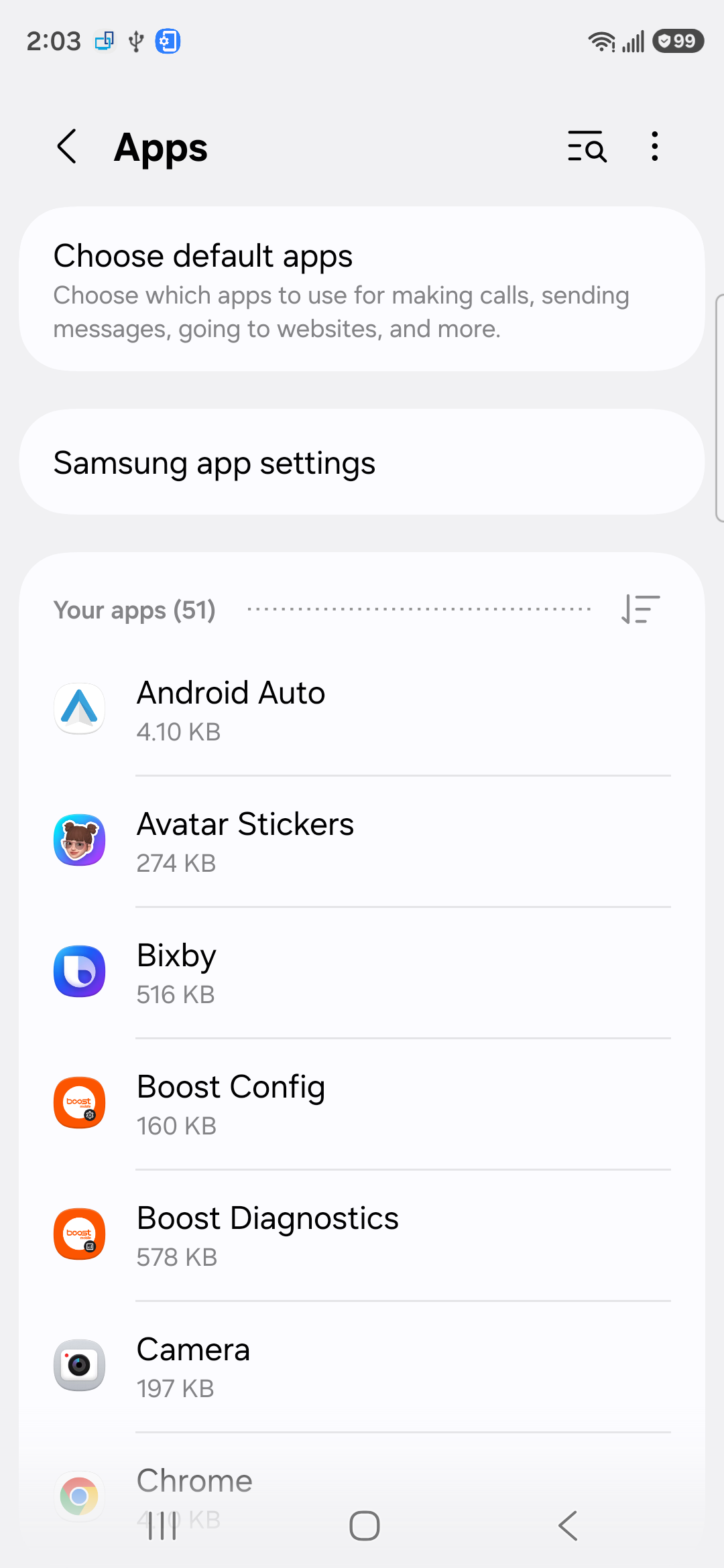
Some apps are relentless about running in the background. Go to Settings > Apps, select a suspicious app from the battery usage list, and tap "Battery." Set it to "Restricted" to prevent background activity. Be careful not to restrict critical apps like your messaging service.
Location services are another major drain. Review which apps have access by going to Settings > Location. For each app, choose "Allow only while using the app" instead of "Allow all the time" for any that don't need constant tracking.
Optimize Display and Performance Settings
Your screen can be a major battery user. Lower the brightness manually or ensure Adaptive brightness is working well. Also, consider reducing the screen timeout. Go to Settings > Display and set "Screen timeout" to 30 seconds or 1 minute.
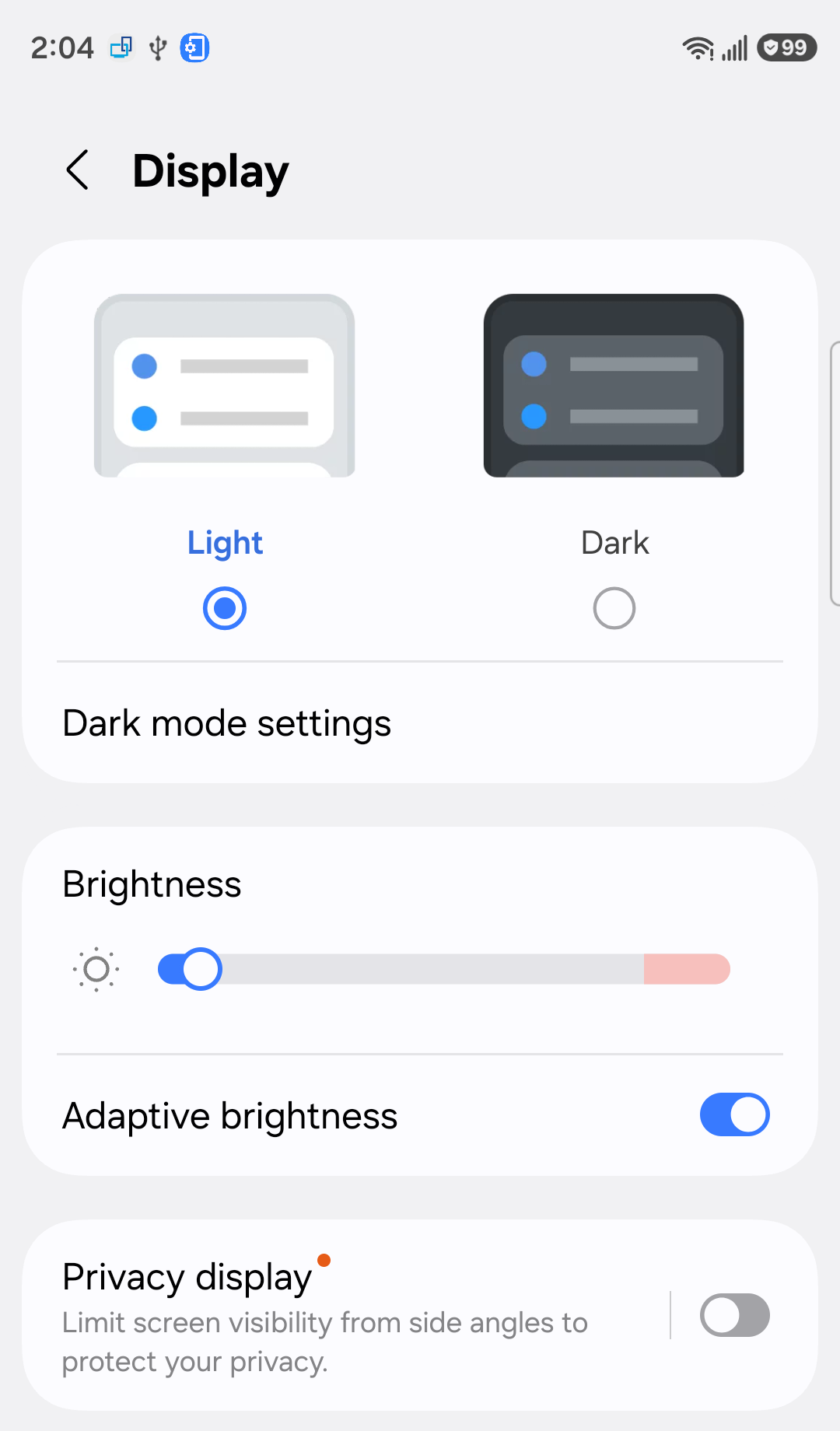
Enable Dark mode for your OLED screen, as it saves power on black pixels. For performance, try setting your refresh rate to Standard (60Hz) instead of Adaptive (up to 120Hz) in the Settings > Display > Motion smoothness menu. The difference in smoothness is noticeable, and Standard can help extend battery life.
Review Connectivity Features
Turn off Wi-Fi and Bluetooth when you're not using them. The constant searching for networks and devices uses power. Also, check your 5G settings if you're in an area with spotty coverage. Using 5G alongside an LTE connection can increase battery consumption.
You can set a preference by going to Settings > Connections > Mobile networks > Network mode. Choosing "LTE/3G/2G (auto connect)" can be more efficient if 5G signal is weak where you spend most of your time.
Use Adaptive Battery and Put Apps to Sleep
Make sure Samsung's built-in battery optimizations are turned on. Ensure "Adaptive battery" is enabled in your battery settings. This feature learns your usage patterns and limits power for apps you rarely use.
You can also manually put apps into deep sleep. Go to Settings > Battery > Background usage limits > Deep sleeping apps. Tap the plus sign, select apps you don't need notifications from, then tap "Add." Deep sleeping apps only work when you open them; Sleeping apps may run in the background when you use them again.
Check for a Moisture Detection Error
A moisture detection warning can interfere with charging. If you see a water drop icon in your notification bar, even though the phone is dry, check the USB-C port. A warning that persists after checking the port may need further troubleshooting.
Unplug the charger and gently shake the phone with the port facing down. Then let the port dry naturally, which takes about 1 to 2 hours. Don't insert any object into the charging port. If the warning persists, restart the phone. If the warning persists, try using a different charging cable and power adapter to rule out an accessory problem.
Optimize Your Device
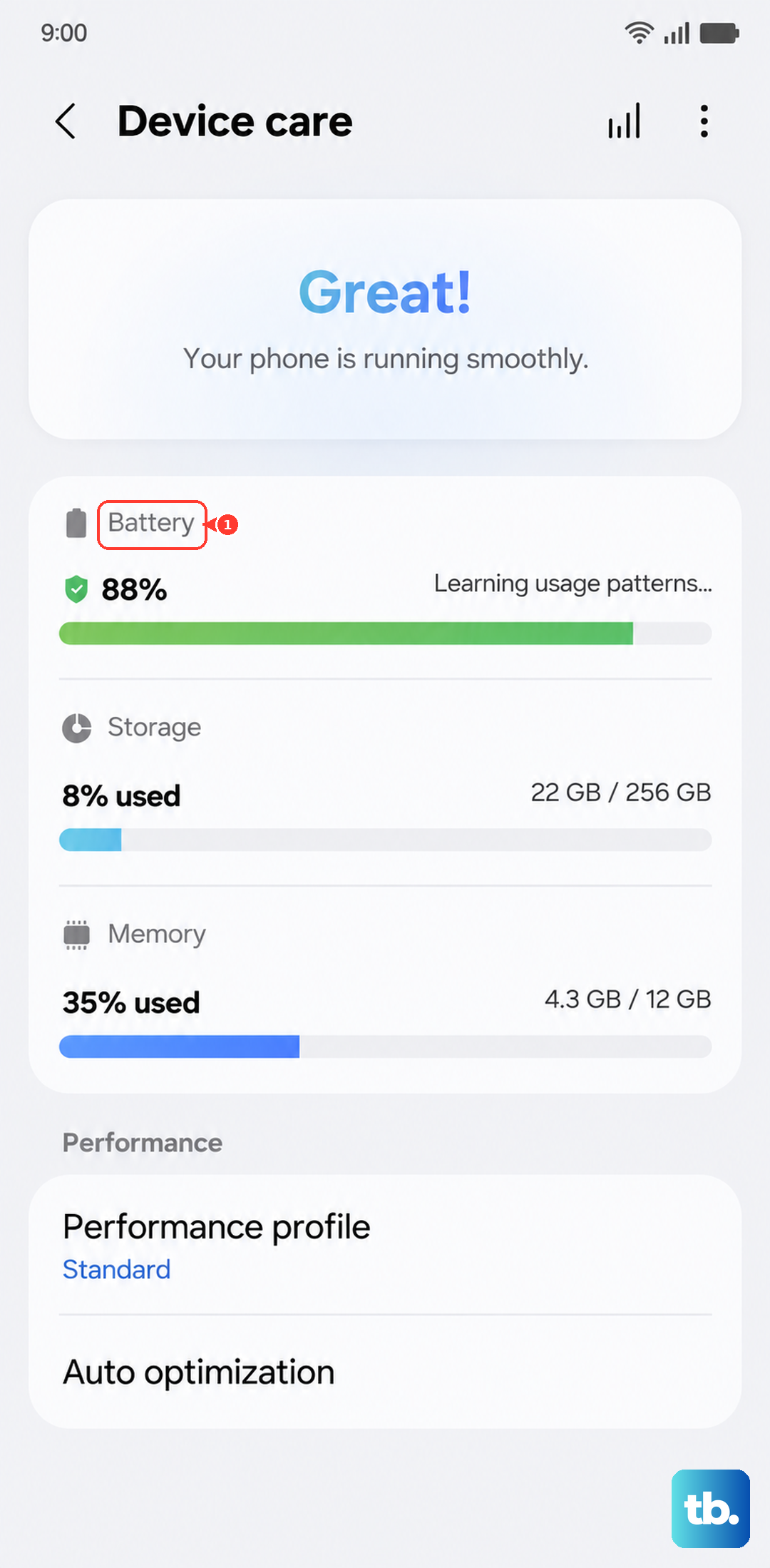
Device care can identify apps using excessive battery power and close background apps. Go to Settings > Device care, tap "Optimize now," then tap "Done"; if your phone is already in "Great condition," the optimization option won't appear.
You can also prioritize battery life over processing speed by going to Settings > Device care > Performance profile and selecting "Light." This profile doesn't apply to game performance, so use Game Booster settings if you want to adjust how games run.
Reset All Settings
If you've tried everything and the drain continues, a settings reset can help. This won't delete your photos, messages, or apps. It resets settings to default while keeping security and language settings, accounts, personal data, and settings for downloaded apps. It can help if a changed setting is contributing to the drain.
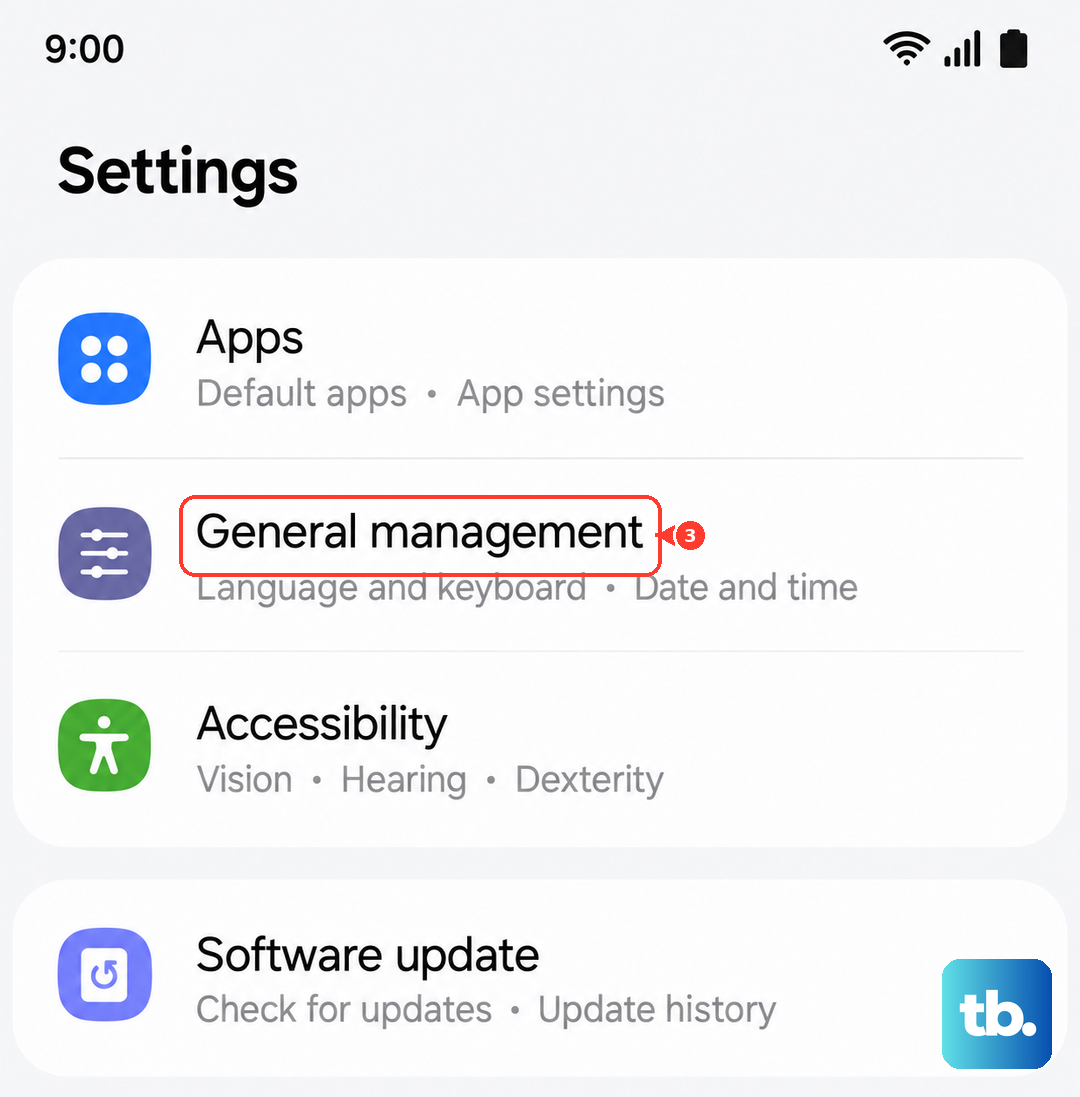
Go to Settings > General management > Reset > Reset all settings. Tap "Reset settings," enter your PIN if prompted, then tap "Reset." You'll need to set up your connections and preferences again, but it's often a worthwhile last step before more drastic measures.