
When your Samsung Galaxy A56 suddenly goes quiet or the volume is way too low, it can feel like you're missing half the phone's functionality. Sound issues can pop up for a bunch of reasons, from a simple setting you accidentally changed to a bit of software confusion. The good news is that most of the time, you can get your audio back with a few straightforward checks and fixes.
Start with a free speaker test that plays left and right channels one at a time. Hearing both sides confirms the hardware, which makes the remaining steps much easier to pin down.
Check Your Volume and Sound Mode
This is the absolute first thing to try. While you're playing music or a video, press the volume up button on the side of your phone. If you see a volume slider on screen, make sure it's not all the way down. Also, check the quick settings panel by swiping down from the top of the screen twice. Look for the sound mode icon, it should be set to "Sound," not "Vibrate" or "Mute."
For more control, go into Settings > Sounds and vibration > Volume. Here you'll see separate sliders for Ringtone, Media, Notifications, and System. Slide the Media volume all the way up. I've seen more than a few people miss this because their ringtone was loud but their media volume was stuck at zero.
Disconnect Bluetooth and Other Audio Routes
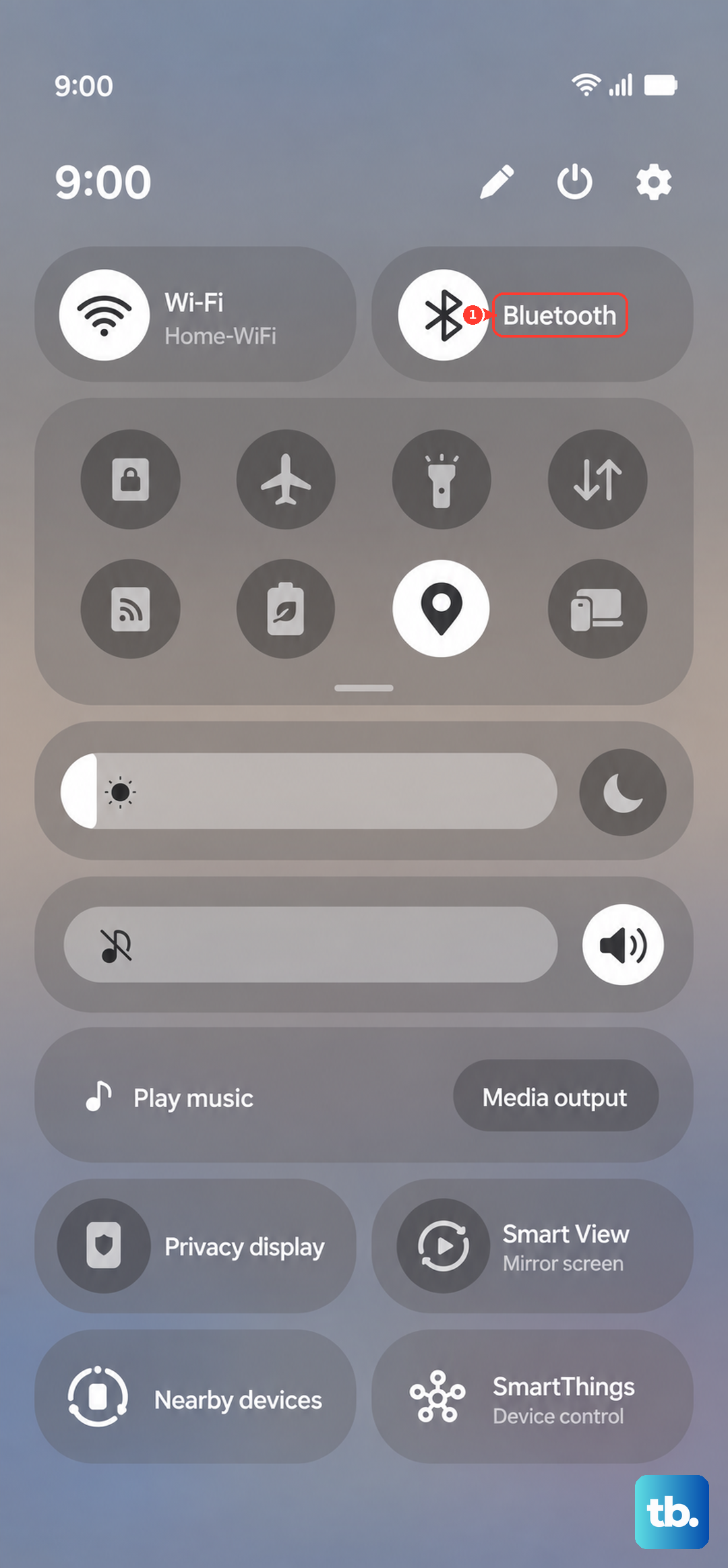
Your Galaxy A56 might be trying to send sound somewhere else. If you've used wireless headphones or a speaker recently, your phone could still be connected. Swipe down your notification panel and look for the Bluetooth icon. If it's blue, tap it to turn Bluetooth off completely.
Also, take a moment to remove any phone case that might be covering the bottom speaker grill. Some thicker cases can muffle the sound significantly. Since the A56 doesn't support wireless charging, you don't have to worry about that interfering, but do unplug any USB-C cable or headphones.
Clean the Speaker Grill Carefully
Dust, lint, and pocket debris love to get stuck in the tiny holes of the speaker grill at the bottom of the phone. This is a super common cause of muffled or low volume. Grab a soft-bristled toothbrush or a clean, dry makeup brush and gently sweep across the grill.
You can also use a can of compressed air, but hold it upright and use very short bursts from a few inches away. Never use a pin, paperclip, or the SIM ejector tool to poke inside, as you'll likely damage the speaker permanently. A quick visual check with your phone's flashlight can show you if there's a visible clog.
Review Do Not Disturb and App-Specific Sound Settings
Sometimes system-wide quiet modes are the culprit. Go to Settings > Notifications > Do Not Disturb. Make sure it's toggled off. Also, check if a schedule is enabled that might be activating it automatically.
Samsung's One UI has a feature called Separate app sound. This lets you route audio from specific apps (like Spotify or YouTube) to a different output. If it's set up wrong, it can seem like sound is broken. Go to Settings > Sounds and vibration > Advanced sound settings > Separate app sound and toggle it off to see if that fixes things.
Perform a Force Restart
A quick force restart clears out any temporary software glitches that could be affecting the audio driver. For your Galaxy A56, press and hold the Volume Down button and the Side (power) button together for about 10 seconds. Let go when you see the Samsung logo appear on the screen.
Your phone will reboot normally. This doesn't delete any data, it's just a deeper refresh than a standard restart. It's the same method used on the Galaxy S series and often solves odd, intermittent issues.
Check for Software Updates
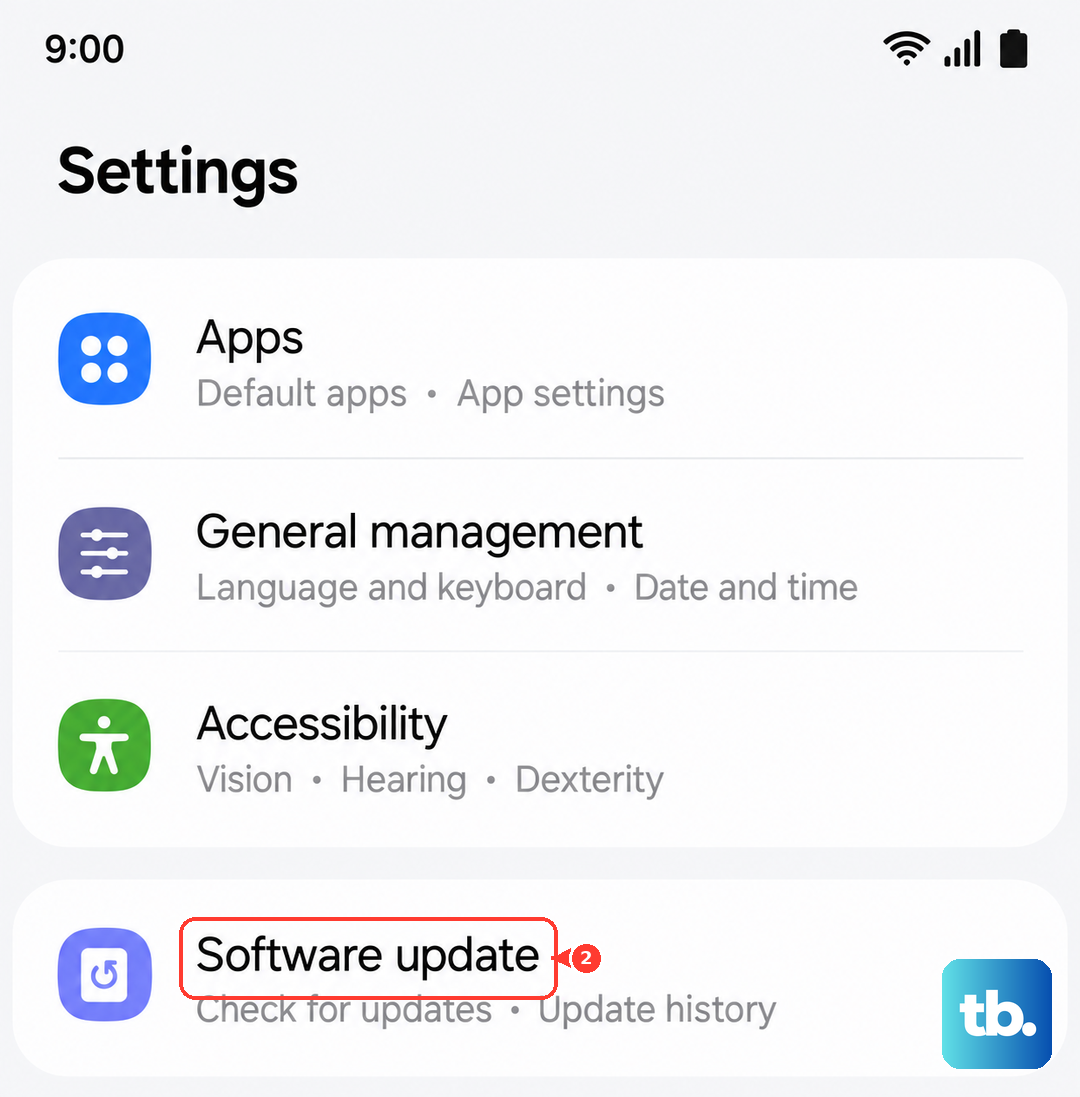
Since the A56 runs on Android 15 with One UI 7, Samsung may have released an update that includes fixes for audio-related bugs. Go to Settings > Software update > Download and install. If an update is available, it's a good idea to install it while connected to Wi-Fi.
Major updates can sometimes introduce small bugs that are patched later. Keeping your phone updated ensures you have the latest stability improvements from Samsung.
Boot Into Safe Mode to Check for App Conflicts
If the problem started after you installed a new app, that app could be causing a conflict. Booting into Safe Mode temporarily disables all third-party apps. To enter Safe Mode on the A56, press and hold the power button until the power menu appears. Then, tap and hold the "Power off" option on your screen. A "Safe mode" prompt will pop up, tap it to reboot.
If your sound works perfectly in Safe Mode, you know a downloaded app is the problem. Restart normally to exit Safe Mode, then try uninstalling apps you installed around the time the sound issue began.
Clear the System Cache Partition
Corrupted system cache files can cause all sorts of erratic behavior, including sound problems. Clearing this cache is safe and won't touch your personal data. First, turn off your phone completely. Now, press and hold the Volume Up button and the Side button together.
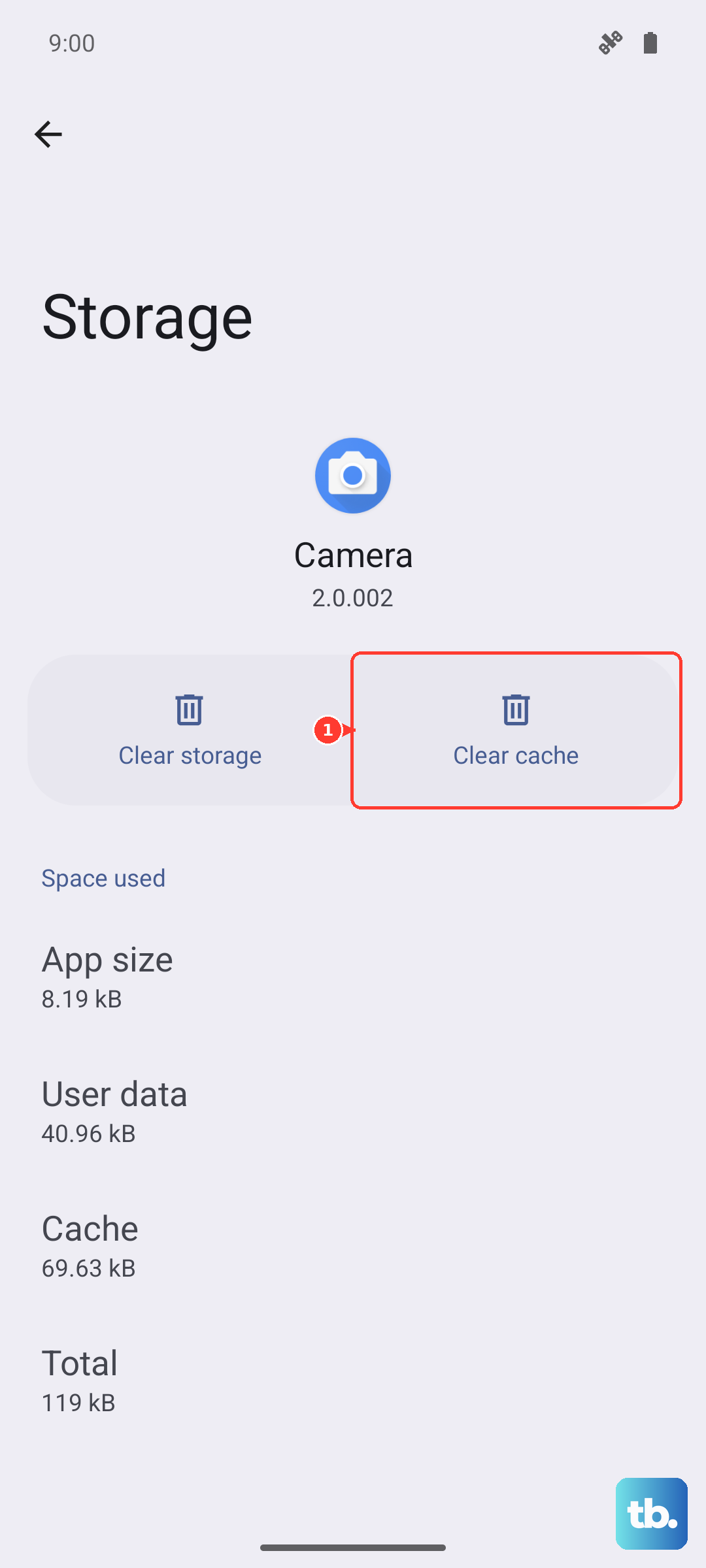
You won't find a "Wipe cache partition" option on the Galaxy A56, since Samsung removed it from the recovery menu on recent One UI versions. Instead, go to Settings > Device care and tap Optimize now, or clear a specific app's cache under Settings > Apps > [app] > Storage > Clear cache. Confirm, then select "Reboot system now." This process can help, especially if the issue appeared after a system update.
Reset All Settings
If you're still having trouble and you've ruled out hardware and app issues, resetting your phone's settings can be a big help. This will revert all your sound, network, and display settings back to factory defaults without deleting your photos, messages, or apps. Go to Settings > General management > Reset > Reset all settings > Reset settings.
Tap "Reset settings" and enter your PIN if prompted. Your phone will restart. Afterward, you'll need to reconfigure things like your Wi-Fi passwords and ringtone choices, but it often resolves persistent software glitches.