When your Samsung Galaxy A56 stops ringing for incoming calls, it can leave you feeling disconnected. This is a common headache with several potential causes, from a simple setting you've accidentally toggled to a deeper network hiccup. The good news is you can usually fix it yourself with a few straightforward checks.
I'd start with the quickest fix first. Press and hold the Volume Down button and the Side button (power button) together for about 10 seconds. Keep holding until you see the Samsung logo appear on the screen, then let go. This force restart can clear out temporary software glitches that might be blocking your calls.
Check Your Do Not Disturb and Focus Modes
One UI's Do Not Disturb and various Focus modes are often the culprits. Swipe down twice from the top of your screen to open your Quick Settings panel. Look for the "Do Not Disturb" or "Modes" icon, if it's highlighted, tap it to turn it off.
For a deeper check, go into Settings > Modes and routines. See if any active routine is running that could be silencing calls. Also, look at Settings > Notifications > Do Not Disturb to review your schedules and allowed exceptions.
Review Your Call Blocking and Spam Settings
Samsung's built-in spam protection is helpful, but sometimes it gets too aggressive. Open your Phone app and tap the three-dot menu in the top right, then go to Settings > Call blocking and identification for spam.
Make sure "Block spam and scam calls" isn't accidentally blocking legitimate contacts. You should also tap "Block numbers" to review your personal block list and remove any numbers you want to hear from.
Inspect Your SIM Card and Network Connection
A loose or faulty SIM card can definitely cause call issues. You'll need the SIM ejector tool that came with your Galaxy A56. Gently push it into the small hole on the SIM tray, pop it out, and remove the SIM card.
Give the gold contacts on the SIM a quick wipe with a soft, dry cloth and reinsert it firmly. While you're at it, check your signal strength. If you see "No Service" or only one bar, try moving to a different location, as poor reception can prevent calls from coming through.
Disable Any Active Call Forwarding
Call forwarding is a useful feature, but if it's turned on by mistake, all your calls get sent elsewhere. To check, open the Phone app, tap the three-dot menu, and select Settings > Supplementary services.
Tap on "Call forwarding" and look at each option (like "Always forward" or "When busy"). Make sure they are all set to "Turn off" or that the forwarding number is blank. This ensures calls are coming directly to your A56.
Reset Your Network Settings
If calls are still a problem, resetting your network settings can clear up configuration errors. This will erase saved Wi-Fi passwords, Bluetooth pairings, and mobile data settings, so be ready to reconnect to your networks afterward.
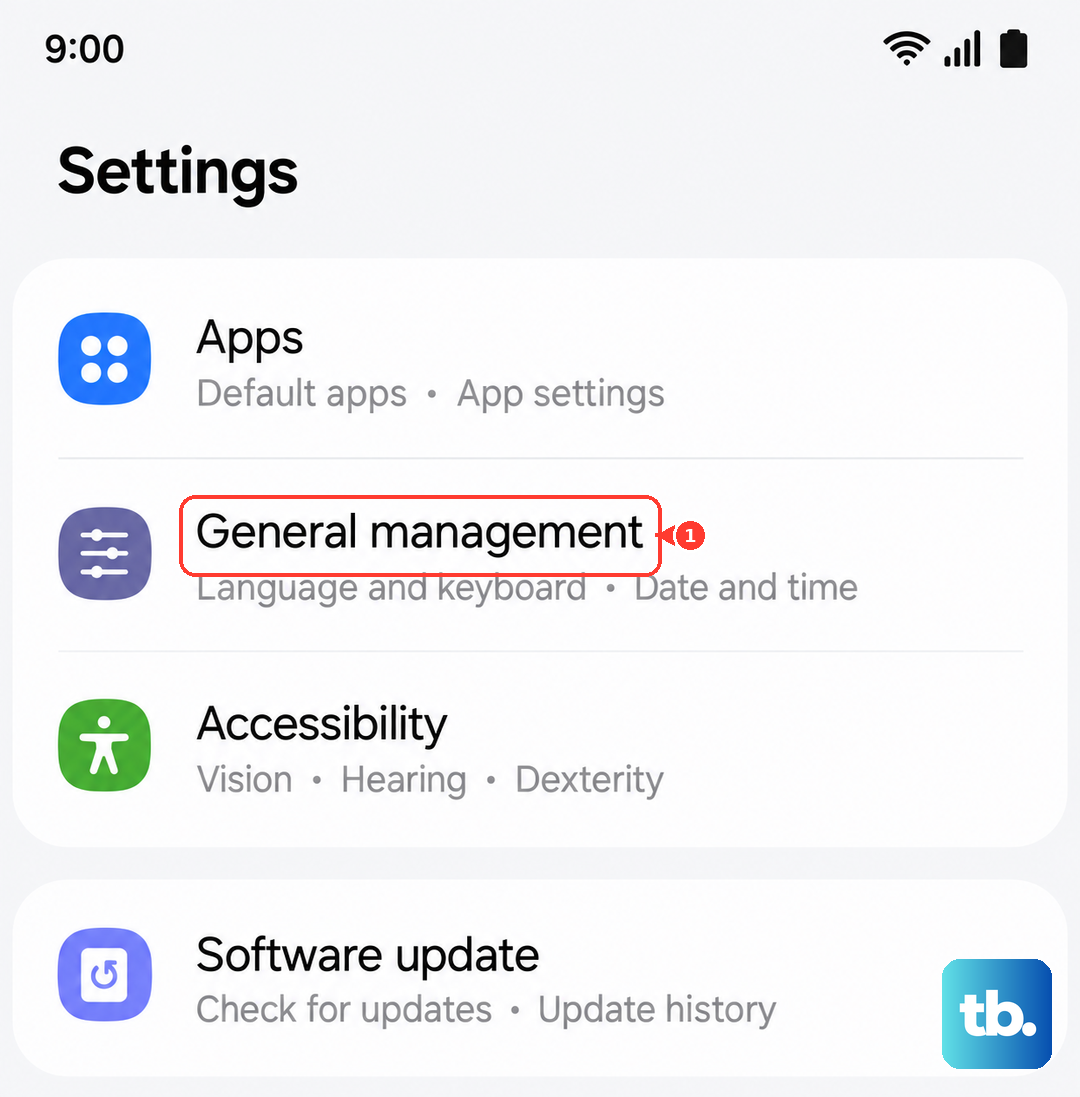
Go to Settings > General management > Reset > Reset network settings. Tap "Reset settings" and confirm. Your phone will reboot, and you'll need to reconnect to your cellular network and Wi-Fi.
Update Your Phone's Software
Outdated software can have bugs that affect calling. Samsung regularly releases updates that fix these kinds of issues. Connect your phone to a Wi-Fi network and go to Settings > Software update > Download and install.
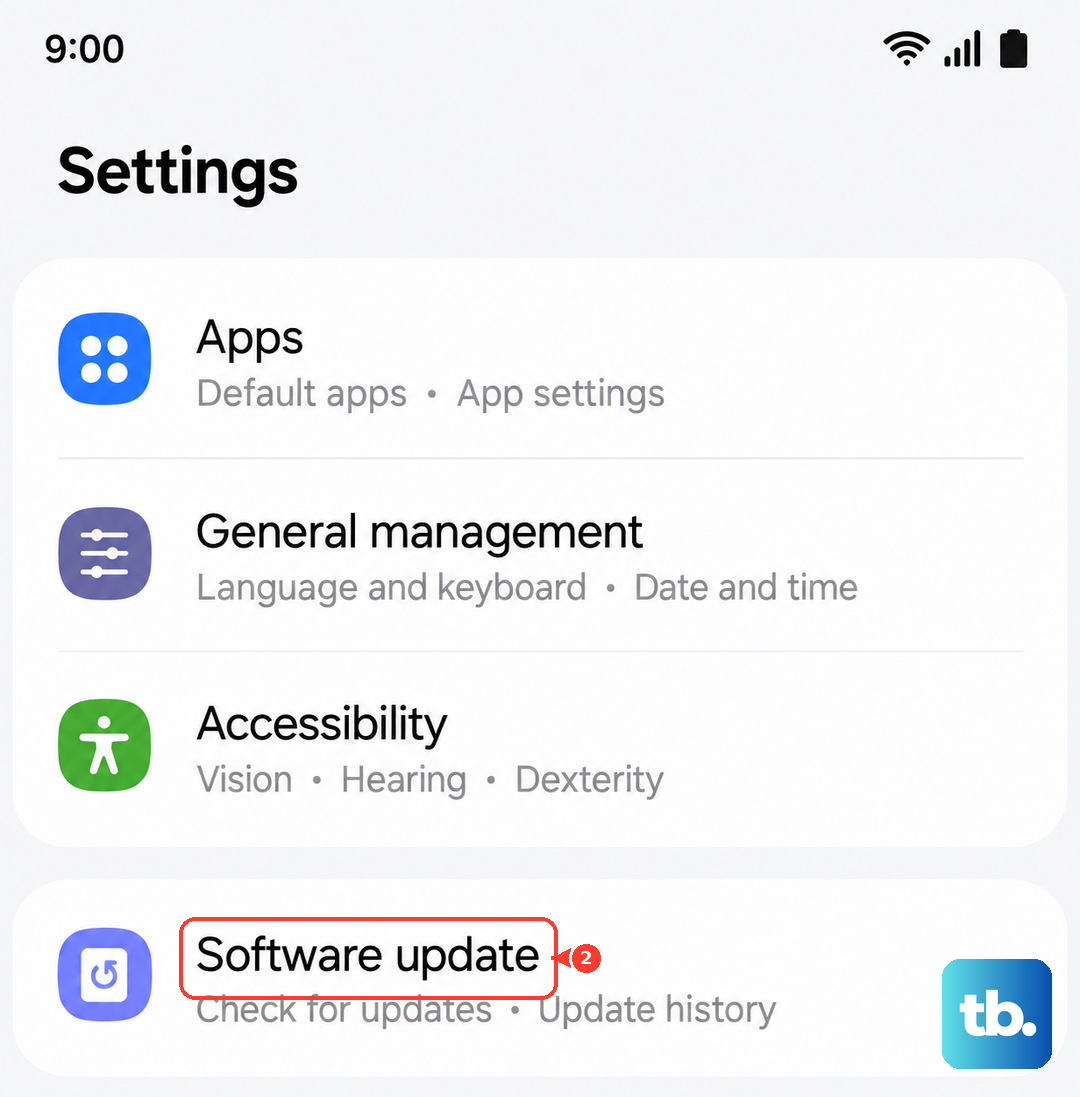
If an update is available, let it download and install. Your Galaxy A56 will restart. It's a good habit to check here monthly, as these updates often include important stability patches.
Clear the Cache and Data for the Phone App
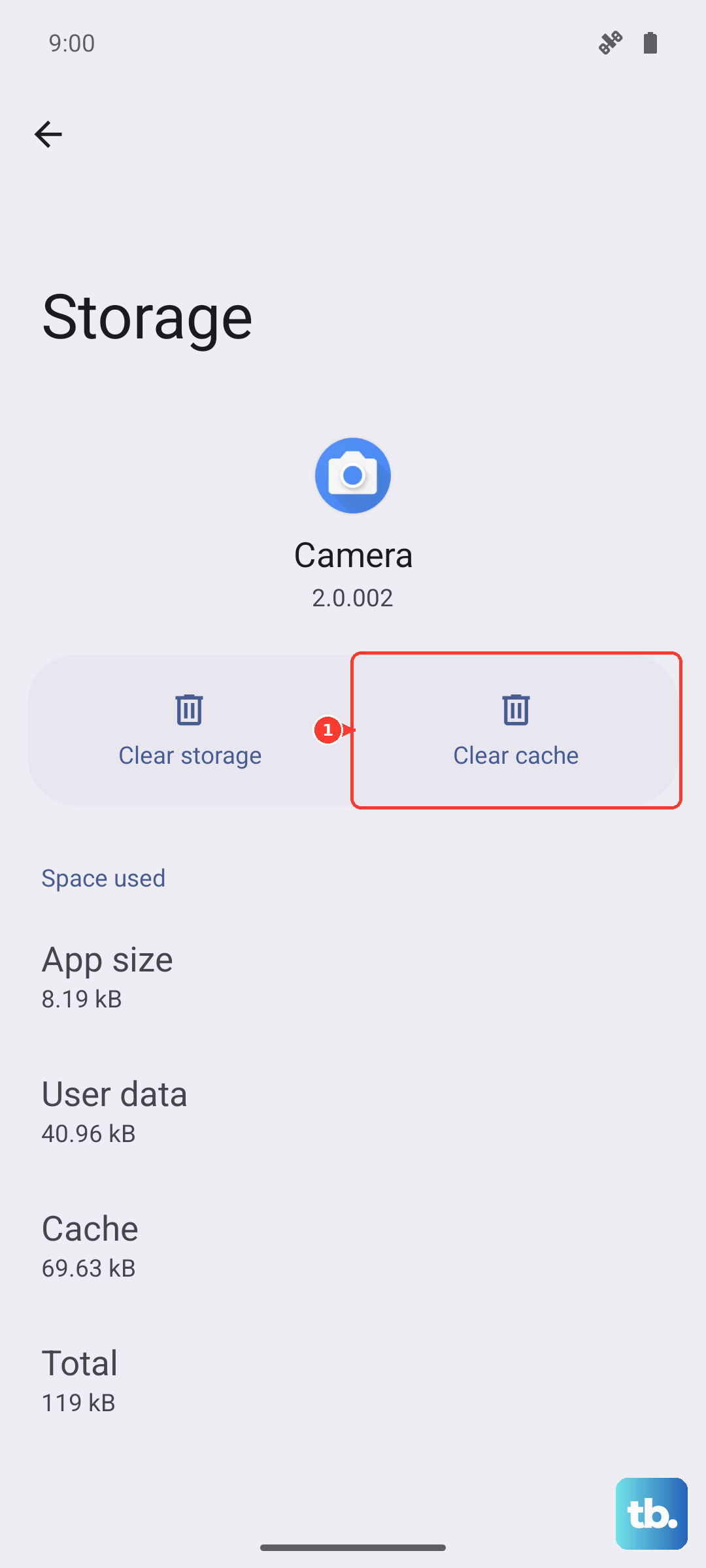
The Phone app itself can accumulate corrupted data. Don't worry, clearing this won't delete your call history or contacts. Head to Settings > Apps > Phone (you might need to tap "See all apps" first).
Tap on Storage > Clear cache. Try a test call first. If the problem persists, go back and tap "Clear data." This resets the app to its default state, which often resolves odd behavior.
Check for Problematic Third-Party Apps
Sometimes, an app you've installed can interfere with the phone's core functions. Think about any call-related apps, dialers, or heavy battery savers you've added recently. Try booting your Galaxy A56 into Safe Mode.
Press and hold the Side button and Volume Down button until the power menu appears. Then, tap and hold the "Power off" icon until you see the "Safe mode" prompt. Tap to restart in Safe Mode. If calls work normally here, a downloaded app is likely the cause. You'll need to uninstall apps one by one to find the offender.
Perform a Factory Reset
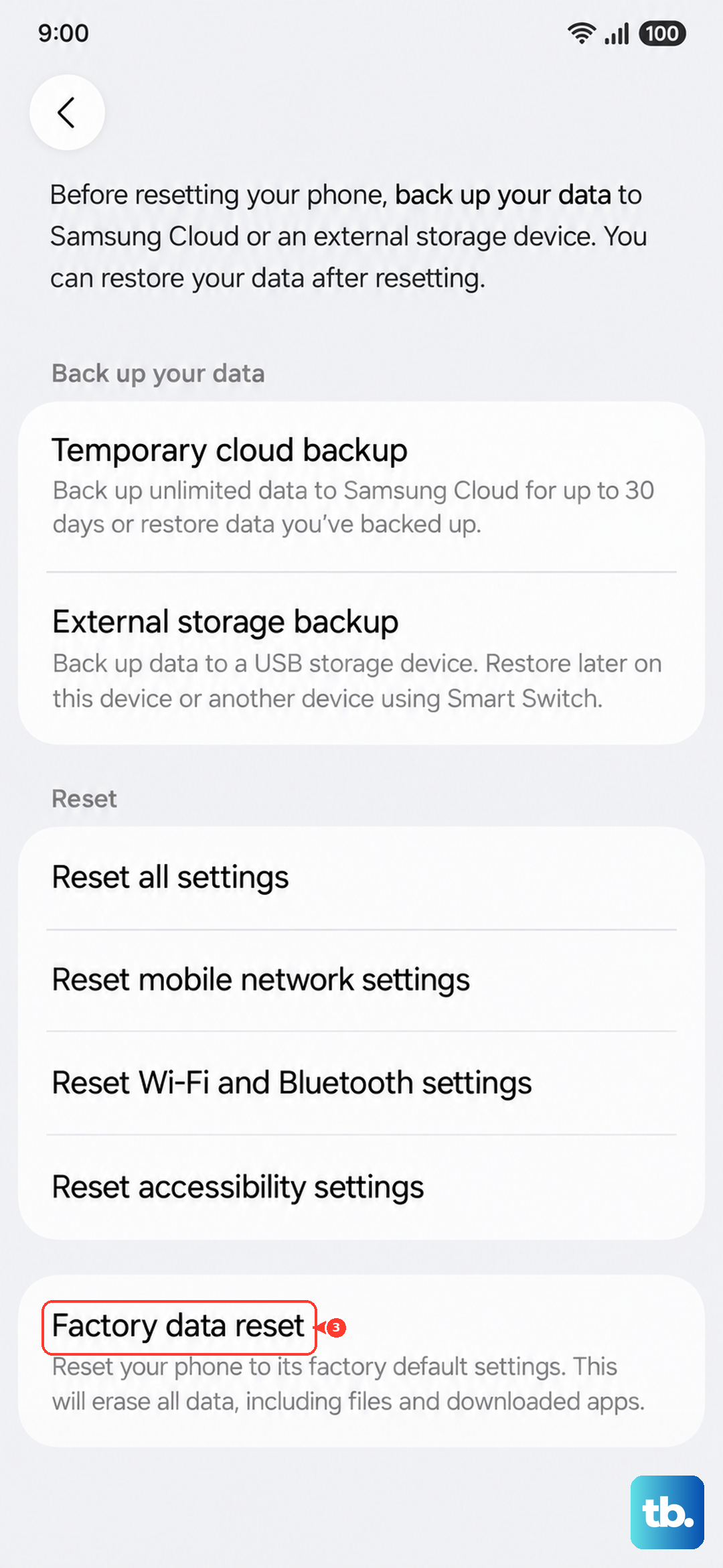
This is your last resort step, as it will erase everything on your phone. Before you do anything, ensure all your photos, messages, and app data are backed up to your Samsung account or Google Drive.
Once backed up, go to Settings > General management > Reset > Factory data reset. Scroll down and tap "Reset." This process will take several minutes and will return your Galaxy A56 to its original out-of-the-box state.