
Seeing "No Service" or a missing signal bar on your Samsung Galaxy A56 can stop you from making calls, sending texts, or using mobile data. It's a common hiccup that usually has a simple fix, especially with the 2025 model running One UI 7.
I'd start with the quickest solutions first. Often, the problem is a temporary software glitch or a setting that got switched off by accident.
Restart Your Phone and Check Airplane Mode
The first thing to try is a force restart. On the Galaxy A56, you press and hold the Volume Down button and the Side button together for about 10 seconds until you see the Samsung logo. This is the same method used on the S series and it clears out minor system errors that can affect the modem.
Next, pull down the Quick Settings panel from the top of your screen with two fingers. Make sure the Airplane Mode icon isn't highlighted or turned on. If it is, tap it once to turn it off. You can also check in Settings > Connections to confirm it's disabled.
Reinsert Your SIM Card
A loose or dirty SIM card is a frequent culprit for signal problems. The Galaxy A56 uses a nano-SIM card. You'll need the SIM ejector tool that came in the box (or a small paperclip) to pop open the tray on the bottom edge of the phone, next to the USB-C port.
Take the SIM card out, gently wipe the gold contacts with a soft, dry cloth, and then carefully reseat it in the tray. Push the tray back in until it clicks. Give your phone a minute to search for the network after it boots back up.
Toggle Mobile Data and Check Signal Strength
Sometimes the mobile data connection just needs a nudge. Swipe down for Quick Settings and tap the "Mobile data" icon to turn it off, wait a few seconds, and then tap it again to turn it back on. You can also go into Settings > Connections > Data usage to toggle it there.
Look at your signal strength indicator. If you only have one bar or an "X," you might simply be in a poor coverage area. Try moving near a window or to a different part of your building. Network congestion in crowded places like stadiums or concerts can also cause temporary service loss.
Reset Your Network Settings
If the basic steps don't work, resetting your network settings can clear any corrupted configurations. This will erase all saved Wi-Fi passwords, Bluetooth pairings, and custom mobile network settings, but it won't touch your personal photos or apps.
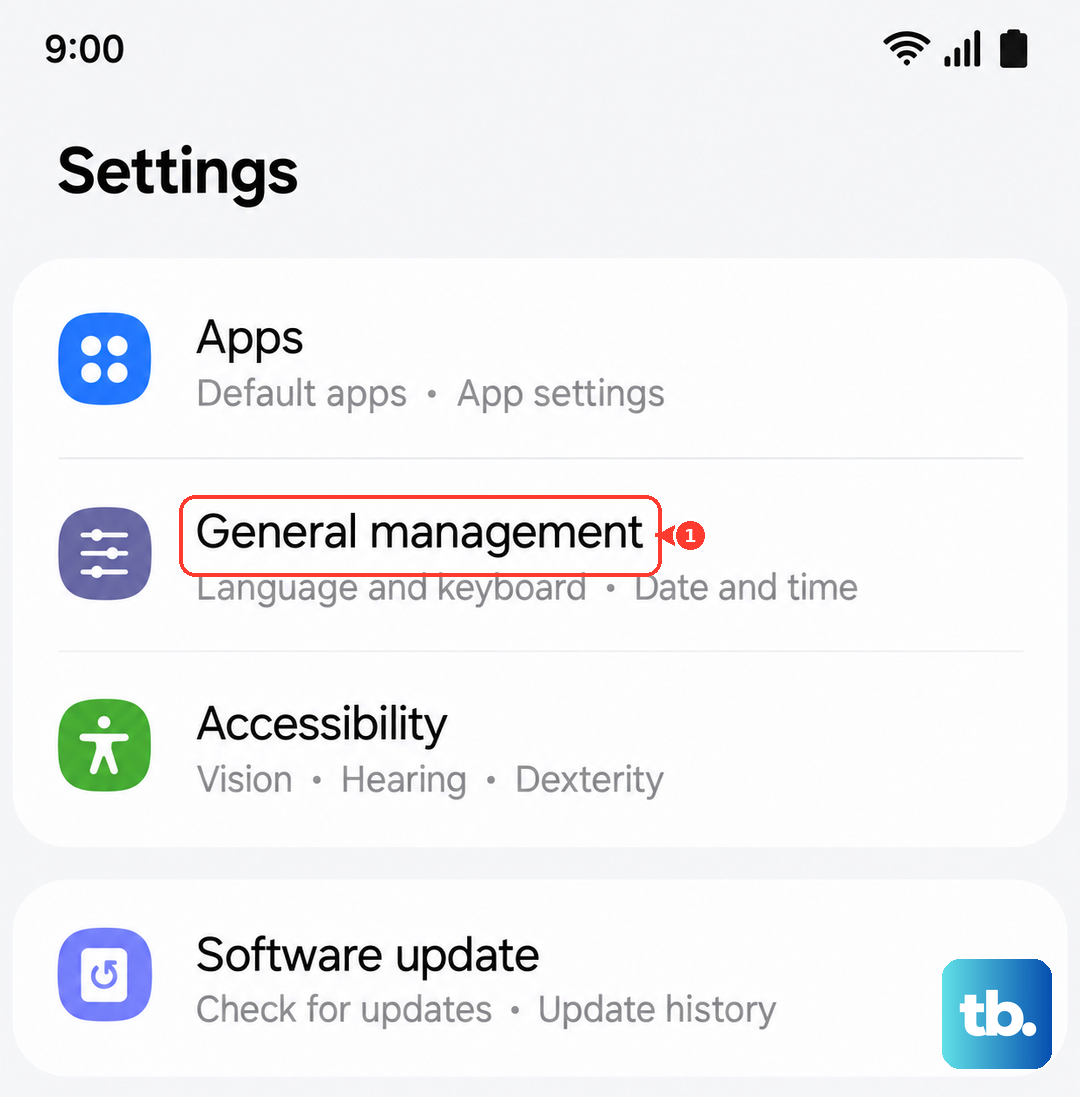
Go to Settings > General Management > Reset > Reset network settings. Tap the reset button at the bottom and confirm. Your phone will restart and you'll need to reconnect to Wi-Fi and Bluetooth devices afterward.
Update Your Access Point Name (APN)
Your APN is the gateway between your A56 and your carrier's network. If these settings are wrong, you won't get data or a stable signal. To check them, open Settings > Connections > Mobile networks > Access Point Names.
You should see a list of APNs. Select the one for your carrier. If the list is empty or looks incorrect, tap the three-dot menu in the top right and select "Reset to default." If that doesn't populate the right settings, you'll need to get the exact APN details from your carrier's website or customer service and enter them manually here.
Check for a Software Update
Samsung regularly releases updates for One UI that include fixes for connectivity bugs. It's worth making sure your A56 is running the latest software available.
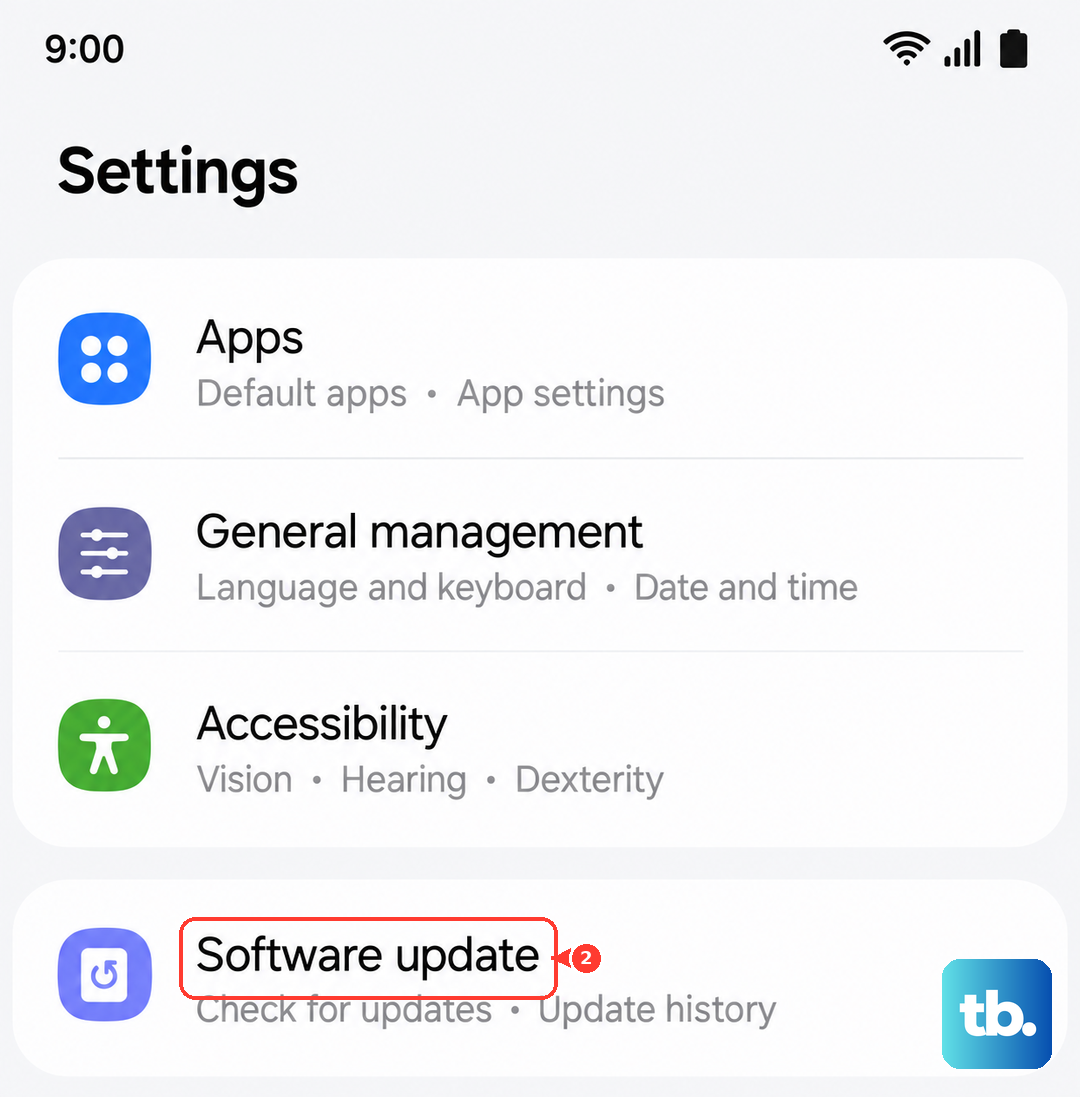
Go to Settings > Software update > Download and install. If an update is available, connect to Wi-Fi and let it install. Your phone will restart as part of the process. I've seen updates resolve persistent "No Service" issues on many Galaxy models.
Use the Phone Information Menu
Android has a hidden diagnostic menu that lets you check the status of your phone's radio. Open your Phone app and dial *#*#4636#*#*. This should open the "Testing" menu.
Tap on "Phone information." Here, you can see your signal strength in dBm (a number closer to zero is better). You can also try tapping the "Run ping test" button. Near the top, there's a menu for "Set preferred network type." Try selecting "LTE/WCDMA/GSM auto (PRL)" and then toggle the "Mobile radio power" off and back on.
Review Your Network Mode and Operator
Your phone might be stuck trying to connect to a network band it can't use. Head to Settings > Connections > Mobile networks > Network mode. For most users, "Automatic" is the best setting, as it lets the phone choose the strongest available signal between 5G, 4G LTE, and 3G.
While you're in the Mobile networks menu, also tap on "Network operators." Tap "Select automatically" and let your phone search. It will list available carriers. Make sure it selects and registers on your correct carrier's network.
Disable Any VPN or Private DNS
Third-party VPN apps can sometimes interfere with your cellular connection. Go to Settings > Connections > More connection settings > VPN. If you see any VPN profiles here that are active, tap on them and disconnect or remove them.
Also, check your Private DNS setting. In the same "More connection settings" menu, tap on "Private DNS." If it's set to a custom hostname, try switching it to "Automatic" or "Off" to see if your service returns.
Contact Your Carrier and Test Your SIM
If you've tried everything on the phone itself, the issue might be with your carrier account or the physical SIM card. The first step is to call your carrier's customer service. Ask if there are any known service outages in your area or if there's a problem with your account, like an unpaid bill that triggered a suspension.
They can also help you test your SIM card. If possible, try putting your SIM into another unlocked phone to see if it gets service. If it doesn't, you likely need a replacement SIM card, which your carrier can usually provide for free or a small fee. For the Galaxy A56, make sure they give you the correct nano-SIM size.