When your Samsung Galaxy A56 starts restarting on its own, it's incredibly disruptive. This can happen for a few reasons, from a simple software hiccup to a more stubborn app conflict. The good news is you can usually fix it yourself without a trip to the repair shop.
Before you start, it's a smart move to back up your important stuff. You can use Samsung Cloud or Google One to save your photos, contacts, and app data. This keeps everything safe just in case you need to take more serious steps later.
Perform a Force Restart
This is almost always the first thing I'd try. A force restart clears the phone's temporary memory and can stop a minor software glitch that's causing the loop. For the Galaxy A56, the method is straightforward.
Just press and hold the Volume Down button and the Side (power) button together for about 10 seconds. Keep holding until you see the Samsung logo appear on the screen, then let go. Your phone will boot up normally. This is the same method used on the Galaxy S series, and it doesn't delete any of your personal data.
Check for App Updates in the Galaxy Store and Play Store
Outdated apps are a common culprit for random restarts. An app that hasn't been updated for the newer One UI 7 or Android 15 on your A56 can cause conflicts. You need to check both app stores.
Open the Google Play Store, tap your profile icon, and go to Manage apps & device. Under "Updates available," tap Update all. Don't forget the Galaxy Store, which handles Samsung-specific apps. Open it, tap the menu, and go to Updates to install any waiting there.
Update Your Phone's Software
After updating apps, check for a system software update. Samsung regularly releases updates that fix bugs and improve stability, which can directly address restart issues. Go to Settings > Software update and tap Download and install.
Make sure your phone is connected to Wi-Fi and has at least a 50% charge before starting the update. If an update is available, let it install completely. The phone will restart as part of the process, which is normal.
Boot Into Safe Mode
Safe Mode temporarily disables all third-party apps you've downloaded. If the restarting stops while in Safe Mode, you know for sure that a downloaded app is causing the problem. To turn it on, press and hold the Side key until the power off menu appears.
Then, press and hold the Power off option on the screen. You'll see a prompt to restart in Safe Mode. Tap it. Your screen will say "Safe mode" in the bottom corner. Use the phone normally for a while to see if it stays stable.
To exit Safe Mode, just restart your phone normally. If the problem is gone in Safe Mode, you'll need to find the problematic app.
Identify and Uninstall Problematic Apps
If Safe Mode pointed to an app, you need to find which one. Think about any apps you installed right before the restarts began. Sometimes, apps with aggressive background processes or poor optimization for your A56's chipset can cause this.
Go to Settings > Battery and device care > Battery. Tap on the graph and look for apps with unusually high background usage. You can uninstall recent apps one by one, testing after each removal, or go to Settings > Apps, select a suspect app, and tap Uninstall.
Clear the System Cache Partition
Over time, temporary system files in the cache can become corrupted and cause instability. Clearing this cache is a safe maintenance step that doesn't touch your personal data. First, turn off your Galaxy A56 completely.
Now, press and hold the Volume Up button and the Side button together. When you feel a vibration and see the Samsung logo, let go of the Side button but keep holding Volume Up. This will boot you into the recovery menu. Use the volume buttons to navigate to Wipe cache partition and press the Side button to select it. Confirm, then select Reboot system now.
Free Up Storage Space on Your Device
If your phone's internal storage is completely full, the operating system doesn't have room to work properly, which can lead to crashes and restarts. The Galaxy A56 doesn't have expandable storage, so managing space is key.
Go to Settings > Device care > Storage. Here, you'll see a breakdown and suggestions. Tap on categories like "Apps" or "Images" to see what's taking up the most space. You can offload unused apps or move photos and videos to Google Photos or a computer to free up crucial gigabytes.
Reset All Settings
This resets every system setting on your phone, like Wi-Fi passwords, Bluetooth connections, and display preferences, back to factory defaults. It doesn't delete your photos, messages, or apps, but you will have to set your preferences up again. It can fix issues caused by a misconfigured setting.
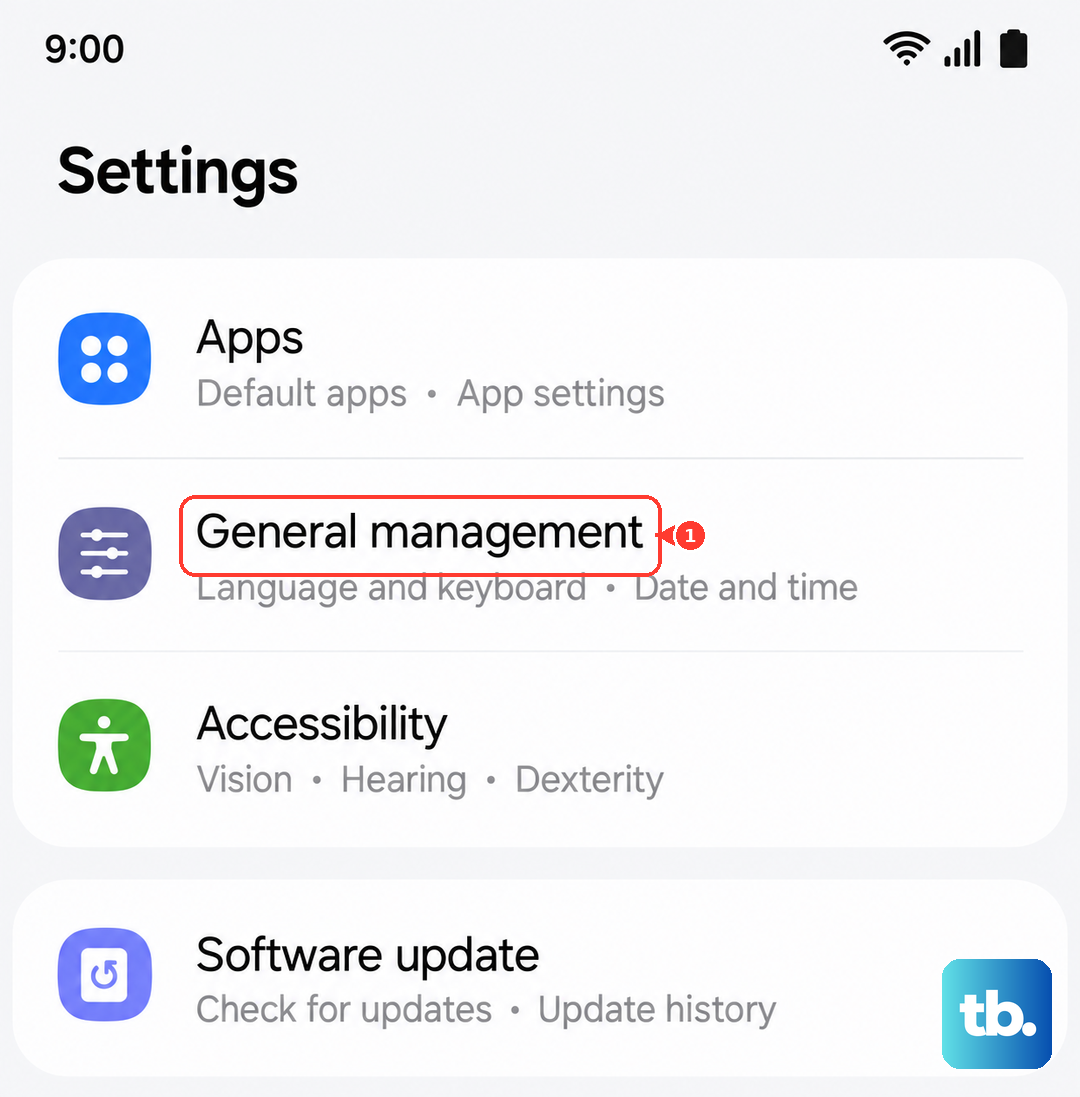
To do this, go to Settings > General management > Reset. Tap on Reset all settings, enter your PIN or password if prompted, and confirm. Your phone will restart, and you can test if the random reboots have stopped.
Perform a Factory Reset
Consider this your last software step. A factory reset erases everything on your phone and returns it to its original out-of-the-box state. This will eliminate any deep-seated software corruption. Because it deletes all your data, double-check that your backup is complete first.
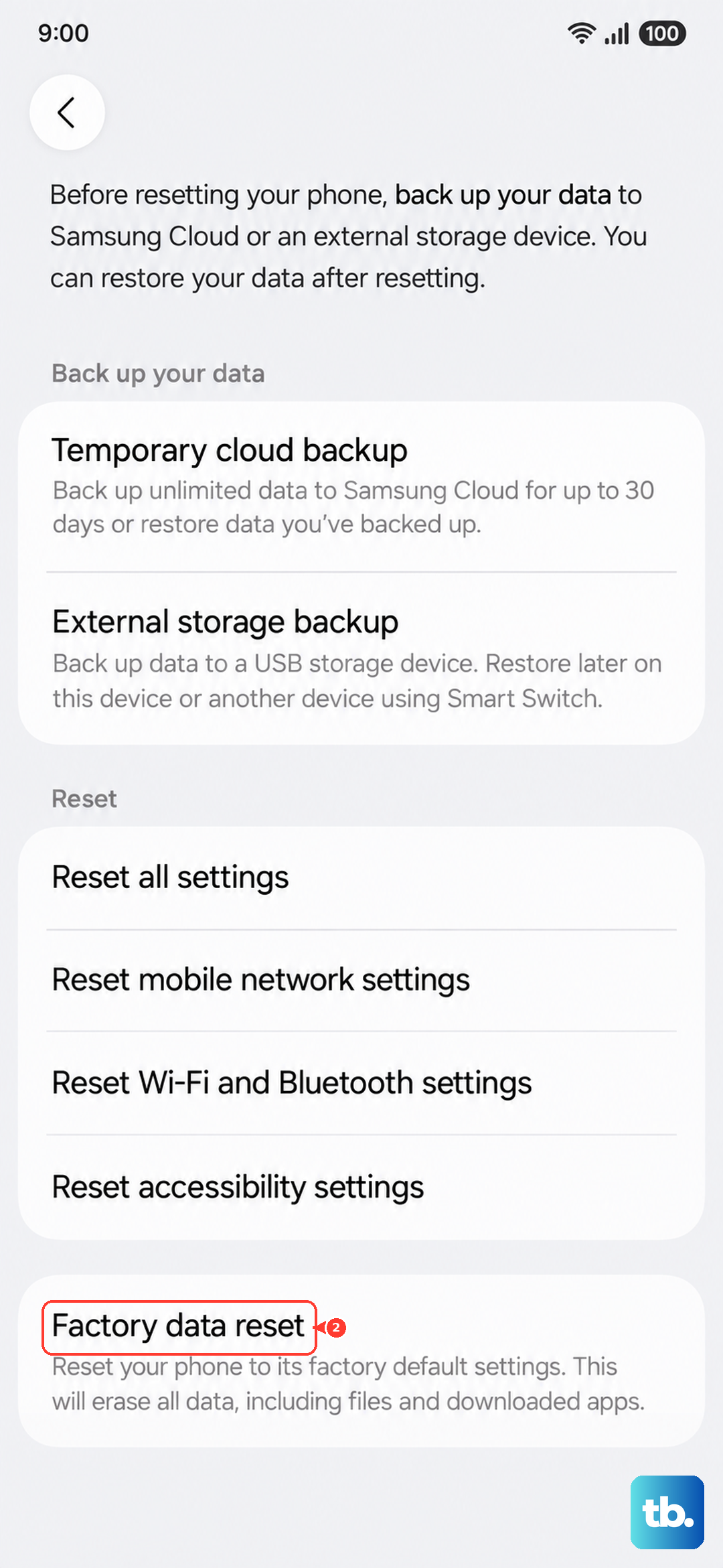
You can do this from the settings menu by going to Settings > General management > Reset > Factory data reset. Follow the prompts. After the reset, set up your phone as new initially to see if the problem is resolved, rather than immediately restoring a backup, which could potentially bring back the issue.