
Running out of space on your Redmi Note 14 Pro can really slow things down, stopping you from taking new photos or updating apps. The good news is that Android 14 and HyperOS give you a lot of control to clean things up. Here's how to find and clear out the biggest storage hogs on your phone.
Check Your Storage Breakdown
Open Settings > Storage. This screen shows you exactly what's filling up your phone. It breaks everything down by category like Apps, Photos, and System. Wait a moment for it to finish calculating, and you'll see a color-coded bar chart showing where your space has gone.
Tap on any category, like "Apps," to see a detailed list sorted by size. This is your best starting point for figuring out what to tackle first. I'd start by looking at the top three apps on that list.
Clear App Caches and Data
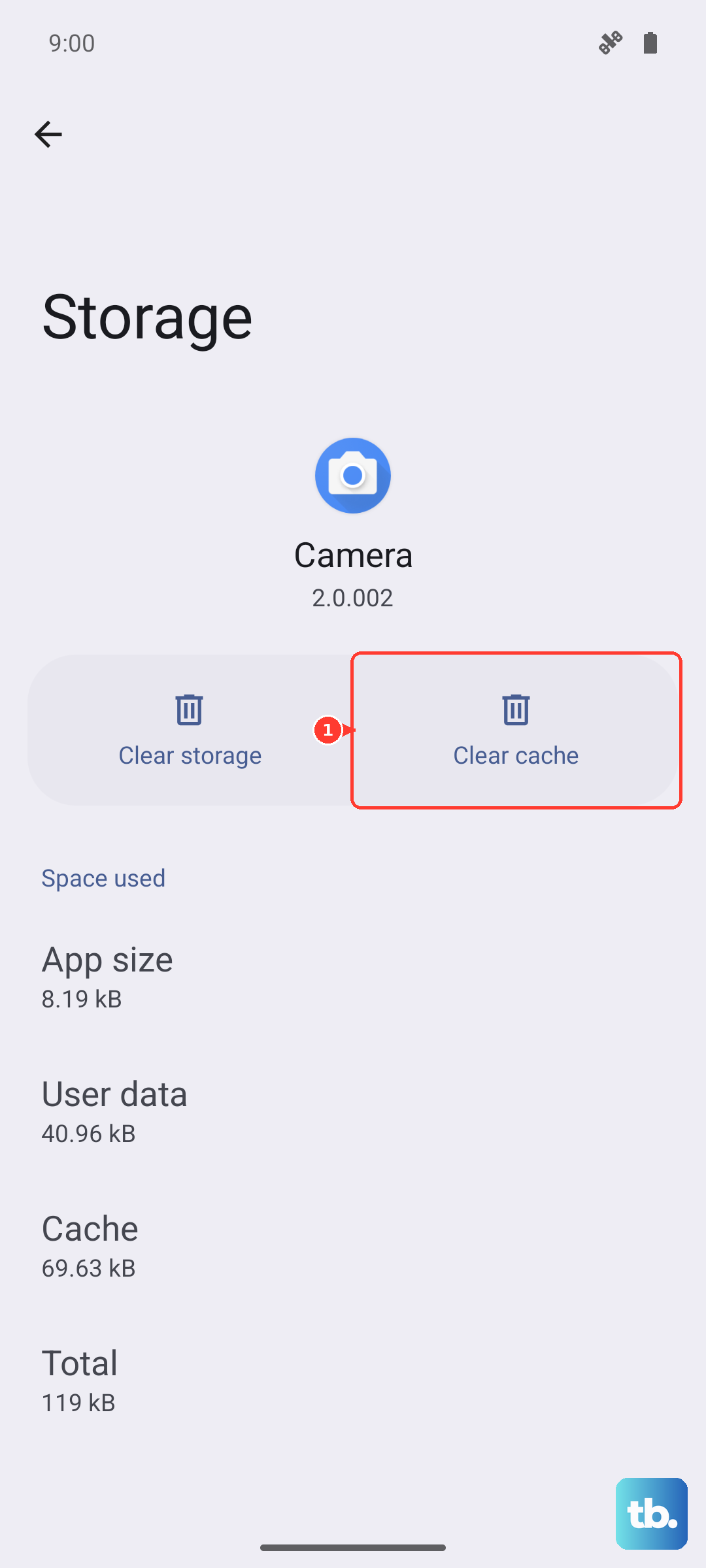
In that same Storage menu, tap on an app that's taking up a lot of space. You'll see two numbers: the app size itself and the data it has stored. For apps like Instagram, TikTok, or Facebook, the "Data" portion can be huge.
Tapping Clear data will log you out and reset the app, so use that carefully. Instead, try tapping Clear cache first. This removes temporary files without touching your login or personal settings. It's a quick way to reclaim a gigabyte or more from social media apps.
Manage Your Photos and Videos
Photos are almost always the biggest space user. Open the Gallery app and use the "Free up space" tool if it's available. This feature can identify blurry photos, screenshots, and large videos you might have forgotten about.
Don't forget to empty the Recently Deleted album in the Gallery. Items sit there for 30 days before being permanently removed. You can also go through and manually delete duplicate shots or old videos you no longer need.
Offload or Uninstall Unused Apps
Back in Settings > Storage, look for a section called "Unused apps" or a similar recommendation. HyperOS can identify apps you haven't opened in a long time. You can review this list and uninstall them with a single tap.
If you're hesitant to delete an app completely, see if it supports offloading. Some system tools will let you remove the app but keep its data, so you can reinstall it later and pick up right where you left off.
Clean Up Downloaded Files
Open the Files app by Xiaomi. Tap on "Clean" at the bottom, and the app will scan for junk files, duplicate documents, and large files you may have forgotten. This includes APK files from old app installations and residual data from uninstalled apps.
You can also browse manually through the "Downloads" folder. It's easy for large PDFs, videos, or installation files to accumulate there over time without you noticing.
Review Streaming App Downloads
Apps like Spotify, Netflix, and YouTube Music store content offline. These downloads can take up several gigabytes. Open each app and navigate to your downloads or offline content library.
In Spotify, go to Settings > Storage and tap "Remove all downloads." For Netflix, go to Downloads and delete shows you've already watched. Clearing these out is an instant space saver.
Clear System Cache and Residual Data
Sometimes, leftover files from system updates or app installations linger. You can clear the general system cache by restarting your phone into Recovery Mode, but that's a more advanced step.
A simpler method is to use the built-in cleaner. Go to Security app > Cleaner. Let it scan, and it will often find system cache files, ad junk, and temporary files that are safe to delete. Be cautious of prompts to clean "RAM," as that's different from storage and usually doesn't help.
Manage Messages and Attachments
If you use the default Messages app, media files from chats can pile up. Open the Messages app, tap the three-dot menu, and go to Settings. Look for a setting related to auto-downloading media or managing old messages.
Some messaging apps like WhatsApp or Telegram have their own massive storage managers. In WhatsApp, go to Settings > Storage and data > Manage storage to see a breakdown and clear out large files.
Check for System Data Bloat
In your Storage settings, look at the "System" or "Other" category. A very large number here (like 20GB or more) can sometimes indicate cached update files or other system data. After a major HyperOS update, this section can be temporarily large.
If it seems abnormally big, a simple restart can sometimes trigger a cleanup. You can also try using the "Free up space" tool in the Files app, which is designed to target this kind of system junk. In my experience, giving the phone a day to reindex after an update can also help normalize this number.