
Is your Redmi Note 13 Pro stuck in one orientation and refusing to flip when you turn it sideways? It's a common hiccup where the auto-rotate feature just stops responding, leaving you manually switching orientations in apps that support it.
The cause can be anything from a quick settings toggle to a deeper software glitch. Here are the most effective ways to get your screen rotation working smoothly again on MIUI.
Toggle Auto-Rotate from the Quick Settings
The absolute first thing to check is whether you've accidentally locked the screen rotation. Pull down the notification shade twice to expand the full quick settings panel. Look for the icon that says "Auto-rotate" or shows a phone with arrows circling it.
If the icon is grayed out or says "Portrait," tap it. It should highlight in color, indicating auto-rotate is now active. I've seen this fix the issue more times than I can count, as it's easy to toggle without realizing it.
Enable Rotation for the Home Screen
By default, MIUI often keeps the home screen and app drawer locked in portrait mode. If your home screen isn't rotating but your apps are, this is likely the reason. You can change this in the special rotation settings menu.
Tap the text label "Auto-rotate" in the quick settings panel, not just the icon. This opens a menu where you can toggle "Rotate the Home screen and Lock screen" on. Once enabled, your home screen should flip to landscape when you turn the phone.
Force Restart Your Phone
If the setting is correct but rotation is still dead, a simple force restart can clear out any temporary software bugs. On the Redmi Note 13 Pro, you force restart by pressing and holding the Power button for about 15 seconds.
Keep holding it until you see the Xiaomi or Redmi logo appear on the screen, then release. This performs a clean boot without affecting any of your data or settings. It's a good reset for the sensor system.
Check for Problematic Apps
Sometimes, a single app can be the culprit. If auto-rotate fails in one specific app like YouTube or Chrome but works everywhere else, the app itself might have a bug or a locked orientation setting within its own options.
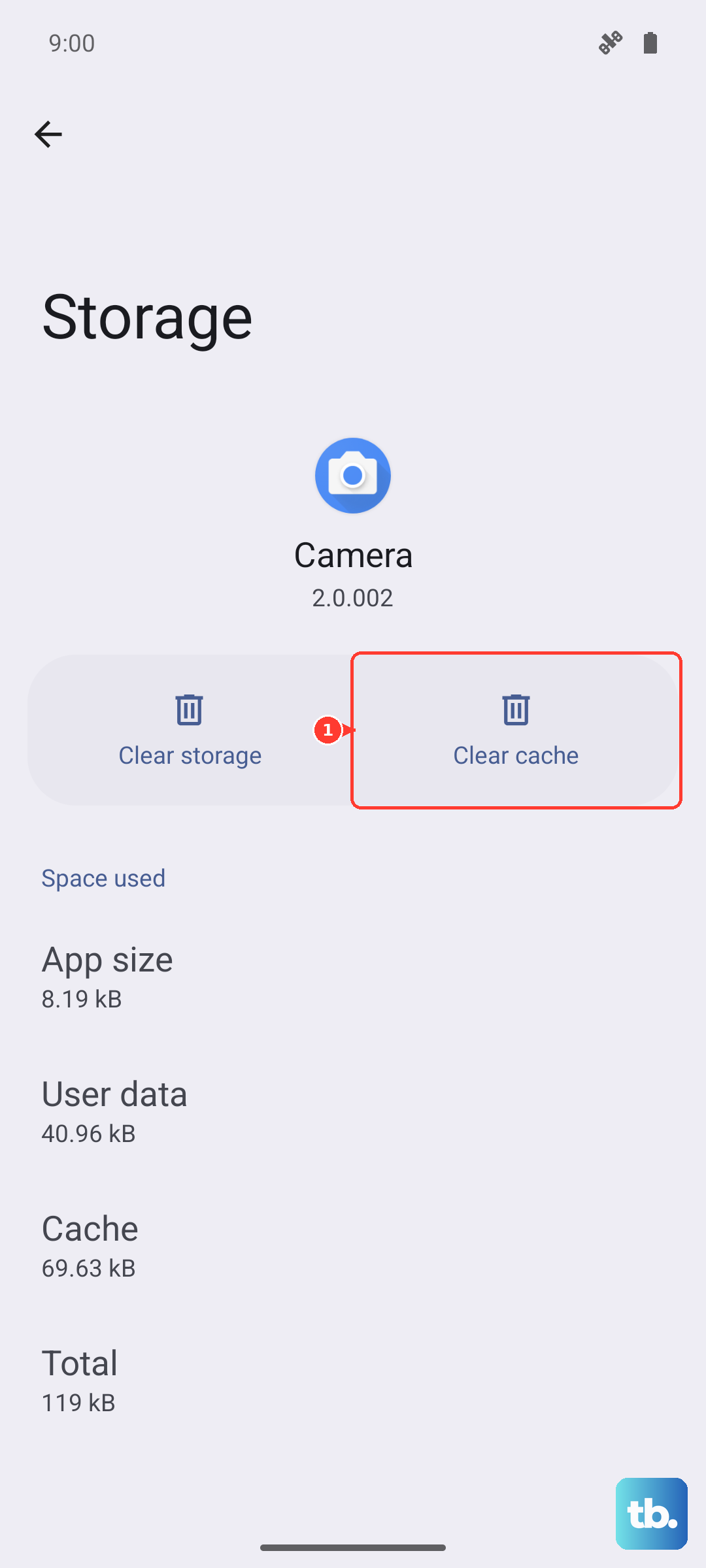
Try clearing the cache for that app through Settings > Apps > Manage apps, selecting the app, and tapping "Clear cache." If the problem started after installing a new app, try uninstalling it to see if rotation returns to normal.
Update Your System Software
Xiaomi regularly releases MIUI updates that fix bugs, including sensor and rotation issues. Making sure you're on the latest software is a crucial step. Go to Settings > About phone > MIUI version.
Tap the "Check for updates" button. If an update is available, download and install it. The 67W fast charging can make the phone warm, so I'd recommend doing this update while the device is cool and connected to the included charger.
Test the Sensors with a Diagnostic Code
Your phone uses an accelerometer and gyroscope to detect movement. You can test if these hardware components are functioning correctly. Open your Phone dialer and enter the code *#*#6484#*#*. This opens the CIT (Component Integrity Test) menu.
Scroll through the list and look for tests related to the accelerometer, gyroscope, or proximity sensor. Run these tests, they'll usually ask you to move the phone in specific ways. If any sensor test fails, it points to a potential hardware issue.
Calibrate the Sensors
If the sensors test okay but rotation is still off, they might just need recalibration. While there's no direct "calibrate" button in MIUI settings, a common workaround is to use a sensor calibration app from the Play Store.
Look for a well-rated, simple app like "GPS Status & Toolbox." These apps often have a tool to reset and calibrate the accelerometer. After running calibration, restart your phone and test the auto-rotate function again.
Consider a Software Reset
If you've tried everything and rotation is still broken, a software conflict might be the cause. Before doing anything drastic, try clearing the cache partition from the recovery menu. Turn off your phone completely.
Then, press and hold the Power and Volume Up buttons together until the Mi Recovery screen appears. Use the volume keys to navigate to "Wipe cache partition" and select it with the power button. Confirm, then reboot the system. This clears system cache without touching your personal data.