
Your Pixel Buds Pro 2 show up in Bluetooth but won't pair. The case LED blinks orange, your phone acts oblivious, and you're stuck. Most of the time this is a quick fix once you know what to check.
Before anything else, pull down your phone's quick settings and make sure Bluetooth is actually on. Not just toggled in the main settings menu, the tile that lives in the notification shade. Google's own troubleshooting starts here because it's easy to accidentally turn Bluetooth off without noticing.
Start With the Basics
Drop both earbuds in the case and close the lid. Plug the case into a charger using the USB‑C cable that came in the box, or set it on a Qi wireless pad. The Pixel Buds Pro 2 case needs enough juice to initiate pairing, and if the LED doesn't light up at all, the case battery is completely drained.
Let it charge for at least 5 minutes. The case light breathes white while charging, then turns solid white when it's full. A solid orange light instead means the case battery has dropped below 20%. If it stays dark, check your cable and power source.
While the case charges, restart your phone. On most Android phones, hold the power button and select Restart. On an iPhone, press and release Volume Up, then Volume Down, then hold the Side button until the Apple logo appears. A fresh phone OS often clears momentary Bluetooth glitches.
Reset the Pixel Buds Pro 2
If basic charging and a phone restart didn't help, the next step is a full factory reset. This is the single most effective fix for pairing problems on these earbuds.
Put both earbuds in the case and leave the lid open. Find the button on the back of the case, right below the hinge. Press and hold it for 30 seconds. The front LED will start flashing orange after about 15 seconds, keep holding. After 30 seconds the light should flash orange three times, then go solid orange, then flash white. That means the reset worked.
Close the lid, wait 10 seconds, then open it next to your unlocked phone. A pairing notification should appear. If your phone doesn't show it, go into Bluetooth settings and look for Pixel Buds Pro 2 under available devices.
One note: this reset wipes all saved pairings, not just the active one. You'll need to pair the buds to any device you want them to work with again.
Forget the Device, Then Re‑Pair
If the Pixel Buds Pro 2 are already listed in your phone's Bluetooth menu but won't connect, the saved pairing record is probably corrupted. Open your phone's Bluetooth settings, tap the gear icon next to Pixel Buds Pro 2, and choose Forget (or Unpair). Do the same inside the Pixel Buds app if you have it installed.
Now do the 30‑second case reset again, then pair fresh. The Pixel Buds app will walk you through the process, but you can also do it directly from the system Bluetooth menu. Either way works.
Turn Off Multipoint Bluetooth
Pixel Buds Pro 2 support multipoint, letting you stay connected to two devices at the same time. Google's documentation notes that multipoint can lose the connection when you switch between apps on one device, which sometimes looks like a pairing failure.
Open the Pixel Buds app, tap your buds' name, then tap Multipoint and turn it off. Try pairing again. If it works now, you can leave multipoint off or re‑enable it later once the connection is stable.
Update the Firmware and Phone Software
Outdated firmware on the buds or an old OS on your phone can block pairing. The Pixel Buds app will show you the current firmware version at the top of the main screen. If there's an update available, it'll offer to install it.
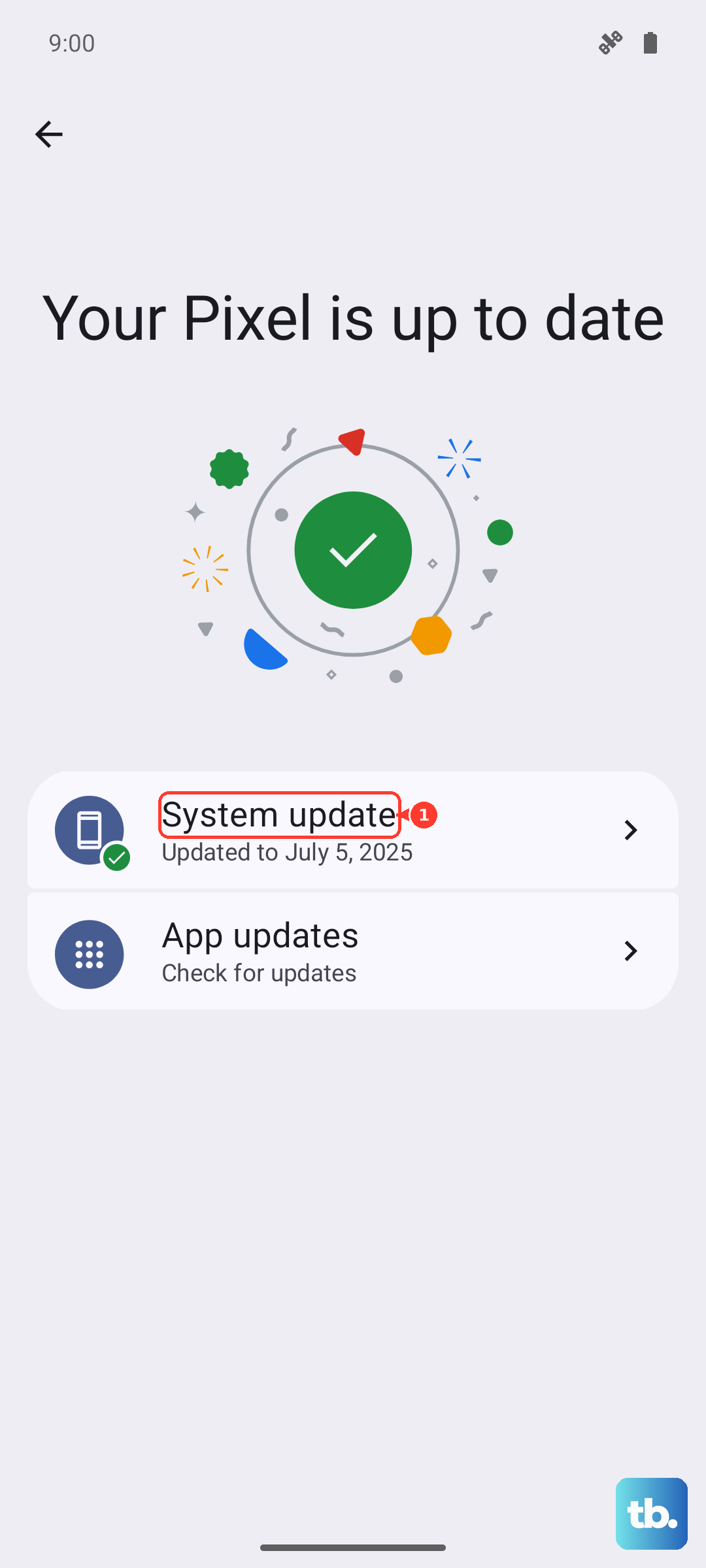
For the phone, open Settings > System > System Update (Android) or Settings > General > Software Update (iPhone). Install whatever's pending, then restart the phone and try pairing again. The Pixel Buds Pro 2 ship with firmware that works on Android 6.0 or newer and iOS, but newer versions fix bugs that could cause connection drops.
Adjust Conversation Detection
Conversation Detection is a feature that pauses audio when it thinks you're talking. In some cases it can interfere with initial pairing because the buds think you're in a conversation and refuse to finalize the connection. This is more common than you'd think.
Open the Pixel Buds app, tap Sound, then look for Conversation Detection. Turn it off completely, then try pairing. You can turn it back on later if you find it useful.
A known quirk of this feature is that it can trigger on coughs, laughter, or even loud noises. If you've had it enabled and pairing failed, that's the likely culprit.
Reset Network Settings on Your Phone
If nothing above helped, the problem could be a deeper Bluetooth corruption on your phone. Resetting network settings clears all Wi‑Fi passwords, VPNs, and Bluetooth pairings, but it often fixes stubborn connectivity issues.
On Android, go to Settings > General management > Reset > Reset network settings. On iPhone, it's Settings > General > Transfer or Reset iPhone > Reset > Reset Network Settings. After the phone restarts, pair the Pixel Buds Pro 2 again from scratch.
This is a nuclear option, so make sure you know your Wi‑Fi passwords before you do it. It's worth it if you've exhausted everything else.
Clean the Charging Contacts
Pull both earbuds out of the case and look at the metal pins inside the charging wells. Also inspect the contacts on the bottom of each bud. Any gunk, lint, or earwax sitting on those points can prevent the case from detecting the earbuds, which breaks the pairing handshake.
Use a dry, soft-bristle brush to clear debris. A clean toothbrush works well. For stubborn residue, you can use a tiny amount of isopropyl alcohol on a cotton swab, just avoid getting it inside the charging port. Unlike some other earbuds, the Pixel Buds Pro 2 don't have a heart rate sensor in the stem, so alcohol is safe on the charging contacts.
Try a Different Phone
If the Pixel Buds Pro 2 pair to a different phone (a friend's or a tablet) without issue, the problem is on your original phone. If they refuse to pair to anything, the buds themselves may need service.
This 30‑second test saves you from hours of debugging the wrong device. Borrow any phone that supports the Pixel Buds app, install it, and attempt pairing. If they work elsewhere, you know to focus on your phone's Bluetooth stack or OS settings.
Use the Pixel Buds App Troubleshooter
The Pixel Buds app has a built‑in diagnostic tool. Open the app, tap the three‑dot menu in the top right, then choose Help & Feedback > Troubleshoot. It will run through common checks, including firmware version, battery levels, and connection state. Follow the on‑screen prompts, they often catch issues you might miss manually.
This is a good last step before deciding the hardware is at fault. If the troubleshooter finds nothing, and you've tried every fix here, the earbuds likely need a replacement.