
When your OnePlus Nord 4's hotspot disappears or refuses to connect, it leaves your other gadgets stranded without internet. The issue can be a quick software hiccup or a deeper setting that needs a tweak.
Toggle the Hotspot Off and On
Head into Settings > Connections & sharing > Hotspot & tethering. Tap the toggle next to Wi-Fi hotspot to turn it off. Wait about 15 seconds, then turn it back on. This simple reset often clears the temporary glitch that's preventing it from broadcasting or allowing connections.
Restart Your OnePlus Nord 4
Press and hold the Power button on the right side of the phone for about 10 seconds, until you feel it vibrate and the screen goes black. Release the button and let the phone boot back up. A restart flushes out any stuck network processes that could be interfering with the hotspot function.
Verify Your Mobile Data Connection
Your hotspot is useless without a solid cellular data signal. Pull down the notification shade and make sure mobile data is enabled. Try loading a webpage to confirm you have an active internet connection. Also, double-check with your carrier that your plan includes tethering, as some budget plans restrict this feature.
Check Your Hotspot Configuration
Go back to Settings > Connections & sharing > Hotspot & tethering > Wi-Fi hotspot. Tap on Hotspot password to make sure it's set to something you know. You can also tap Set up Wi-Fi hotspot here to change the network name (SSID) and band. Try switching the AP Band from 5 GHz to 2.4 GHz, as some older devices can't see 5 GHz networks.
Forget and Reconnect on the Client Device
On the laptop, tablet, or other device you're trying to connect, go into its Wi-Fi settings and find your Nord 4's hotspot network. Choose to forget or remove this network. Then, scan for available Wi-Fi networks again, select your phone's hotspot, and enter the password fresh. A corrupted saved network profile on the connecting device is a common culprit.
Reset Your Network Settings
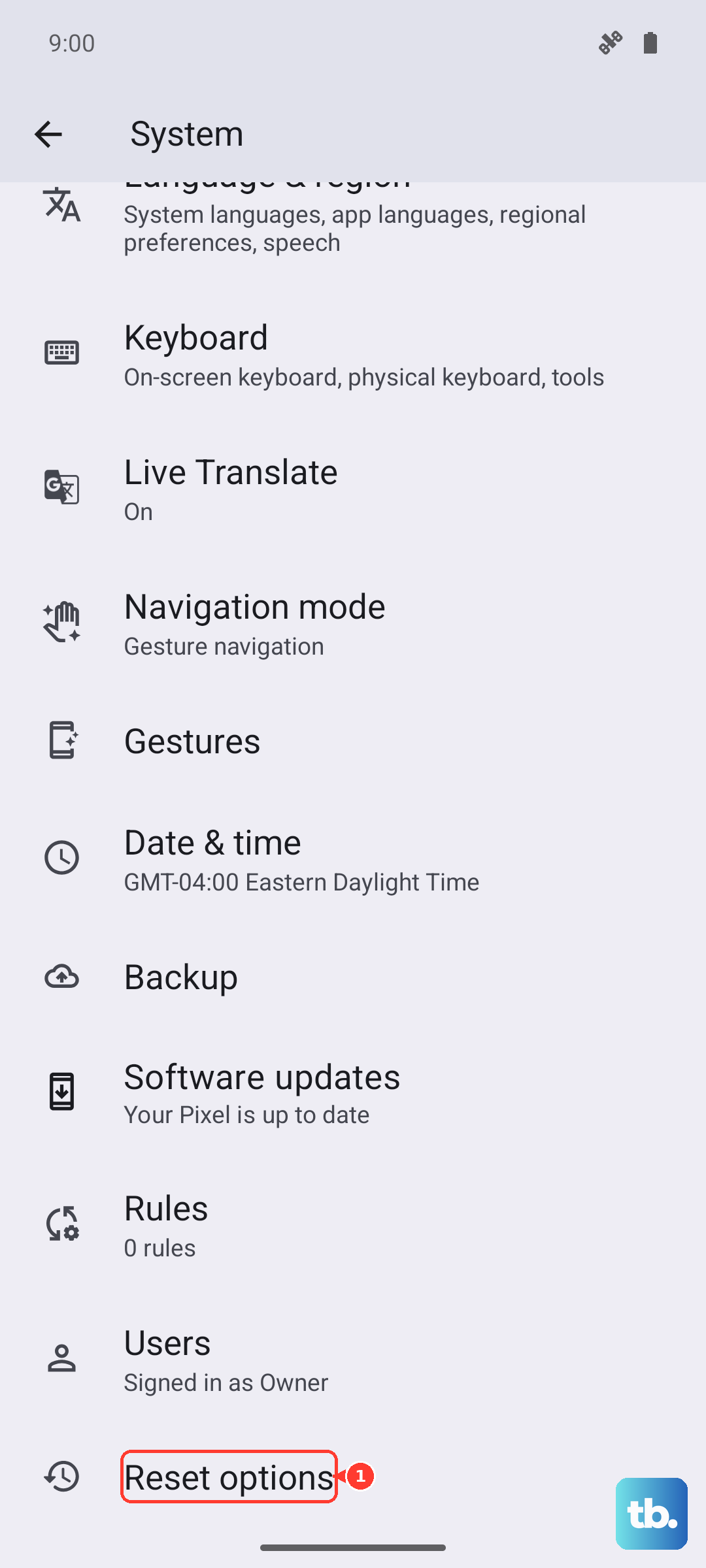
If the problem persists, a network reset can help. Go to Settings > System > Reset options > Reset Wi-Fi, mobile & Bluetooth. Tap to confirm. This will erase all saved Wi-Fi networks, paired Bluetooth devices, and reset cellular settings to default. You'll need to reconnect to your Wi-Fi and re-pair Bluetooth accessories afterward.
Try USB or Bluetooth Tethering
If the Wi-Fi hotspot is being stubborn, use a different method. For USB tethering, connect your Nord 4 to your computer with the included USB-A to USB-C cable, then go to Hotspot & tethering and enable USB tethering. For Bluetooth, pair your phone with the other device first, then enable Bluetooth tethering on the same settings page.
Update Your Software
Software bugs can break the hotspot. Go to Settings > About device > OxygenOS version and tap on the top banner to check for updates. If an update is available, download and install it. I've seen several OxygenOS updates that specifically list fixes for connectivity and tethering issues.
Check for a Carrier Settings Update
Sometimes the configuration profile from your mobile carrier needs an update. While these often happen automatically, you can manually check. Go to Settings > About device > Status > SIM status and look for any prompts or version info. Restarting your phone can sometimes trigger an available update to install.