
When your OnePlus Nord 4 starts restarting on its own, it can be incredibly disruptive. This issue can pop up from software bugs, a misbehaving app, or even a hardware quirk. The good news is there are several straightforward steps you can try to get things stable again.
Before you dive into any fixes, it's a smart move to back up your important data. You can use Google Drive, OnePlus Cloud, or just connect your phone to a computer and copy your photos and files over. This protects your stuff just in case you need to do a more drastic reset later on.
Perform a Force Restart
This is almost always the best first step. A force restart can clear out minor software glitches that are causing the random reboots. For the Nord 4, it's very simple. Just press and hold the power button on the right side of the phone for about 10 seconds or until you feel it vibrate and see the OnePlus logo appear on the screen.
Let go of the button once you see the logo. The phone will boot up normally. I've found this fixes a surprising number of random restart issues, especially if they just started happening out of the blue.
Check for and Update Apps
A problematic third-party app is one of the most common reasons for an Android phone to restart. Start by checking the Google Play Store for any pending updates. Open the Play Store, tap your profile icon in the top right, and go to Manage apps & device.
If you see updates available, tap Update all. It's also worth thinking about any apps you installed just before the restarting began. If you can pinpoint one, try uninstalling it temporarily to see if the problem stops.
Install the Latest System Update
OnePlus regularly releases OxygenOS updates that fix bugs and improve stability. Running an outdated version of the software can sometimes lead to these kinds of issues. To check, go to Settings > About device > OxygenOS version.
Tap on it, and the phone will search for an update. If one is available, make sure your battery is above 30% and connect to Wi-Fi before downloading and installing it. The Nord 4's metal unibody actually helps with heat dissipation during this process, which is a nice bonus.
Boot Into Safe Mode
Safe Mode is a diagnostic tool that temporarily disables all third-party apps. If your phone stops restarting in Safe Mode, you'll know for sure that an app you installed is the culprit. To enter Safe Mode on the Nord 4, press and hold the power button until the power menu appears.
Then, tap and hold the Power off option on your screen. A prompt will appear asking if you want to reboot to Safe Mode. Tap OK. Your phone will restart, and you'll see "Safe Mode" in the bottom corner. Use the phone normally for a while to see if it stays stable.
To exit Safe Mode, just do a normal restart by holding the power button and tapping restart.
Free Up Storage Space
When your phone's internal storage is critically full, the operating system can struggle to function properly, which can lead to crashes and reboots. The Nord 4 doesn't have expandable storage, so managing space is key.
Head to Settings > Storage to see a breakdown of what's using space. Look for large files you don't need, clear app caches, and consider moving photos and videos to the cloud. Aim to keep at least 5-10GB free for the system to operate smoothly.
Check for Overheating
While the metal body of the Nord 4 is great for heat dissipation, extreme overheating can still force a phone to restart to protect its components. Think about when the restarts happen. Is it during long gaming sessions, while using the camera, or when fast charging?
The included 100W SuperVOOC charger can get the phone quite warm during a charge. If it's restarting while plugged in, try using a slower charger for a bit to see if that's the trigger. Also, remove any thick cases while charging to help with cooling.
Reset Your Network Settings
This is a less intrusive reset that can fix issues related to Wi-Fi, Bluetooth, or mobile data that might be causing system instability. Go to Settings > System > Reset options.
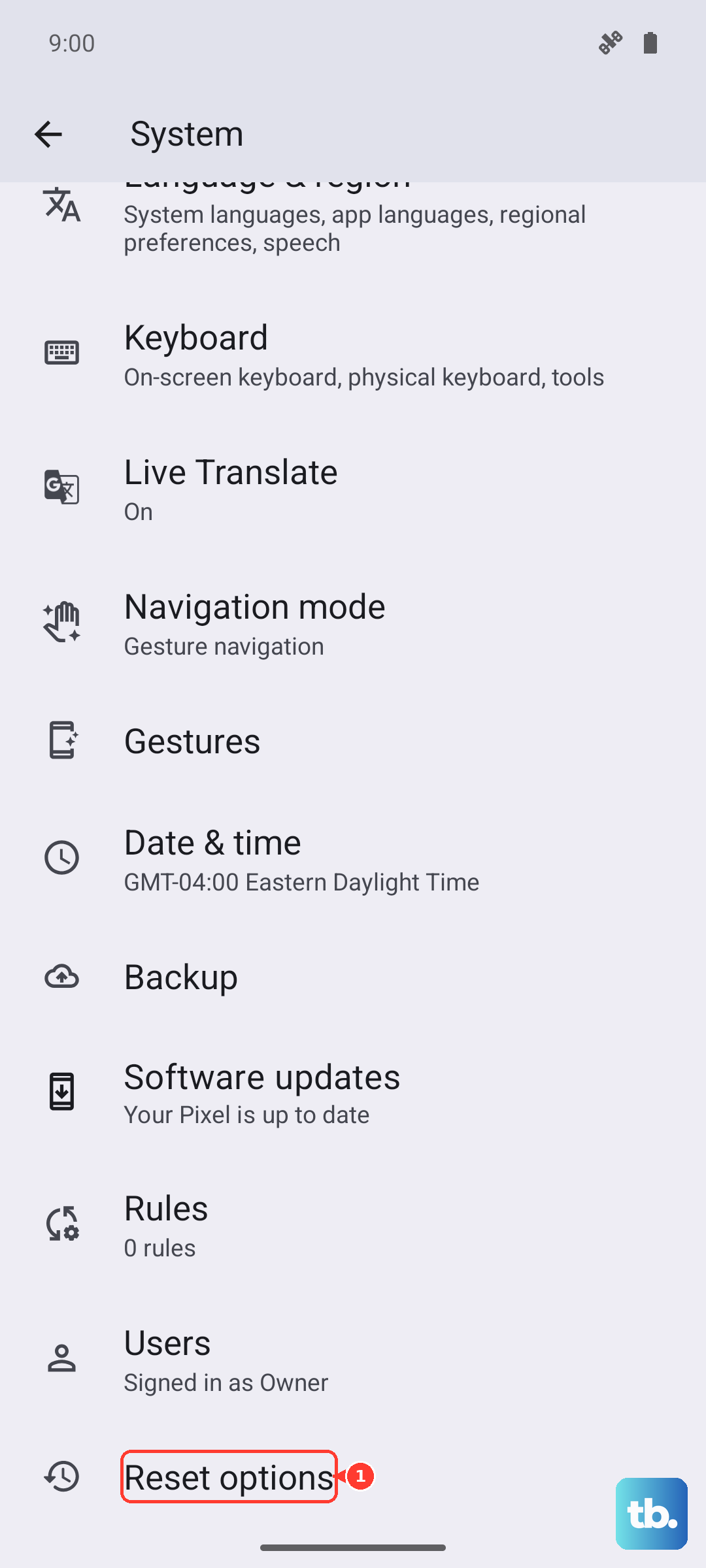
Tap on Reset Wi-Fi, mobile & Bluetooth. You'll need to enter your lock screen PIN or password. This will erase all saved networks and paired Bluetooth devices, so you'll have to reconnect to your Wi-Fi and re-pair accessories like headphones or your watch afterward.
Perform a Factory Reset
If you've tried everything else and the phone is still restarting, a factory reset is the final software step. This will erase everything on your phone and return it to its original out-of-the-box state, so a backup is absolutely essential here.
You can do this through the settings by going to Settings > System > Reset options > Erase all data (factory reset). Follow the prompts, and the phone will handle the rest. After it reboots, set it up as new without restoring a backup immediately to see if the problem is gone.
Inspect Hardware and Connections
If the problem persists even after a factory reset, it's time to consider a hardware angle. First, try removing and reinserting your SIM card. Use the SIM eject tool that came in the box, pop out the tray, and take a look at the SIM card for any obvious damage or dirt.
Also, pay close attention to the USB-C charging port. Lint and debris can get packed in there over time. Gently clean it out with a dry toothpick or a can of compressed air. A dirty port can sometimes cause short circuits that affect the whole system. Since the Nord 4 doesn't have an official IP rating, it's also worth considering if any liquid exposure could be a factor.