
When your OnePlus Nord 4 hits a wall trying to install an app, it can bring your whole day to a halt. You tap install, see the dreaded error, and nothing happens. This is a common Android headache, but on the Nord 4 running OxygenOS 14, the fixes are usually straightforward.
Let's get your app downloads working again. I'd start with the quick network and restart checks, as they solve the majority of issues right away.
Check Your Connection and Restart
First, verify your internet is actually working. Pull down the notification shade on your Nord 4 and make sure you're connected to Wi-Fi or that mobile data is enabled. Sometimes, a network just flakes out.
If the connection seems fine, the next step is to restart your phone. Press and hold the power button, then tap 'Restart'. This clears out any temporary software glitches that might be blocking the Google Play Store.
Verify the Date and Time
This one catches people off guard. If your phone's clock is wrong, it can break secure connections to Google's servers, which stops downloads. On your Nord 4, open Settings > Additional settings > Date & time.
Make sure 'Set time automatically' is switched on. If it's already on and you're still having trouble, try turning it off, manually setting the correct date and time, and then turning automatic setting back on.
Switch Between Wi-Fi and Mobile Data
If you're on Wi-Fi, try switching to your cellular data to test the download. Some Wi-Fi networks, like public hotspots or corporate networks, block the specific ports the Play Store uses.
Just pull down the notification shade, tap the Wi-Fi icon to turn it off, and tap the mobile data icon to turn it on. Try the download again. If it works on mobile data, you know the issue is with your Wi-Fi network.
Clear the Google Play Store Cache
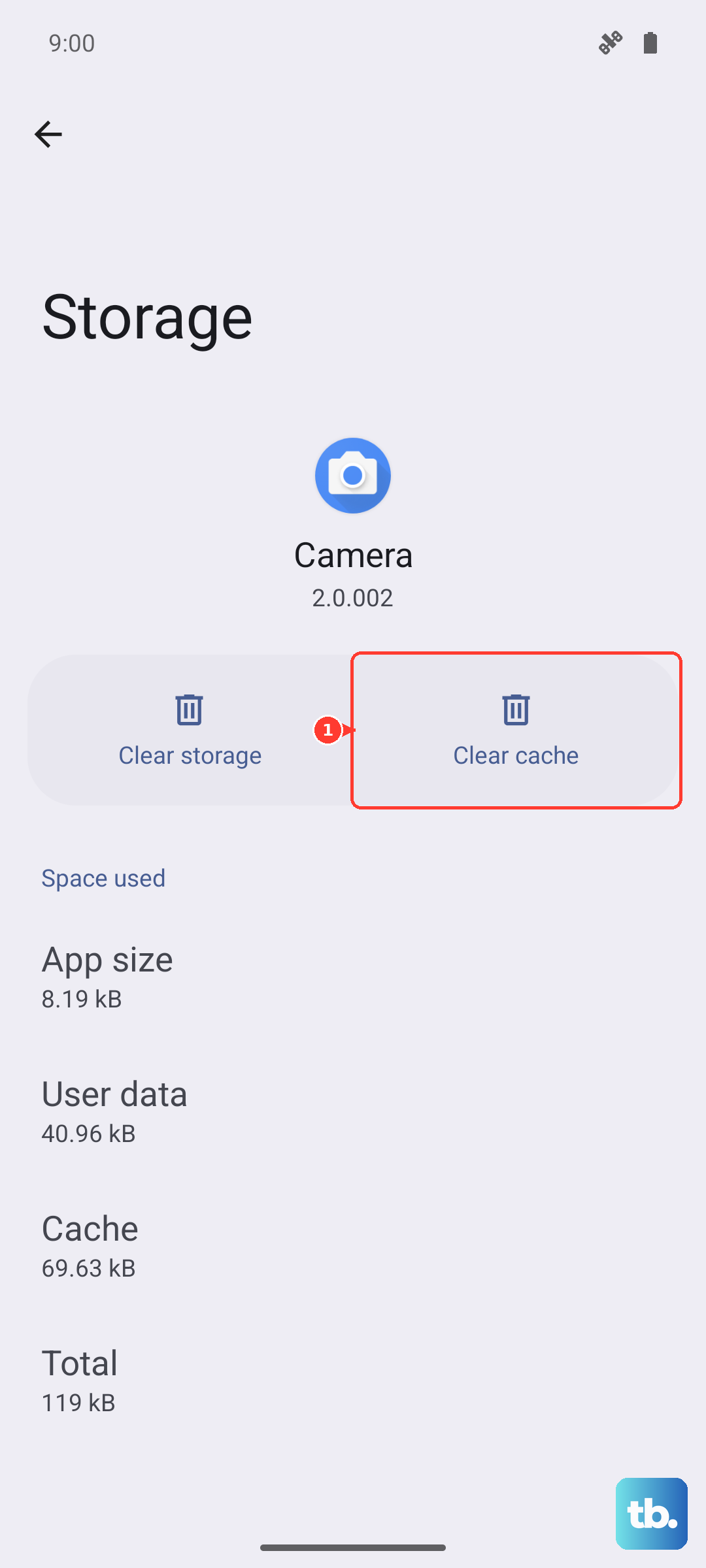
The Play Store stores temporary data that can sometimes get corrupted. Clearing this cache is a safe first step that doesn't delete your apps or account. Go to Settings > Apps > App management.
Find and tap 'Google Play Store'. Tap Storage usage, then tap 'Clear cache'. After doing this, open the Play Store again and try your download.
Clear Google Play Services Data
If the Play Store cache clear didn't help, the next layer is Google Play Services. This is the backbone for all Google apps on your phone. Go back to Settings > Apps > App management.
Find 'Google Play Services'. Tap Storage usage. Here, tap 'Manage storage', then tap 'Clear all data'. Confirm the prompt. This will reset the service and often knocks loose any stubborn download hangs.
Check for OxygenOS Updates
An outdated system can have bugs that affect app compatibility and downloads. OnePlus regularly releases updates to fix these kinds of issues. On your Nord 4, go to Settings > About device > OxygenOS version.
Tap the icon to check for updates. If an update is available, make sure your phone is charged above 50% (or plug in your 100W charger) and install it. The phone will restart automatically.
Free Up Storage Space on Your Nord 4
If you see an 'Insufficient storage' error, you need to make room. The Nord 4 doesn't have expandable storage, so you have to manage what's on the device. Go to Settings > Additional settings > Storage to see what's using space.
Consider offloading photos and videos to Google Photos or moving files to a computer using a USB-C to USB-C cable for full speed. Uninstall apps you no longer use directly from your app drawer or the Settings menu.
Remove and Re-add Your Google Account
This refreshes the connection between your phone and Google's servers. Go to Settings > Accounts & sync. Tap your Google account, then tap 'Remove account'.
Don't worry, this doesn't delete anything from Google itself. After removing it, go back and tap 'Add account' to sign in again. Once it's re-added, try the Play Store.
Check App-Specific Permissions
Both the Play Store and Play Services need proper permissions. Go to Settings > Apps > App management and find 'Google Play Services'. Tap Permissions.
Ensure that 'Storage' permission is allowed. Also, go back and check the permissions for 'Google Play Store' to make sure nothing is restricted there.
Reset All App Preferences (Non-Destructive)
This is a useful nuclear option that doesn't delete your personal data. It resets all app permissions, disabled apps, and background data restrictions back to default. Go to Settings > Additional settings > Back up and reset.
Tap 'Reset app preferences' and confirm. You'll then need to re-grant permissions to apps as you use them, but it can clear up conflicts causing download failures.