
If your OnePlus Nord 4 camera suddenly won't open or keeps crashing, the first thing to try is a simple restart. Press and hold the power button for about 10 seconds until you feel the phone vibrate and the screen goes black. This force restart can clear out temporary software glitches that freeze the camera app.
Key Points
- Restart and Update Your Phone: A force restart is the fastest way to fix a frozen camera app.
- Clear the Camera App's Data: Corrupted cache or settings are a common cause of camera crashes.
- Check for App Conflicts in Safe Mode: A recently installed app could be interfering with the camera.
- Inspect for Physical Damage or Obstructions: The metal unibody is durable, but a drop can still damage the lenses.
- Verify Software and System Health: An outdated OxygenOS version can cause compatibility issues.
- Consider a Factory Reset as a Last Resort: This will erase all data, so back up your phone first.
After the phone reboots, give it a moment and then try opening the camera again. I've seen this fix work for most random app freezes.
Clear the Camera App's Data
If a restart didn't help, the next step is to clear the camera app's stored data. This resets the app to its default state without deleting your photos. Go to Settings > Apps > Manage apps. Find and tap on "Camera" in your app list.
Inside the Camera app info, tap on Storage usage. Here, you'll see two options: Clear cache and Clear data. Tap "Clear cache" first. This removes temporary files that might be corrupted.
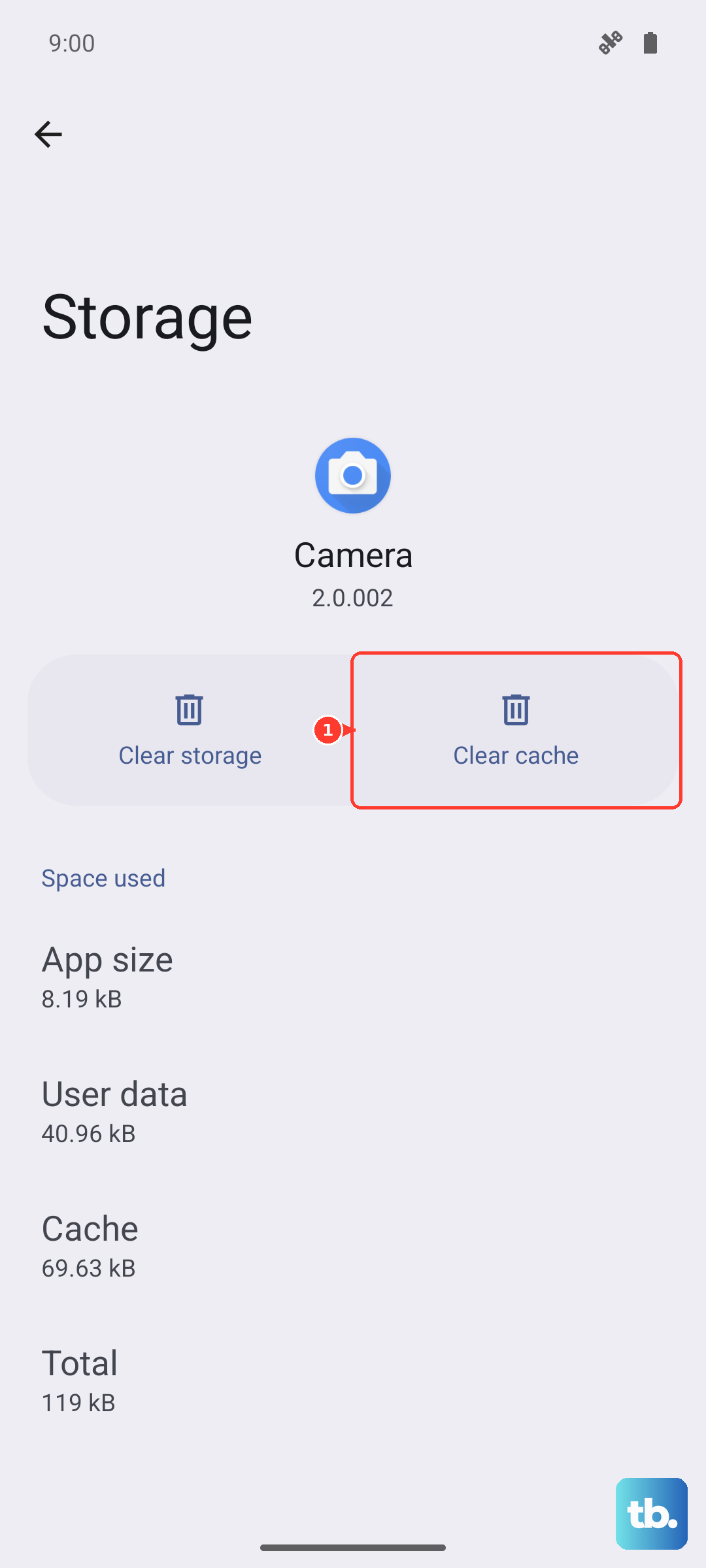
If the camera still isn't working, go back and tap "Clear data." A warning will pop up saying this will reset the app to its default settings. Confirm it. This will erase any custom camera modes or settings you've saved, but your photos and videos in the gallery will be safe.
Check for App Conflicts in Safe Mode
Sometimes, an app you installed from the Play Store can conflict with the camera system. Booting into Safe Mode temporarily disables all third-party apps. Press and hold the power button until the power off menu appears.
On that screen, press and hold the "Power off" option. A prompt will ask if you want to reboot to Safe Mode. Tap "OK." Your phone will restart, and you'll see "Safe Mode" in the bottom corner of the screen.
Once in Safe Mode, try opening the camera. If it works perfectly here, you know a downloaded app is the problem. Restart your phone normally to exit Safe Mode, then start uninstalling apps you installed around the time the camera issues began.
Inspect for Physical Damage or Obstructions
Take a close look at your Nord 4's camera lenses. The metal unibody is great for durability, but a hard drop can still crack a lens or misalign the internal components. Check for any hairline cracks or deep scratches over the camera glass.
Also, make sure the lens is clean. Smudges and fingerprints can cause blurry photos and might confuse the camera's autofocus system. Use a soft, dry microfiber cloth to gently wipe the lenses. Avoid using any liquid cleaners directly on the phone.
Remember, the OnePlus Nord 4 doesn't have an official IP rating for water resistance. If the camera stopped working after exposure to moisture, there's a chance liquid got inside. In that case, power the phone off completely and leave it in a dry, warm place for at least 24 hours before trying to use it again.
Verify Software and System Health
An outdated version of OxygenOS can have bugs that affect the camera. Make sure your phone is running the latest software. Go to Settings > About device > OxygenOS version and tap on the top banner that says "Check for update."
If an update is available, install it. It's best to do this while connected to Wi-Fi and with your phone plugged into the included 100W SuperVOOC charger. After the update installs, your phone will restart. Test the camera again once it's back up.
You can also check for updates to the Camera app itself through the Google Play Store. Open the Play Store, tap your profile icon, and go to Manage apps & device > Updates available. See if the Camera app is listed there.
Consider a Factory Reset as a Last Resort
If none of the above steps have worked, a factory reset is the final software fix. This will erase everything on your phone, so it's absolutely critical to back up your photos, messages, and app data first. You can use OnePlus' built-in backup tool or Google's backup service.
To perform the reset, go to Settings > Additional settings > Back up and reset > Erase all data (factory reset). Follow the on-screen prompts. The process will take a few minutes, and your phone will restart as if it were brand new.
After the reset, set up your phone minimally without restoring a full backup immediately. Just log into your Google account and test the camera. If it works now, you can gradually restore your data. If the camera still fails after a clean factory reset, the issue is likely with the hardware itself.