
If your OnePlus 13 camera app is showing a black screen, the quickest fix is to force close the app and restart it. Swipe up from the bottom of your screen and hold to enter the recent apps view, then swipe the Camera app away to close it. I've seen this clear up temporary glitches that cause the viewfinder to go black.
Key Points
- Restart the Camera App and Your Phone: Force close the app first, then try a full device restart.
- Check for Software Updates: Early OxygenOS 15 builds can have bugs that affect the camera.
- Clear the Camera App's Cache and Data: Corrupted temporary files can cause the black screen.
- Check App Permissions: The camera needs permission to function.
- Boot Into Safe Mode: This helps determine if a third-party app is interfering.
- Reset App Preferences: This resets all app permissions and defaults without deleting your data.
- Check for Physical Damage or Obstructions: A cracked lens or case can block the camera.
- Try a Third-Party Camera App: This tests if the problem is with the hardware or the OnePlus camera app.
- Perform a Factory Reset: A last resort to rule out deep-seated software corruption.
If that doesn't work, perform a force restart on your phone. Press and hold the Volume Down button and the Power button together for about 10 seconds until you feel the device vibrate and the OnePlus logo appears. This can clear system-level processes that might be hanging up the camera hardware.
Check for Software Updates
Since the OnePlus 13 runs OxygenOS 15, which is still relatively new, it's crucial to check for updates. Early software builds often have bugs that can affect core functions like the camera. Go to Settings > About device > OxygenOS version and tap on Check for update.
Install any available updates and restart your phone once they finish. The update process can fix known camera driver issues and improve stability. I'd start with this one, as it's a common fix for problems that appear out of the blue.
Clear the Camera App's Cache and Data
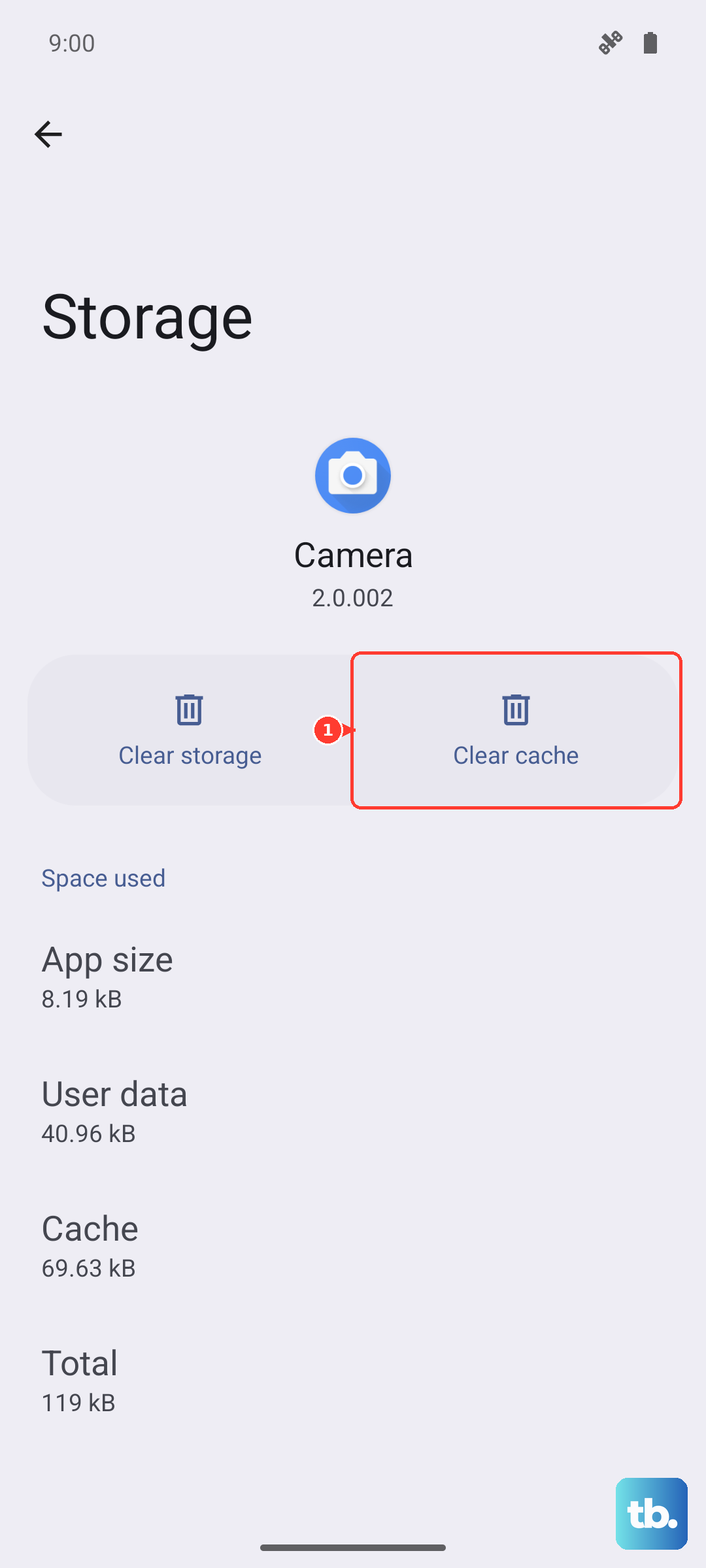
Sometimes the camera app's temporary files get corrupted. Clearing the cache is a safe first step that won't delete your photos or settings. Navigate to Settings > Apps > Camera.
Tap on Storage usage and then select Clear cache. Try opening the camera again. If the black screen persists, you can go back and tap Clear data. Just be aware this will reset the camera app to its default settings, so you'll need to reconfigure any preferences you had set.
Check App Permissions
It sounds simple, but if the Camera app doesn't have permission to use the camera hardware, you'll get a black screen. Go to Settings > Apps > Camera > Permissions.
Make sure the Camera permission is set to "Allow." While you're there, also check the Microphone permission if you're having issues with video recording audio. A recent app update or system change could have inadvertently revoked these permissions.
Boot Into Safe Mode
Booting your OnePlus 13 into Safe Mode temporarily disables all third-party apps. This helps you figure out if a recently installed app is causing a conflict with the camera. To enter Safe Mode, press and hold the power button until the power menu appears.
Then, tap and hold the "Power off" option on your screen. A prompt will appear asking if you want to reboot to Safe Mode, tap OK. If the camera works perfectly in Safe Mode, you know a downloaded app is the problem. Start by uninstalling recent apps, especially other camera apps, photo editors, or privacy tools.
Reset App Preferences
This is a broader fix than just clearing one app's data. Resetting app preferences will restore all app permissions, default apps, and background data restrictions to their original state. It won't delete any of your personal app data.
Go to Settings > Apps > tap the three-dot menu in the top right and select Reset app preferences. Confirm your choice. After your phone resets, you'll need to re-grant permissions when you use apps for the first time, but this can resolve conflicts that are preventing the camera from launching correctly.
Check for Physical Damage or Obstructions
Take a close look at your phone's camera lenses. A significant crack over a lens will obviously cause a black or obscured view. Also, check if your phone case is improperly aligned and partially blocking the camera module.
Try removing the case and see if the camera works. Gently clean the lenses with a soft, dry microfiber cloth to remove any fingerprints or smudges that could be interfering with the sensor, though this typically causes blurry photos rather than a completely black screen.
Try a Third-Party Camera App
Download a simple camera app from the Google Play Store, like Open Camera. If the third-party app can display a feed from your camera, then the issue is specifically with the OnePlus camera software. This points you back to software fixes like updating OxygenOS or waiting for a camera app update.
If the third-party app also shows a black screen, the problem is more likely related to the system or hardware drivers. This information is helpful if you need to explain the issue to OnePlus support.
Perform a Factory Reset
Consider this your last resort before seeking hardware repair. A factory reset will erase all data from your phone and return it to its out-of-the-box state. Before you begin, ensure you have a complete backup of your photos, messages, and app data.
To perform the reset, go to Settings > Additional settings > Back up and reset > Erase all data (factory reset). Follow the prompts to reset your phone. After setup, test the camera immediately before restoring your apps. If the camera works on a fresh system, the cause was corrupted software. If the black screen remains, the issue is likely hardware-based.