
If your OnePlus 13 Pro camera app is crashing or showing a black screen, start with a force restart. Press and hold the Volume Down button and the Power button together for about 10 seconds until the phone vibrates and restarts. This clears temporary memory glitches that can freeze the camera.
A browser based online camera test is the fastest way to check whether the camera works at all. It shows a live preview along with the detected resolution and frame rate.
Key Points
- Restart the Camera App: Force close the app and clear its temporary data.
- Check for System Updates: Install the latest OxygenOS update for bug fixes.
- Clean the Camera Lenses and Sensors: Smudges on the lenses or the laser autofocus sensor can cause focus issues.
- Verify App Permissions: The camera app needs permission to access the camera and storage.
- Boot Into Safe Mode: This checks if a third-party app is interfering with the camera.
- Reset App Preferences: This reverts all app settings to default without deleting your data.
- Clear the Camera App's Cache and Data: A more thorough reset for the camera app itself.
- Check for Physical Damage or Obstructions: Inspect the camera bump and lenses.
- Perform a Factory Reset: A last resort to eliminate deep-seated software conflicts.
After the restart, give the phone a moment to fully load before opening the camera again.
Sometimes the app itself gets stuck. Swipe up from the bottom of your screen and hold to enter the recent apps view. Find the camera app and swipe it all the way up to close it. Then, open it fresh from your app drawer.
Check for System Updates
Camera bugs are often fixed in software updates. Open Settings > About device > OxygenOS version and tap on the icon to check for updates. If an update is available, install it and restart your phone.
I've seen updates specifically target camera stability and autofocus performance. It's a good first step, especially if the problem started after you installed a new app or changed a system setting.
Clean the Camera Lenses and Sensors
Take a close look at the large camera module on the back. Wipe all the lenses gently with a clean, dry microfiber cloth. Pay special attention to the small laser autofocus sensor, usually located near the flash. Any dirt or fingerprint smudge on this sensor can confuse the autofocus system, making photos blurry.
For stubborn spots, you can lightly dampen the corner of the cloth with a little water. Avoid using harsh chemicals or spraying anything directly onto the phone.
Verify App Permissions
The camera needs the right permissions to function. Go to Settings > Apps > Camera. Tap on Permissions here. Make sure both Camera and Microphone (if you're recording video) are set to "Allow."
Also, check the storage permission. If it's denied, the app won't be able to save your photos and videos. This can sometimes cause the app to freeze or crash after you take a picture.
Boot Into Safe Mode
This will help you figure out if a recently downloaded app is causing the conflict. Press and hold the power button until the power menu appears. Then, tap and hold the "Power off" option on your screen. A prompt to reboot to Safe Mode will appear, tap "OK."
In Safe Mode, all third-party apps are temporarily disabled. Try opening the camera now. If it works perfectly, you know an app you installed is the problem. Restart your phone normally to exit Safe Mode, then start uninstalling recent apps one by one to find the culprit.
Reset App Preferences
This is a useful middle step before clearing data. It resets permissions, background restrictions, and notification settings for all apps back to their defaults. You won't lose any personal app data like photos or messages.
Go to Settings > Apps > App management. Tap the three-dot menu in the top right and select Reset app preferences. Confirm the action. Afterward, you'll need to re-grant permissions when you use apps for the first time again.
Clear the Camera App's Cache and Data
If the camera is still misbehaving, try clearing its cached data. Head back to Settings > Apps > Camera > Storage usage. Tap Clear cache. This gets rid of temporary files that might be corrupted.
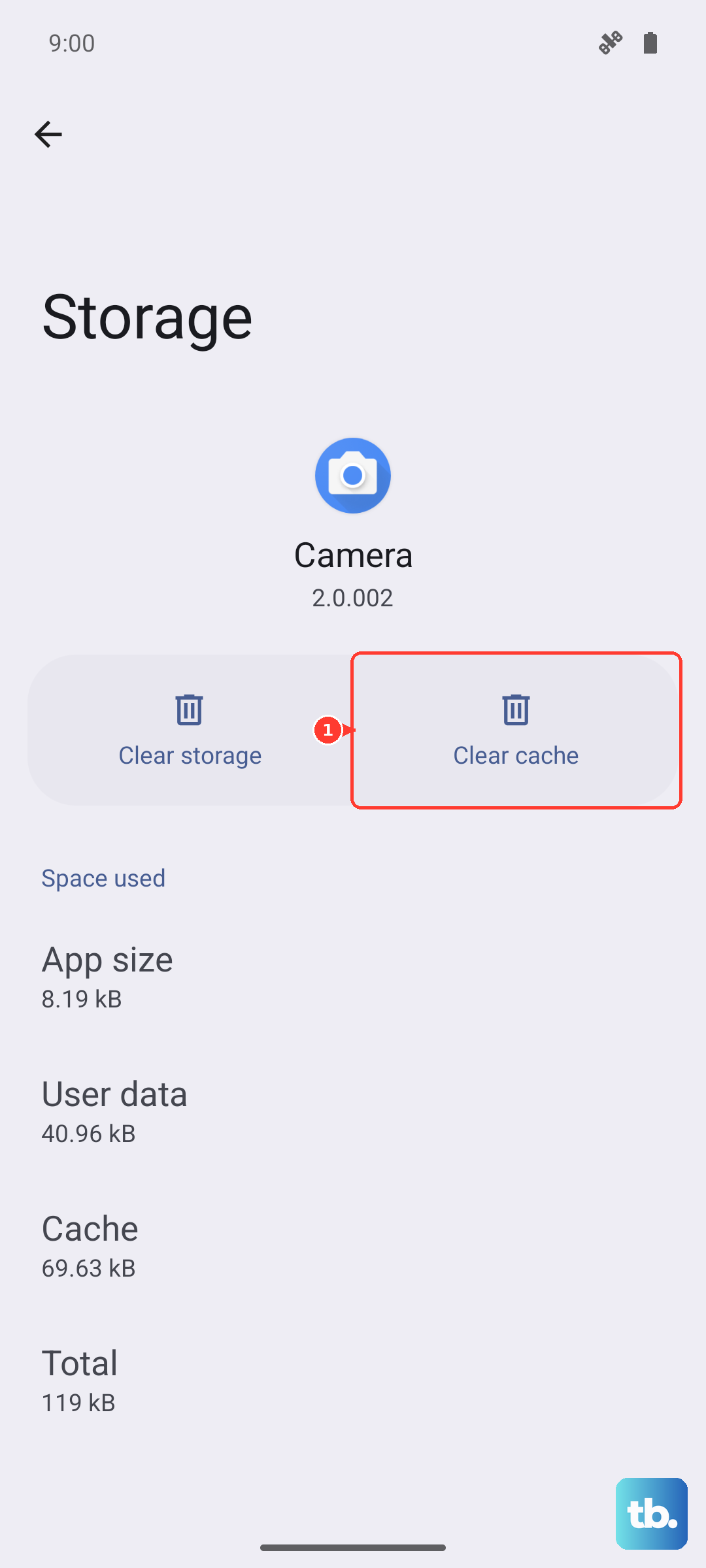
If the problem persists, you can tap Clear data. This will reset the camera app to its original, out-of-the-box state. You'll lose any custom settings within the camera app, like your preferred mode or filter, but your photos and videos in the gallery will be safe.
Check for Physical Damage or Obstructions
Inspect the camera module for any cracks or deep scratches on the lenses. Even a small crack can distort images. Also, check if your phone case is properly aligned. A poorly designed or misaligned case can partially cover a lens or sensor, especially around the large camera island on the 13 Pro.
Try removing the case and testing the camera. If the issue is resolved, you might need a different case that has better cutouts.
Perform a Factory Reset
This is your last resort for software-related camera issues. Before you begin, make sure all your important data is backed up to your Google account or copied to a computer. A factory reset will erase everything on your phone.
To proceed, go to Settings > Additional settings > Back up and reset > Erase all data (factory reset). Follow the prompts to reset the phone. After it reboots, set it up as new and test the camera immediately before restoring your apps.