
When your MacBook Pro 16-inch M5 Pro won't charge, you might see the battery icon stuck or a "Not Charging" message. The first thing I'd try is a simple restart. Click the Apple menu in the top-left corner and choose Restart. This resets the power management system and often clears up a temporary software glitch that's preventing charging.
Inspect Your Charger and Cable
Take a close look at your USB-C cable and power adapter. Check for any fraying, kinks, or damage to the connectors. If you have access to another compatible charger, try it. Your MacBook Pro needs a high-wattage adapter to charge efficiently, especially while in use. The charger that came with it is ideal.
A lower-wattage charger might power the laptop but won't actually increase the battery percentage, or will charge it extremely slowly. This is a common point of confusion, so verifying your power source is a crucial step.
Test Different Ports and Outlets
Your MacBook Pro has multiple Thunderbolt/USB 4 ports. Unplug the charger and try plugging it into a different port on the laptop. One port could have accumulated lint or have a minor hardware issue while the others work perfectly fine.
Also, don't forget the wall outlet itself. Plug your charger into a different outlet in another room to rule out a problem with that specific circuit. It's a simple check that can save you a lot of time troubleshooting the computer itself.
Check Battery Health in macOS 26 Tahoe
Open System Settings and go to the Battery section. Click on Battery Health here. This screen will tell you the maximum capacity of your battery and its overall condition.
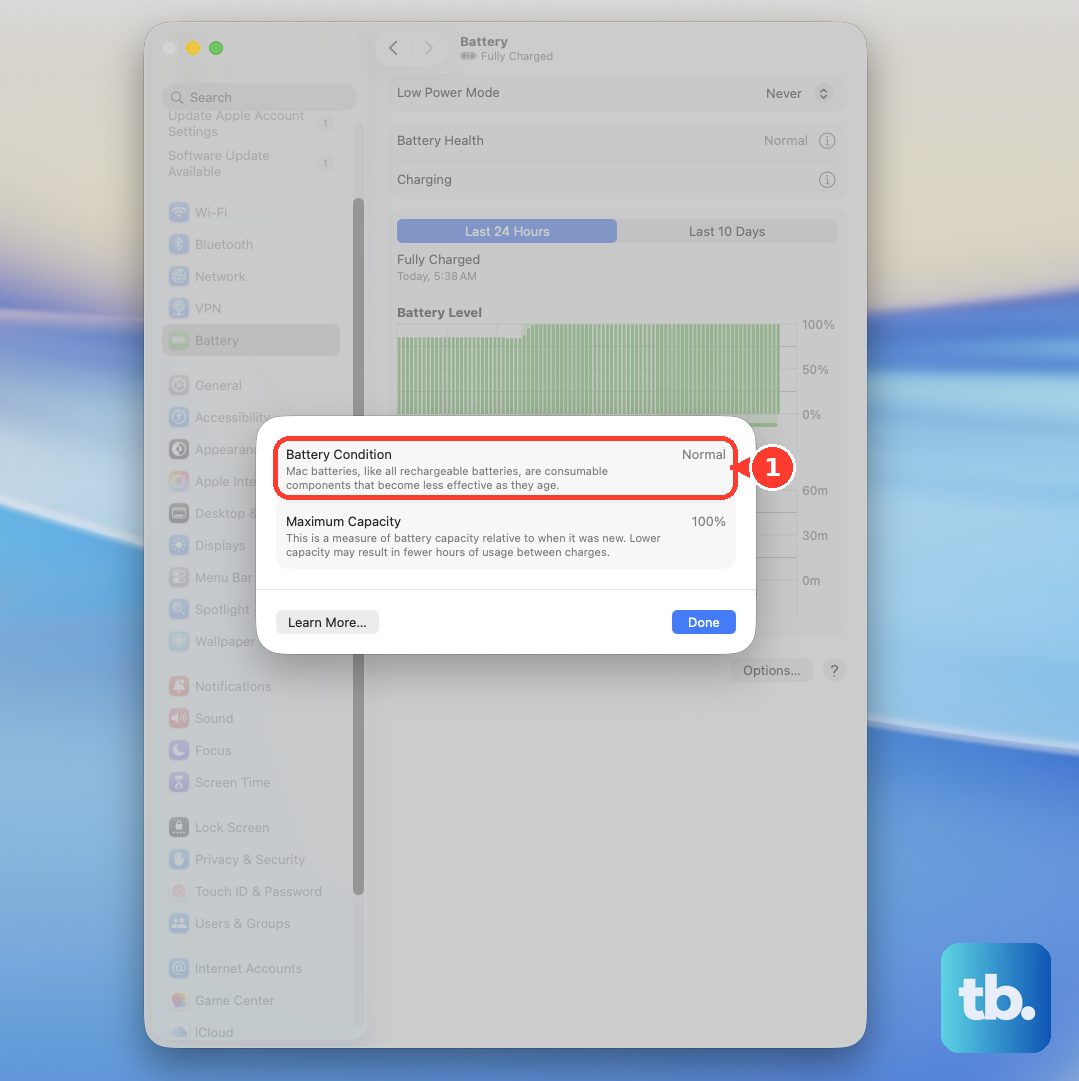
If you see a "Service Recommended" message, the battery has degraded to a point where it may not charge reliably. You can get more detailed information, like the cycle count, by clicking the Apple menu, selecting About This Mac, then System Report, and finally Power in the sidebar.
Clean the USB-C Ports Carefully
Over time, pocket lint and dust can get packed into the small USB-C ports, preventing the cable from making a full connection. Shine a light into each port and look for any debris.
To clean it, use a wooden or plastic toothpick, or a soft-bristled brush. Gently work around the edges of the central connector inside the port. You can also use a can of compressed air to blow out loose particles. Avoid using metal objects that could damage the sensitive pins.
Update Your Mac's Software
Software bugs can sometimes interfere with power management. Go to System Settings, select General, and then click Software Update. Install any available updates for macOS 26 Tahoe.
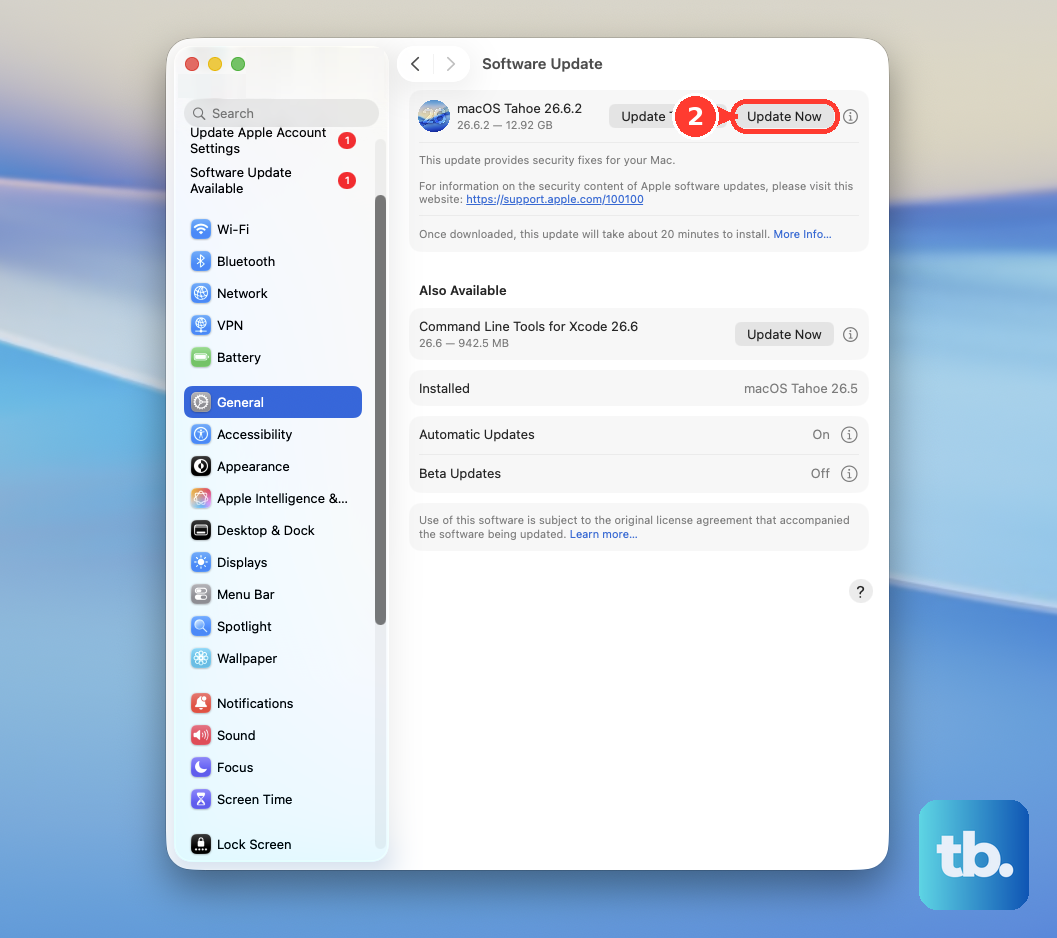
Apple frequently releases updates that address specific hardware behaviors, including charging anomalies. Making sure your system is current is an important part of troubleshooting any persistent issue.
Understand Optimized Battery Charging
Your Mac is designed to learn your daily charging routine to help extend battery lifespan. A feature called Optimized Battery Charging may intentionally pause charging at around 80% if it predicts you'll be plugged in for an extended period.
This is not a defect. You'll see a notification saying when the battery will be fully charged. If you need a full charge immediately, you can click the notification to charge to 100% right away, or temporarily disable the feature in System Settings under Battery > Battery Health.
Run Apple Diagnostics
Your MacBook Pro has a built-in diagnostic tool that can check for hardware issues, including problems with the battery or power system. Shut down your Mac completely, then turn it on and immediately press and hold the Power button.
Keep holding it until you see the startup options window. Press and hold Command (⌘) + D on your keyboard to start Apple Diagnostics. Follow the on-screen instructions; it will test your hardware and report any found issues, giving you a specific reference code.
Reset the Power State
For Apple Silicon Macs like your M5 Pro, there's a specific process to reset the power state. First, shut down your MacBook Pro. Once it's off, close the lid and wait for about 30 seconds to a full minute.
After waiting, open the lid and press the power button to turn it back on. This simple reset can clear out stuck states in the power management system that a standard restart might not address, and it's a very effective step for charging issues.