
When your MacBook Pro 14-inch M5 won't charge, the battery icon might show a "Not Charging" status or the percentage just won't budge. It's a frustrating roadblock, but there are several things you can try to get power flowing again.
Inspect Your Charger and Cable
Start with the basics. Give your USB-C cable and power adapter a close look for any fraying, kinks, or damage. If you have a spare, try a different cable and a different adapter. Your MacBook Pro needs a high-wattage charger to charge properly, especially while you're using it.
The included 96W or 140W adapter is ideal. Using a smaller charger, like one from an iPad, might only slow the battery drain or not charge it at all under load. I'd always try the original charger first if you can.
Try a Different Outlet and USB-C Port
Plug your charger into a different wall socket to rule out a faulty outlet. Your MacBook Pro has multiple Thunderbolt/USB 4 ports, so also try plugging the charger into a different port on the laptop itself.
Sometimes one port can have a connection issue while the others work perfectly. This is a quick check that can save you a lot of time.
Perform a Force Restart
This is often the quickest fix for a stubborn "Not Charging" status. Simply press and hold the Power button on your MacBook Pro for a full 10 seconds, then release it and press it again normally to turn the computer back on.
This forces a full shutdown and reboot, which can clear out temporary glitches in the power management system that might be preventing the battery from recognizing the charger.
Check for macOS Updates
Go to System Settings > General > Software Update. Apple periodically releases macOS updates that include fixes for power and battery management issues. If there's an update available for macOS 26 Tahoe, installing it could resolve your charging problem.
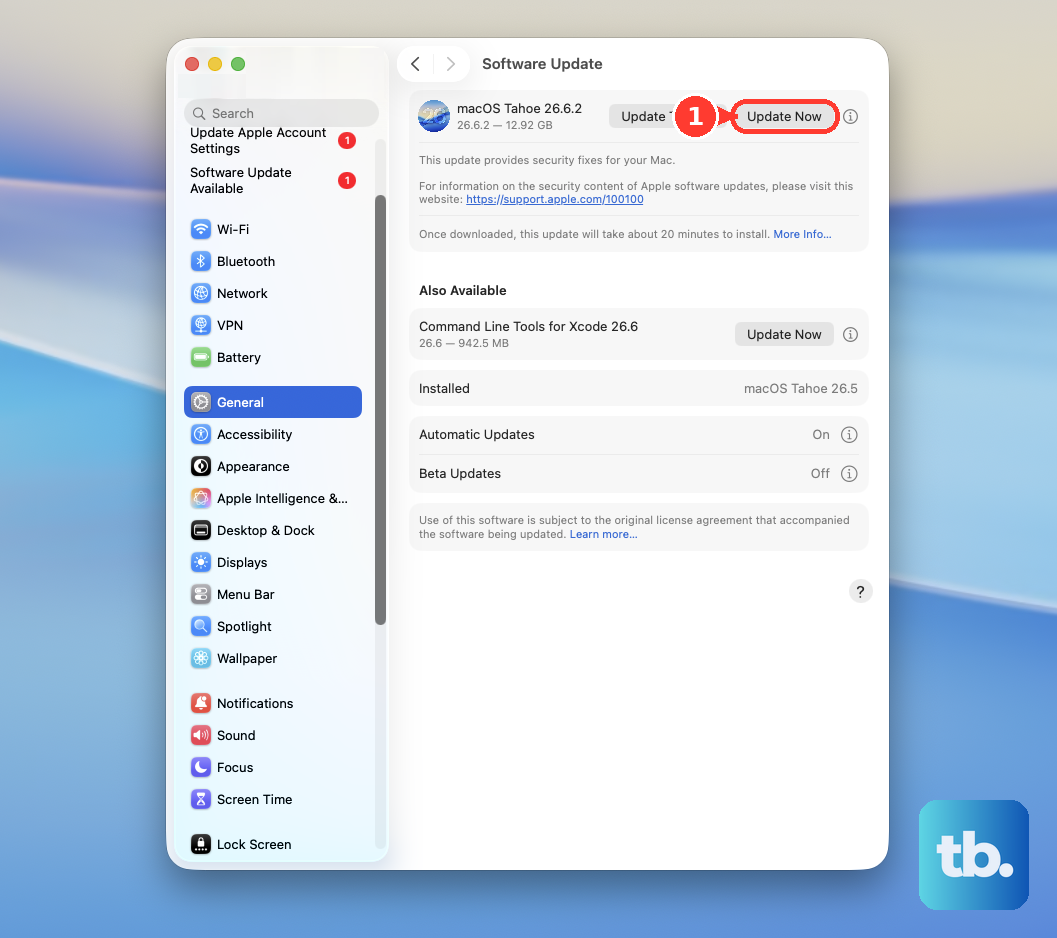
It's a good habit to keep your system updated, as these bugs can sometimes be software-related rather than hardware.
Check Your Battery Health Settings
Head to System Settings > Battery > Battery Health. Here, you'll see if Optimized Battery Charging is enabled. This feature is designed to learn your daily routine and hold the charge at around 80% to extend your battery's overall lifespan.
If you see the battery stuck at 80%, this is likely why. You can click the "i" icon for more info or temporarily turn it off if you need a full charge right away for travel or a long work session.
Clean the USB-C Ports
Lint and pocket debris can easily get packed into the small USB-C ports, preventing the cable from making a solid connection. Power off your MacBook Pro and use a wooden toothpick or a soft, clean brush to gently clear out any visible debris.
You can also use a can of compressed air, holding it upright to avoid moisture, to blow out loose particles. Be very careful not to damage the delicate pins inside the port.
Run Apple Diagnostics
This built-in tool can check for hardware issues with your battery and power system. Shut down your MacBook Pro, then turn it on and immediately press and hold the Power button until you see the startup options window.
Press Command (⌘) + D on your keyboard. Follow the on-screen instructions to run the diagnostics. If it finds an issue, it will display a reference code and basic steps.
Check Activity Monitor for Power Hogs
Sometimes, your MacBook Pro might be using power faster than the charger can supply it, making it seem like it's not charging. Press Command + Spacebar to open Spotlight, type "Activity Monitor," and open it.
Click the "Energy" tab. Look for any apps showing "High" or "Very High" energy impact. If you find one, you can select it and click the stop (X) button in the toolbar to quit it, which might allow charging to resume normally.
Reset NVRAM and Manage Startup Items
For Apple Silicon Macs like the M5, a full shutdown can help. Shut down your MacBook Pro, wait 30 seconds, then turn it back on. Also, check what apps are launching at login by going to System Settings > General > Login Items & Extensions.
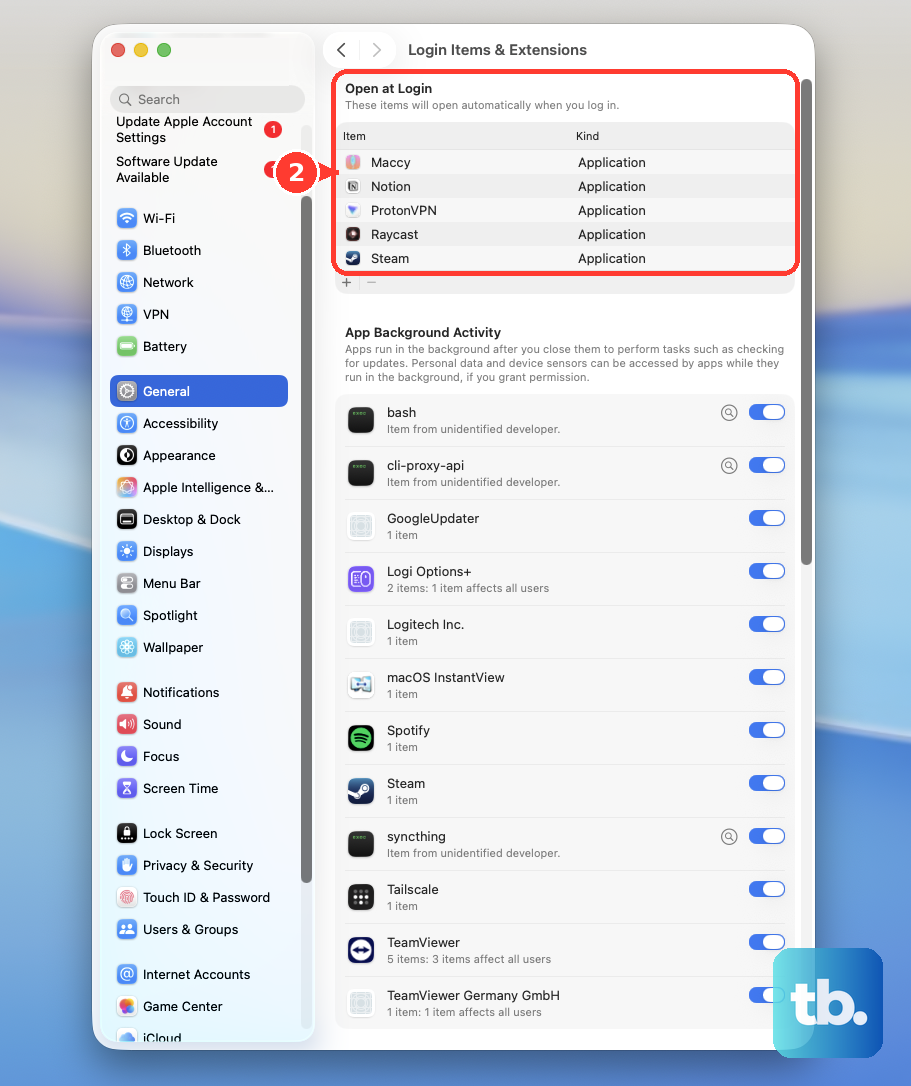
Having too many apps start automatically can strain the system on boot. Try removing non-essential items from this list, restart, and see if the charging behavior improves.