
When your Mac Pro M2 Ultra starts overheating, you'll hear the fans ramp up to a loud, sustained roar, and you might notice performance stuttering as the system throttles the M2 Ultra chip to protect itself. It's a jarring experience on a machine built for heavy workloads. Let's get it running cool and quiet again.
Check Activity Monitor First
Open Activity Monitor from your Utilities folder and click the CPU tab. Sort the list by "% CPU" to see what's using the most processor time. The M2 Ultra is powerful, but a runaway process from a plugin or a buggy app can still push it into thermal overload. If you see a single app using an unusually high percentage, force quit it.
Pay special attention to background processes related to any PCIe expansion cards you have installed. Drivers or software for these cards can sometimes cause high CPU load even when you're not actively using the associated hardware.
Manage Your Workload and Apps
The Mac Pro is designed for sustained performance, but pushing all its cores at 100% for extended periods will generate heat. If you're running multiple intensive tasks like 3D rendering, video encoding, and complex simulations simultaneously, consider staggering them.
Close applications you aren't actively using. I'd also recommend checking your web browser; having dozens of tabs open, especially with video content, can add a surprising amount of background CPU load. Quitting and relaunching your browser can clear out accumulated memory and process issues.
Update macOS and Your Apps
Go to System Settings > General > Software Update. Apple releases updates that often include fixes for performance and thermal management. Since you're on macOS Tahoe, ensure you have the latest version installed.
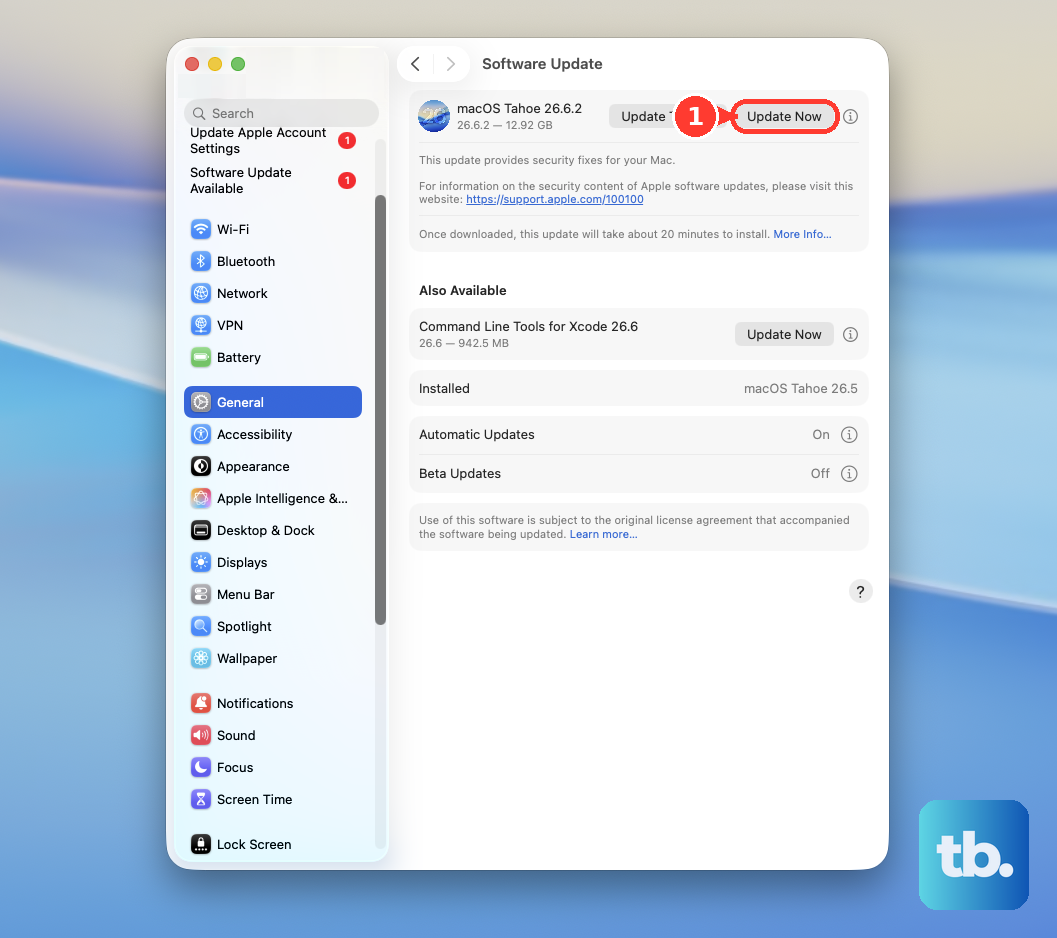
Also, check for updates to the specific pro applications you're using, like Final Cut Pro, Logic Pro, or Adobe Creative Cloud. Developers frequently optimize their software for Apple Silicon, and running an old version might not manage the M2 Ultra's cores efficiently.
Ensure Proper Ventilation and Placement
This is critical for a tower. The Mac Pro's design relies on airflow through its removable panels. Make sure the computer isn't shoved into an enclosed cabinet or pressed up against a wall. Leave several inches of clearance on all sides, especially at the back where the main exhaust is.
Keep it away from direct heat sources like radiators or sunlit windows. The room's ambient temperature matters more for a desktop than a laptop. If your workspace is very warm, improving room ventilation or lowering the thermostat can help.
Clean the Internal Fans and Vents
Dust buildup is a common culprit for overheating in desktops. With the Mac Pro powered off and unplugged, you can remove the outer case by unlocking and lifting it off. Look for dust clogging the fan intakes on the bottom front and the exhaust at the rear.
Use a can of compressed air to gently blow dust out of the vents and off the fan blades. Avoid tilting the can or spinning the fans too fast with the air stream. Doing this every six months to a year can make a big difference in thermal performance.
Reset the Thermal Management System
On Apple Silicon Macs like the M2 Ultra, a full restart can resolve temporary glitches in the power and thermal management systems. It's a simple but effective first step. Save your work and choose Restart from the Apple menu.
If the system is unresponsive, you can force a restart. Press and hold the power button on the top of the case for about 10 seconds until the machine shuts off, then press it again to turn it back on.
Run Apple Diagnostics
This built-in tool can check for hardware issues that might cause overheating, like a failing fan or sensor. Shut down your Mac Pro, then turn it on and immediately press and hold the power button until you see the startup options window.
Press and hold Command (⌘) + D on your keyboard. This will boot into Apple Diagnostics. Follow the on-screen instructions; if any issues are found, it will provide reference codes and steps.
Review Connected Peripherals and PCIe Cards
The Mac Pro's expandability can sometimes be the source of heat. PCIe cards, especially high-performance GPUs, storage controllers, or capture cards, generate their own heat. Ensure any installed cards are properly seated and that their own cooling solutions (like fans or heatsinks) are clean and functional.
Also, look at externally connected devices. A faulty or poorly shielded external drive, hub, or display adapter can sometimes cause system instability that manifests as high CPU usage and heat.
Monitor with a Utility Like TG Pro
While Activity Monitor shows CPU load, a dedicated app like TG Pro (or iStat Menus) can show you the actual temperature sensors and individual fan speeds inside your Mac Pro. This gives you a clearer picture of what's happening.
You can see if one particular fan isn't spinning up correctly or if a specific area of the logic board is getting hot. This data is invaluable for pinpointing whether an issue is software-related or if there might be a physical cooling problem.