
When your LG OLED TV won't connect to WiFi, your beautiful screen is just a window to nothing. Whether it's not finding your network, connecting with no internet, or dropping out mid-movie, getting it back online is the first step to enjoying what you bought it for.
Let's start with the quickest fix. Unplug your TV from the wall outlet. Don't just turn it off with the remote. Wait a full 60 seconds before plugging it back in and turning it on. This full power cycle clears the TV's temporary memory and resets the network hardware, which often solves glitches that a simple restart won't.
Restart Your Router and Modem
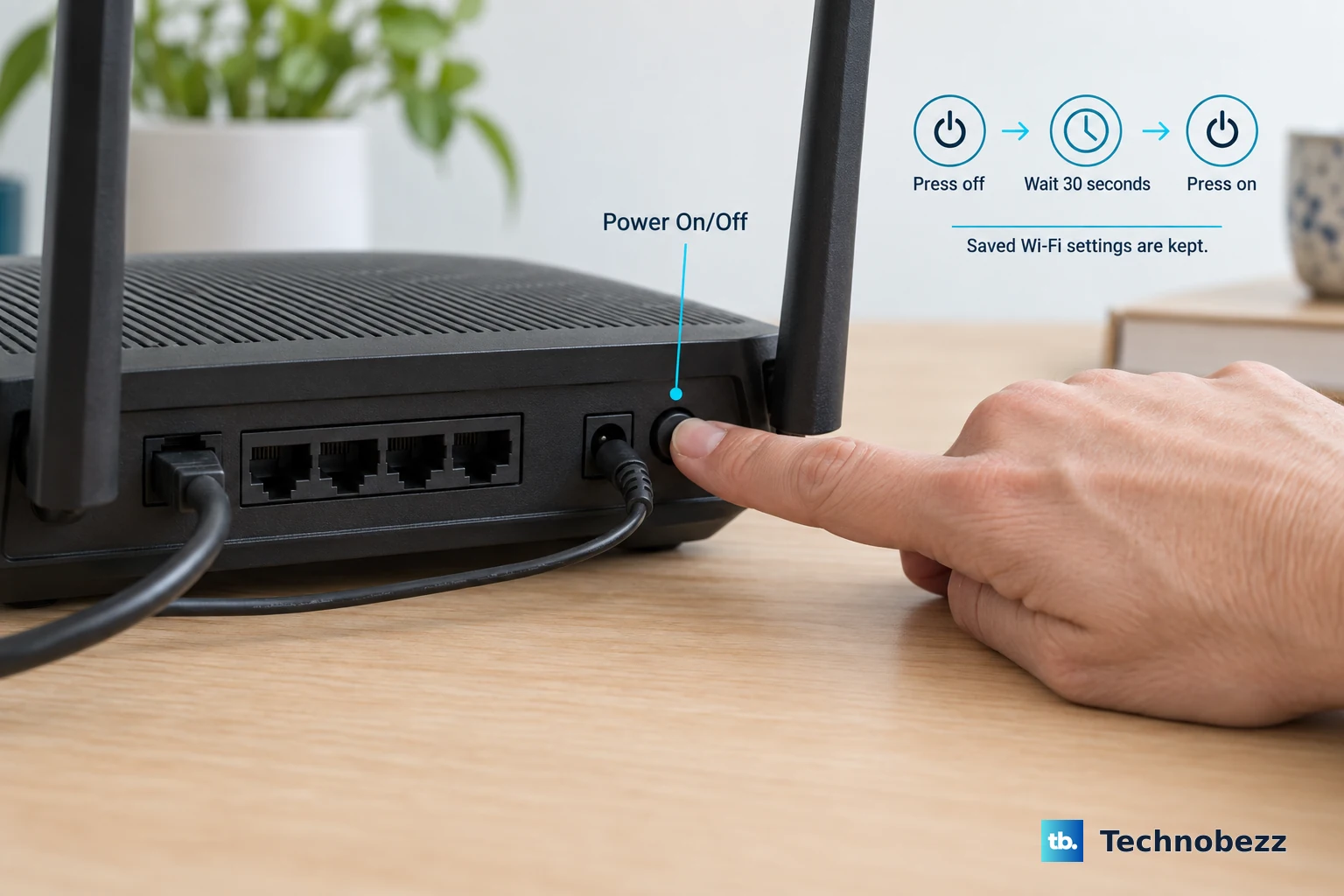
Your next move is to reboot your home network. Unplug both your modem and your WiFi router from power. Wait about 30 seconds, then plug the modem back in. Give it a minute or two for all the lights to stabilize, then plug your router back in.
Wait another few minutes for your WiFi network to fully come back online. This process can resolve IP address conflicts and other router-side issues that only your TV seems to struggle with.
Forget and Re-add Your WiFi Network
On your LG TV, press the settings button on your remote. Navigate to Network > Wi-Fi Connection. Select your current network name and choose Disconnect or Forget.
Then, go back and select Set up connection. Choose your network from the list and carefully re-enter your password. This creates a fresh connection profile, which can fix corrupted settings that cause intermittent drops.
Verify Your WiFi Password
It sounds obvious, but it's worth double-checking. Using the TV's on-screen keyboard can be clumsy, and it's easy to mistype a complex password. Pay close attention to capitalization, numbers, and special characters.
If you're unsure, try connecting another device, like your phone, with the same password to confirm it's correct. Sometimes, a recent router password change is the simple culprit.
Check Your Network's Signal Strength
LG OLED TVs, while fantastic displays, don't always have the most powerful WiFi antennas. Go to your TV's Network settings and look for a signal strength indicator.
If it's low, physical obstacles are likely the problem. Thick walls, large metal appliances, or even a soundbar placed directly under the TV can weaken the signal. Repositioning your router or using a WiFi extender can make a big difference.
Switch Between 2.4GHz and 5GHz Bands
If your router broadcasts both 2.4GHz and 5GHz networks, try connecting to the other one. The 5GHz band is faster and less crowded but has a shorter range and struggles more with walls.
The 2.4GHz band is slower but has much better range and penetration. If your TV is far from the router, 2.4GHz is often the more reliable choice for stable streaming.
Update Your TV's Software
Outdated software is a common cause of network bugs. Press the settings button on your remote and go to All Settings > Support > Software Update.
Select Check for Updates. If an update is available and you're connected via Ethernet or a mobile hotspot, you can install it directly. If you can't get online at all, you can download the update file from LG's website onto a USB drive and install it manually.
Change the DNS Server on Your TV
A slow or unresponsive DNS server can make it seem like your TV has no internet, even when it's connected to WiFi. In your TV's network settings, find the option for advanced or manual setup.
Change the DNS setting from automatic to manual. Enter 8.8.8.8 as the primary DNS and 8.8.4.4 (Google's DNS) as the secondary. This can resolve connection timeouts and speed up domain lookups for apps.
Use a Wired Ethernet Connection
For the most stable connection possible, bypass WiFi entirely. Connect an Ethernet cable from your router to the LAN port on the back of your LG OLED TV. This eliminates wireless interference and bandwidth issues.
If your router is in another room, powerline network adapters can use your home's electrical wiring to extend a wired connection to your entertainment center. It's often more reliable than a long-range WiFi signal.
Reset Your TV's Network Settings
If you've tried everything else, resetting the TV's network configuration is a strong final step. On your LG TV, go to All Settings > General > Reset to Initial Settings.
Important, you'll be given two choices, Reset All and Reset all except network settings. LG does not offer a network-only reset, so to wipe your saved WiFi passwords and network configuration you'll need Reset All, which returns the TV to its factory state and also clears your installed apps and picture settings. After it reboots, set up your WiFi connection again from scratch.