
When your Lenovo Yoga 7 14's keyboard suddenly stops responding, it can feel like you've hit a brick wall. Whether it's a few keys acting up or the entire board going silent, the fixes usually start with software before moving to hardware.
A browser based keyboard test shows every keypress in real time, which makes it easy to tell a failed switch from a settings problem before you start troubleshooting.
Force Restart Your Yoga
This is almost always the first thing I try. A full power cycle can clear out temporary glitches that freeze the keyboard driver. Hold down the power button for about 15 seconds until the laptop completely powers off, then press it again to turn it back on.
Check Lenovo Vantage for Updates
Your Yoga 7 14 has a dedicated app for this. Open Lenovo Vantage and head to the Device > System Update section. Let it scan for any critical driver updates, especially for the chipset or keyboard.
There's a known quirk with some AMD models where a driver from Windows Update can conflict with the one from Lenovo. Vantage helps keep everything in sync from the manufacturer's side.
Disable Filter Keys in Windows
It's easy to accidentally turn on accessibility features that interfere with normal typing. Press the Windows key and type "filter keys" to go straight to the setting, or navigate through Settings > Accessibility > Keyboard.
Make sure the toggle for Filter Keys is switched off. While you're there, check that Sticky Keys is also disabled, as it can cause similar confusion.
Update or Reinstall the Keyboard Driver
Press Windows key + X and select Device Manager. Expand the Keyboards section, right-click on "Standard PS/2 Keyboard" or a similar listing, and choose Update driver.
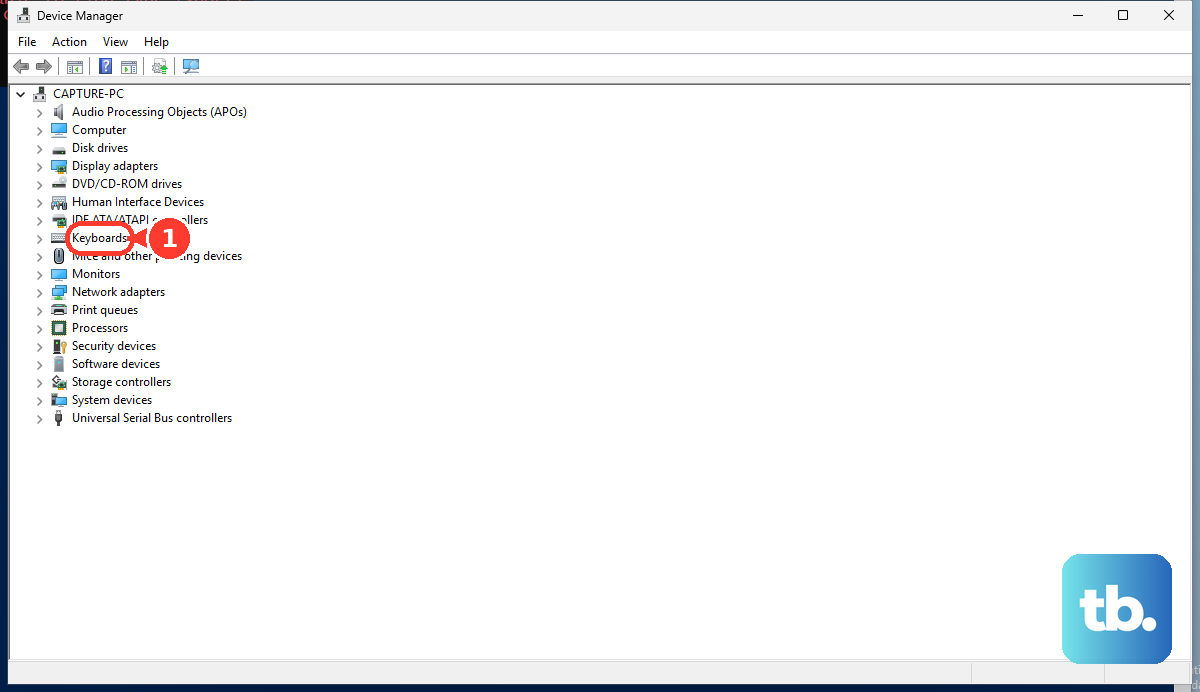
If that doesn't work, select Uninstall device instead. Don't worry, just restart your laptop afterward. Windows will automatically reinstall a fresh, generic driver upon reboot, which often solves the problem.
Clean Under the Keys
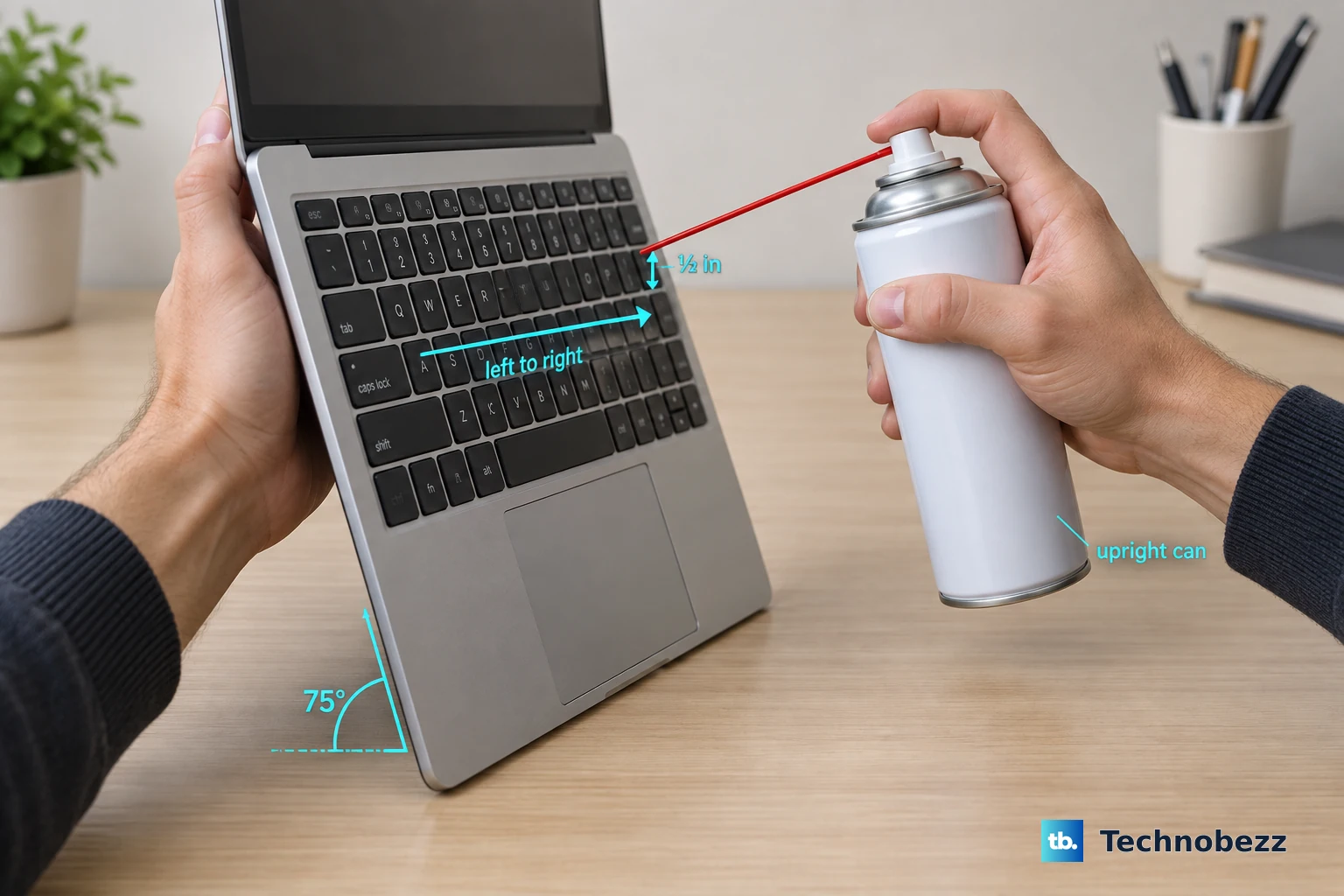
The Yoga's keyboard is fairly low-profile, but crumbs and debris can still get lodged underneath. Turn the laptop off, tilt it sideways, and gently tap it to dislodge loose particles.
For a more thorough clean, use a can of compressed air to blow between the keys. Avoid using liquids, as they can cause permanent damage if they seep into the mechanisms.
Verify Your Keyboard Language and Layout
If your keys are typing the wrong characters, the input language might have switched. Look at the bottom-right of your taskbar; you should see something like "ENG" or "USA".
Click on that to ensure the correct language/keyboard layout is selected. You can manage this in Settings > Time & language > Language & region. Remove any extra keyboard layouts you don't use to prevent accidental switching.
Boot Using the Novo Button
Your Yoga 7 has a small pinhole button, usually on the left side, called the Novo button. Turn the laptop completely off, then press this button with a paperclip.
This will bring up a recovery menu. Use the arrow keys (if they work) or an external mouse to select BIOS Setup or System Recovery. Just getting into the BIOS can sometimes reset the keyboard connection. If the keyboard works in this menu, your issue is likely Windows-related.
Test with an External Keyboard
Plug in any USB keyboard. If it works perfectly, it points to an issue with your laptop's internal keyboard hardware or its connection.
This is a crucial test. It helps separate a software/driver problem from a potential hardware fault, like a loose ribbon cable connecting the keyboard to the motherboard.
Run a System Restore or Fresh Start
If the keyboard recently stopped working after a software install or update, use System Restore. Type "create a restore point" in the Windows search bar, open the tool, and click System Restore to roll back to a point when the keyboard was functional.
For a cleaner slate without a full wipe, go to Settings > System > Recovery and choose Reset this PC. Select "Keep my files" to reinstall Windows while preserving your personal data, which often resolves deep-seated driver conflicts.