That "Unfortunately, the keyboard has stopped" error popping up on your Moto G Stylus 5G (2025) can really interrupt your flow, especially when you're trying to jot down a quick note with the stylus. The good news is this is a common Android hiccup, and there are several straightforward ways to get your typing back on track.
Force Stop and Restart the Keyboard App
This is almost always the first thing I'd try. A simple force stop clears out any temporary glitch that's causing the keyboard app to crash. Head into your phone's Settings and tap on Apps. You might need to tap "See all apps" to get the full list.
Find the keyboard app you're using. If it's the default Motorola one, it might be listed as "Gboard" or "Android Keyboard." Tap on it, then hit "Force stop." Confirm the action, then exit Settings and try opening your keyboard again in a messaging app.
Give Your Phone a Quick Reboot
If force stopping didn't do the trick, a full restart of your Moto G Stylus can clear system-wide caches and stop any conflicting processes. Just press and hold the power button until the power menu appears, then tap "Restart."
For a more forceful reboot if the screen is unresponsive, you can perform a force restart. Press and hold the power button for about 10 seconds until you feel the device vibrate and the Motorola logo appears on screen.
Clear the Keyboard's Cache and Data
Corrupted cache files are a frequent culprit behind app crashes. Clearing them is safe and won't delete your personal data, but it will reset your keyboard's learned words and any custom settings.
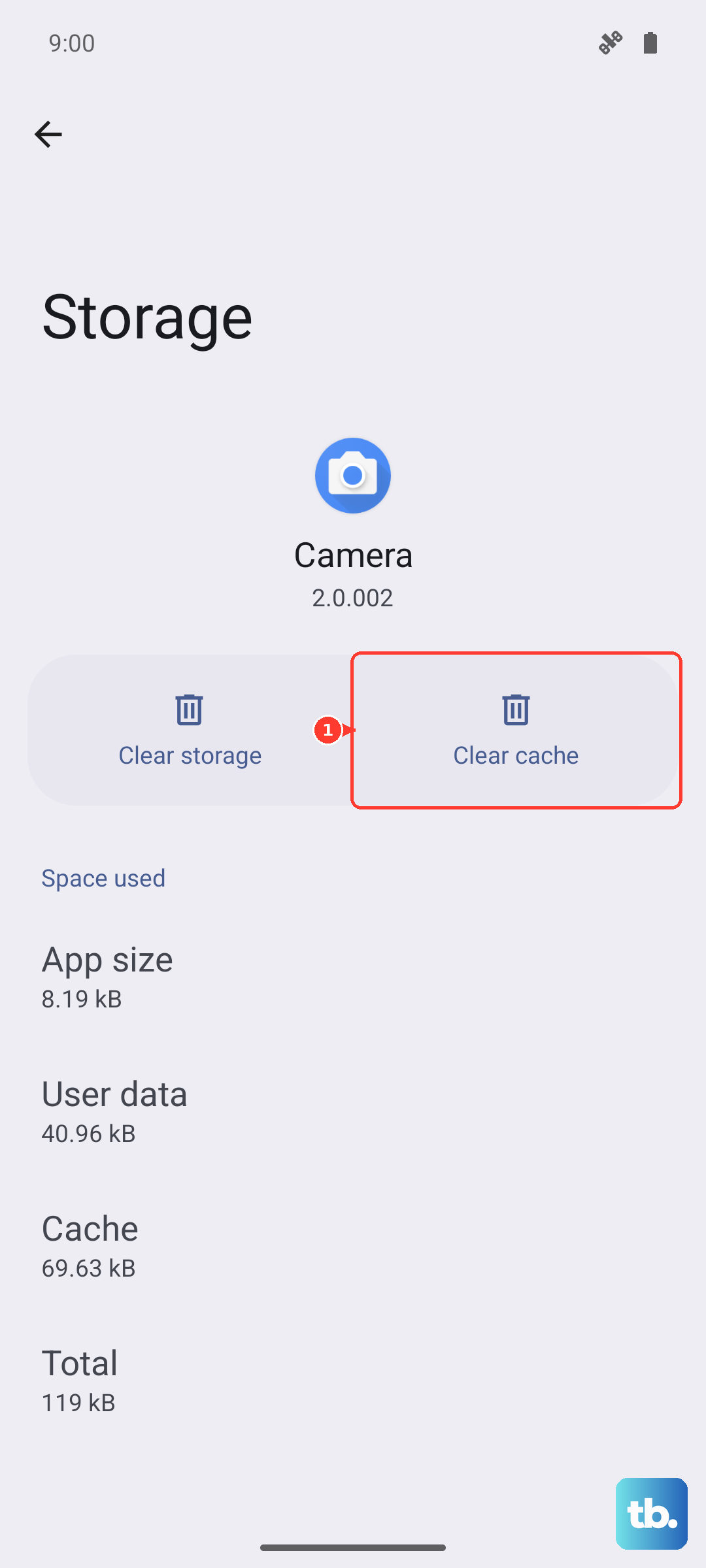
Go back to Settings > Apps and select your keyboard app. Tap on "Storage & cache." Here, tap "Clear cache" first. If the problem persists, come back and tap "Clear storage" or "Clear data." You'll have to set your keyboard preferences again, but this often solves persistent crashes.
Check for Keyboard and System Updates
Running an outdated version of your keyboard app or Android 15 itself can lead to compatibility bugs. Open the Google Play Store, tap your profile icon, and go to "Manage apps & device." Under "Updates available," see if your keyboard app is listed.
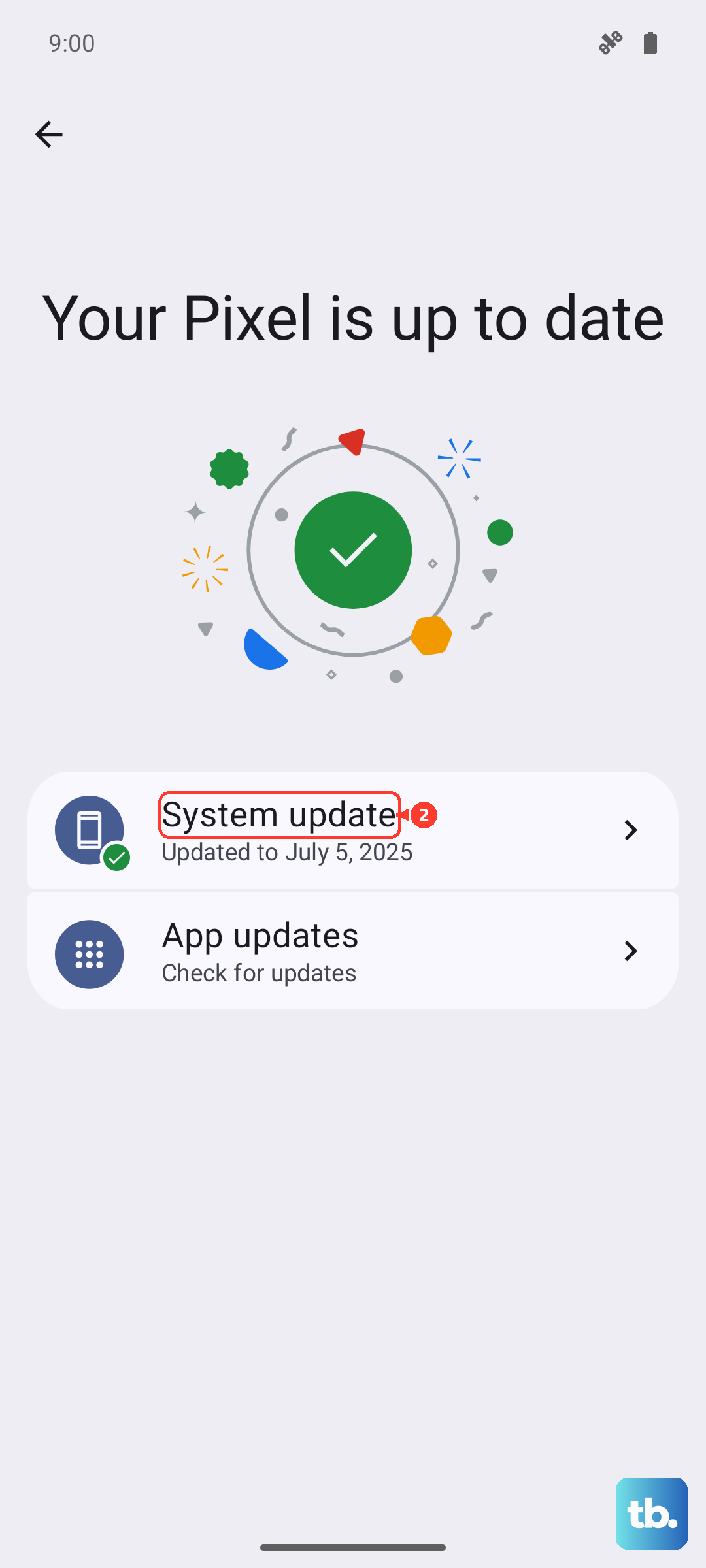
For system updates, which are crucial, go to Settings > System > System updates. Tap "Check for update." If there's one available for your Moto G Stylus, installing it can include important stability fixes.
Try a Different Keyboard App Temporarily
This is a great diagnostic step. Installing a popular third-party keyboard like Gboard or SwiftKey from the Play Store gives you an immediate workaround. If the new keyboard works perfectly, it confirms the issue is isolated to your default keyboard app.
You can always switch back later after troubleshooting the original one. To change your active keyboard, go to Settings > System > Languages & input > On-screen keyboard.
Boot Into Safe Mode
Safe mode temporarily disables all third-party apps you've downloaded. If your keyboard works fine in safe mode, you know a recently installed app is causing the conflict. To enter safe mode on your Moto G Stylus, press and hold the power button until the power off menu appears.
Then, tap and hold the "Power off" option on your screen. A prompt will ask if you want to reboot to safe mode. Tap "OK." Your phone will restart with "Safe mode" visible in the bottom corner. Test the keyboard here.
Reset All App Preferences
This is less drastic than a factory reset but can resolve conflicts in how apps interact. It resets permissions, notification settings, and default app assignments. Your personal data remains untouched.
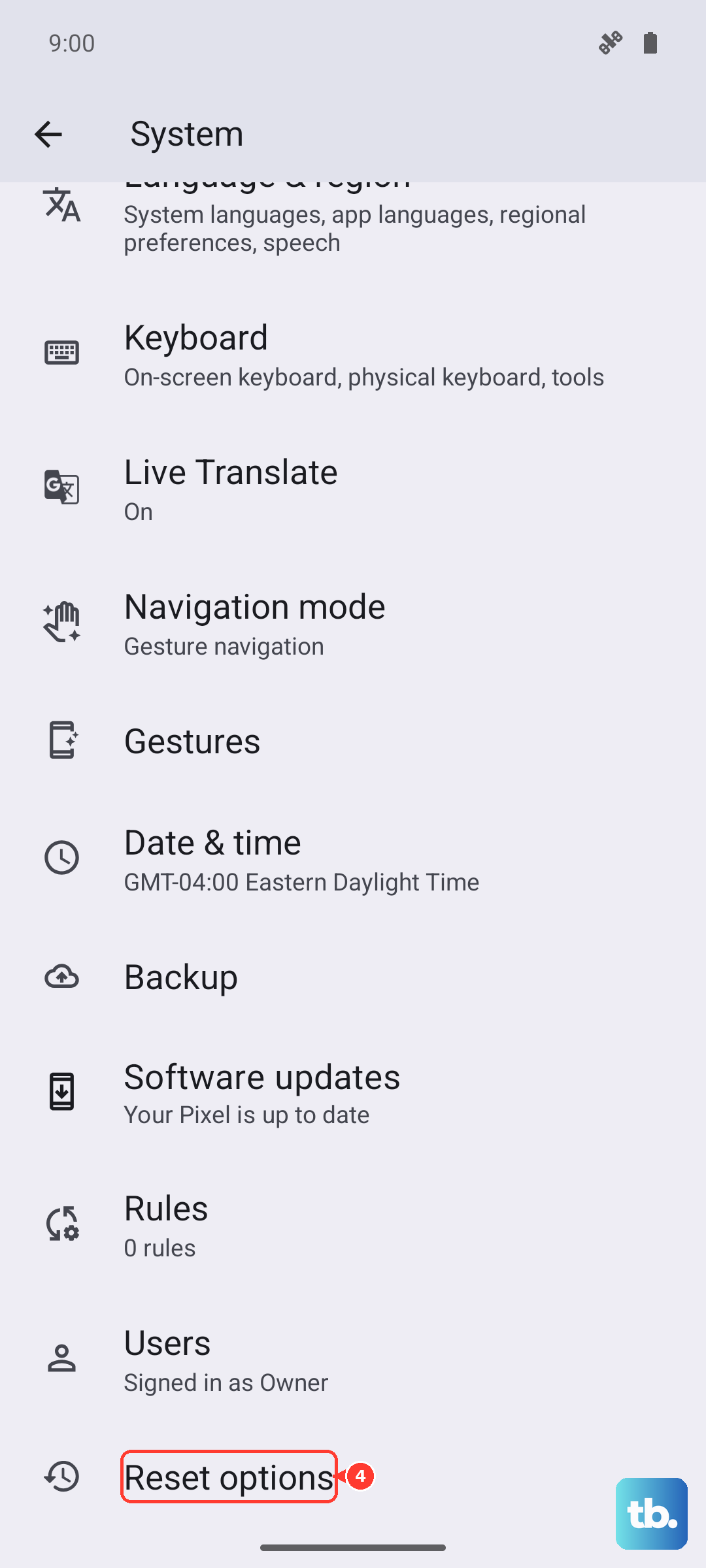
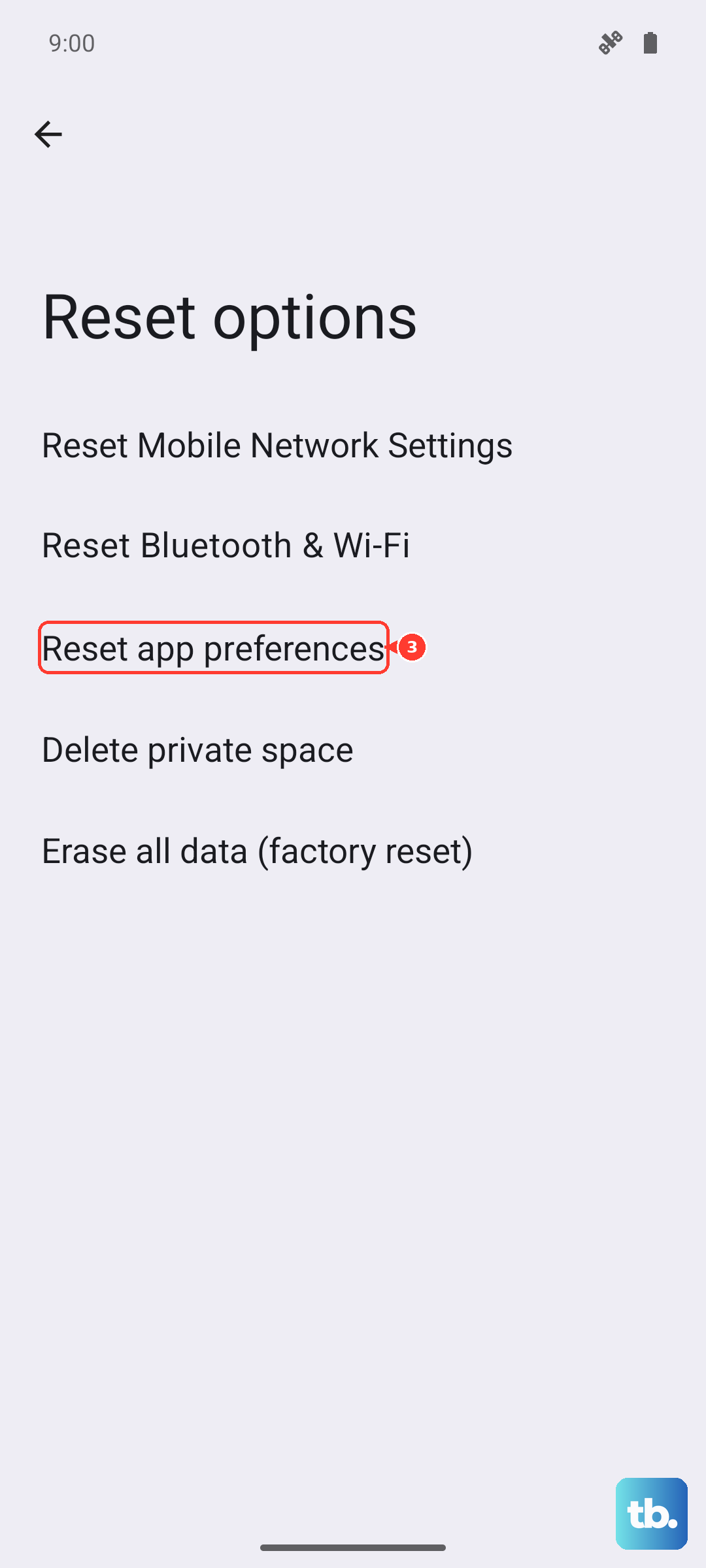
Navigate to Settings > System > Reset options. Tap on "Reset app preferences" and confirm. You'll need to re-grant permissions to apps afterward, but it can clear up the specific issue preventing your keyboard from launching.
Check for Stylus or Screen Interference
Since this phone has a built-in stylus, it's worth a quick check. Ensure the stylus is fully seated in its silo. In rare cases, if the stylus detection system acts up, it could theoretically interfere with touch input.
Also, make sure your screen is clean and dry, and try typing without a screen protector temporarily. A poorly applied protector or one not designed for this model can sometimes cause touch registration issues that might be mistaken for a keyboard crash.
As a Last Resort, Perform a Factory Reset
If absolutely nothing else has worked, a factory reset will return your phone to its out-of-the-box state. This will erase all your data, apps, and settings, so it's critical to back up everything important first using Google's backup service or by manually transferring files to a computer.
Once backed up, go to Settings > System > Reset options > Erase all data (factory reset). Follow the prompts. After the reset, set up the phone as new before restoring your backup to see if the issue is resolved.