
That "No SIM" or "Invalid SIM" message on your iPhone SE 4 can stop you in your tracks. It's usually a quick fix, though, and you can often get your service back without a trip to the store.
I'd start with the simplest solution first. Give your iPhone SE 4 a quick restart. Just press and hold the side button and either volume button, slide to power off, wait a moment, then turn it back on. This clears up minor software hiccups that can confuse the modem.
Check Airplane Mode and Cellular Data
Open Control Center by swiping down from the top-right corner of the screen. Make sure the airplane icon isn't highlighted. If it is, tap it to turn Airplane Mode off.
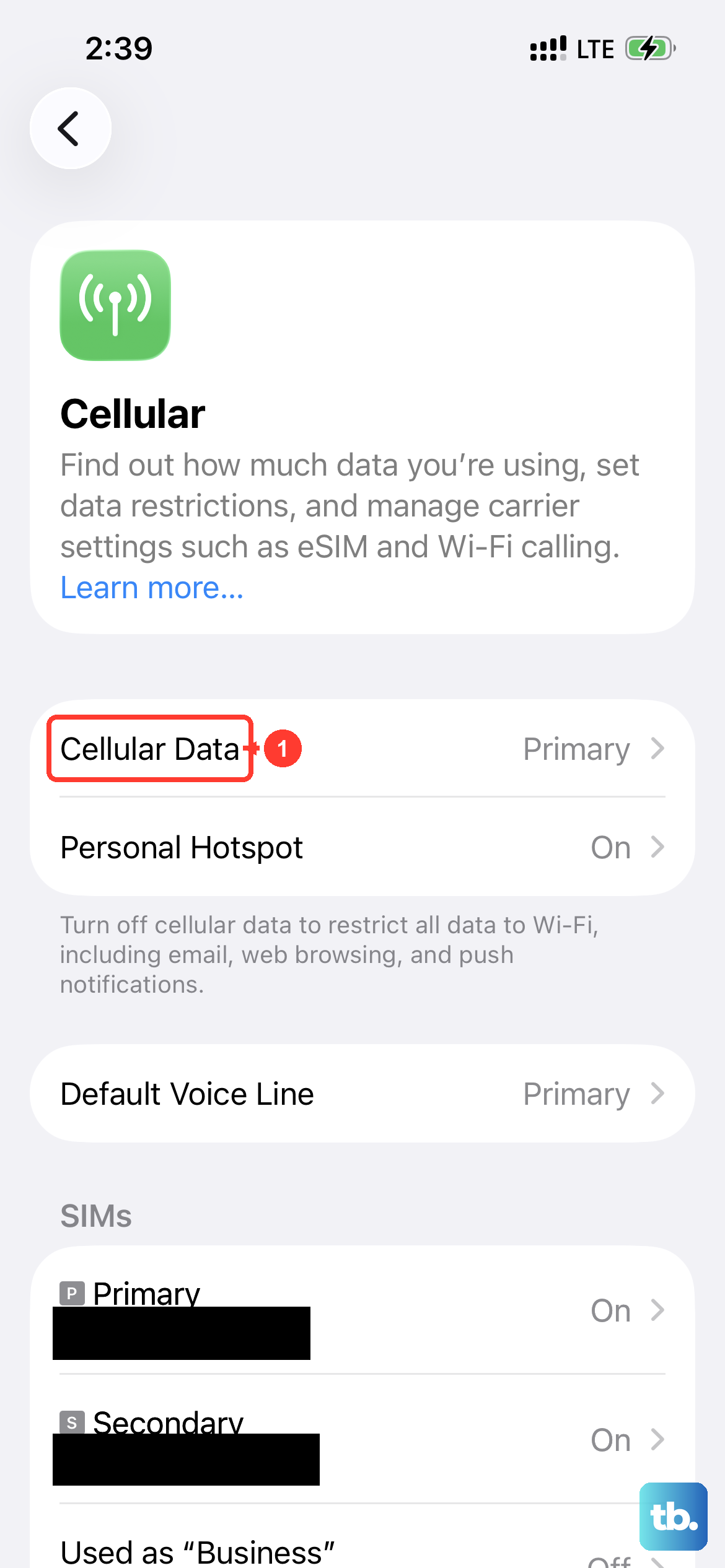
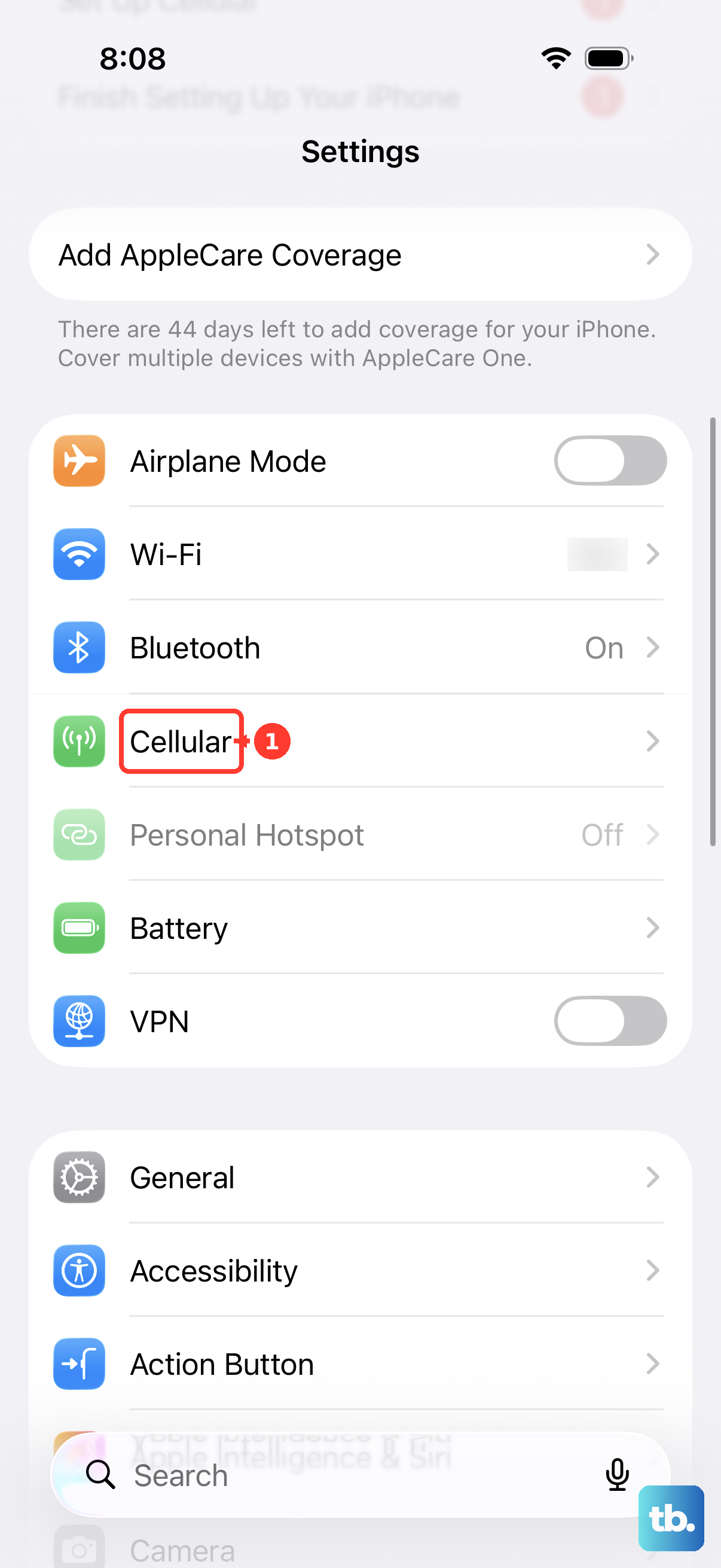
Next, go into Settings > Cellular. Ensure the Cellular Data switch is turned on. Sometimes an update or a glitch can toggle this off without you realizing it.
Reinsert Your Physical SIM Card
If you're using a physical SIM, this is a very common fix. You'll need the SIM ejector tool that came with your phone, or a small paperclip.
Turn your iPhone off completely. Find the SIM tray on the left side of the device. Insert the tool into the small hole to pop the tray out. Carefully remove the SIM card and inspect the gold contacts for any dust, lint, or damage.
Use a dry, soft cloth to gently wipe the contacts clean. Blow any dust out of the SIM tray slot, then reinsert the SIM card, making sure it's seated correctly. Push the tray back in and power your phone on.
Update Your iPhone SE 4 to the Latest iOS
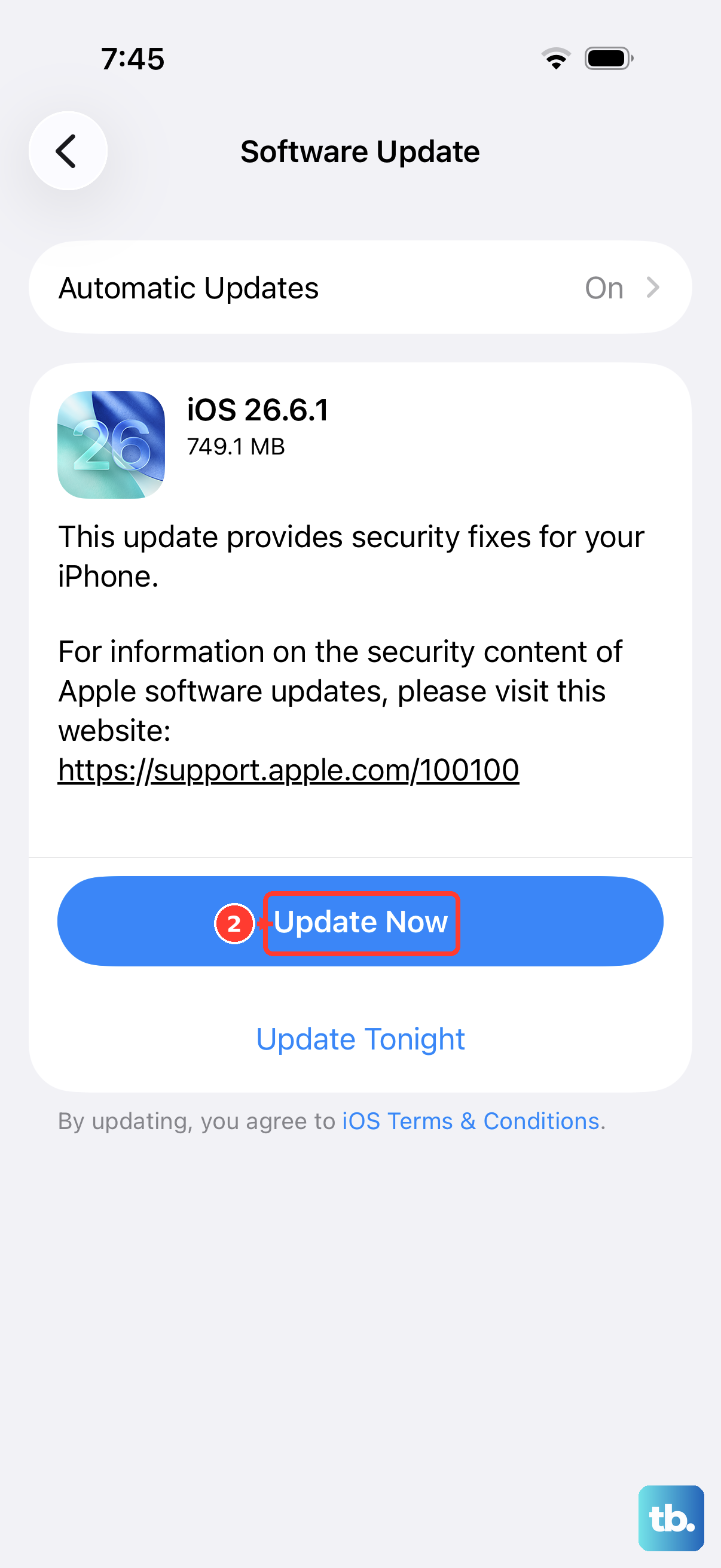
Apple frequently releases updates that fix connectivity bugs. Go to Settings > General > Software Update. If an update is available, download and install it. Make sure your phone is connected to Wi-Fi and has a decent charge, preferably while plugged into a 20W USB-C charger.
Try a Force Restart
A standard restart didn't work, so let's try a force restart. This is different and can clear deeper system issues. On the iPhone SE 4, quickly press and release the Volume Up button, then quickly press and release the Volume Down button. Finally, press and hold the Side button until you see the Apple logo appear, then let go.
Reset Your Network Settings
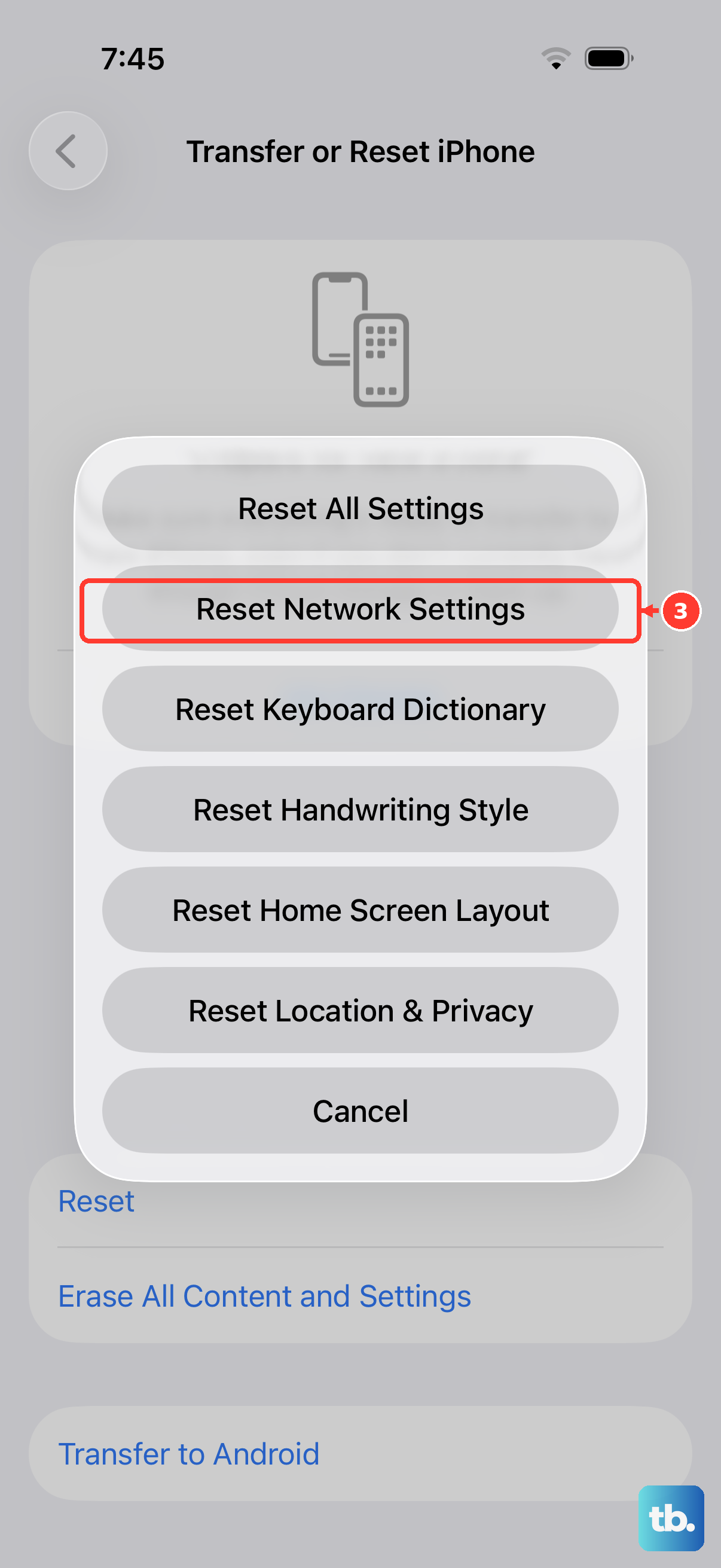
This will erase all your saved Wi-Fi passwords, Bluetooth pairings, and cellular network preferences, but it often solves stubborn SIM issues. Go to Settings > General > Transfer or Reset iPhone. Tap Reset, then choose Reset Network Settings. You'll need to enter your passcode to confirm.
After the phone restarts, you'll have to reconnect to Wi-Fi and re-pair Bluetooth devices, but your cellular connection should be freshly configured.
Check for a Carrier Settings Update
Your mobile carrier occasionally pushes small updates that help your phone work better on their network. To check, go to Settings > General > About. If an update is available, a prompt will appear. Just follow the on-screen instructions to install it.
Test the SIM Card in Another Phone
This tells you if the problem is with the SIM card itself. If you have access to another unlocked phone, power it off, insert your iPhone SE 4's SIM, and turn it on. If that phone also shows "No SIM," then the SIM card is likely faulty or deactivated.
You'll need to contact your carrier's support. They can check the account status and send you a replacement SIM if needed, which usually activates quickly.
Switch from a Physical SIM to eSIM
The iPhone SE 4 supports eSIM, which is a digital SIM profile. If your physical SIM tray is damaged or the card keeps having issues, moving to an eSIM is a great permanent solution. Contact your carrier and ask them to help you convert your physical line to an eSIM.
They'll guide you through the process, which typically involves scanning a QR code in your Settings > Cellular menu. This removes the physical component from the equation entirely.
Contact Your Carrier for Network Issues
Before assuming the worst with your phone, check if there's a service outage in your area. You can often see this on your carrier's website or app. Give them a call or use online chat to see if there are any known issues affecting your account or your specific number.
They can also reprovision your line on their network, which is like refreshing your account from their end. This has fixed "Invalid SIM" errors for many people.