When your iPhone suddenly shows No SIM, No SIM Card Installed, Invalid SIM, or SIM Failure, it can be alarming. These alerts cut off your calls, texts, and mobile data, and they often appear right after an iOS update, a SIM swap, or a knock to the phone. The good news is that most of these errors are software hiccups you can clear yourself in a few minutes.
The cause is usually one of a handful of things. A loose or dirty physical SIM, an eSIM line that has been switched off, outdated carrier settings, a temporary network glitch, or an account problem on your carrier's side. Hardware or water damage is less common but does happen.
This guide covers both physical SIM and eSIM iPhones running current versions of iOS, including iOS 18 and later. Work through the fixes in order. The first few take under a minute, and the later ones escalate toward hardware and carrier steps.
Read more - How To Fix No Service On iPhone
Check These Things First
Before you change any settings, confirm a few basics. These take seconds and rule out the most common causes.
- Make sure you have an active plan with your wireless carrier and no unpaid balance
- Check your carrier's outage or status page in case the problem is on their end
- If you just traveled, confirm your plan covers your current location
- Look at your iPhone case to make sure nothing is pressing on the SIM tray
Toggle Airplane Mode
Start with the simplest fix. Turning Airplane Mode on and off forces your iPhone to drop and re-establish its connection to the cellular network, which clears many temporary SIM and signal errors.
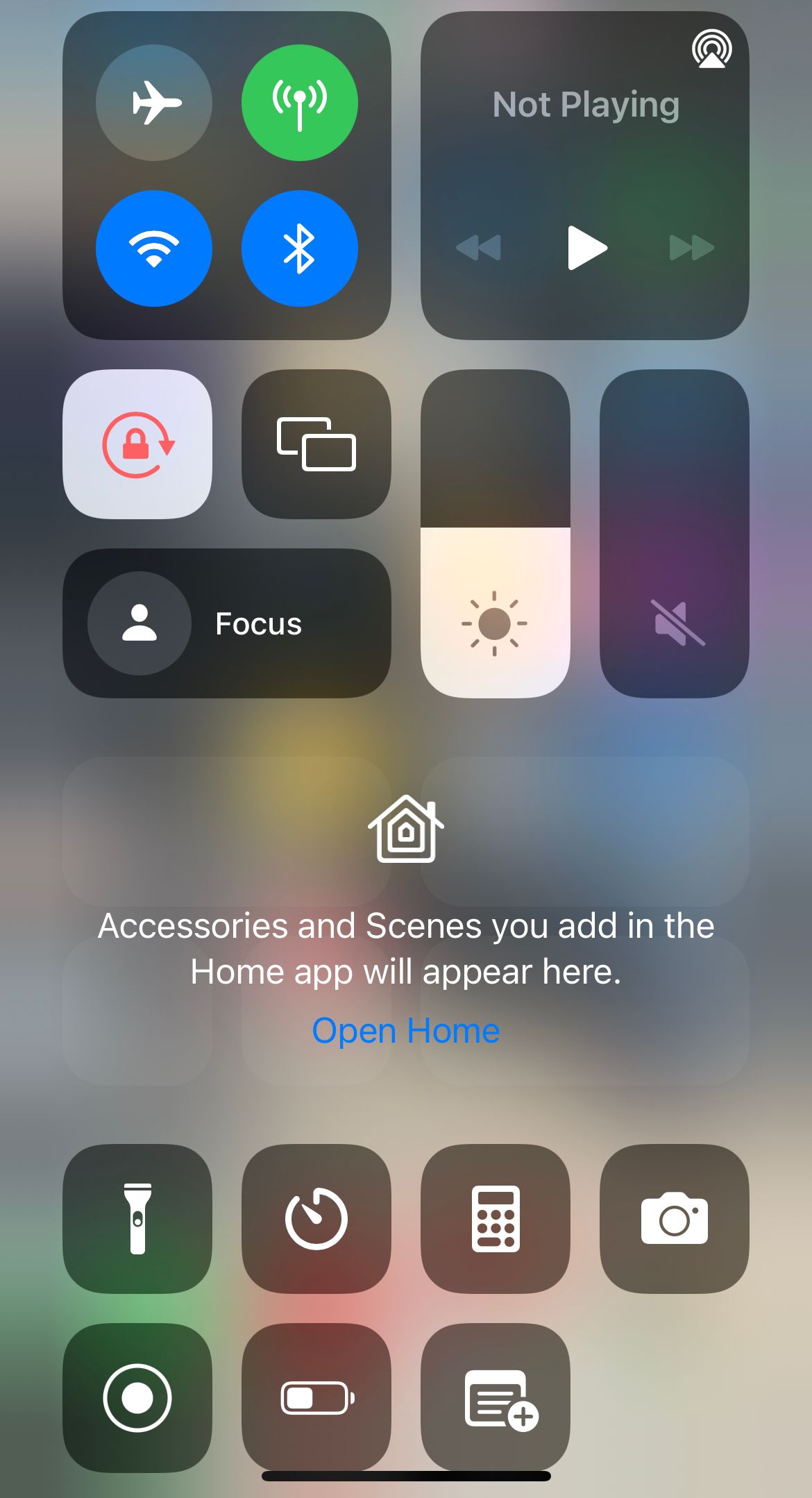
Open Settings > Airplane Mode and turn it on. Apple suggests leaving it on for at least 15 seconds, then turn it off. You can also toggle the airplane icon from Control Center.
Give your iPhone a moment to reconnect and watch the status bar for your carrier name or signal bars to return.
Restart Your iPhone
A restart clears temporary software glitches that can trigger SIM errors, especially after an update.
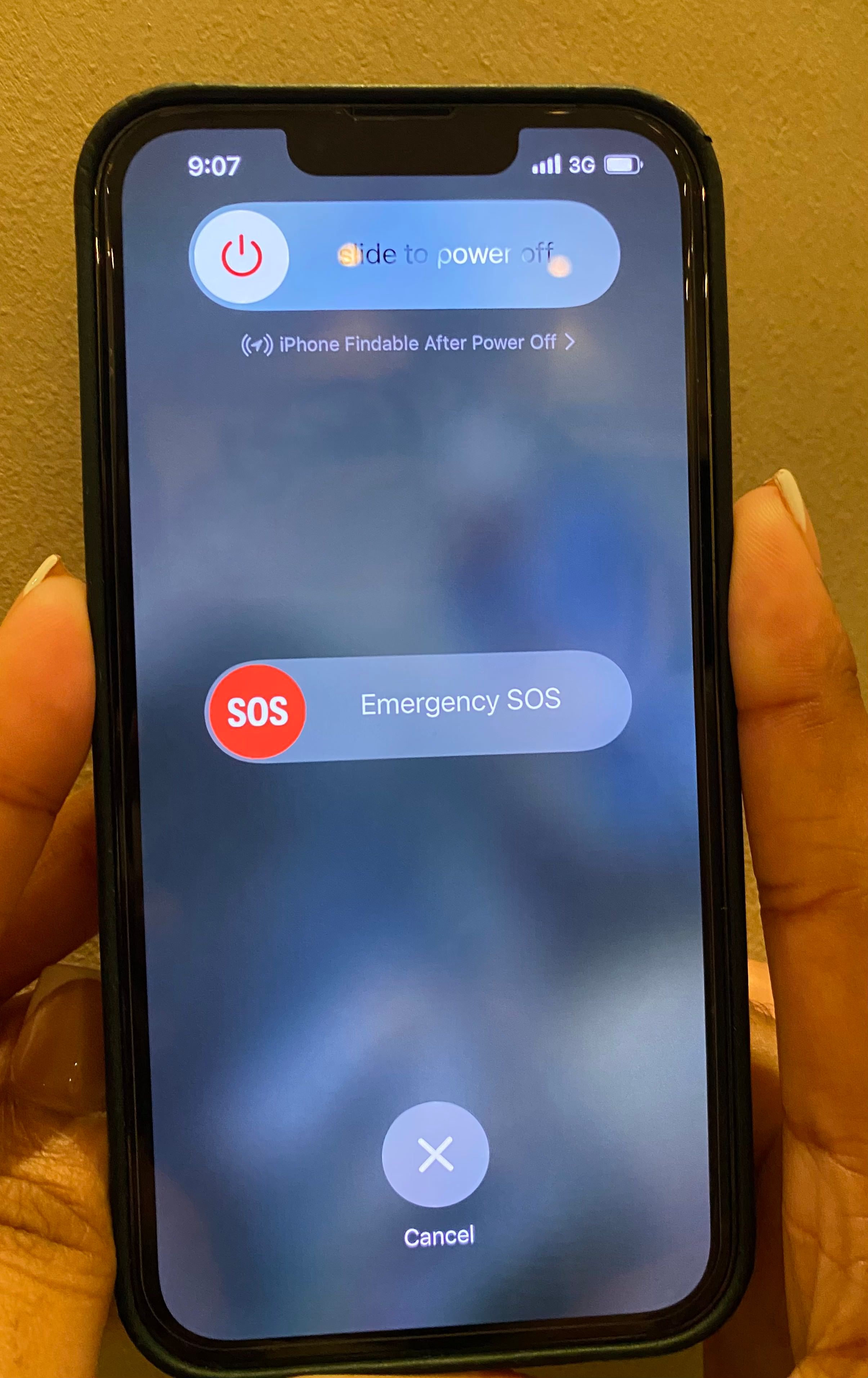
On an iPhone with Face ID, press and hold the side button and either volume button until the power-off slider appears, then drag it to turn the phone off. On an iPhone with a Home button, press and hold the side or top button instead.
Wait about 30 seconds, then press and hold the side button again until the Apple logo appears. Check whether the SIM alert is gone once the phone is back on.
Turn Your Cellular Line Off and On
If you use an eSIM, the line itself may have been switched off, which can produce a No SIM message even though the eSIM is still installed.
Go to Settings > Cellular and tap your line. It may be labeled Primary, Personal, Travel, or your carrier's name. Turn off Turn On This Line, wait a few seconds, then turn it back on.
This re-registers the line with your carrier and often restores service on its own.
Reseat the Physical SIM Card
An improperly seated or dirty physical SIM is one of the most common causes of these alerts. Reseating it is a reliable fix.
- 1.Power off your iPhone
- 2.Use the SIM eject tool or a paperclip to open the tray on the side of the phone
- 3.Remove the SIM and wipe it gently with a soft, dry cloth, then check for visible scratches or damage
- 4.Place the SIM back in the tray in the same orientation and push the tray in until it closes flush and is not loose
- 5.Power the iPhone back on
Apple notes that a SIM tray from a different model iPhone or another phone manufacturer might not fit properly, so use the tray that came with your device.
Update Your Carrier Settings
Carrier settings updates let your provider improve network connectivity and add support for features like 5G and Wi-Fi Calling. An outdated version can cause SIM recognition problems.
Connect to Wi-Fi, then go to Settings > General > About. If an update is available, you will see a prompt within a few seconds. Tap to install it and follow the on-screen instructions.
The current version appears next to Carrier on that same screen, so you can confirm it installed.
Update iOS to the Latest Version
Apple regularly fixes cellular and SIM-related bugs in iOS updates, so running an outdated version can keep an error alive.
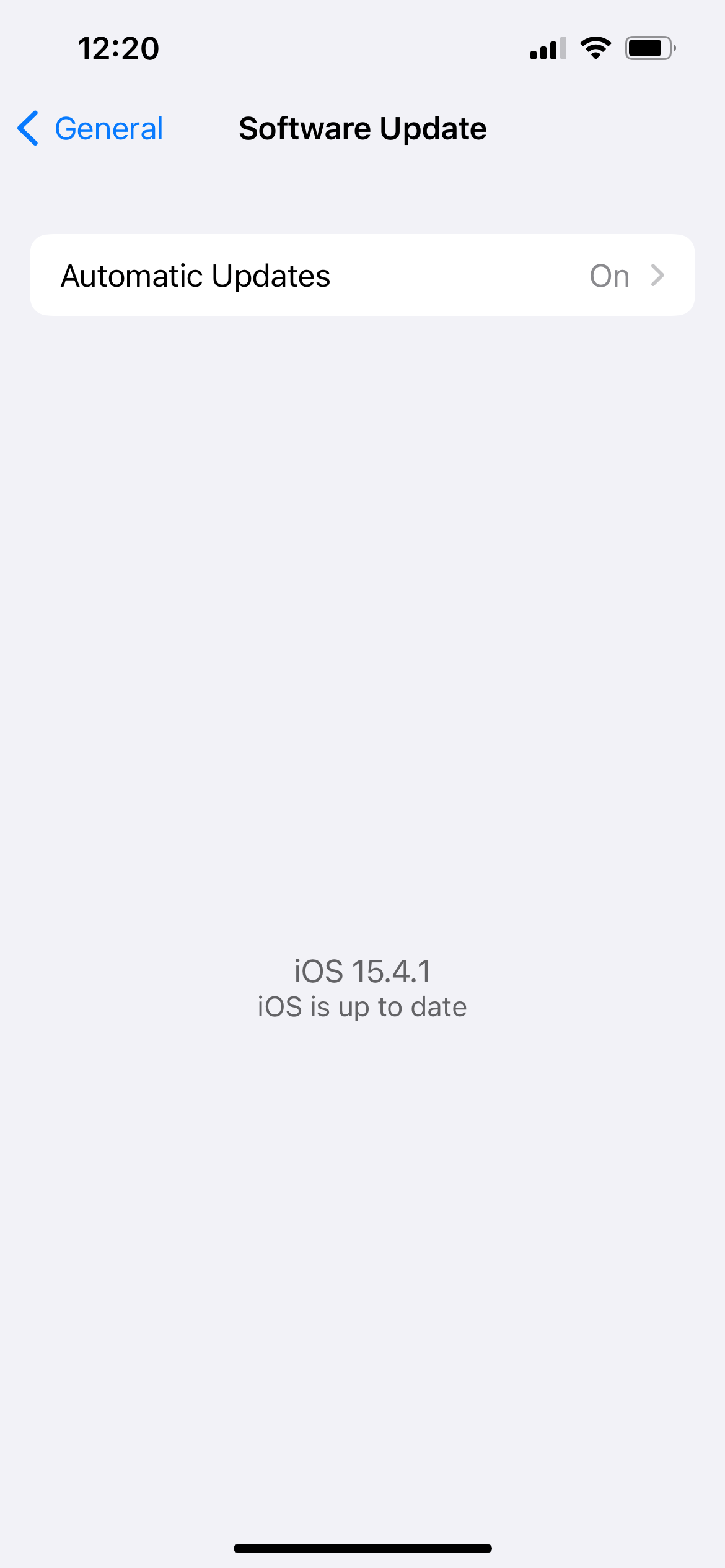
Connect to Wi-Fi, make sure your iPhone is charged or plugged in, then go to Settings > General > Software Update. Tap Download and Install if an update is available.
After the update finishes and your phone restarts, check whether the SIM alert has cleared.
Set Carrier Selection to Automatic
If your iPhone is locked to the wrong network manually, it can fail to register your SIM. Setting selection back to automatic lets the phone choose the correct network.
Go to Settings > Cellular > Network Selection and turn on Automatic. If it was already on, turn it off, let your iPhone search for networks, and select your carrier from the list, then switch Automatic back on.
This option may not appear on every carrier, so do not worry if you cannot find it.
Run a Diagnostic With the Apple Support App
On iPhone models running iOS 18 or later, Apple lets you install the Apple Support app and run additional diagnostics that can help pinpoint a cellular problem.
Install the latest version of the Apple Support app from the App Store, open it, tap your iPhone, then look for the cellular or SIM-related option and run the diagnostic.
The result can help indicate whether the issue is on your device or your carrier's side, which saves time before you call support.
Reset Network Settings
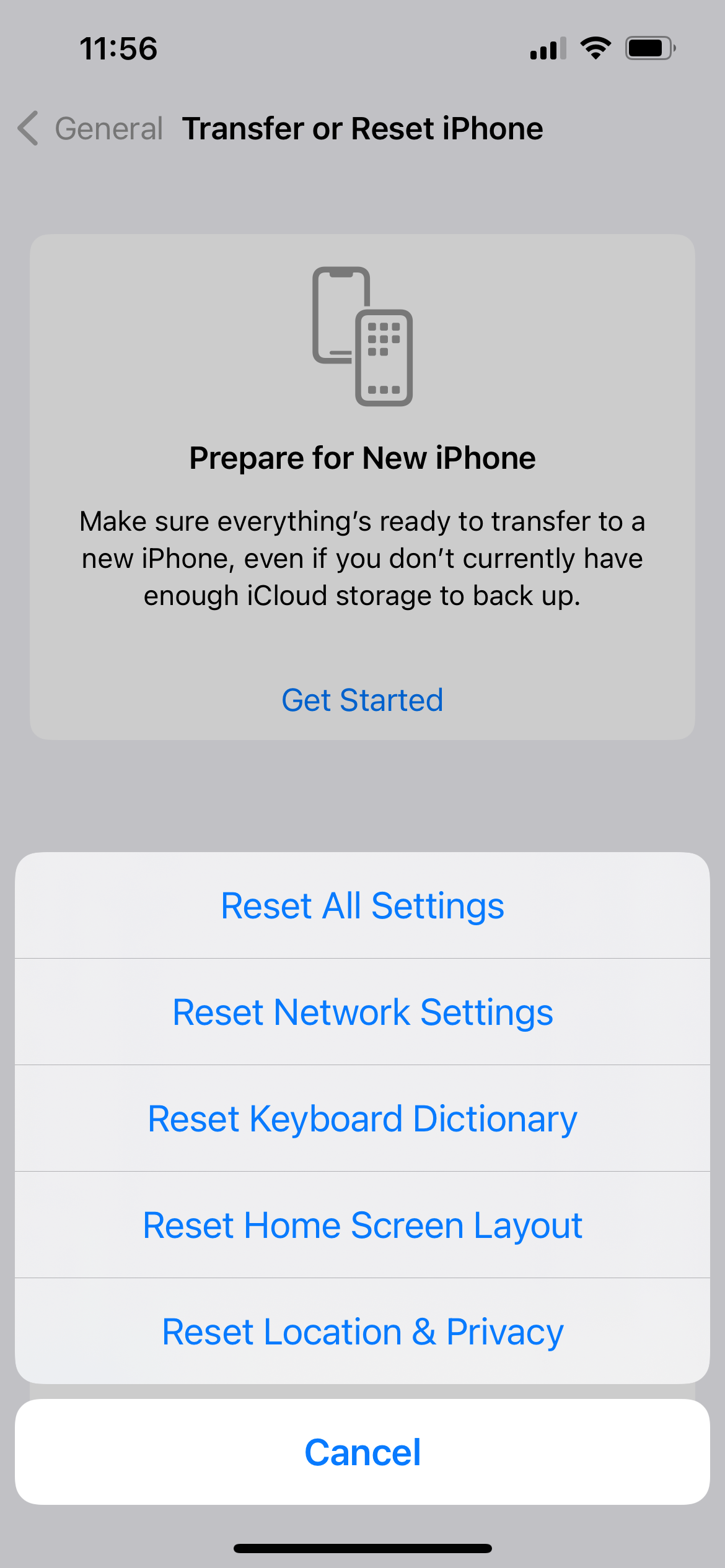
Resetting network settings clears corrupted cellular and network configurations without touching your photos, messages, or apps. It does erase saved Wi-Fi passwords, Bluetooth pairings, and VPN settings, so have your Wi-Fi password handy.
- 1.Go to Settings > General > Transfer or Reset iPhone
- 2.Tap Reset
- 3.Select Reset Network Settings
- 4.Enter your passcode and confirm
Your iPhone restarts and rebuilds its network settings from scratch, which often clears a stubborn SIM error.
Re-add or Re-provision Your eSIM
If your iPhone uses an eSIM and the line is still failing, the profile may have been removed or corrupted, which is something users have reported after major iOS updates.
First confirm the eSIM is still there in Settings > Cellular. If it is missing or will not connect, contact your carrier and ask them to re-provision the line. Most carriers can send a new QR code or push the eSIM directly to your device.
Have your account details and your IMEI or EID ready when you call. You can find both in Settings > General > About.
Test With a Different SIM Card
If you use a physical SIM and nothing above has worked, swapping in another SIM tells you whether the problem is the card or the phone.
- 1.Power off your iPhone
- 2.Remove your current SIM
- 3.Insert a known-working SIM, such as one borrowed from a friend or tested at a carrier store
- 4.Power the iPhone back on
If the borrowed SIM works, your original card is likely damaged and your carrier can issue a replacement. If the error stays with every SIM, the issue is more likely the phone.
Check for SIM Failure After Water Exposure
Water is a serious threat to both the SIM and the SIM reader. If your iPhone got wet, turn it off, unplug any cables, and dry the exterior right away.
Remove the SIM and let the tray and card dry fully before reinserting them. Avoid charging a wet iPhone, since moisture in the port can cause further damage.
Even if the phone seems fine afterward, water can corrode the SIM contacts. If you see SIM failure after exposure, you will likely need a replacement SIM from your carrier and possibly a hardware inspection.
Contact Your Carrier or Apple Support
If the alert persists through every step, the problem is most likely your account, a damaged card, or hardware. Your carrier can verify the account is active, confirm there is no outage in your area, and provide a replacement SIM.
If the carrier rules out their side and a different SIM still fails, contact Apple Support or visit an Apple Store. The SIM reader or related hardware may need service.
Switching to an eSIM, where your carrier supports it, can also prevent future physical SIM problems entirely, since there is no card or tray to fail.
Frequently Asked Questions
Why does my iPhone keep saying No SIM?
A repeating No SIM message usually means a loose or dirty physical SIM, an eSIM line that has been turned off, outdated carrier settings, or an account issue with your carrier. Reseating the SIM or toggling the line on and off fixes it in most cases. If it returns constantly, the SIM or the reader may be failing.
Can an iOS update fix an Invalid SIM error?
Yes. Apple regularly addresses cellular and SIM bugs in iOS updates, so installing the latest version from Settings > General > Software Update can clear an Invalid SIM alert. Updating your carrier settings from Settings > General > About often helps for the same reason.
Does the No SIM error happen with eSIM too?
It can. Even without a physical card, an eSIM iPhone can show No SIM if the line is switched off, the profile was removed during an update, or the carrier needs to re-provision it. Check Settings > Cellular to confirm the line is on, then contact your carrier to re-add the eSIM if needed.
Will resetting network settings delete my data?
No. Resetting network settings does not delete your photos, contacts, messages, or apps. It only removes saved Wi-Fi passwords, Bluetooth pairings, VPN configurations, and cellular settings, so reconnect your Wi-Fi afterward.
How do I know if my SIM card is damaged or the iPhone is the problem?
Test with a different SIM card. If a known-working SIM connects normally, your original card is damaged and your carrier can replace it. If every SIM fails, the issue is more likely the iPhone hardware, which Apple Support can diagnose.
Can I run a diagnostic on my iPhone for SIM issues?
Yes, on iOS 18 or later. Install the Apple Support app, open it, tap your iPhone, and run the available cellular diagnostic. It can help indicate whether the cause is your device or your carrier account before you contact support.
First published October 14, 2025. Last updated June 4, 2026.