
It's a common snag with a new phone like the iPhone 17e. You tap send on a photo and it just sits there, spinning forever or showing a "Not Delivered" alert. Since this is a brand new model running iOS 26, there can be some early software quirks to iron out. The good news is, the fixes are usually straightforward.
Let's start with the quickest one. If your picture is stuck, press and hold the photo bubble in the Messages app and tap "Send as Text Message." This bypasses iMessage entirely and forces it to use your cellular network's standard MMS. If it goes through, you know the issue is with your iMessage connection specifically.
Check Your Internet Connection First
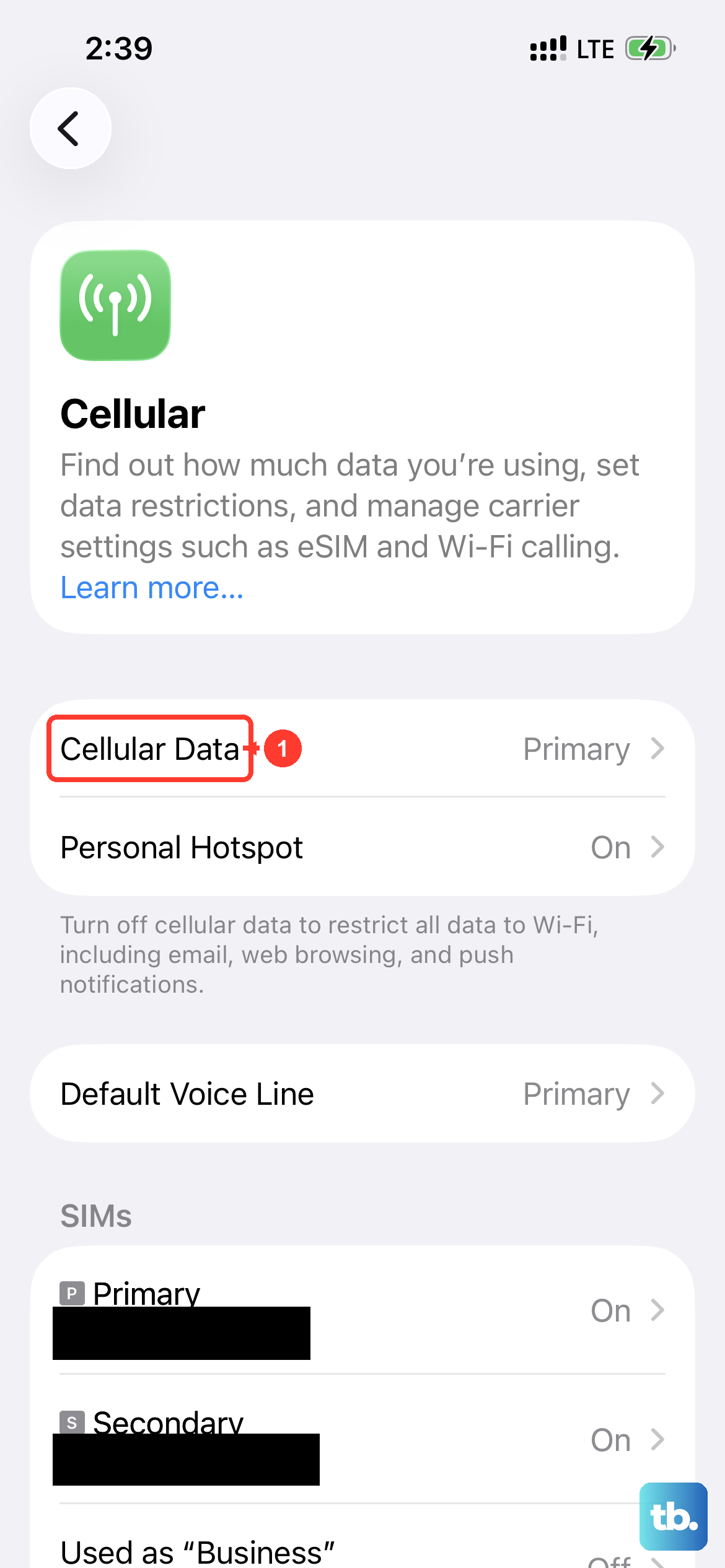
Pictures need data to travel. If you're on Wi-Fi, check that the icon is in your status bar and you have a strong signal. Sometimes, just toggling Wi-Fi off and back on in Control Center can re-establish a better connection. For cellular, the new C1X modem in the iPhone 17e is great, but it still needs bars.
Look at the signal indicator in the top corner. If it's low, try moving to a different spot or even switching between 5G and LTE. You can do this in Settings > Cellular > Cellular Data Options > Voice & Data. A slower, more stable LTE connection can sometimes be more reliable for sending large images than a spotty 5G signal.
Verify iMessage and MMS Are Active
This is a two-part check. First, ensure iMessage itself is on. Go to Settings > Apps > Messages and make sure the iMessage toggle is green. I'd turn it off, wait a few seconds, and turn it back on to refresh its connection to Apple's servers.
Second, you need MMS enabled for sending pictures to non-iPhone users or when iMessage fails. In the same Settings > Apps > Messages menu, scroll down and ensure "MMS Messaging" is turned on. Also, enable "Send as SMS" as a fallback. This tells your phone to automatically use a regular text if an iMessage doesn't go through after a short time.
Restart and Force Restart Your iPhone 17e
A simple restart clears out temporary glitches that can hang up the Messages app. Just hold the side button and either volume button, slide to power off, wait 30 seconds, and turn it back on.
If a normal restart doesn't help, try a force restart. This is slightly different on the 17e. Quickly press and release the Volume Up button, then quickly press and release the Volume Down button. Finally, press and hold the Side button. Keep holding it until you see the Apple logo appear, then let go.
Update Your Carrier Settings and iOS
Carrier updates are small files from your mobile provider that improve network performance. To check, go to Settings > General > About. If an update is available, a prompt will appear right on this screen. Installing it can often resolve sending issues.
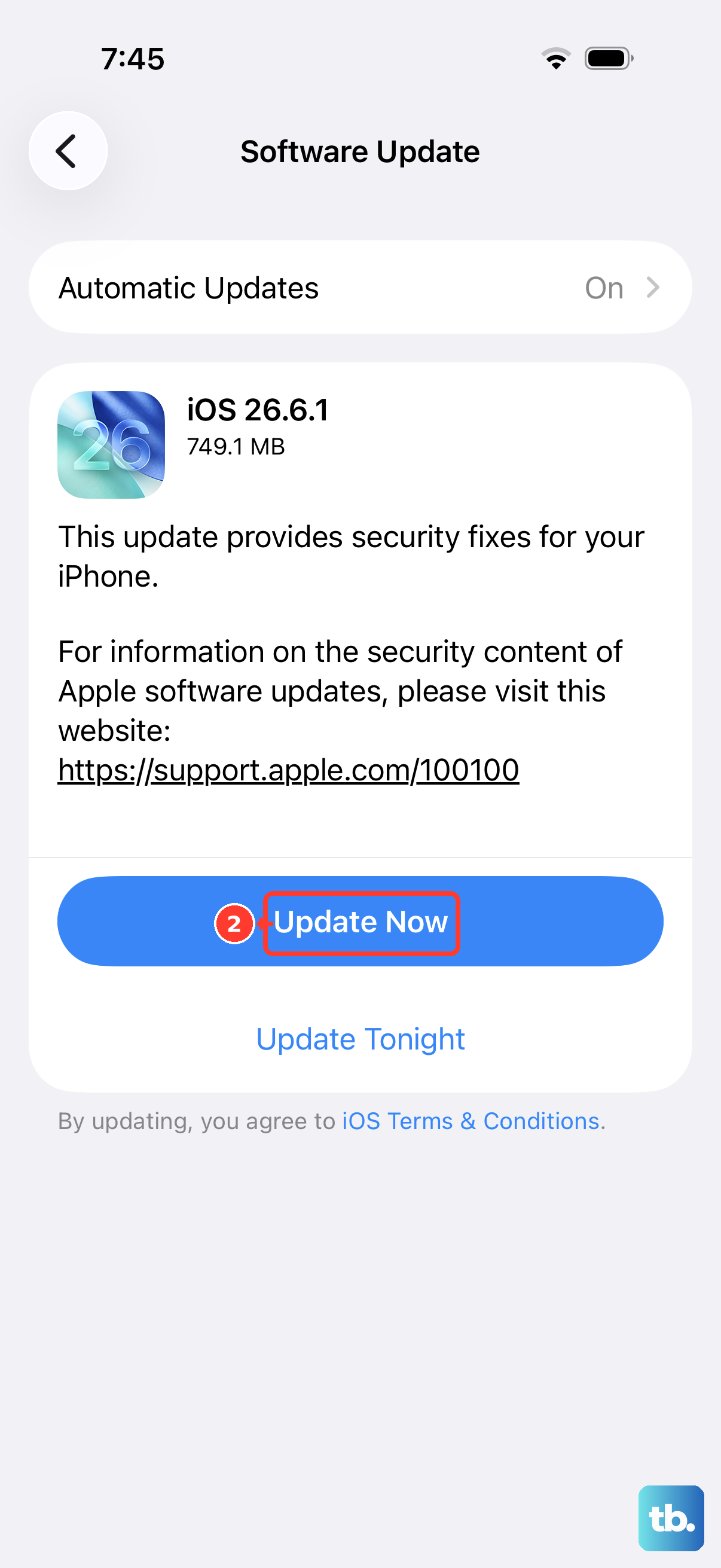
Next, check for an iOS update. Being a 2026 device, Apple is likely releasing frequent iOS 26 updates to squash early bugs. Go to Settings > General > Software Update. If there's an update waiting, install it over Wi-Fi while your phone is charging. The 20W wired charging is plenty fast for this.
Refresh Your Network and Apple ID Connections
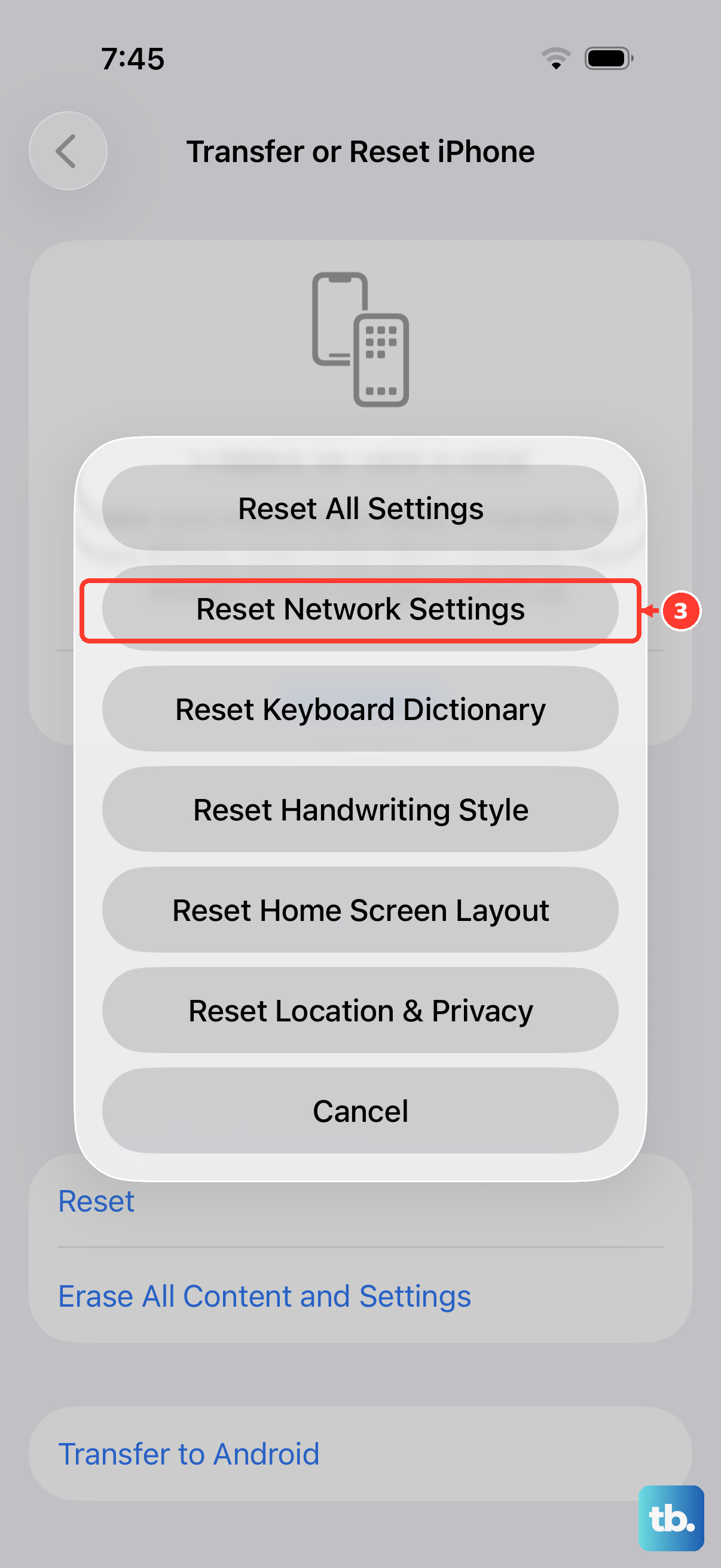
If connectivity seems to be the core issue, resetting your network settings can help. This wipes all saved Wi-Fi passwords, VPN settings, and cellular preferences back to default. Go to Settings > General > Transfer or Reset iPhone > Reset > Reset Network Settings. You'll need to re-join your Wi-Fi networks afterward.
For problems that seem tied to iMessage, signing out and back into your Apple ID can refresh everything. Go to Settings > [Your Name] at the top. Scroll all the way down and tap "Sign Out." Restart your phone, then sign back in. This can clear up authentication hiccups.
Check Your Send & Receive Addresses
Sometimes iMessage gets confused about which phone number or email to use. Go to Settings > Apps > Messages > Send & Receive. Under "You can be reached by iMessage at," make sure your current iPhone 17e phone number is checked. You can also check any email addresses you want to use.
In the same menu, look at "Start New Conversations From." This should be set to your phone number. If it's set to an old email address by mistake, messages might not send correctly.
Disable Low Data Mode and Low Power Mode
Both of these modes are designed to restrict background data to save battery or data usage, and they can block picture messages. For cellular, check Settings > Cellular > Cellular Data Options and make sure "Low Data Mode" is off.
Also, swipe down from the top-right to open Control Center and check if the yellow Low Power Mode icon is active. If it is, tap it to turn it off. These modes are useful, but they're often the culprit when media won't send.
Reset All Settings as a Last Step
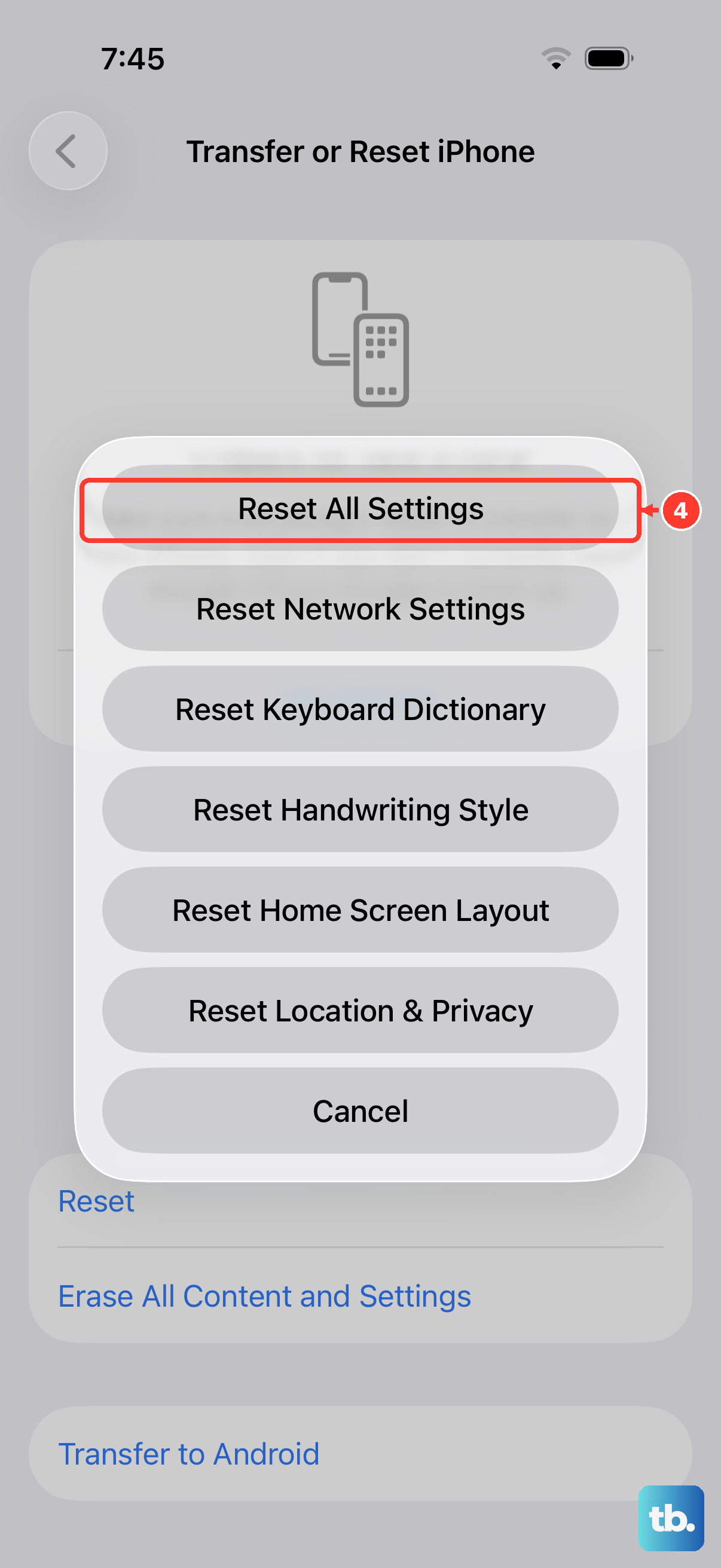
If you've tried everything else and photos still won't send, you can reset all settings. This won't delete your apps, photos, or data, but it will wipe all your preferences like wallpaper, privacy permissions, and keyboard settings back to factory default.
Go to Settings > General > Transfer or Reset iPhone > Reset > Reset All Settings. Enter your passcode to confirm. After the phone reboots, you'll need to re-setup things like Face ID and Wi-Fi, but it often resolves persistent software conflicts that simpler resets don't touch.