
Running out of space on your iPhone 17 Pro can bring everything to a halt, stopping you from taking new photos or updating apps. The storage management tools in iOS 26 are pretty smart, and you can often clear up dozens of gigabytes without much effort. Let's get right into the most effective ways to free up that space.
Start With the iPhone Storage Breakdown
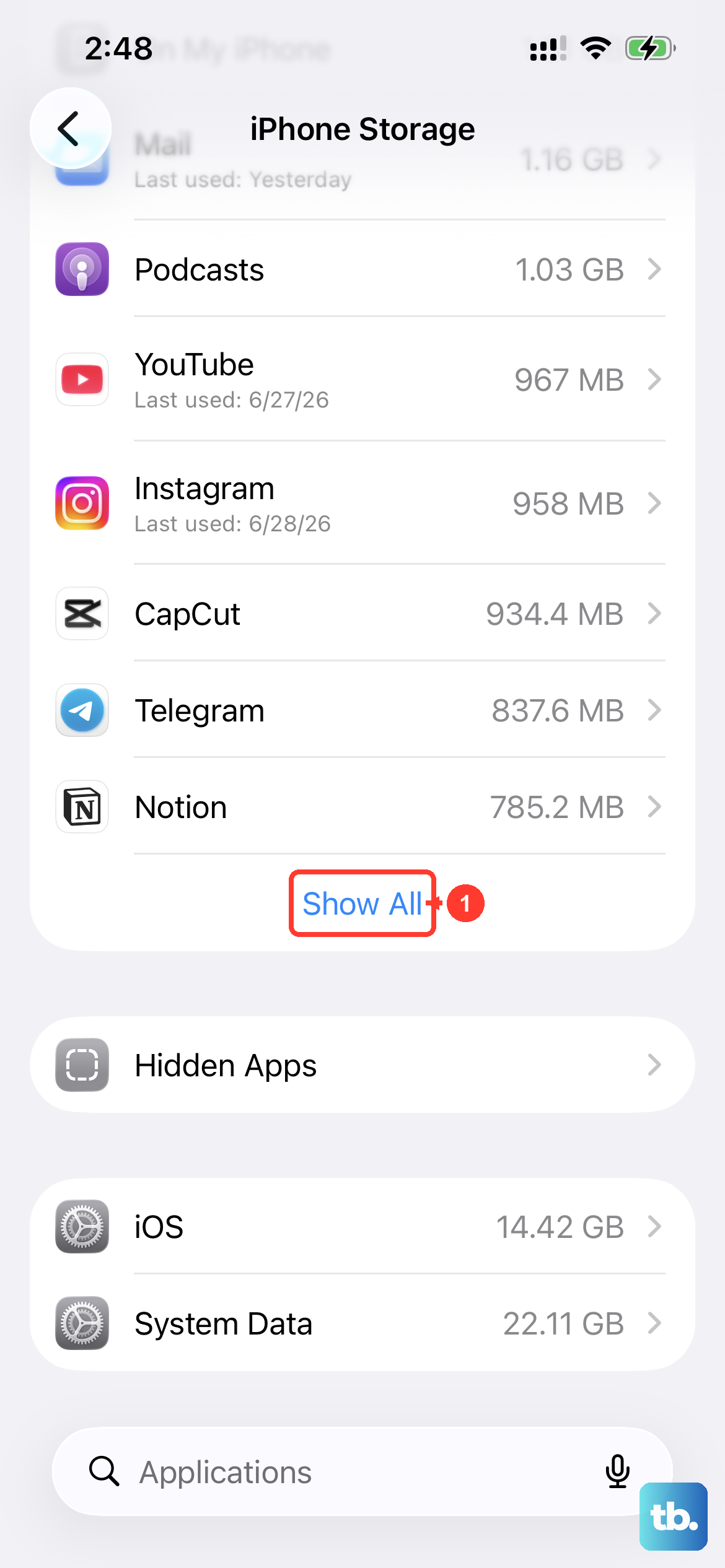
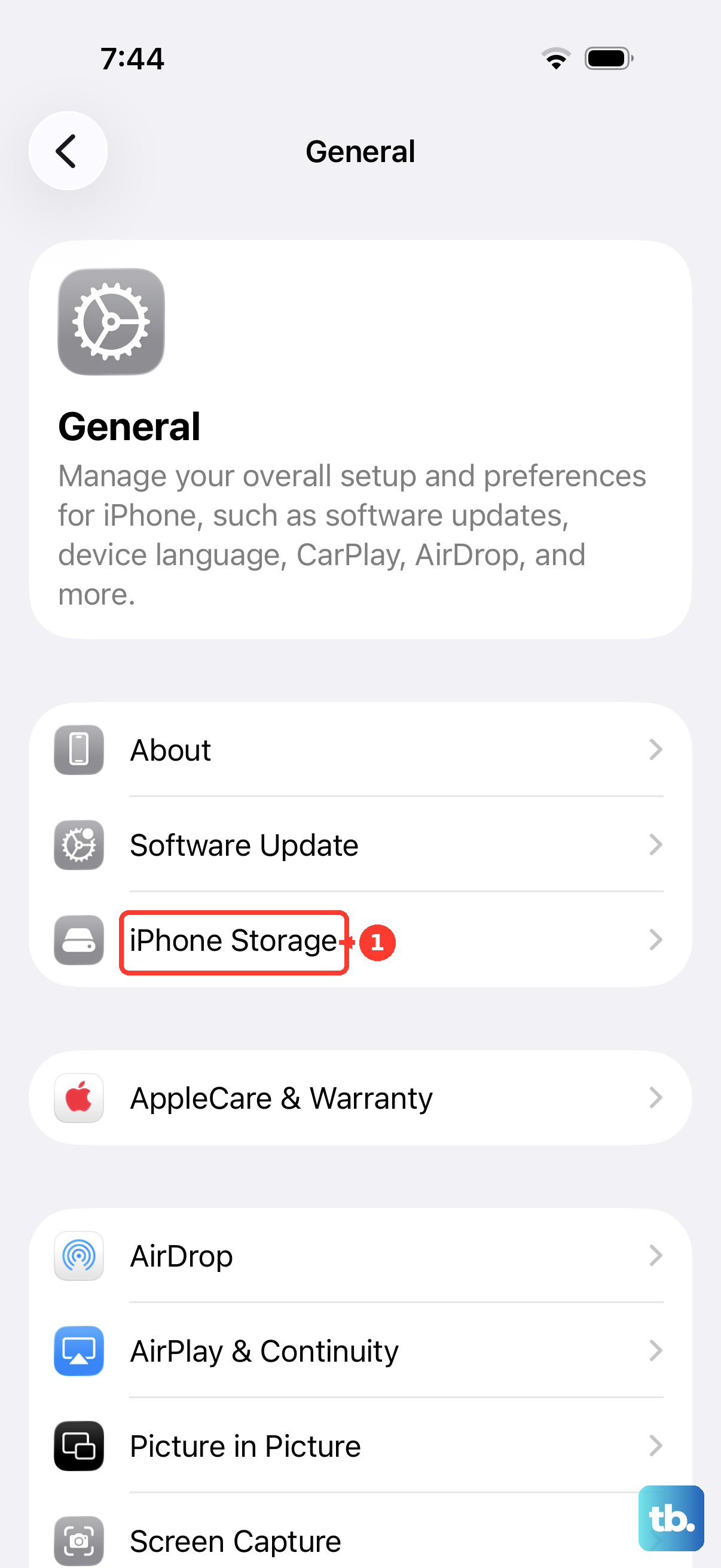
Head straight to Settings > General > iPhone Storage. This screen gives you a complete breakdown of what's filling your phone, sorted by size. Wait a moment for it to finish calculating. On the iPhone 17 Pro, you'll often see Photos, Messages, and streaming apps like Spotify at the top of the list, which gives you a clear target for cleanup.
Enable Offload Unused Apps
Right on that same iPhone Storage screen, look for the Offload Unused Apps toggle and turn it on. This is one of the easiest wins. Your phone will automatically remove apps you haven't opened in a while, but it keeps all their documents and data saved. When you need the app again, just tap its icon and it downloads right back, good as new.
You can also do this manually. Tap on any app in the storage list and select Offload App. It's perfect for those large games or niche tools you only use once in a blue moon.
Tackle Your Messages Cache
Conversations in Messages, especially group chats, can hoard a shocking amount of photos and videos. Go to Settings > General > iPhone Storage and tap on Messages. You'll see a breakdown by media type, Photos, Videos, GIFs. Tap into each section to review and bulk delete what you don't need.
For a permanent fix, set messages to auto-delete. Go to Settings > Apps > Messages > Keep Messages and select 30 Days or 1 Year. This prevents the problem from building up again.
Delete and Reinstall Large Apps
Apps like Instagram, TikTok, and Facebook accumulate huge caches of temporary data. In your iPhone Storage list, look for apps where the "Documents & Data" size is much larger than the "App" size itself. For those, the nuclear option works best.
Delete the app entirely from your home screen, then reinstall it fresh from the App Store. You'll log back into your account, and all that cached junk will be gone, freeing up sometimes 5GB or more instantly.
Optimize Your Photo Library
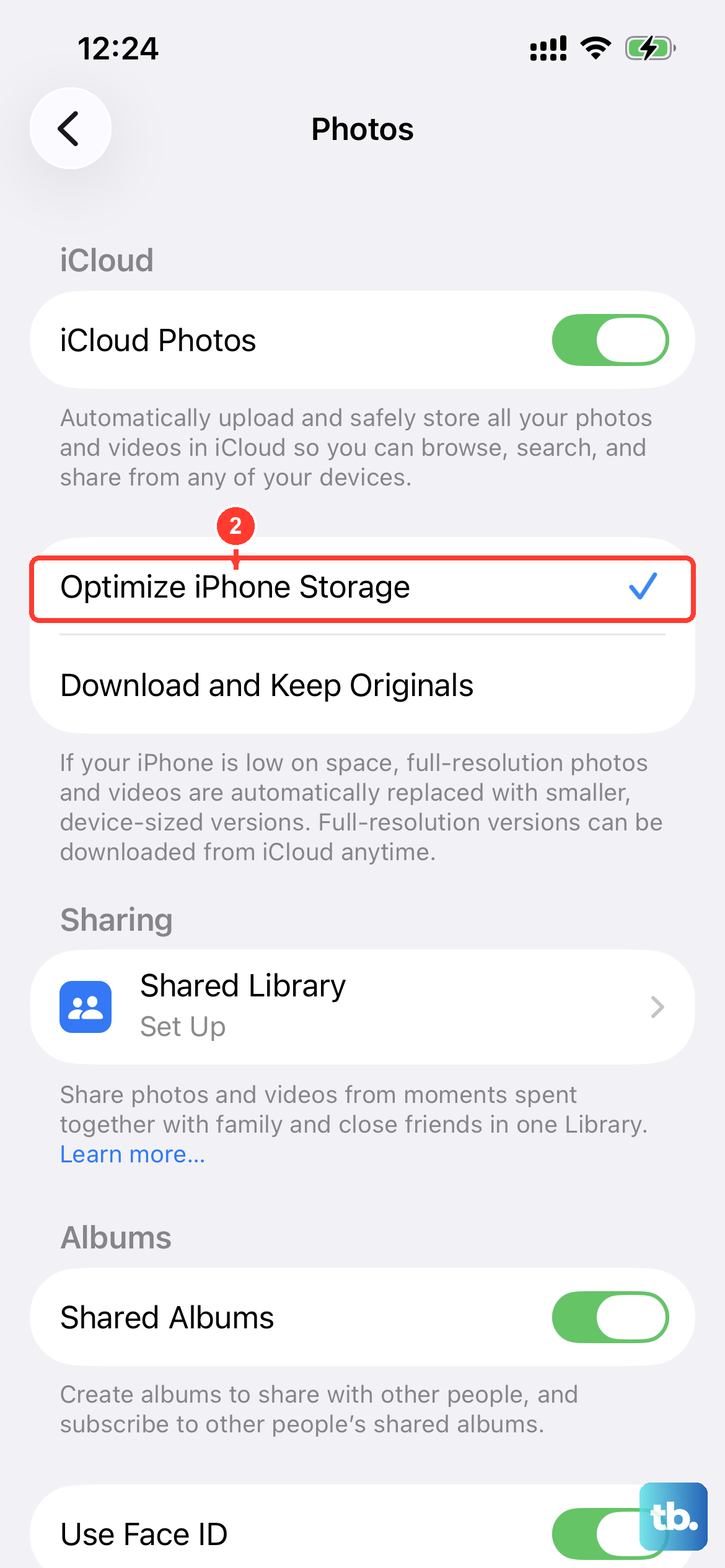
This is usually the biggest space saver. Go to Settings > Photos and make sure Optimize iPhone Storage is enabled. This keeps full-resolution originals safely in iCloud while storing smaller, device-sized versions on your iPhone 17 Pro.
Next, spend a few minutes in the Photos app. Search for "Screenshots" or "Videos" and bulk delete what you don't need. Finally, don't forget to open the Recently Deleted album and tap "Delete All" to permanently remove those items.
Clear Safari's Website Data
Your browsing history and cached pages take up space. Go to Settings > Apps > Safari > Clear History and Website Data. Tap to confirm. This resets your browsing data and can reclaim several hundred megabytes, especially if you haven't done it in a while.
Manage Downloaded Media
Streaming apps are sneaky storage hogs. Open Spotify, Netflix, Apple Podcasts, or Apple Music and look for your downloaded content. In Spotify, go to Settings > Storage and remove downloads. In Netflix, tap your profile icon and go to My Downloads to delete watched shows.
I've found that just clearing out old podcast episodes and a few downloaded playlists can free up 10GB or more on the iPhone 17 Pro's fast storage.
Review System Data in iOS 26
After a major update, the "System Data" category can sometimes balloon in size. Check it in Settings > General > iPhone Storage. If it's showing 20GB or more, it might be temporary cache.
A simple force restart can help. On the iPhone 17 Pro, quickly press and release the Volume Up button, then the Volume Down button, then press and hold the Side button until you see the Apple logo. If that doesn't reduce it after a day, the system should clean itself up over time as it finishes background tasks.
Consider Your iCloud+ Plan
If you're constantly managing storage, it might be time for more iCloud space. With a larger iCloud+ plan, features like iCloud Photos and Messages in iCloud work seamlessly to keep your local storage free. You can check your options at Settings > [Your Name] > iCloud > Manage Account Storage.