
When your iPhone 17 Pro's screen stops responding, the first thing to try is a force restart. This is the single most effective fix for a frozen or unresponsive touchscreen. Press and quickly release the Volume Up button, then quickly press and release the Volume Down button. Immediately after, press and hold the Side button. Keep holding it until you see the Apple logo appear, then you can let go.
This process forces the phone to reboot without deleting any of your data. I've found it works about 90% of the time for temporary software glitches that cause the touchscreen to lock up. It's especially useful if the problem started after installing a new app or an iOS 26 update.
Clean Your Screen and Remove Any Case
It sounds simple, but moisture, grease, or a thick screen protector can interfere with the touch sensors. Use a soft, lint-free cloth to thoroughly clean the screen. Pay attention to the edges where oils from your hands tend to build up.
Next, take your iPhone 17 Pro out of its case. Some third-party cases, particularly bulky ones or those with built-in magnets, can interfere with the screen's sensitivity. With the case off, test the touchscreen again. If it works, you've found the culprit.
Check for Physical Damage or Moisture
Look closely at the screen for any new cracks, even hairline ones, that weren't there before. A damaged digitizer underneath the glass can cause touch failure in specific spots or across the entire display. Also, check the USB-C port for any lint or debris.
If your phone has been exposed to liquid, even just high humidity, it can cause temporary touch issues. The iPhone 17 Pro is water-resistant, but not immune. Let the phone dry completely in a well-ventilated area for at least a few hours before trying to use it again.
Update iOS to the Latest Version
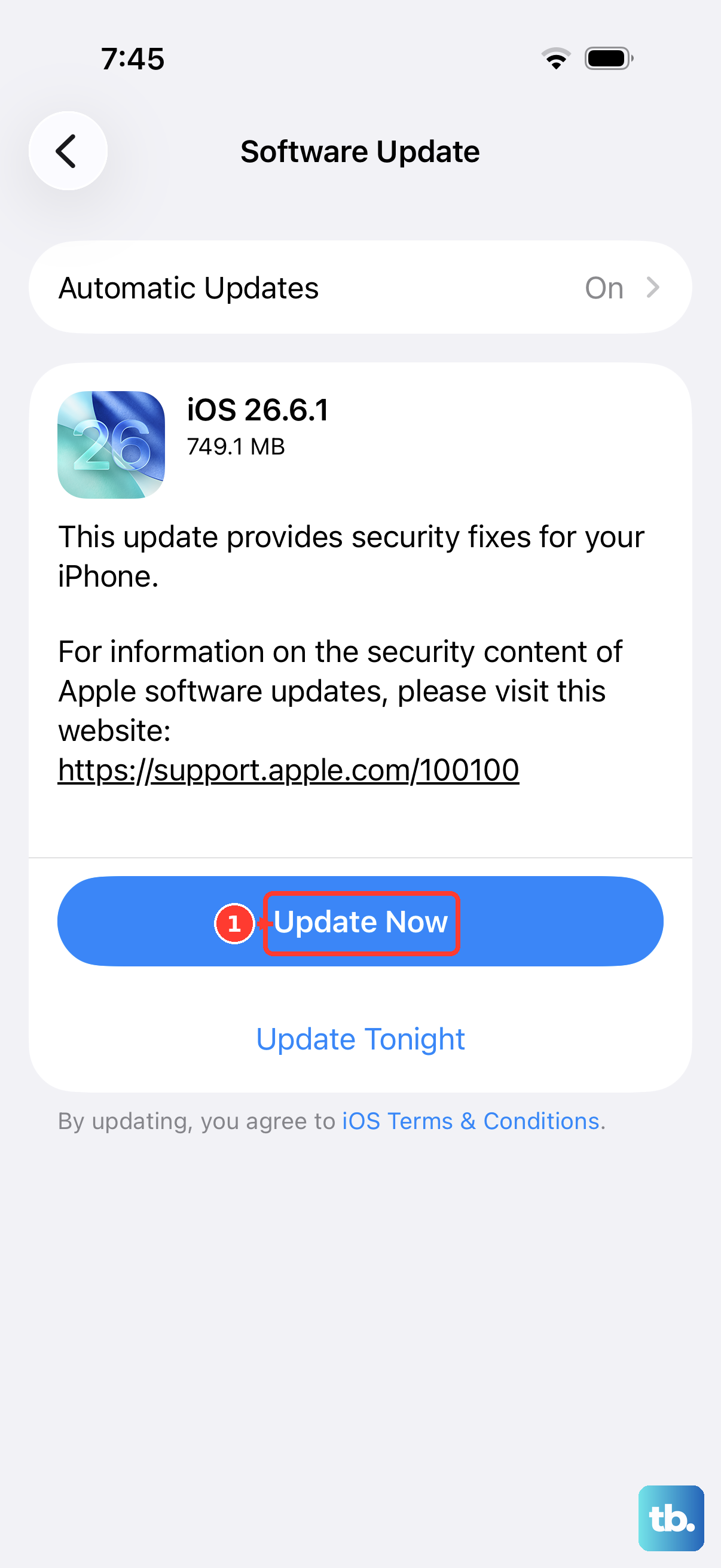
Outdated software can contain bugs that affect touchscreen performance. Connect your iPhone to Wi-Fi and plug it into power. Go to Settings > General > Software Update.
If an update is available, tap Download and Install. Keeping iOS 26 updated is crucial, as Apple frequently releases patches for performance and stability issues. This can resolve touch problems that appeared after a recent app update or a minor software corruption.
Charge Your iPhone Properly
A very low battery or charging problems can sometimes cause system instability, including an unresponsive screen. Use your Apple 40W Dynamic Power Adapter and a certified USB-C cable to charge the phone for at least 30 minutes.
If you're using a standard USB-C PD charger, it will be limited to about 30W. While charging, check if the screen becomes responsive. Also, note that the phone can get warm during 40W fast charging, which is normal, but excessive heat could temporarily affect performance.
Check for App-Specific Issues
If the touchscreen only fails in one particular app, the problem is likely with that app, not your phone. Force close the problematic app. Swipe up from the bottom of the screen and hold in the middle, then swipe the app's preview up and off the top of the screen to close it.
Reopen the app to see if it works. If not, check the App Store for any available updates for that app. As a last resort for that single app, you can delete and reinstall it, which will clear its cached data.
Reset All Settings
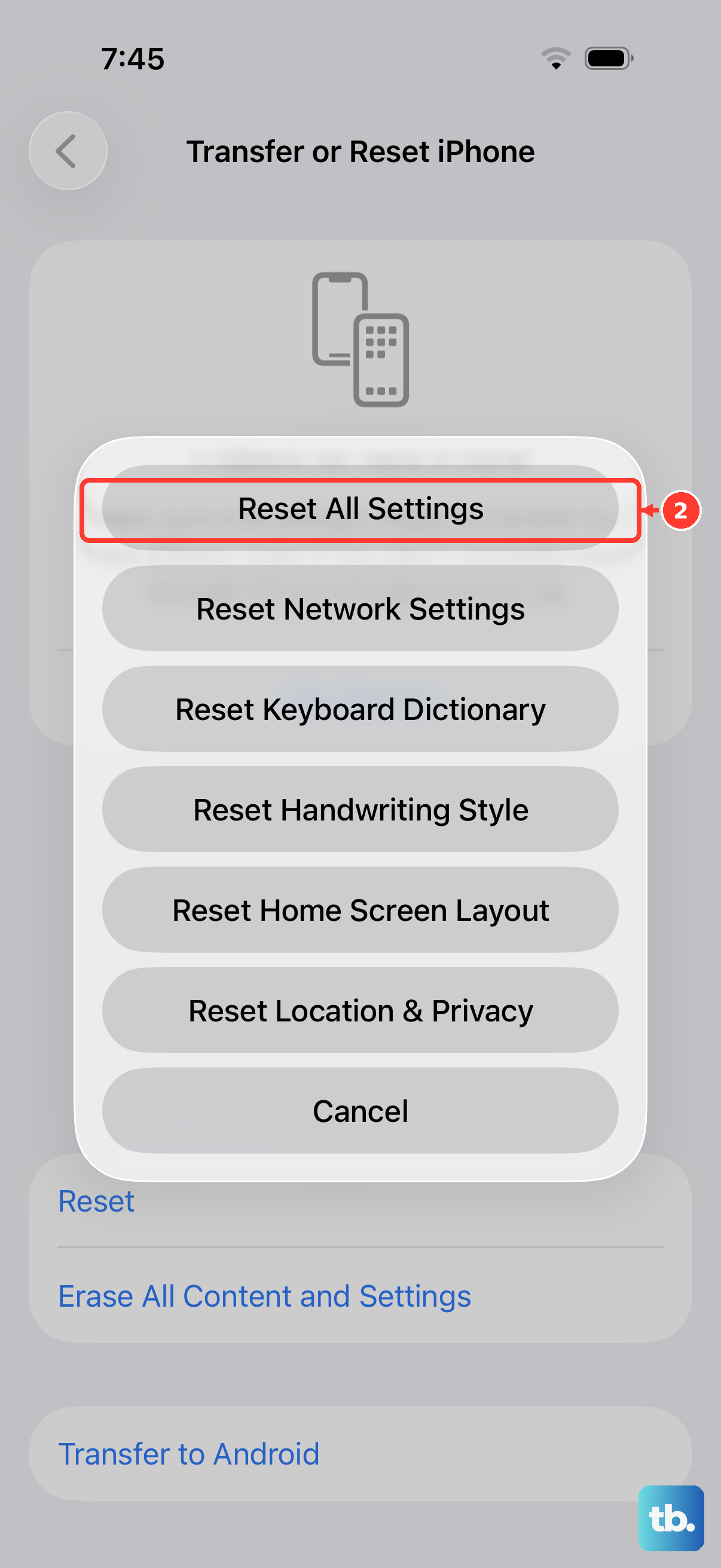
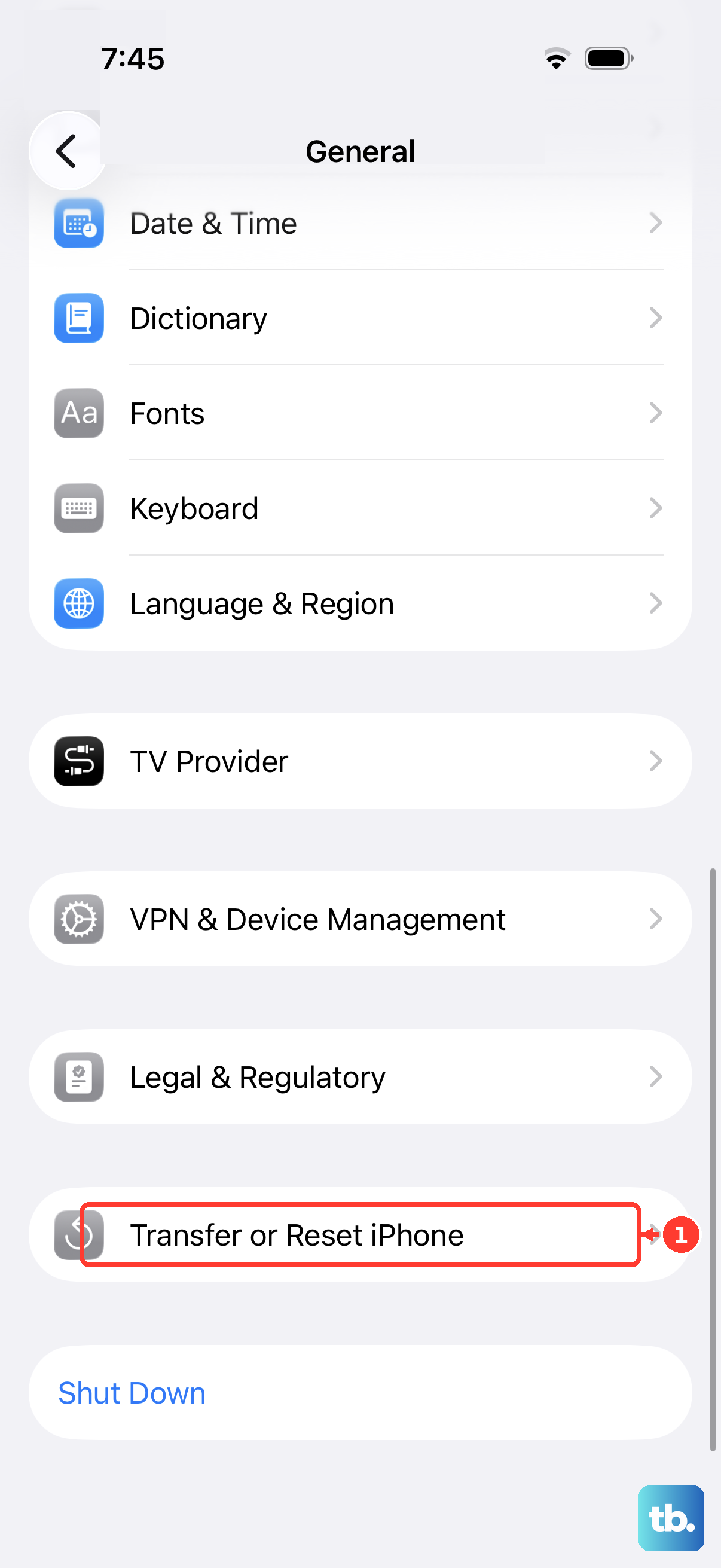
This will not erase your photos, messages, or apps, but it will reset all your system preferences to their defaults. Go to Settings > General > Transfer or Reset iPhone. Tap Reset and then choose Reset All Settings.
You'll need to re-enter your Wi-Fi passwords and reconfigure things like display brightness and notification preferences. This fix can clear out any incorrect settings or minor software corruption that's interfering with the touchscreen driver.
Restore Your iPhone via a Computer
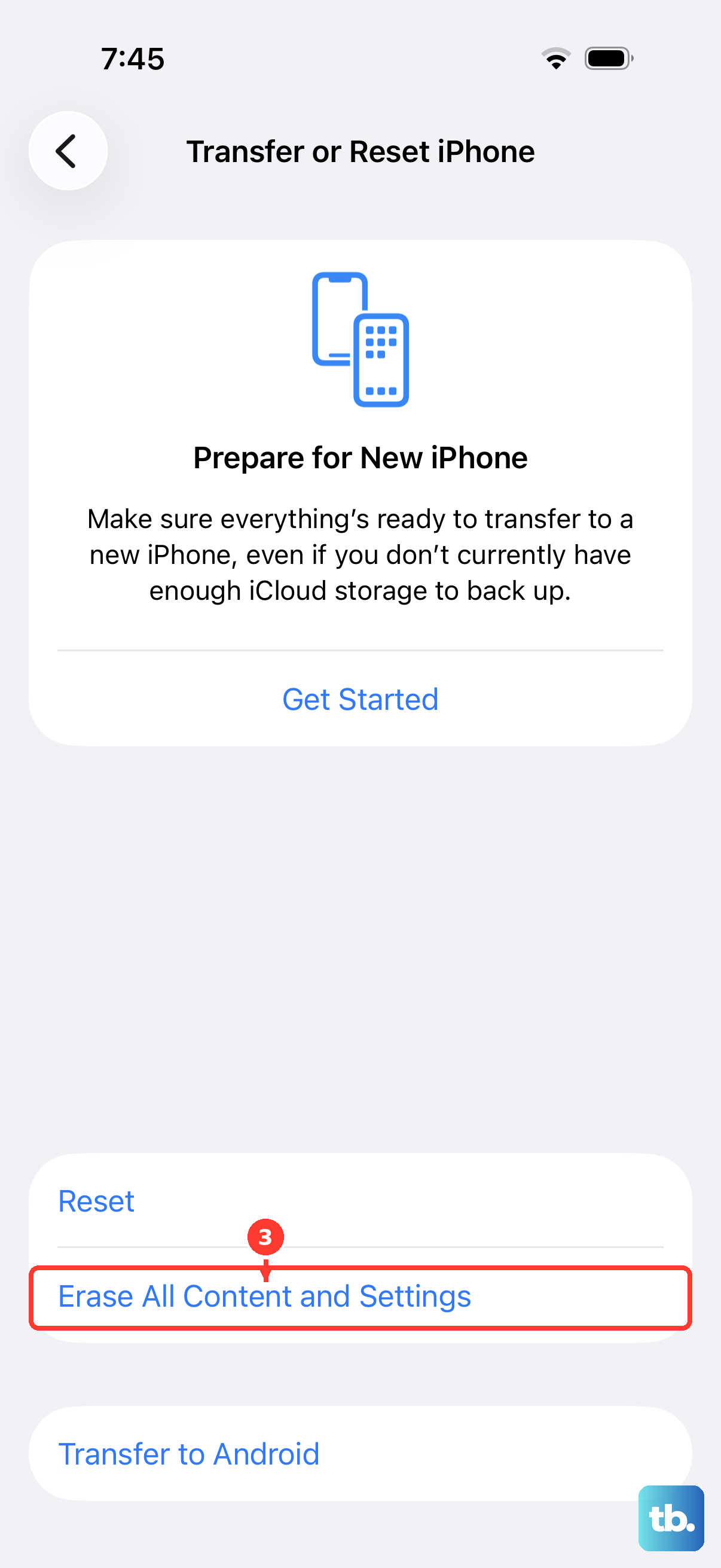
This is the most comprehensive software fix and will erase all content and settings. Make sure you have a recent backup in iCloud or on your computer. Connect your iPhone 17 Pro to a Mac or PC using a USB-C cable.
On a Mac with macOS Catalina or later, open Finder. On a PC or older Mac, open iTunes. Put your iPhone into recovery mode: quickly press and release Volume Up, then Volume Down, then press and hold the Side button until you see the recovery mode screen.
In Finder or iTunes, choose the option to Restore. This will install a clean, fresh copy of iOS 26. After it completes, you can set up the phone as new or restore from your backup to see if the touch issue is resolved.