
If your iPhone 17 Pro is suddenly quiet, missing alerts for texts, calls, and apps, it can feel like you're out of the loop. This is a common hiccup, and it's usually something simple you can fix yourself in a few minutes.
Start with the quickest solution first. Swipe down from the top-right corner to open Control Center and make sure the Focus control (a crescent-moon icon) isn't highlighted. If it is, tap it to turn off Focus, which can filter or silence your notifications.
Check Notification Settings for Specific Apps
Sometimes, the issue is with a single app like Messages or Mail. Go to Settings > Notifications. Scroll down and tap the app that's not alerting you.
Make sure "Allow Notifications" is toggled on. Then, check that the alert style is set to something other than "None." You can also enable sounds and badges here.
Restart Your iPhone 17 Pro
A quick restart clears out temporary software glitches that can interrupt the notification system. It's the digital equivalent of turning it off and on again, and it works surprisingly often.
Just press and hold the Side button with either volume button, slide to power off, wait 30 seconds, then press the Side button again to turn it back on.
Force Restart Your Device
If a normal restart doesn't help, try a force restart. It doesn't erase any data. On the iPhone 17 Pro, you press and quickly release the Volume Up button, then quickly press and release the Volume Down button.
Finally, press and hold the Side button. Keep holding it until you see the Apple logo appear on the screen, then let go.
Disable and Re-Enable Do Not Disturb and Focus
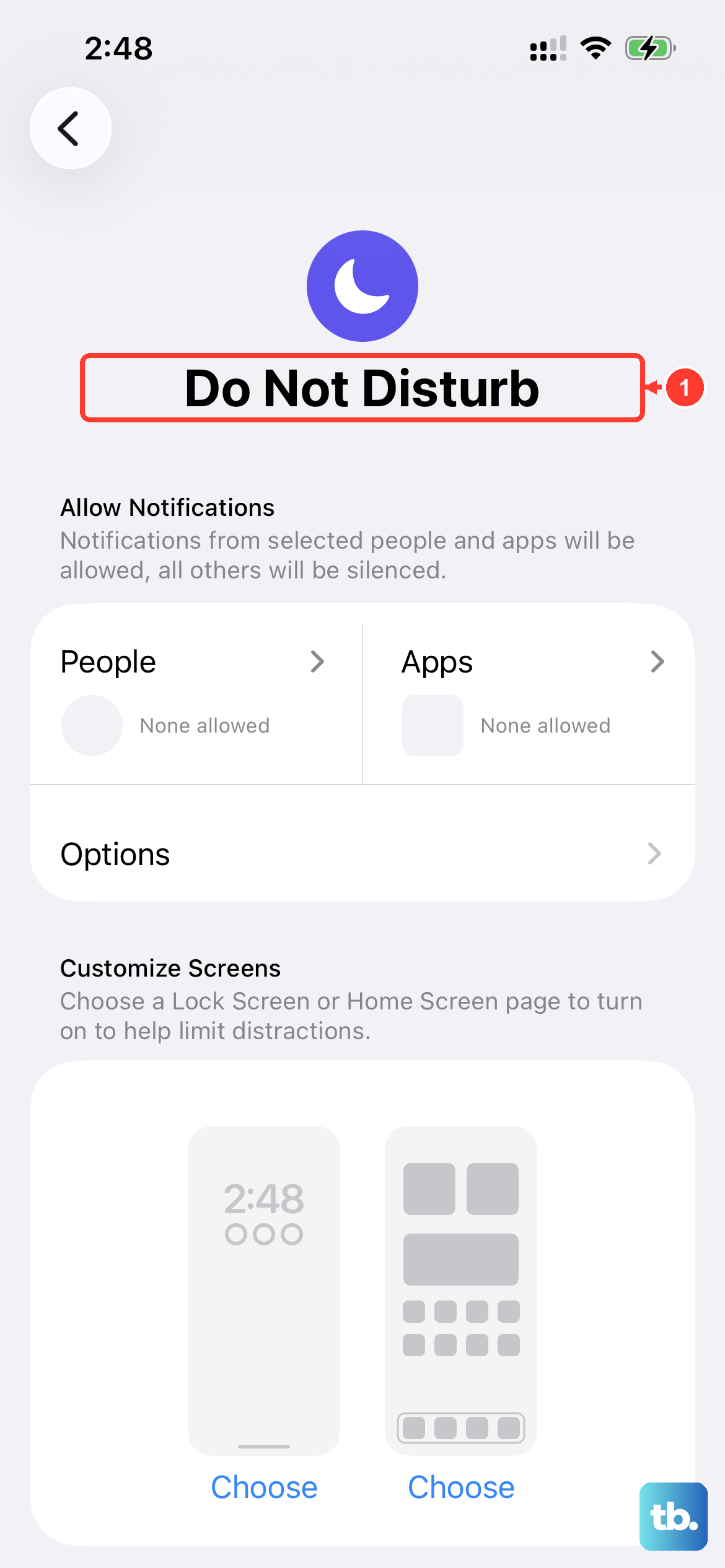
Focus modes, like Do Not Disturb, Work, or Sleep, are powerful but can sometimes get stuck. Go to Settings > Focus.
Tap on each active Focus and toggle it off. Wait a few seconds, then toggle it back on. You can also check the settings under each Focus to ensure certain people or apps are allowed to break through.
Check for a Software Update
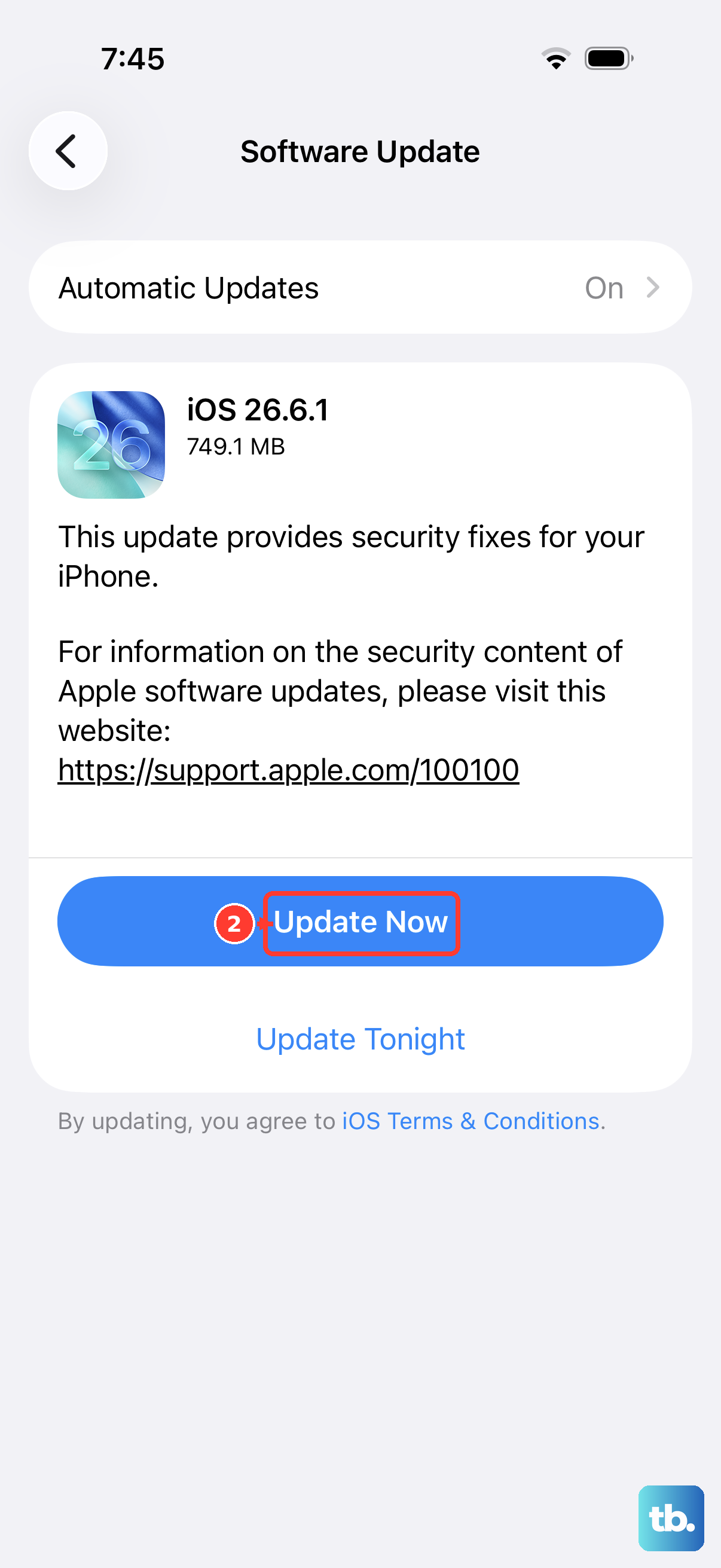
Apple frequently releases iOS updates that fix bugs, including ones related to notifications. Installing the latest version of iOS can resolve the issue.
Go to Settings > General > Software Update. If an update is available, tap "Download and Install." It's a good idea to plug your phone into power during this process.
Reset All Settings
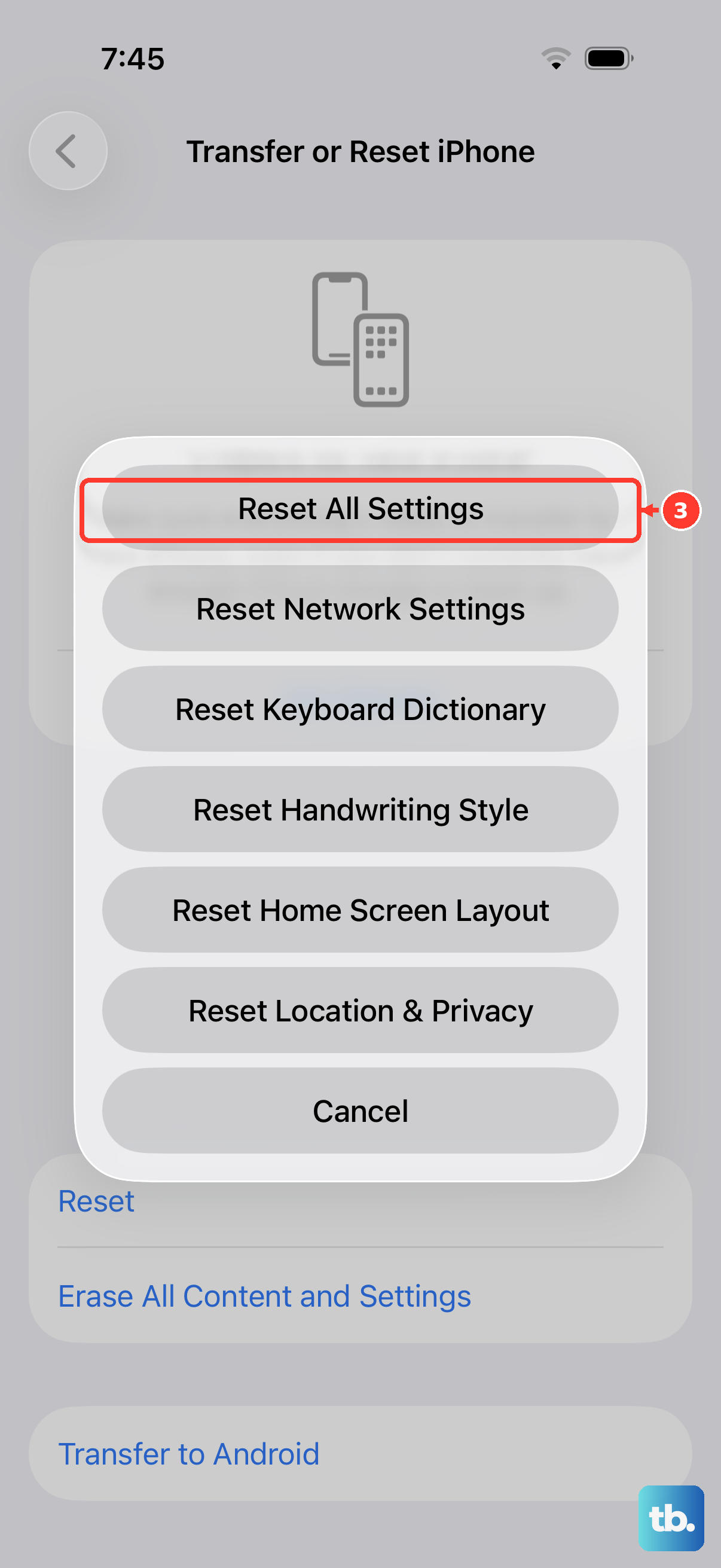
This is a more thorough step that resets every system setting on your iPhone 17 Pro back to factory defaults. It won't delete your photos, messages, or apps, but you will need to reconfigure things like Wi-Fi passwords, wallpaper, and privacy permissions.
To do this, navigate to Settings > General > Transfer or Reset iPhone. Tap "Reset" at the bottom, then choose "Reset All Settings." Enter your passcode to confirm.
Review Scheduled Summary and Notification Delivery
iOS has a feature called Scheduled Summary that bundles non-urgent notifications to deliver at specific times of day. If your alerts seem to arrive in batches, this might be why.
Go to Settings > Notifications > Scheduled Summary to see which apps are included and adjust the schedule. Also, open any app in that list that matters to you and make sure its delivery is set to Immediate Delivery rather than Scheduled Summary.
Check Screen Time and Communication Limits
Screen Time's communication limits can restrict who is able to reach you. Go to Settings > Screen Time > Communication Limits.
Tap "During Screen Time" and make sure it's not set to "Contacts Only," which limits calls and messages to people in your contacts. Set it to "Everyone" to rule this out as the cause.
Sign Out and Back Into Your Apple Account
A glitch with your account can sometimes be the culprit. Go to Settings and tap your name at the top.
Scroll all the way down and tap "Sign Out." You'll be asked to keep a copy of your keychain and data on the iPhone, which you should do. After signing out, restart your phone, then go back to Settings to sign in again.