
When your iPhone 17 Pro Max won't charge on a wireless pad, it's frustrating, especially with that big battery. The issue is almost always a simple fix, like a slight misalignment or a software hiccup, rather than a serious hardware problem. Let's get it working again.
Center It Perfectly on the Pad
Wireless charging needs near-perfect alignment between the coils. Place your iPhone 17 Pro Max dead center on the charging pad and wait a moment for the charging chime or on-screen indicator. Being off by even a few millimeters can prevent the connection from starting. If you're using a MagSafe or Qi2 charger, the magnets should pull it into the right spot automatically.
Take the Case Off
Your case is the most common culprit. Thick cases, ones with metal plates for car mounts, or wallet cases with credit cards can block the charging signal. Pop the case off and try charging the bare phone. If it works, you'll need a case specifically rated for MagSafe or Qi2 wireless charging.
Most slim silicone or plastic cases are fine, but anything that adds significant thickness or contains metal will cause problems. I'd start with this step, as it's the quickest check.
Verify Your Charger is Working
Make sure your wireless charger is plugged into a working outlet and has a power light on. Try a different wall socket. The charger itself might need a powerful enough adapter, especially for fast charging. For the fastest MagSafe wireless charging on your 17 Pro Max, use a MagSafe Charger with a 30W or higher USB-C power adapter; Apple lists MagSafe wireless charging for iPhone 17 Pro Max as up to 25W.
Using the small 5W adapter from an old iPhone will not support faster MagSafe charging. iPhone 17 Pro Max includes a USB-C Charge Cable, but Apple says it does not include a power adapter, so use a compatible USB-C adapter rated for the charger you are using.
Give Your iPhone a Quick Restart
A simple restart clears out temporary software glitches that can mess with the charging system. Press and quickly release the Volume Up button, then quickly press and release the Volume Down button. Finally, press and hold the Side button until you see the Apple logo appear, then let go.
Once it boots back up, place it on the charger again. This takes about 30 seconds and fixes a lot of odd behaviors.
Clean the Phone and Charger Surfaces
Dust, lint, or a smudge on the back glass of your iPhone or the surface of the charging pad can be enough to break the connection. Wipe both down firmly with a soft, dry, lint-free cloth. Pay special attention to the center of the phone's back and the center of the pad.
Install the Latest iOS Update
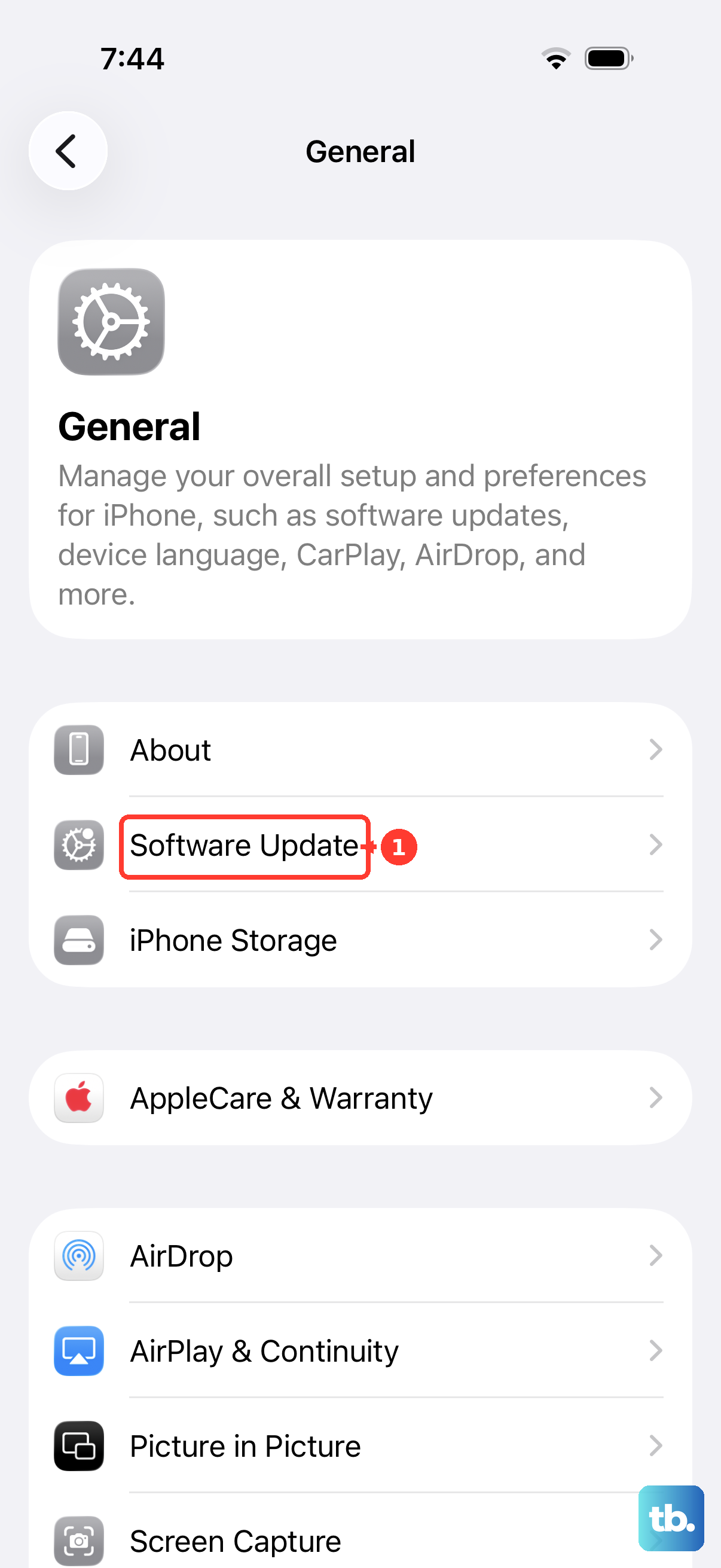
Head to Settings > General > Software Update. If there's an update available for iOS 26, install it. Apple routinely releases updates that fix bugs related to power management and peripheral connectivity. Keeping your phone updated is one of the best ways to prevent these kinds of issues.
Let It Cool Down First
The iPhone 17 Pro Max can get warm during fast charging sessions, especially wirelessly. If the phone gets too hot, iOS will pause charging to protect the battery's long-term health. This often happens if you're using the phone heavily while it's on the pad or if the environment is already warm.
Take the phone off the charger, let it cool to room temperature, and try again. Also, make sure you're not leaving it in direct sunlight.
Reset Your iPhone's Settings
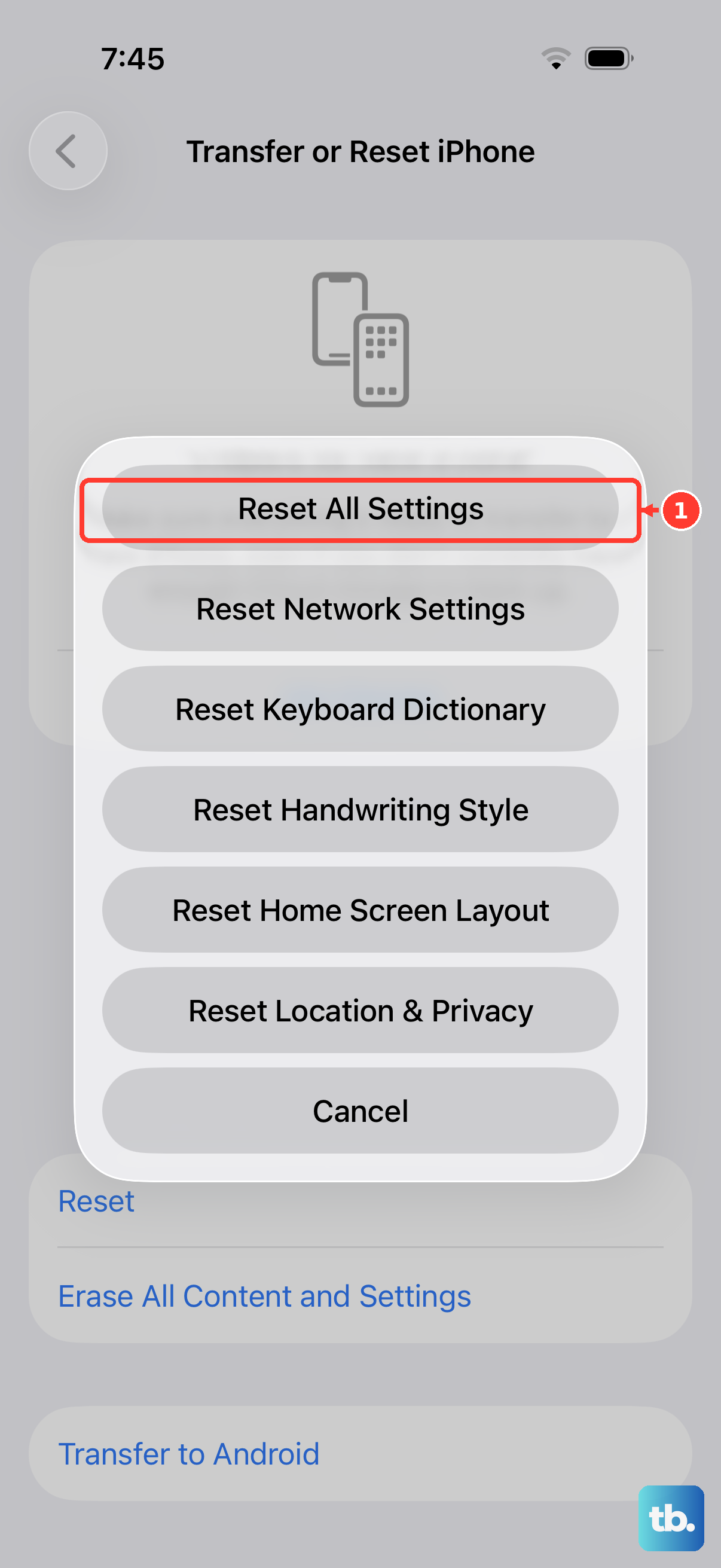
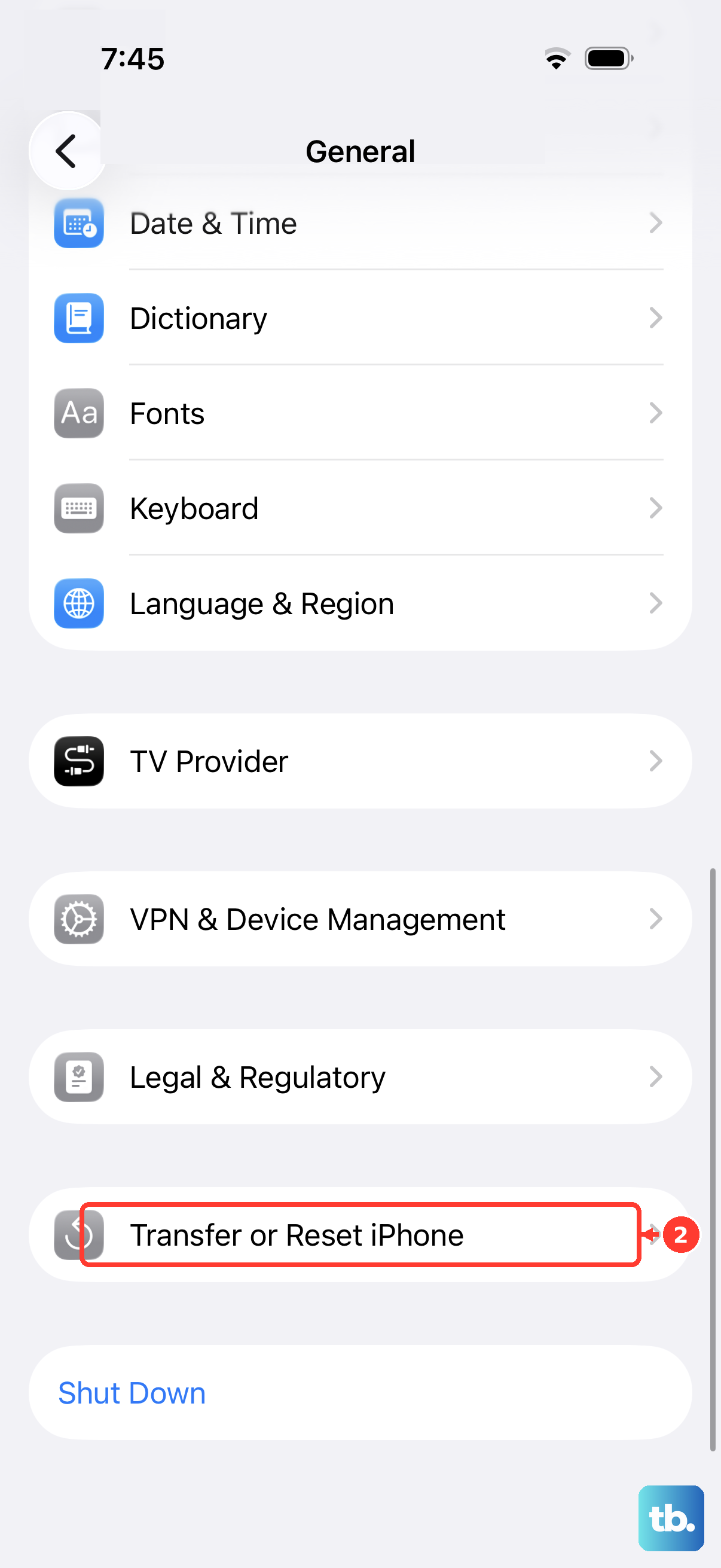
If a restart didn't help, a settings reset might. This won't delete your photos, apps, or data. Go to Settings > General > Transfer or Reset iPhone. Tap Reset and then choose Reset All Settings.
You'll need to re-enter your Wi-Fi passwords and reconfigure some preferences, but it can resolve deeper software conflicts affecting hardware functions like charging.
Test With a Different Wireless Charger
This tells you where the problem lies. Try charging your iPhone 17 Pro Max on a different MagSafe or Qi2 charger. If it works, your original charging pad is faulty. If it still doesn't charge, the issue is likely with the phone itself.
Remember, for the fastest possible wireless charging, you want a MagSafe Charger or Qi2-certified wireless charger that supports this iPhone's peak wireless charging speed. Apple lists MagSafe and Qi2 wireless charging for iPhone 17 Pro Max as up to 25W. A standard Qi-certified pad can still charge an iPhone, but it will be slower.