
When your iPhone 17 Pro Max won't download or install apps from the App Store, it can bring your day to a halt. Apps are how you get things done, so a stuck download is more than a minor annoyance. The good news is that most of these issues have straightforward fixes you can handle yourself.
Let's go through the most effective solutions to get your App Store working again.
Check Your Internet Connection First
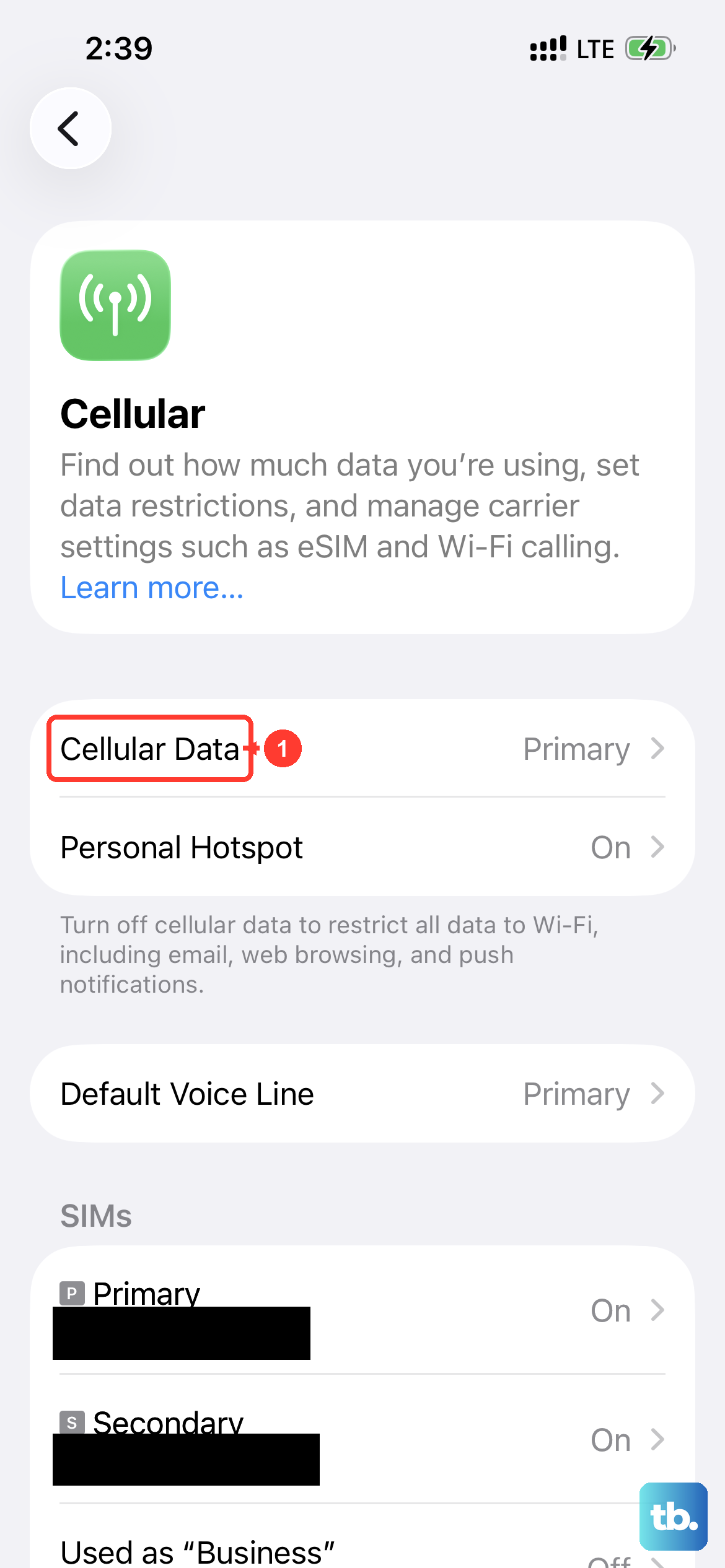
A stable connection is the most common culprit. Whether you're on Wi-Fi or 5G, the App Store needs a solid link to Apple's servers. Pull down from the top-right corner to open Control Center and make sure your Wi-Fi or cellular icon is active.
If you're on Wi-Fi, try toggling it off and back on. For cellular data, ensure it's enabled for the App Store by going to Settings > Cellular and scrolling down to make sure "App Store" is switched on.
Force Restart Your iPhone 17 Pro Max
This is my go-to first step for any unexplained glitch. It clears the device's temporary memory without affecting your data. On the iPhone 17 Pro Max, you press and quickly release the Volume Up button, then press and quickly release the Volume Down button.
Finally, press and hold the Side button. Keep holding it until you see the Apple logo appear, then let go. This usually takes about 10-15 seconds. Once it reboots, try the App Store again.
Sign Out and Back Into Your Apple ID
Your Apple ID is the key to the App Store. Sometimes, a hiccup in the authentication can block downloads. To refresh this, open Settings and tap your name at the top. Scroll all the way down and tap Sign Out.
You'll be asked if you want to keep a copy of your keychain, contacts, and other data on the iPhone. It's generally safe to leave these on. After signing out, restart your phone, then go back to Settings, sign back in with your Apple ID password, and test the App Store.
Check Your Date, Time, and Region
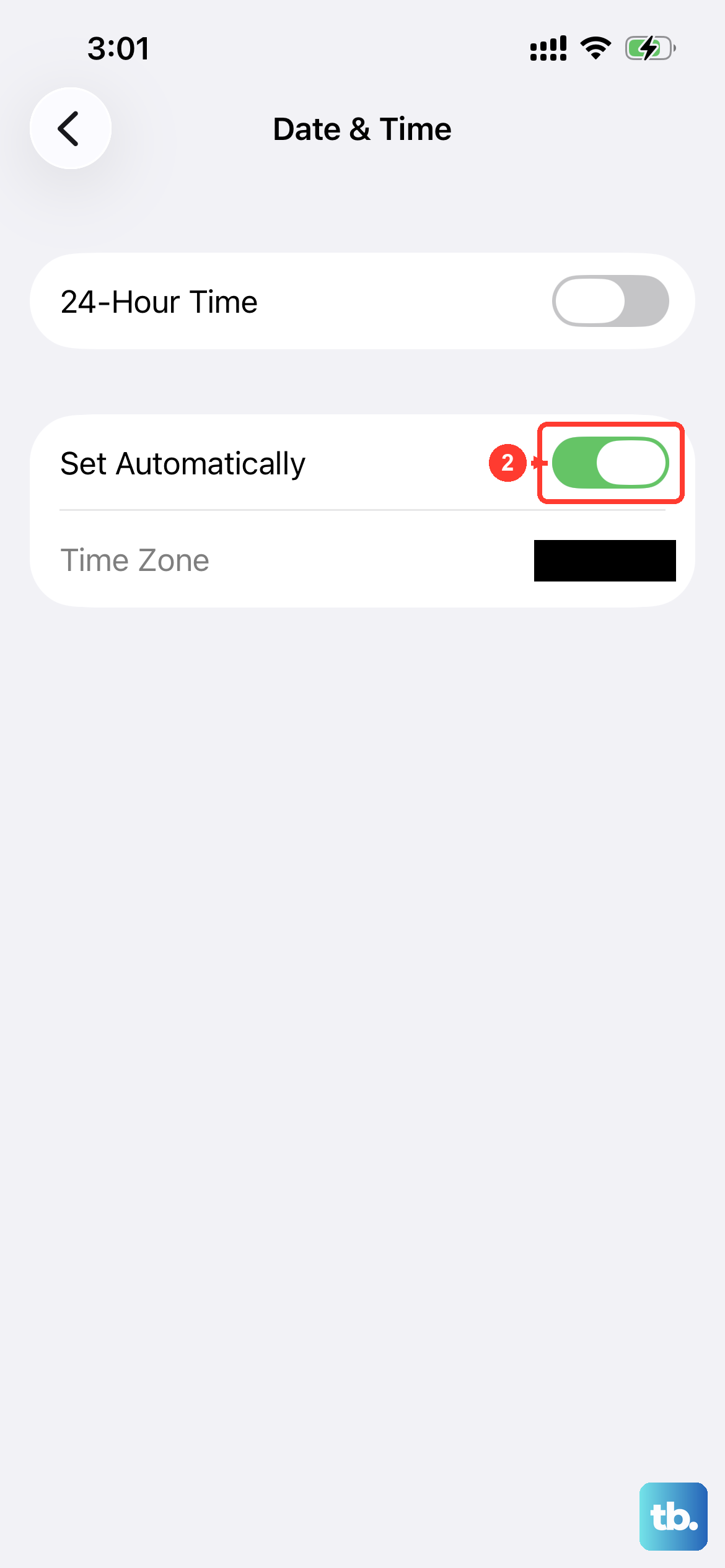
The App Store verifies your device's time and location settings. If they're incorrect, downloads can fail. Go to Settings > General > Date & Time. Make sure "Set Automatically" is turned on.
Also, check your region setting. Go to Settings > General > Language & Region. Ensure your region is set correctly, as some apps have geographic restrictions.
Update iOS on Your iPhone 17 Pro Max
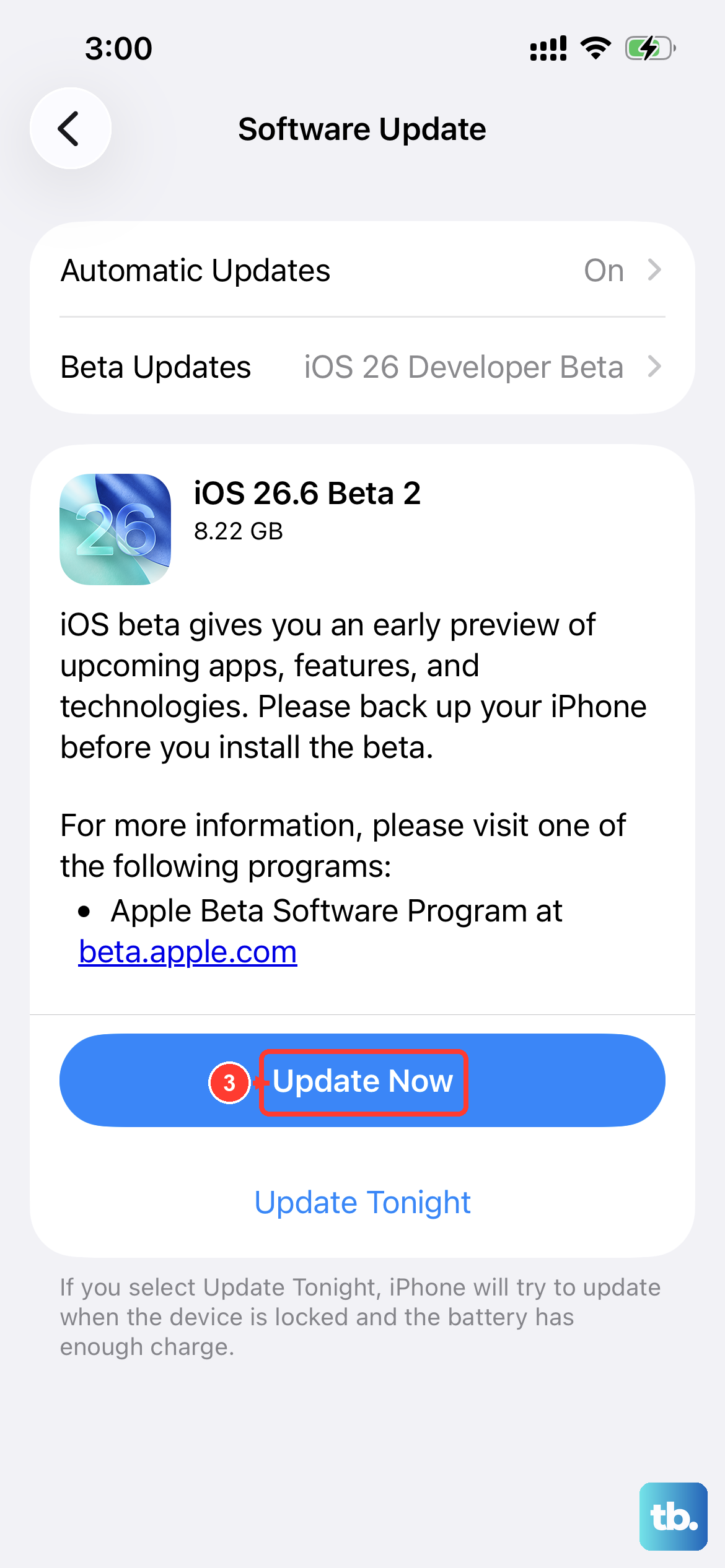
Running an outdated version of iOS 26 can cause compatibility issues with the App Store's latest requirements. To check, go to Settings > General > Software Update.
If an update is available, I'd recommend installing it while your phone is connected to Wi-Fi and power. The large battery in the 17 Pro Max means the update won't drain you, but it's still a good practice.
Check Your Available Storage
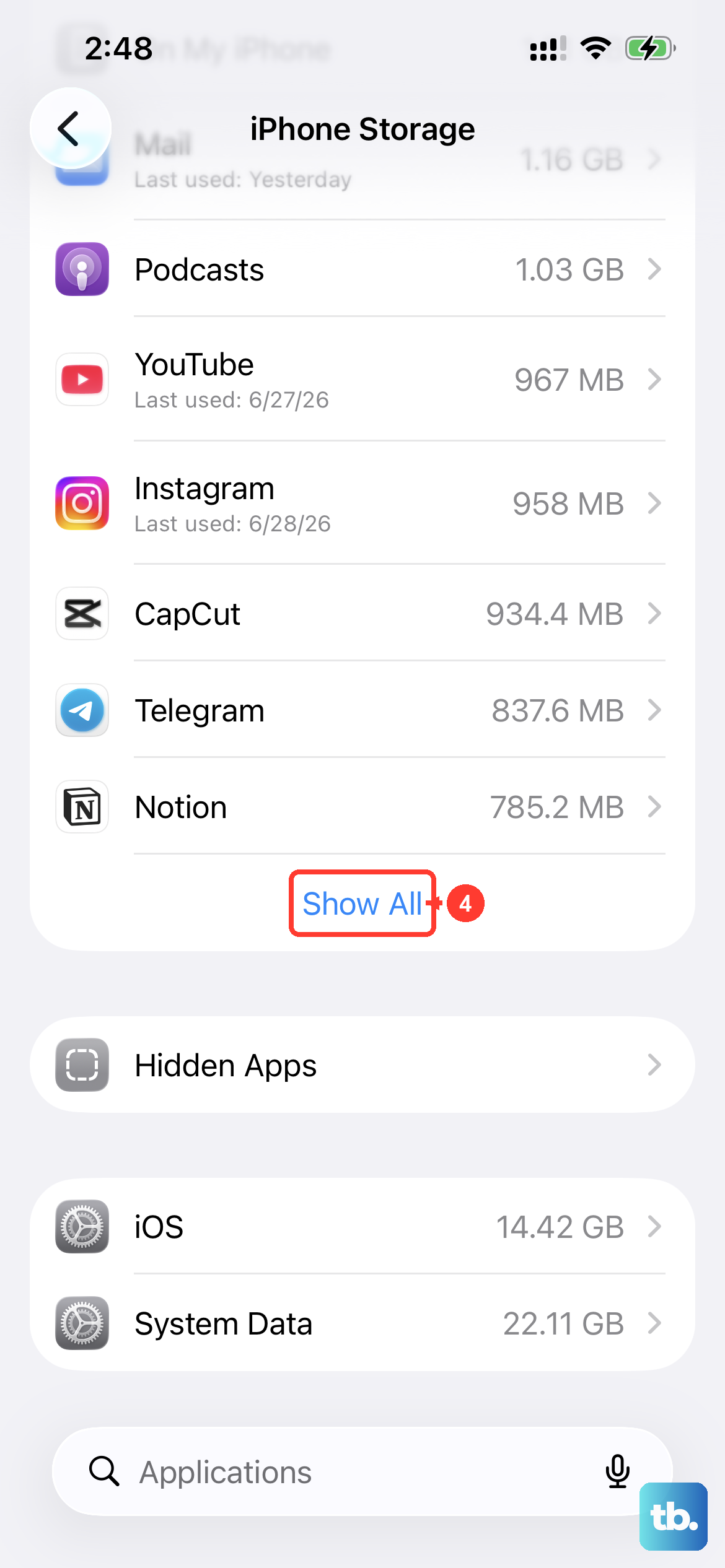
The iPhone 17 Pro Max can hold a lot, but if you're into high-res video or gaming, space can fill up fast. The App Store needs free space to download and unpack app files. Go to Settings > General > iPhone Storage.
If you're low, the system might suggest offloading unused apps or reviewing large attachments. You can also manually delete old videos or apps you no longer need to free up room for new downloads.
Reset Your Network Settings
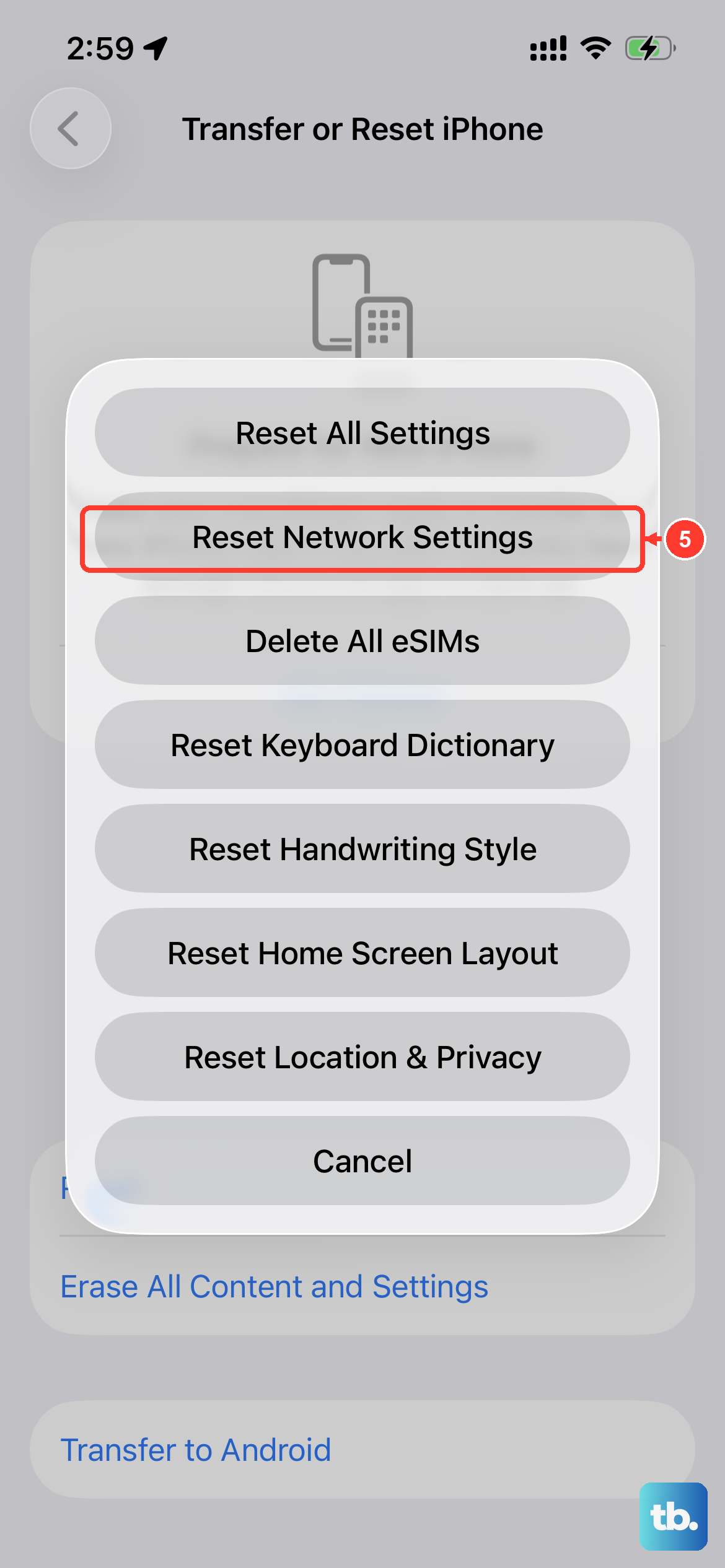
This step clears all your Wi-Fi passwords, cellular settings, and VPN configurations. It's a deeper fix for persistent connection issues that might be affecting the App Store. Go to Settings > General > Transfer or Reset iPhone.
Tap Reset and then choose Reset Network Settings. Your iPhone will restart. Afterward, you'll need to rejoin your Wi-Fi networks, but it often resolves stubborn download problems.
Check Screen Time and Content Restrictions
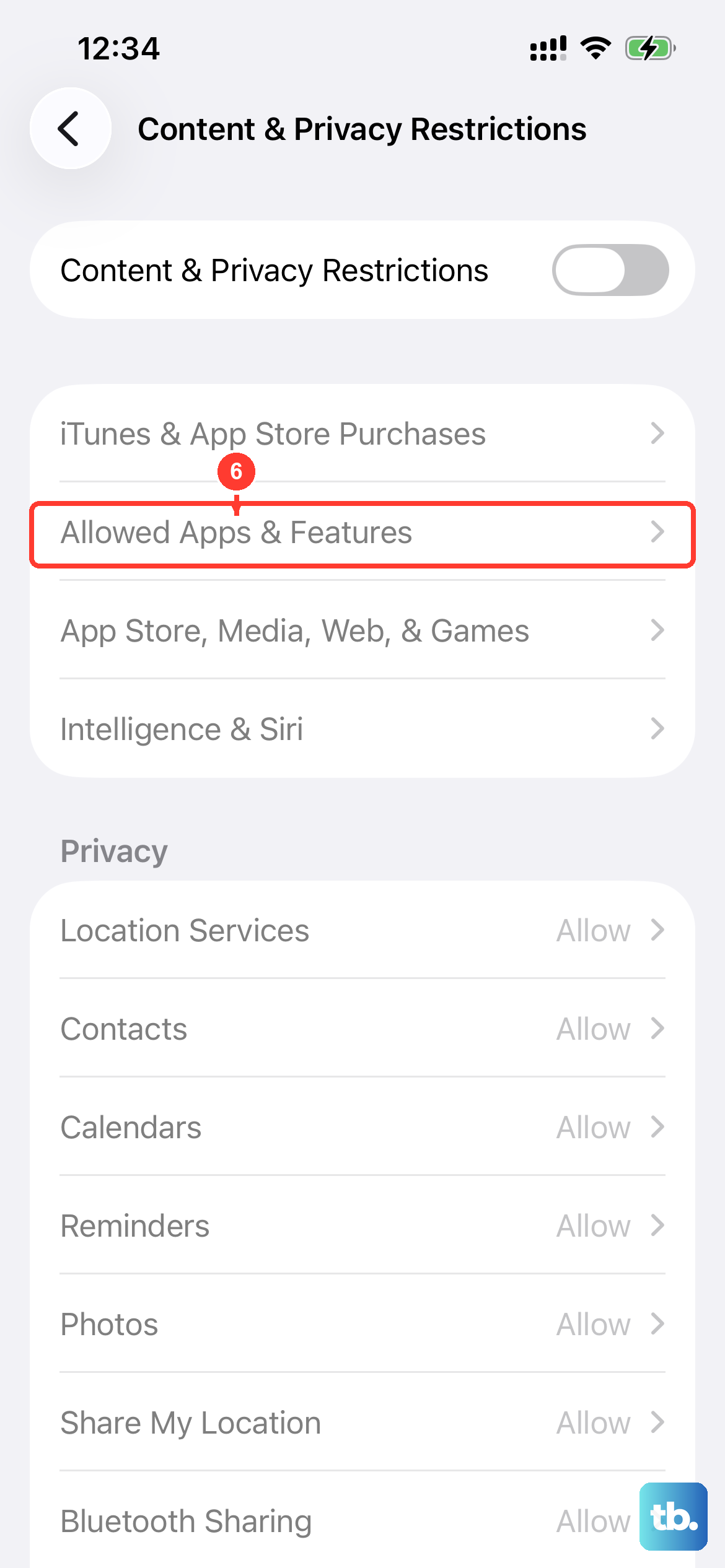
If you or someone else has set up Screen Time, there might be a restriction blocking app downloads. Go to Settings > Screen Time. Tap Content & Privacy Restrictions.
If it's on, enter your Screen Time passcode. Then, tap iTunes & App Store Purchases. Make sure "Installing Apps" is set to "Allow". Also, check "Allowed Apps" to ensure the App Store itself isn't disabled.
Force Quit and Relaunch the App Store
Sometimes the App Store app itself gets stuck. To force close it, swipe up from the bottom of the screen and hold in the middle (or double-press the Side button, depending on your settings). Find the App Store card and swipe it up to close it.
Wait a few seconds, then tap the App Store icon to reopen it. This gives it a fresh start and can clear up temporary issues.
Review Your Payment Method
Even for free apps, the App Store validates your payment information on file. An expired or declined payment method can sometimes halt all downloads. Open the App Store app and tap your profile icon in the top right.
Tap Manage Payments. Check that your payment method is current and valid. If needed, you can update it or add a new one here. This simple check resolves more download errors than you might think.